1. Introducció
This manual provides detailed instructions for the safe and effective use of your DJI Osmo Mobile SE 3-Axis Phone Gimbal. Please read this manual thoroughly before operation to ensure proper setup and functionality.
1.1. Contingut del paquet
Verifiqueu que tots els elements que s'enumeren a continuació siguin presents al vostre paquet:
- Osmo Mobile SE Gimbal x1
- Telèfon magnètic DJI OM Clamp 3 x 1
- Grip Tripod x1
- Cable d'alimentació x1
- Bossa d'emmagatzematge x1
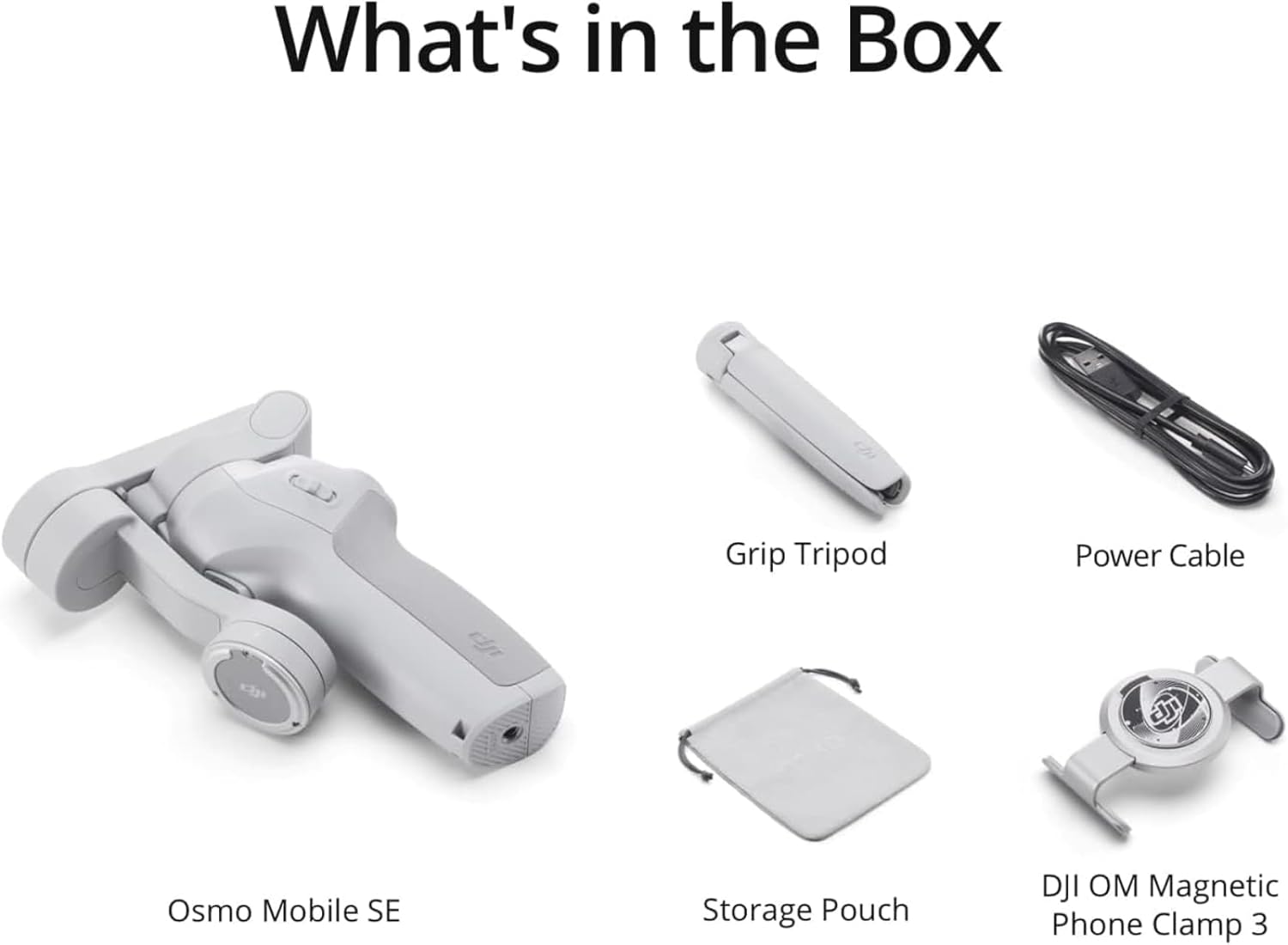
Figure 1.1: DJI Osmo Mobile SE Package Contents. This image displays all components included with the DJI Osmo Mobile SE: the gimbal unit, the magnetic phone clamp, a small grip tripod, a USB-C power cable, and a soft storage pouch.
2. Configuració
2.1. Càrrega del Gimbal
Before first use, fully charge the gimbal. Connect the provided power cable to the charging port on the gimbal and a USB power adapter (not included). The status indicator will show charging progress.
2.2. Attaching the Phone Clamp
The DJI Osmo Mobile SE features a magnetic quick-release design. Attach the magnetic phone clamp to your smartphone. Ensure the clamp is centered on your phone for optimal balance.

Figure 2.1: Magnetic Quick-Release Design. This diagram illustrates how the magnetic phone clamp attaches to the smartphone and then magnetically connects to the gimbal for quick setup and removal.
2.3. Mounting the Smartphone
Once the phone clamp is attached to your smartphone, align the clamp with the magnetic mounting point on the gimbal. The magnets will secure the phone in place. Ensure the phone is balanced before powering on the gimbal.

Figure 2.2: Smartphone Mounted on Gimbal. The image shows the DJI Osmo Mobile SE with a smartphone securely attached to the magnetic clamp, ready for stabilization.
2.4. Instal·lació de l'aplicació DJI Mimo
Download and install the DJI Mimo app on your smartphone. This app is essential for unlocking the full features of the Osmo Mobile SE, including ActiveTrack, ShotGuides, and various shooting modes. For Android users, please download the app directly from the DJI official website due to platform compatibility issues on Google Play.
For iOS users, search for "DJI Mimo" in the Apple App Store.
2.5. Powering On and Connecting
Press and hold the power button to turn on the gimbal. Enable Bluetooth on your smartphone and open the DJI Mimo app. Follow the in-app instructions to connect your Osmo Mobile SE.
3. Instruccions de funcionament
3.1. Modes del cardan
The Osmo Mobile SE features a status display panel to quickly switch between gimbal modes:
- Mode de seguiment: The gimbal follows your pan and tilt movements.
- Tilt Lock Mode: The gimbal only follows your pan movements; tilt and roll axes are locked.
- Mode FPV: Els tres eixos (panorama, inclinació, balanceig) segueixen els teus moviments, proporcionant una visió en primera persona view efecte.
- Spin Shot Mode: The gimbal rotates the phone for dynamic spinning shots.
3.2. ActiveTrack 6.0
ActiveTrack 6.0 allows the gimbal to automatically track a selected subject. In the DJI Mimo app, draw a box around the subject on the screen to initiate tracking. The gimbal will then keep the subject centered in the frame.

Figure 3.1: ActiveTrack 6.0 in Action. This image illustrates the gimbal's ActiveTrack 6.0 feature successfully tracking a moving subject (a dog) even with potential obstructions, keeping it centered in the frame.
3.3. Remote Control with Apple Watch
If you own a compatible Apple Watch (Series 7/8/9, SE 2, Ultra 1/2 with watchOS 9 or later), you can install the DJI Mimo app on your watch. This allows you to remotely view camera feeds, adjust gimbal angles, and control photo/video capture directly from your wrist.

Figure 3.2: Remote Control via Apple Watch. The image demonstrates the capability to control the DJI Osmo Mobile SE remotely using an Apple Watch, showing the live camera feed on the watch screen.
3.4. Landscape and Portrait Switching
The gimbal supports quick switching between landscape (horizontal) and portrait (vertical) shooting orientations. This can typically be done by double-pressing the M button or through the DJI Mimo app, depending on the current mode.
3.5. Editing Features (DJI Mimo & LightCut)
The DJI Mimo app offers ShotGuides for shot-by-shot assistance. Additionally, the LightCut app (recommended by DJI) provides numerous templates and AI-powered one-tap editing features to enhance your footage.

Figure 3.3: In-App Editing and Tutorials. This image illustrates the user interface of the DJI Mimo or LightCut app on a smartphone, highlighting the availability of tutorials and one-tap editing features for video creation.
4. Manteniment
4.1. Neteja
Wipe the gimbal with a soft, dry cloth. Do not use liquid cleaners or solvents. Ensure no dust or debris accumulates in the motor joints or buttons.
4.2. Emmagatzematge
Store the Osmo Mobile SE in its provided storage pouch in a cool, dry place away from direct sunlight and extreme temperatures. Avoid placing heavy objects on the gimbal.

Figure 4.1: Portable and Foldable Design. The image shows the compact, folded state of the DJI Osmo Mobile SE, making it easy to store and carry in a small bag.
4.3. Cura de la bateria
Per allargar la durada de la bateria, eviteu descarregar-la completament amb freqüència. Si la guardeu durant períodes prolongats, carregueu-la aproximadament al 50-60% cada tres mesos.
5. Solució De Problemes
5.1. Gimbal Not Powering On
- Ensure the battery is charged. Connect the gimbal to a power source and check the charging indicator.
- Press and hold the power button for a few seconds to ensure it's not a short press.
5.2. Unstable Footage
- Verify the smartphone is properly balanced on the magnetic clamp. Adjust its position if necessary.
- Ensure the gimbal firmware is up to date via the DJI Mimo app.
- Recalibrate the gimbal through the DJI Mimo app if the issue persists.
5.3. Problemes de connexió de l'aplicació
- Assegureu-vos que el Bluetooth estigui habilitat al vostre telèfon intel·ligent.
- Restart both the gimbal and the DJI Mimo app.
- For Android users, confirm the DJI Mimo app was downloaded from the official DJI weblloc.
5.4. ActiveTrack Not Working
- Ensure sufficient lighting conditions.
- The subject should be clearly visible and distinct from the background.
- Avoid rapid, erratic movements that may exceed tracking capabilities.
6. Especificacions
| Característica | Detall |
|---|---|
| Dimensions del producte (desplegat) | 10.33 x 4.7 x 4.09 polzades |
| Folded Size (L×W×H) | 6.57 × 4.29 × 1.85 polzades |
| Pes de l'article | 12.4 unces (352 grams) |
| Bateries | 1 bateria CR5 (inclosa) |
| Dispositius compatibles | Telèfons intel·ligents (iPhone, Android) |
| Número de model | Osmo Mobile SE |
| UPC | 190021064256 |
6.1. Mobile Phone Compatibility
The DJI Osmo Mobile SE is compatible with most iPhone, Samsung Galaxy, Huawei, and Google Pixel series smartphones. For detailed compatibility, refer to the DJI official website or the DJI Mimo app.

Figure 6.1: Mobile Phone Compatibility List. This table provides an overview of supported smartphone models, including iPhones, Samsung Galaxy, and Google Pixel devices, detailing their camera capabilities and compatibility with gimbal features like ActiveTrack.
7. Garantia i Suport
7.1. Official Warranty
DJI products come with an official warranty. For specific warranty terms, conditions, and duration, please refer to the warranty card included with your product or visit the official DJI weblloc web. Conserveu el comprovant de compra per a reclamacions de garantia.
7.2. Suport tècnic
For technical assistance, troubleshooting, or service inquiries, please contact DJI customer support. Contact information can be found on the official DJI website or within the DJI Mimo application.


