1. Introducció
The MoesGo 2nd Generation Smart Bluetooth Fingerbot Plus is a device designed to automate the pressing of physical buttons and switches. It integrates with smart home ecosystems, allowing for remote control, scheduling, and voice commands through compatible applications and hubs. This manual provides detailed instructions for setup, operation, and maintenance to ensure optimal performance of your Fingerbot Plus.

Image 1.1: MoesGo 2nd Generation Smart Bluetooth Fingerbot Plus. This image shows the compact white cube-shaped device with its mechanical arm extended, ready to press a button.
2. Característiques del producte
- Connectivitat Bluetooth: Supports direct point-to-point control via Bluetooth from your smartphone without a hub.
- Compatibilitat del concentrador: Works with a Tuya Bluetooth Hub for remote control, Alexa, and Google Home integration.
- Programació: Program automatic on/off times using timer or countdown schedules.
- Disseny modular: Features a replaceable arm system to accommodate various switch and button types. Tool packs are sold separately.
- Control tàctil manual: Allows for manual activation directly on the device.

Image 2.1: Comparison of Fingerbot Plus and Original Fingerbot. This graphic illustrates the enhanced features of the Fingerbot Plus, including increased clicking life (3k to 15k clicks), extended movement range (8mm to 12mm), higher force (9N to 15N), and larger battery capacity (500mAh to 800mAh).

Image 2.2: Fingerbot Plus compatibility with various switch types. This image shows the Fingerbot Plus attached to different types of switches and buttons, including toggle switches, rocker switches, and standard push buttons, demonstrating its versatility.
3. Instruccions de configuració
3.1 Initial Device Preparation
- Assegureu-vos que el Bluetooth del vostre telèfon intel·ligent estigui activat.
- Open the Fingerbot Plus casing and remove the battery insulator. The Fingerbot will blink three times, indicating it is in pairing mode.
3.2 Connecting with the Smart Life App (Bluetooth Direct)
- Download and install the "Smart Life" or "Tuya Smart" app from your device's app store.
- Obre l'aplicació i inicia la sessió o crea un compte.
- In the app, navigate to "Add Device" or the "+" icon. The app should automatically detect the Fingerbot Plus in pairing mode.
- Follow the on-screen prompts to complete the pairing process. If the Fingerbot is not detected, press the button on the Fingerbot until it blinks three times to re-enter pairing mode.

Image 3.1: Smart Life App Connection Steps. This image displays a six-step visual guide on how to connect the Fingerbot Plus to the Smart Life application, from opening the app to successful device display.
3.3 Connecting with a Tuya Bluetooth Hub (for Remote Control & Voice Assistants)
To enable remote control functionality and integrate with voice assistants like Alexa or Google Home, a Tuya Bluetooth Hub is required.
- Ensure your Tuya Bluetooth Hub is set up and connected to your home Wi-Fi network according to its own instruction manual.
- In the Smart Life app, add the Fingerbot Plus through the gateway. The app will guide you through linking the Fingerbot to the hub.
- Once connected to the hub, you can enable integrations with Alexa or Google Home through the Smart Life app's settings.

Image 3.2: Benefits of adding a Bluetooth Hub. This image illustrates how adding a Bluetooth hub enables voice control, remote control, enhanced app control, and scheduling capabilities for the Fingerbot Plus.
3.4 Instal·lació física
The Fingerbot Plus attaches to surfaces using adhesive strips. For optimal performance, ensure the surface is clean and dry.
- Identify the button or switch you wish to automate.
- Clean the area around the button/switch where the Fingerbot Plus will be mounted.
- Peel the backing from the adhesive strip on the Fingerbot Plus.
- Carefully align the Fingerbot Plus so its arm is positioned directly over the center of the button/switch. Press firmly to secure it in place.
- If using a separate tool pack for specific switch types (e.g., rocker switches), attach the appropriate tool to the Fingerbot arm before mounting.

Image 3.3: Modular design of Fingerbot Plus. This image shows the Fingerbot Plus device alongside various interchangeable tool arms, highlighting its adaptability for different button and switch configurations. Note: Tool packs are sold separately.

Image 3.4: Fingerbot tool pack dimensions. This image provides detailed measurements for various Fingerbot tool pack accessories, including different arm lengths and shapes, to assist with selecting the correct tool for specific applications.
4. Instruccions de funcionament
4.1 Control d'aplicacions
Once connected to the Smart Life app, you can control the Fingerbot Plus directly from your smartphone.
- On/Off: Tap the designated button in the app to activate or deactivate the Fingerbot.
- Movement Adjustment: Adjust the "Down Movement" and "Up Movement" sliders to fine-tune how far the Fingerbot arm extends and retracts.
- Sustain Time: Set the "Sustain Time" to control how long the Fingerbot arm holds the button/switch in the pressed position. This is useful for devices requiring a longer press.
- Control tàctil: The Fingerbot Plus features a touch-sensitive panel for manual activation. This can be enabled or disabled within the app settings.
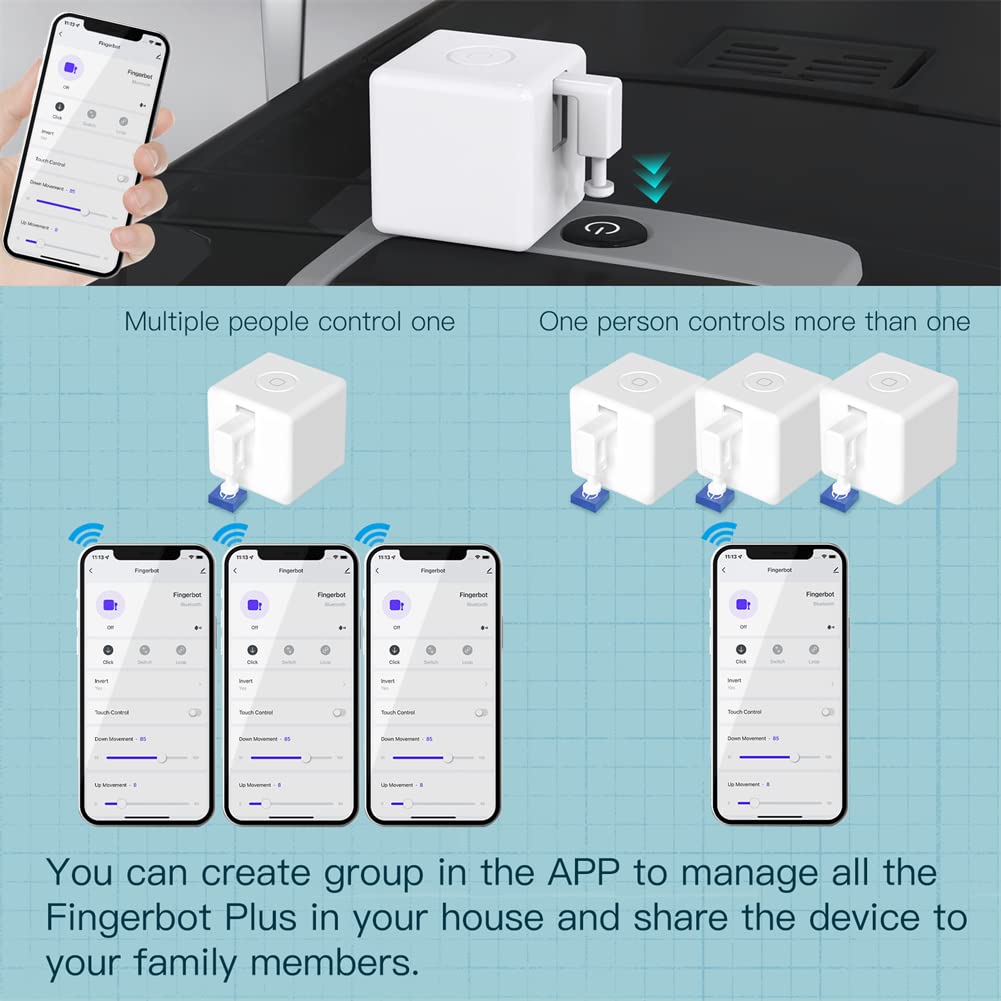
Image 4.1: Multiple control options for Fingerbot Plus. This image illustrates how multiple users can control a single Fingerbot Plus, or how one user can control multiple Fingerbot Plus devices, by creating groups and sharing access within the Smart Life app.

Image 4.2: Adjusting Sustain Time in Smart Life App. This image shows the Smart Life app interface with a slider for "Sustain Time," demonstrating how users can set the duration for which the Fingerbot arm presses a button, from 1 second to 8 seconds.

Image 4.3: Disabling Touch Control in Smart Life App. This image shows the Smart Life app interface with a toggle switch to disable "Touch Control," preventing accidental activations, especially useful in households with children.
4.2 Voice Control (with Tuya Bluetooth Hub)
If connected to a Tuya Bluetooth Hub and integrated with Alexa or Google Home, you can use voice commands.
- Ensure your Fingerbot Plus is named appropriately in the Smart Life app (e.g., "Living Room Light").
- Utilitzeu ordres com ara:
- "Alexa, activa el [nom del dispositiu]."
- "Ei Google, desactiva el [nom del dispositiu]."

Image 4.4: Voice control with Alexa and Google Home. This image depicts the Fingerbot Plus activating a device via voice commands, with Amazon Alexa and Google Home devices shown in the background.
4.3 Programació
Set up schedules for automatic operation within the Smart Life app.
- In the Smart Life app, navigate to the Fingerbot Plus device settings.
- Select "Schedule" or "Timer" options.
- Set desired on/off times, days of the week, and specific actions (e.g., "Click" or "Switch").

Image 4.5: Scheduling automatic ON/OFF with Smart Life App. This image shows an example of setting a daily schedule (e.g., 7:00 AM ON / 5:30 PM OFF) for a traditional curtain switch using the Smart Life app.
5. Manteniment
- Neteja: Wipe the device with a dry, soft cloth. Do not use liquid cleaners or immerse the device in water.
- Medi ambient: Avoid using the Fingerbot Plus in humid environments.
- Bateria: The device uses a replaceable battery. Refer to the specifications for battery type. Replace the battery when performance degrades or the device becomes unresponsive.
6. Solució De Problemes
If you encounter issues with your MoesGo Fingerbot Plus, refer to the following common solutions:
- El dispositiu no respon:
- Check battery level in the app or replace the battery.
- Ensure Bluetooth is enabled on your phone and you are within range for direct control.
- If using a hub, verify the hub is online and connected to the internet.
- Re-enter pairing mode by pressing the button on the Fingerbot until it blinks three times, then attempt to reconnect via the app.
- Cannot Connect to Smart Life App:
- Confirm the Fingerbot is in pairing mode (blinking three times).
- Ensure your phone's Bluetooth is on.
- Try restarting the Smart Life app and your phone's Bluetooth.
- If connecting via a hub, ensure the hub is properly configured and online.
- El control per veu no funciona:
- Verify the Fingerbot Plus is successfully linked to your Tuya Bluetooth Hub.
- Check that the Smart Life skill/action is enabled in your Alexa or Google Home app.
- Ensure the device name in Smart Life matches the name you are using for voice commands.
- Try re-syncing devices in your Alexa/Google Home app ("Alexa, discover devices").
- Fingerbot Arm Not Moving Correctly:
- Check for any obstructions preventing the arm's movement.
- Adjust the "Down Movement" and "Up Movement" settings in the Smart Life app.
- Ensure the Fingerbot is securely mounted and aligned with the button/switch.
- If using a tool pack, ensure it is correctly attached.
- Device Not Working in Humid Environment:
- The Fingerbot Plus is not designed for humid environments. Relocate the device to a dry area.
7. Especificacions
| Característica | Detall |
|---|---|
| Dimensions del producte | 1 x 1 x 1 polzades; 2.08 unces |
| Marca | MoesGo |
| Mode d'operació | ON-OFF-ON |
| Tipus de connector | Sense fil (Bluetooth) |
| Tipus de contacte | Normalment obert |
| Tipus de circuit | 3 vies |
| Tipus d'actuador | Rocker |
| Classificació de protecció internacional | IP54 |
| Nombre de llocs | 3 |
| Fabricant | Hangzhou Adaprox Intelligent Technology Co.,Ltd |
| ASIN | B0B97G3B8G |
8. Garantia i Suport
For warranty information and technical support, please contact MoesGo customer service. Details can typically be found on the official MoesGo weblloc web o a través de la vostra plataforma de compra.
Per obtenir recursos addicionals i informació sobre el producte, visiteu MoesGo Store.


