1. Introducció
This manual provides essential information and instructions for the safe and efficient use of your Gateway GWTN141-10BK 14.1-inch laptop. Please read this manual thoroughly before operating your device and retain it for future reference. Adhering to the guidelines in this document will help ensure optimal performance and longevity of your laptop.
2. Contingut del paquet
Verifiqueu que tots els elements siguin presents al paquet:
- Gateway GWTN141-10BK 14.1-inch Laptop
- Adaptador d'alimentació
- Guia d'inici ràpid (si s'inclou)
- Informació de garantia (si s'inclou)
If any items are missing or damaged, contact your retailer or Gateway support.
3. Dispositiu acabatview
Familiarize yourself with the physical components and ports of your Gateway GWTN141-10BK laptop.

Figura 3.1: Davant view of the Gateway GWTN141-10BK laptop with the screen open. The keyboard and touchpad are visible, along with the Gateway logo on the bottom bezel and palm rest.
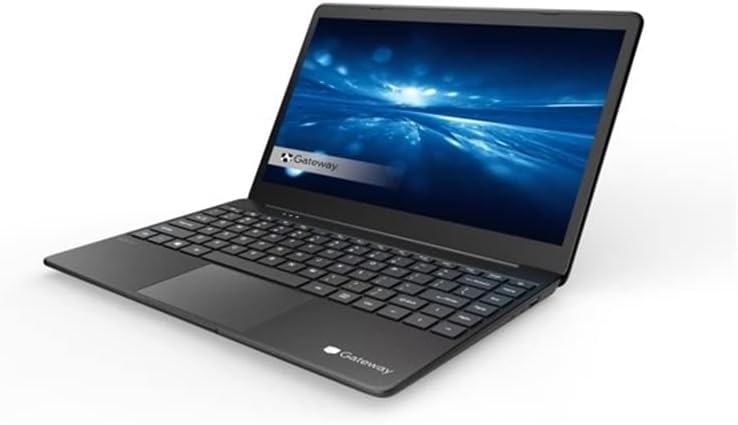
Figura 3.2: En angle view of the Gateway GWTN141-10BK laptop, showcasing el pro primfile and the keyboard layout. The screen displays a blue abstract background.
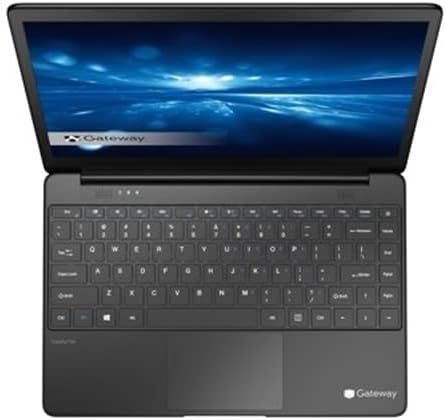
Figura 3.3: De dalt a baix view of the Gateway GWTN141-10BK laptop, highlighting the full keyboard, touchpad, and the webcam located above the screen.
3.1. Ports i connectors
- Ports USB: For connecting external devices such as mice, keyboards, and storage drives.
- Port HDMI: Per connectar pantalles o projectors externs.
- Jack d'àudio: Per connectar auriculars o altaveus externs.
- Entrada d'alimentació: Per connectar l'adaptador de corrent per carregar el portàtil.
4. Configuració
4.1. Engegada inicial
- Connecteu l'adaptador de corrent al port d'entrada d'alimentació del portàtil i després a una presa de corrent.
- Obriu la tapa de l'ordinador portàtil.
- Press the power button, typically located on the keyboard or side of the laptop.
- Seguiu les instruccions que apareixen a la pantalla per completar la configuració inicial del Windows 10 Home, incloent-hi l'idioma, la regió i la creació del compte d'usuari.
4.2. Connexió a Wi-Fi
- During the initial setup, you will be prompted to connect to a Wi-Fi network. Select your network from the list.
- Enter the Wi-Fi password (security key) if prompted.
- If setting up later, click the Wi-Fi icon in the taskbar, select your network, and click 'Connect'.
5. Instruccions de funcionament
5.1. Navegació bàsica
- Touchpad: Feu servir el touchpad per controlar el cursor. Toqueu per fer clic, utilitzeu dos dits per desplaçar-vos i pessigueu per ampliar.
- Teclat: The keyboard functions like a standard PC keyboard. Utilize function keys (Fn) in combination with F1-F12 for special features like volume control, brightness adjustment, and Wi-Fi toggle.
5.2. Gestió d'energia
- Mode de repòs: Close the lid or select 'Sleep' from the Start Menu to put the laptop into a low-power state.
- Apagar: To completely turn off the laptop, go to the Start Menu, select 'Power', and then 'Shut down'.
- Reinicia: To restart the laptop, go to the Start Menu, select 'Power', and then 'Restart'.
5.3. Connexió de perifèrics
Connect external devices such as USB drives, external monitors via HDMI, or audio devices to the appropriate ports. The laptop will typically detect and install necessary drivers automatically.
6. Manteniment
6.1. Neteja del portàtil
- Utilitzeu un drap suau i sense pelusa lleugerament dampesbandiu amb aigua o un netejador de pantalles per netejar la pantalla.
- Per al teclat i el xassís, feu servir un drap suau. Eviteu productes químics agressius o materials abrasius.
- Feu servir aire comprimit per treure la pols de les reixetes de ventilació i les esquerdes del teclat.
6.2. Cura de la bateria
- Eviteu descarregar completament la bateria amb freqüència.
- Guardeu el portàtil en un lloc fresc i sec quan no el feu servir durant períodes prolongats.
- Feu servir només l'adaptador de corrent original que s'inclou amb el vostre portàtil.
6.3. Actualitzacions de programari
Comproveu i instal·leu regularment si hi ha actualitzacions de Windows per garantir l'estabilitat, la seguretat i el rendiment del sistema. Aneu a Configuració > Actualització i seguretat > Actualització de Windows.
6.4. Còpia de seguretat de dades
Es recomana fer còpies de seguretat regularment de les dades importants filea una unitat externa o a un emmagatzematge al núvol per evitar la pèrdua de dades.
7. Solució De Problemes
Aquesta secció tracta problemes comuns que podeu trobar amb el vostre ordinador portàtil.
- Laptop will not turn on: Assegureu-vos que l'adaptador de corrent estigui ben connectat i que la bateria tingui prou càrrega. Intenteu mantenir premut el botó d'engegada durant 10-15 segons per dur a terme un restabliment complet.
- Sense connexió Wi-Fi: Check if Wi-Fi is enabled in Windows settings. Restart your router and laptop. Ensure drivers are up to date.
- Rendiment lent: Close unnecessary applications, check for malware, ensure sufficient free storage space, and update Windows.
- Problemes de pantalla: Si la pantalla està en blanc o parpelleja, proveu de connectar un monitor extern per determinar si el problema és a la pantalla o a la targeta gràfica del portàtil.
For persistent issues, consult the Gateway support weblloc o contacteu amb el servei d'atenció al client.
8. Especificacions
Key technical specifications for the Gateway GWTN141-10BK laptop:
| Característica | Especificació |
|---|---|
| Nom del model | GWTN141-10BK |
| Mida de la pantalla | 14.1 polzades |
| Resolució de pantalla | 1920 x 1080 píxels |
| Processador | Intel Core i5-1135G7 |
| RAM | 16 GB DDR4 SDRAM |
| Disc dur | SSD de 512 GB |
| Sistema operatiu | Windows 10 Home |
| Targeta gràfica | Integrat |
| Tipus sense fil | 802.11ax |
| Durada mitjana de la bateria | 10 hores |
| Color | Negre |
| posterior WebResolució de la càmera | 1 MP |
9. Garantia i Suport
Your Gateway GWTN141-10BK laptop is covered by a limited warranty. Please refer to the warranty card included in your package for specific terms and conditions. For technical support, driver downloads, or further assistance, visit the official Gateway support weblloc o poseu-vos en contacte amb el seu departament d'atenció al client.


