1. Introducció
Gràcies per la compraasing the EVICIV 17.3-inch 2K 144Hz Portable Monitor. This manual provides essential information for setting up, operating, and maintaining your device. Please read it thoroughly before use and keep it for future reference.
2. Característiques del producte
- Disseny portàtil: 17.3-inch large screen with a thin and lightweight design, ideal for portability.
- Alta resolució i freqüència d'actualització: 2560x1440 (2K QHD) resolution with a 144Hz refresh rate for smooth visuals and immersive gaming.
- Panell IPS: 178 ° d'ample viewing angle IPS panel ensures vivid image quality from various perspectives.
- Color Accuracy & Brightness: 100% sRGB color gamut for excellent color reproduction, 350nit high brightness, and 1000:1 contrast ratio for clear visibility in bright environments.
- Suport integrat: Integrated stand allows for stable viewing angle adjustment without additional accessories.
- Connectivitat versàtil: Equipped with Type-C and mini HDMI ports, compatible with various devices including laptops, gaming consoles (X-BOX, Switch), PCs, and Macs.
- Single Cable Connection: Supports single Type-C cable for video signal and power delivery with compatible devices.
- Compatible amb muntatge VESA: Features VESA mounting holes (75x75mm) for wall or arm bracket installation.
- Altaveus integrats: Integrated speakers provide audio for an enhanced viewexperiència.
3. Contingut del paquet
Si us plau, comproveu el paquet per veure si hi ha els elements següents:
- EVICIV 17.3-inch Portable Monitor
- Cable USB de tipus C a tipus C.
- Mini cable HDMI a HDMI
- Cable d'alimentació USB tipus A a tipus C
- Adaptador d'alimentació
- Manual d'usuari
4. Monitor Overview
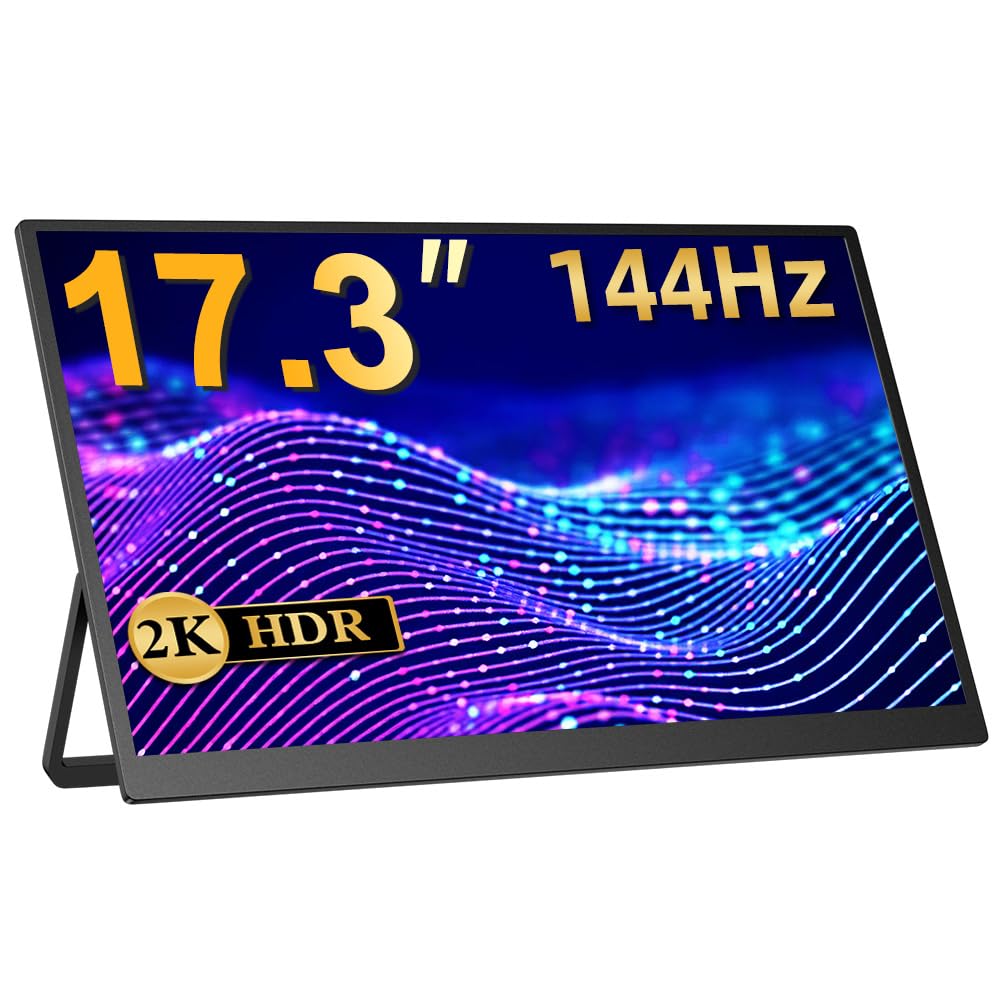
Figura 1: Frontal view of the EVICIV 17.3-inch Portable Monitor.
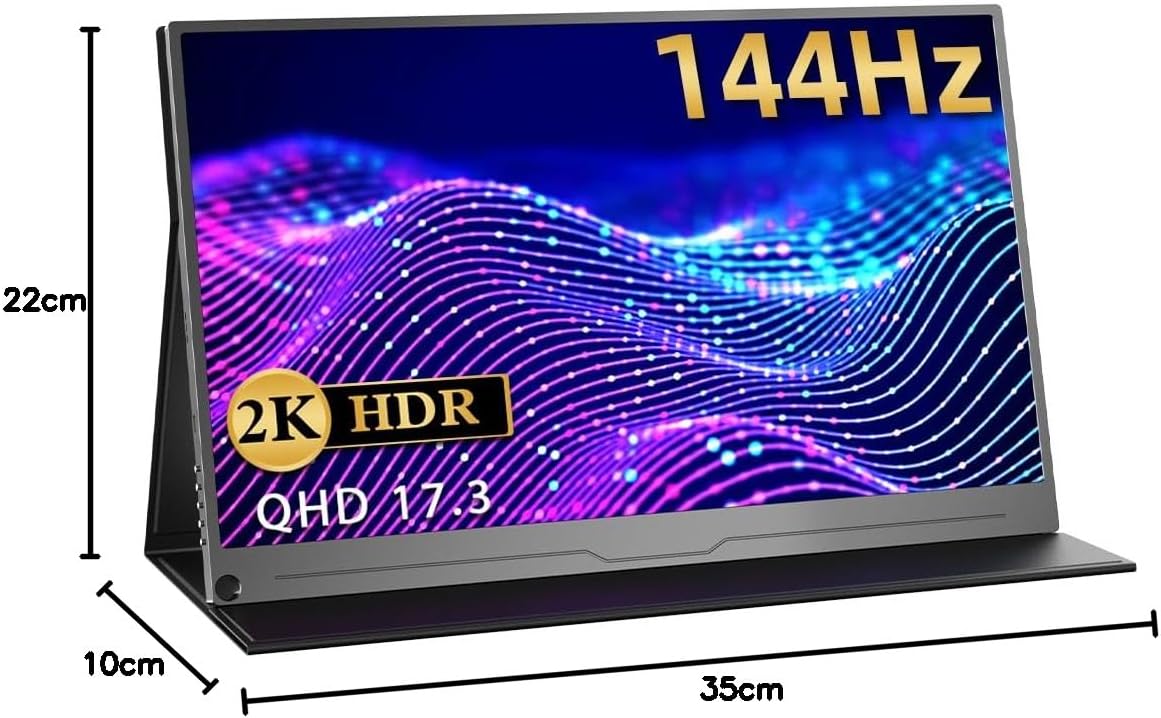
Figura 2: posterior view of the monitor, highlighting the VESA mount compatibility (75x75mm).

Figura 3: Pro lateralfile illustrating the thin and lightweight design of the monitor.

Figure 4: Close-up of the monitor's slim bezel, approximately 4mm, for an expansive viewexperiència.

Figure 5: Detail of the built-in speakers, providing integrated audio.
5. Configuració i connexions
5.1 Encès
- Connecteu l'adaptador de corrent a l'entrada d'alimentació del monitor.
- Premeu el botó d'encesa per encendre el monitor.
5.2 Connexió a dispositius
The monitor supports various connection methods:
- USB Type-C (Full-featured): For compatible devices (e.g., laptops, smartphones, some gaming consoles), a single Type-C cable can transmit video, audio, and power. Ensure your device's Type-C port supports DisplayPort Alternate Mode and power delivery.
- Mini HDMI: Use the provided Mini HDMI to HDMI cable to connect to devices like PCs, laptops, or gaming consoles (e.g., X-BOX, Switch). An additional power source (via Type-C) may be required.

Figure 6: Monitor connected to a smartphone via a single Type-C cable, demonstrating video and power transmission.

Figure 7: Monitor connected to a Nintendo Switch for an enhanced gaming experience.
6. Instruccions de funcionament
6.1 Menú de visualització en pantalla (OSD)
The OSD menu allows you to adjust various display settings. Use the control buttons on the side of the monitor to navigate and select options.
- Brillantor/Contrast: Adjust image brightness and contrast levels.
- Configuració de color: Modifica la temperatura de color, el to i la saturació.
- Font d'entrada: Manually select the input source (Type-C, HDMI).
- Relació d'aspecte: Choose between different aspect ratio modes.
- Mode HDR: Enable or disable HDR (High Dynamic Range) for compatible content.
- Volum: Ajusteu el volum dels altaveus integrats o dels auriculars connectats.
6.2 Ajust del suport
The integrated stand allows for flexible angle adjustments to suit your viewing preference. Simply unfold the stand to the desired angle for stable positioning.
7. Escenaris d'ús
7.1 Dual Display for Productivity
Extend your laptop or PC screen to create a dual-monitor setup, enhancing multitasking and workflow efficiency. Ideal for remote work, presentations, and creative tasks.

Figure 8: Monitor used to extend a laptop display for increased productivity in a work environment.
7.2 Immersive Gaming
Connect to your gaming console (PS5, X-BOX, Switch) via HDMI or compatible Type-C for a larger, more immersive gaming experience with the 144Hz refresh rate.

Figure 9: Monitor displaying a game, illustrating a smooth gaming experience.
7.3 Consum de mitjans de comunicació
Enjoy movies, videos, and other media content on the vibrant 2K display. Connect your smartphone or tablet for a larger viewzona d'ing.
Video 1: This video demonstrates the EVICIV 17.3-inch portable monitor (FHD 1920x1200 model) being used for media consumption and gaming. Please note that the resolution shown in the video is FHD (1920x1200), while this product is a 2K (2560x1440) model.
8. Especificacions
| Marca | EVICIV |
| Model | EVC-1704 |
| Mida de la pantalla | 17.3 polzades |
| Resolució | 2560 x 1440 (QHD 2K) |
| Freqüència d'actualització | 144 Hz |
| Tipus de panell | IPS |
| Brillantor | 350 nits |
| Gamma de colors | 100% sRGB |
| Relació d'aspecte | 16:9 |
| Tractament superficial | Sense enlluernament |
| Connectivitat | 2x Type-C, 1x Mini HDMI |
| Àudio | Built-in Speakers, 3.5mm Audio Jack |
| Muntatge VESA | 75 x 75 mm |
| Dimensions | 44.9 x 29.3 x 6.9 cm (Packaged) |
| Pes | 1.89 kg (Packaged) |
9. Solució De Problemes
9.1 No Signal / Black Screen
- Ensure the monitor is powered on and the power adapter is securely connected.
- Verify that the video cable (Type-C or HDMI) is correctly connected to both the monitor and your source device.
- Check if your source device is outputting a video signal. Try connecting it to another display if possible.
- If using a single Type-C cable, ensure your device's Type-C port supports DisplayPort Alternate Mode and power delivery. Try connecting the monitor to an external power source.
- Try switching input sources manually via the OSD menu.
9.2 Image Flickering or Distortion
- Check the video cable for damage or loose connections. Try a different cable if available.
- Ensure the monitor is receiving sufficient power. Use the provided power adapter.
- Adjust the resolution and refresh rate settings on your source device to match the monitor's capabilities (2560x1440, 144Hz).
- Disable any FreeSync or adaptive sync settings on your source device if experiencing issues, as noted in some user reviews.
9.3 Sense àudio
- Increase the volume on both the monitor (via OSD menu) and your source device.
- Ensure the correct audio output device is selected on your source device.
- If using headphones, ensure they are properly connected to the 3.5mm audio jack.
10. Manteniment
- Neteja de la pantalla: Gently wipe the screen with a soft, lint-free cloth. For stubborn marks, use a screen-cleaning solution specifically designed for displays, applied to the cloth, not directly to the screen.
- Neteja del cos: Use a soft, dry cloth to wipe the monitor's body. Avoid abrasive cleaners or solvents.
- Emmagatzematge: When not in use, store the monitor in a cool, dry place, away from direct sunlight and extreme temperatures. Use the protective sleeve or original packaging for transport.
- Manipulació: Avoid applying excessive pressure to the screen or dropping the monitor.
11. Garantia i Suport
EVICIV products typically come with a manufacturer's warranty. For specific warranty terms, duration, and support inquiries, please refer to the warranty card included in your product packaging or visit the official EVICIV weblloc web. També podeu contactar directament amb el venedor per obtenir ajuda.
For further support, please visit the EVICIV store on Amazon: EVICIV Amazon Store


