1. Introducció
The HP DeskJet 2734e is a versatile wireless color all-in-one printer designed for home use, offering print, copy, and scan functionalities. It supports mobile printing and features dual-band Wi-Fi for reliable connectivity. This manual provides essential information for setting up, operating, maintaining, and troubleshooting your printer.

Figure 1: HP DeskJet 2734e Wireless Color All-in-One Printer.
2. Què hi ha a la caixa
Upon unboxing your HP DeskJet 2734e printer, verify that all the following components are included:
- Impressora HP DeskJet 2734e
- Cartutx negre de configuració HP 67
- Cartutx de configuració tricolor HP 67
- Flyer de normativa
- Guia de configuració
- Cable d'alimentació

Figure 2: Included items in the HP DeskJet 2734e packaging.
3. Configuració
Segueix aquests passos per a la configuració inicial de la impressora HP DeskJet 2734e:
- Desembaleu la impressora: Traieu tots els materials d'embalatge, les cintes adhesives i les pel·lícules protectores de la impressora.
- Connectar l'alimentació: Connecteu el cable d'alimentació a la impressora i després a una presa de corrent.
- Instal·leu cartutxos de tinta: Open the ink cartridge access door. Install the HP 67 Setup Black and Tri-Color cartridges into their respective slots. Close the access door.
- Carrega paper: Open the input tray and load plain white paper. Adjust the paper guides to fit the paper size. The printer features a 60-sheet rear input tray.
- Baixeu l'aplicació HP Smart: For guided setup and full functionality, download the HP Smart App on your smartphone or computer. The app will walk you through connecting the printer to your wireless network.
- Connecta't a Wi-Fi: The printer supports dual-band Wi-Fi with self-reset capabilities for reliable connections. Use the HP Smart App to connect your printer to your home network. Alternatively, a USB 2.0 port is available for direct connection to a PC.
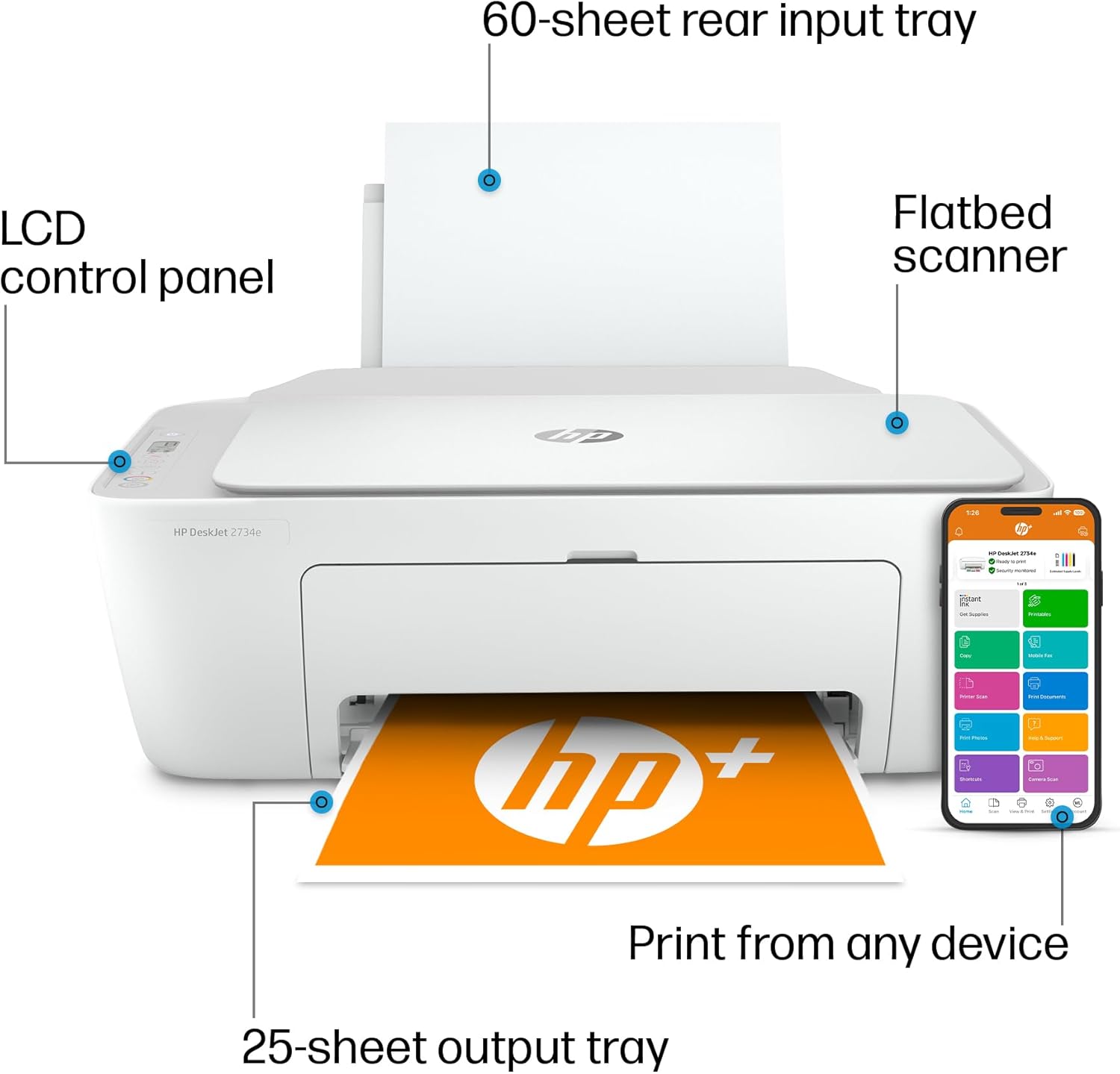
Figure 3: Key components and features of the HP DeskJet 2734e.

Figure 4: Dual-band Wi-Fi ensures reliable connections for the printer.

Figura 5: posterior view highlighting the input tray and USB port for PC connection.
4. Funcionament de la impressora
4.1. Impressió
The HP DeskJet 2734e can print basic color documents efficiently. Print speeds are up to 7.5 pages per minute (ppm) for black and white documents and 5.5 ppm for color documents. You can print directly from your computer or mobile device using the HP Smart App.
4.2. Còpia
To make copies, place your document on the flatbed scanner. Use the control panel on the printer or the HP Smart App to select copy options (e.g., number of copies, color or black and white) and initiate the copying process.
4.3. Escaneig
The integrated flatbed scanner allows you to scan documents and photos. Place the item on the scanner glass. You can initiate a scan from the printer's control panel or through the HP Smart App, which offers advanced scanning features like multi-item recognition.
4.4. Impressió mòbil
The HP Smart App provides a seamless mobile printing experience. You can print, scan, and copy everyday documents directly from your phone from virtually anywhere. The app also includes features such as mobile fax and the ability to print photos from your camera roll, social media, and Google Photos.

Figure 6: The HP Smart App provides comprehensive control over your printer from a mobile device.
5. Manteniment
5.1. Substitució del cartutx de tinta
When ink levels are low, the printer will indicate that cartridges need replacement. Use genuine HP 67 Black and Tri-Color ink cartridges for optimal performance. Compatible cartridges include:
- HP 67 Black Original Ink Cartridge (~120 pages yield) 3YM56AN
- HP 67XL Black High Yield Original Ink Cartridge (~240 pages yield) 3YM57AN
- HP 67 Tri-Color Original Ink Cartridge (~100 pages yield) 3YM55AN
- HP 67XL Tri-Color High-Yield Original Ink Cartridge (~200 pages yield) 3YM58AN
Nota important:
This printer is designed to work exclusively with cartridges containing HP chips or circuitry. Periodic firmware updates may block cartridges using non-HP chips or circuitry.
5.2. Preventing Paper Jams
To minimize paper jams, ensure that paper is loaded correctly in the input tray, not overfilled, and that paper guides are adjusted snugly against the paper stack. Use recommended paper types and avoid using wrinkled or damaged paper.
6. Solució De Problemes
Si teniu problemes amb la impressora, tingueu en compte els passos habituals següents per resoldre problemes:
- Problemes de connectivitat: Ensure your printer is connected to your Wi-Fi network. The dual-band Wi-Fi with self-reset feature should automatically detect and resolve most connectivity problems. If issues persist, restart your router and printer.
- Problemes d'impressió: Check ink levels and ensure cartridges are properly installed. Verify that the correct paper size and type are selected in your print settings.
- Embussos de paper: Follow the instructions in the setup guide or HP Smart App to clear any paper jams. Always turn off the printer before attempting to clear a jam.
- Problemes amb l'aplicació HP Smart: Ensure your app is updated to the latest version. Restart the app or your mobile device if it's not functioning correctly.
Per obtenir una resolució de problemes més detallada, consulteu el servei d'assistència d'HP website or the HP Smart App's help section.
7. Especificacions
| Característica | Especificació |
|---|---|
| Dimensions del producte | 11.97 "P x 16.7" W x 6.06" H |
| Pes de l'article | 7.55 lliures |
| Tecnologia d'impressió | Injecció de tinta |
| Sortida de la impressora | Color |
| Velocitat màxima d'impressió (negre) | 7.5 ppm |
| Velocitat màxima d'impressió (color) | 5.5 ppm |
| Max Print Resolution (Black & Color) | 1200 x 1200 punts per polzada |
| Tipus d'escàner | Llit pla |
| Capacitat màxima del full d'entrada | 60 fulls |
| Capacitat de fulls de sortida | 25 fulls |
| Tecnologia de connectivitat | Bluetooth, USB, Dual-band Wi-Fi |
| Interfície del maquinari | USB |
| Dispositius compatibles | Smartphones, ordinadors |
| Components inclosos | HP 67 Setup Black Cartridge, HP 67 Setup Tri-Color Cartridge, HP DeskJet 2734e Printer, Regulatory flyer, Setup guide |

Figura 7: Dimensions físiques de la impressora HP DeskJet 2734e.
8. Garantia i Suport
The HP DeskJet 2734e printer comes with a Garantia limitada de maquinari d'un any. For warranty claims, technical assistance, or additional support, please visit the official HP support website or contact HP customer service. The HP Smart App also provides access to support resources and guides.