1. Introducció
This manual provides essential information for the setup, operation, and maintenance of your OFFNOVA 4B-2054N Shipping Label Printer. Please read this manual thoroughly before using the printer to ensure proper functionality and longevity of the device.

Figure 1: OFFNOVA 4B-2054N Shipping Label Printer in operation, printing a sample shipping label.
2. Contingut del paquet
Before proceeding with the setup, please verify that all components are present in the package:
- Impressora d'etiquetes d'enviament OFFNOVA 4B-2054N
- Adaptador d'alimentació
- Cable USB
- Manual d'usuari (aquest document)
3. Guia de configuració
3.1. Instal·lació del controlador
The OFFNOVA 4B-2054N printer requires specific drivers for proper operation with your computer. Please follow these steps:
- Visit the official OFFNOVA website to download the latest printer driver compatible with your operating system (Windows, Mac, Chromebook, or Linux).
- Executeu l'instal·lador descarregat file.
- Follow the on-screen prompts to complete the installation. For Mac users, you may need to adjust security and privacy settings to allow installation from unidentified developers.
- Reinicieu l'ordinador si se us demana.
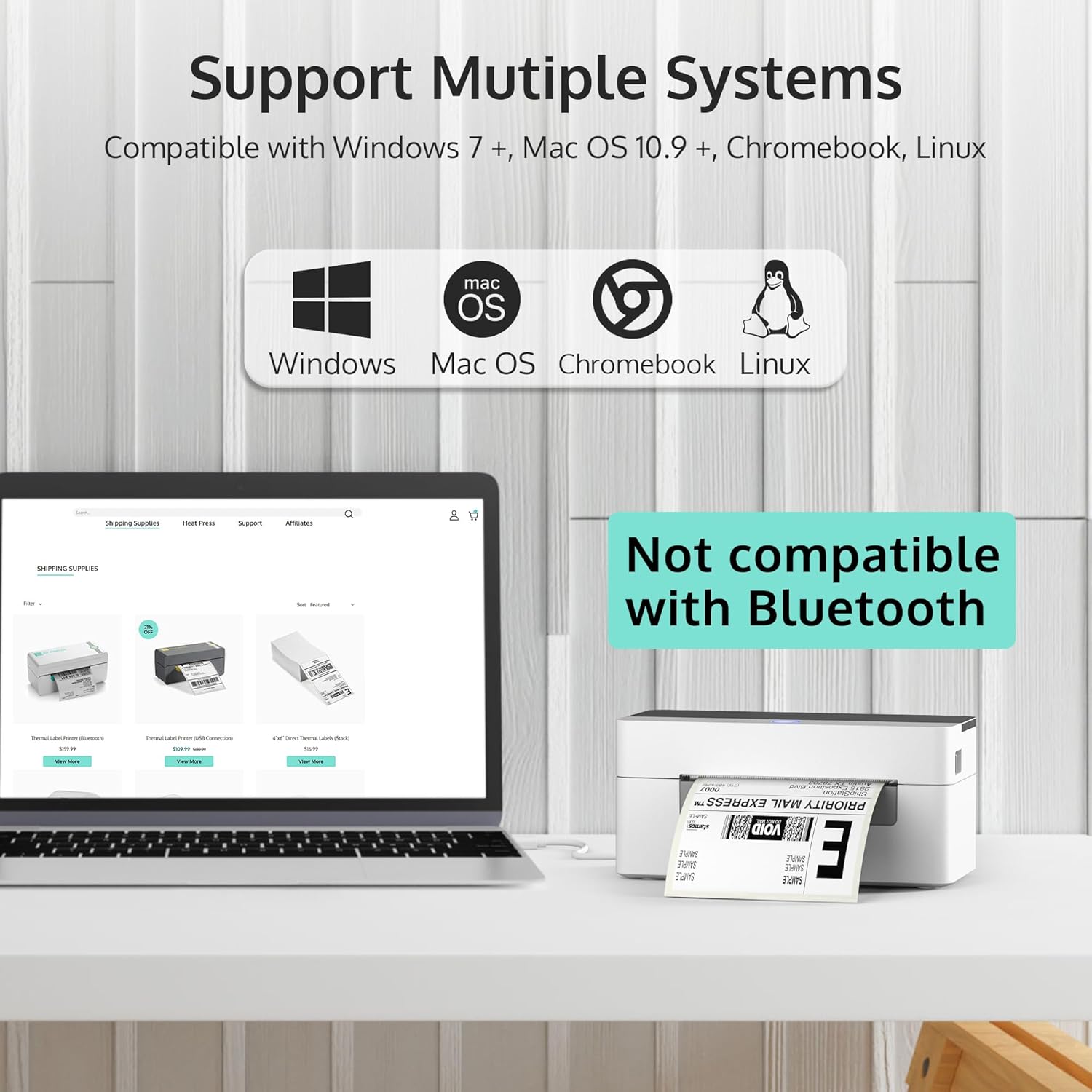
Figure 2: The OFFNOVA printer supports Windows, Mac OS, Chromebook, and Linux. Note: Bluetooth and Wi-Fi are not supported.
3.2. Connexió de la impressora
- Connect the power adapter to the printer's power port and then to a wall outlet.
- Connect the USB cable to the printer's USB port and the other end to your computer.
- Turn on the printer using the power switch located at the back. The indicator light on the top of the printer should illuminate.
3.3. Carregant etiquetes
The printer supports direct thermal labels ranging from 1.57 inches to 4.1 inches in width. To load labels:
- Push the latch on the side of the printer forward to open the top cover.
- Adjust the movable guides inside the printer to match the width of your labels.
- Insert the labels into the feed slot, ensuring the print side is facing up. The printer will automatically detect and calibrate the label size.
- Close the top cover by clamping it back down until it clicks into place.

Figure 3: The printer features automatic label identification and calibration, simplifying the setup process.

Figure 4: The printer is suitable for various label sizes, including 4"x6", 3"x2", 2.25"x1.25", 2.25", and 2" labels.
4. Instruccions de funcionament
4.1. Impressió d'etiquetes
Once the printer is set up and labels are loaded, you can begin printing. Ensure your computer recognizes the printer as an available printing device.
- Open the document or platform from which you wish to print (e.g., UPS, FedEx, USPS, Etsy, eBay, Shopify, Amazon, Pirateship).
- Seleccioneu l'opció d'impressió.
- Choose the OFFNOVA 4B-2054N printer from the list of available printers.
- Verify print settings, such as label size (e.g., 4" x 6" for shipping labels), and then initiate printing.

Figure 5: The printer is compatible with various popular shipping and e-commerce platforms.
4.2. High Speed and Efficiency
The OFFNOVA 4B-2054N printer is designed for high-speed printing, capable of printing approximately 80 sheets of 4" x 6" labels per minute, and can operate continuously for over 12 hours a day.
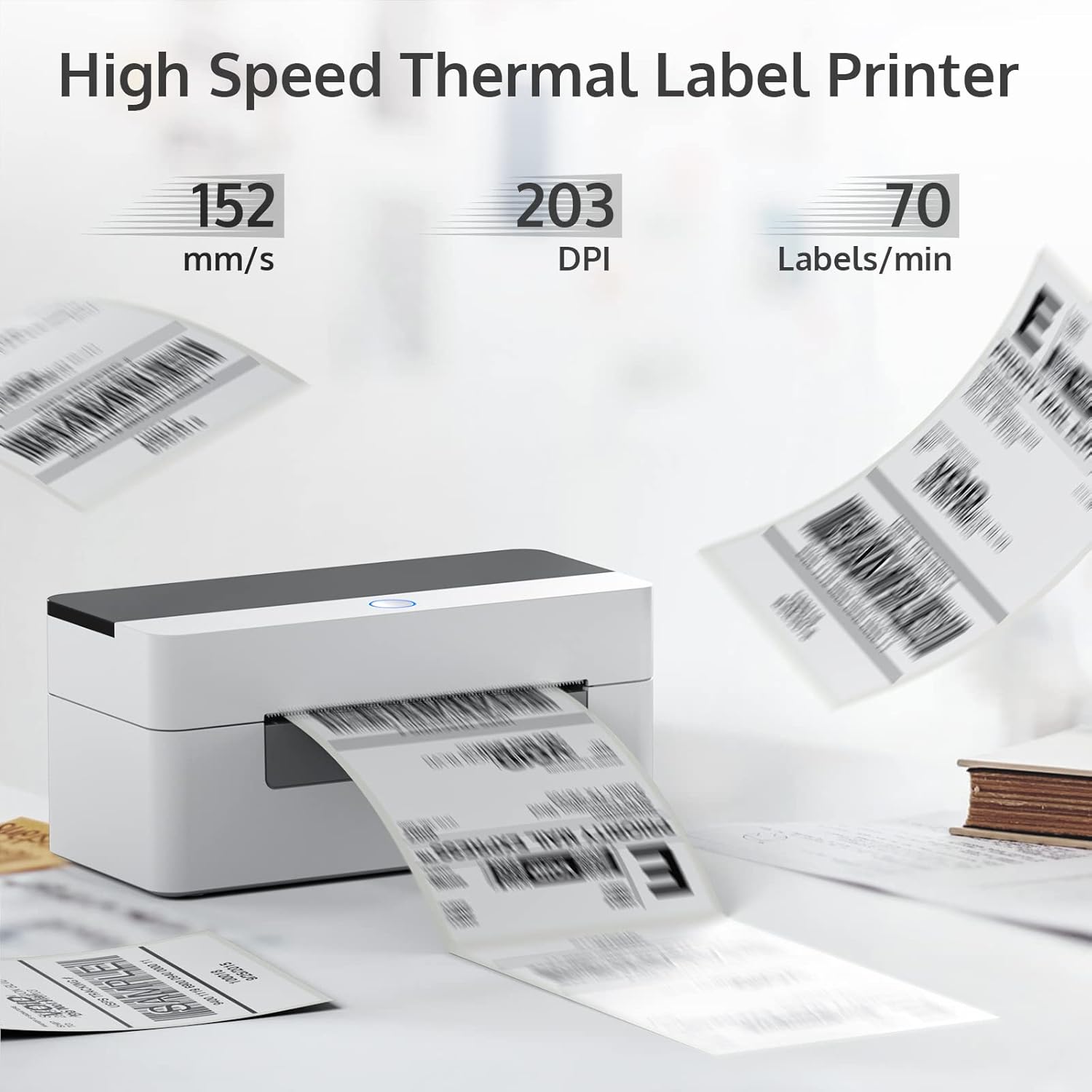
Figure 6: High-speed thermal printing at 152 mm/s with 203 DPI, producing up to 70 labels per minute.
5. Manteniment
To ensure optimal performance and extend the lifespan of your OFFNOVA printer, regular maintenance is recommended:
- Neteja: Periodically clean the print head and rollers with an alcohol wipe or a specialized thermal printer cleaning pen. Ensure the printer is turned off and unplugged before cleaning.
- Emmagatzematge: Store the printer in a cool, dry place away from direct sunlight and excessive dust.
- Qualitat de l'etiqueta: Use high-quality thermal labels to prevent dust and adhesive residue buildup on the print head.
6. Solució De Problemes
If you encounter issues with your OFFNOVA printer, refer to the common problems and solutions below. For more detailed troubleshooting, please consult the official Guia de resolució de problemes (PDF) disponible en línia.
| Problema | Causa possible | Solució |
|---|---|---|
| Printer not responding / Not turning on | Cable d'alimentació no connectat; Interruptor apagat; Adaptador de corrent defectuós. | Ensure power cable is securely connected. Turn on the power switch. Test with a different power outlet. If issues persist, contact support for a replacement adapter. |
| Labels not feeding correctly / Paper jams | Labels not loaded properly; Guides not adjusted; Roller issues. | Open the cover and re-load labels, ensuring they are straight and the guides are snug. Clean the rollers if they appear dirty or sticky. |
| Poor print quality / Faded prints | Print head is dirty; Low-quality labels; Incorrect print density settings. | Clean the print head. Use recommended thermal labels. Adjust print density settings in your printer driver. |
| Driver installation issues (Mac/Chromebook) | Security settings blocking installation; Incorrect driver version. | For Mac, check "Security & Privacy" settings to allow apps from unidentified developers. Ensure you download the correct driver for your OS from the official weblloc. |
7. Especificacions
| Característica | Detall |
|---|---|
| Nom del model | 4B-2054N |
| Dimensions del producte | 6.3 "P x 7.68" W x 4.13" H |
| Pes de l'article | 1.74 lliures (0.79 quilograms) |
| Tecnologia de connectivitat | USB |
| Tecnologia d'impressió | Tèrmica |
| Sortida de la impressora | Monocrom |
| Mida màxima del suport | 4 x 6 polzada |
| Mides de full compatibles | 4" x 6", 2" x 4", 3" x 4", 2.25", 2" Inches |
| Capacitat màxima del full d'entrada | 80 fulls |
| Velocitat màxima d'impressió (monocrom) | 72 ppm (150mm/sec) |
| Resolució | 203 x 203 DPI |
| Dispositius compatibles | PC (Windows, Mac, Chromebook, Linux) |
| Característica especial | Auto Label Size Identification |
| Components inclosos | Machine & Adapter |
8. Garantia i Suport
Your OFFNOVA 4B-2054N Shipping Label Printer comes with a Limited Warranty and Lifetime Technical Support.
- For detailed warranty information, please refer to the documentation included with your purchase or visit the official OFFNOVA weblloc.
- For technical assistance, troubleshooting, or any questions regarding your printer, please contact OFFNOVA customer support.
- Additional resources, including the full Guia de l'usuari (PDF) i Guia de resolució de problemes (PDF), are available for download.


