1. Introducció
Thank you for choosing the PeriPage A6 Mini Portable Thermal Printer. This compact and versatile device allows you to print photos, labels, notes, lists, and more directly from your smartphone or PC. With its high-resolution thermal printing technology, you can enjoy clear and crisp prints without the need for ink cartridges. This manual provides essential information on setting up, operating, maintaining, and troubleshooting your new printer.
3. Contingut del paquet
Verifiqueu que tots els elements siguin presents al vostre paquet:
- PeriPage A6 Mini Printer
- Rotlle de paper tèrmic
- Cable USB
- Manual d'usuari

Image: Contents of the PeriPage A6 Mini Printer package, showing the printer, a roll of thermal paper, a USB charging cable, and the user manual.
4. Producte acabatview
4.1 Característiques clau
- Ultra HD Printing: 304 DPI resolution for clear and detailed prints.
- Impressió tèrmica sense tinta: No ink cartridges required, reducing operating costs.
- Multifuncional: Supports printing of photos, labels, notes, lists, QR codes, web pàgines i molt més.
- Connectivitat Bluetooth: Seamless wireless connection to iOS and Android smartphones.
- Disseny portàtil: Compact and lightweight with a built-in 1000mAh rechargeable battery.
- Suport de paper versàtil: Compatible with various thermal paper types including standard, sticky, transparent, and colorful options.
4.2 Components de la impressora
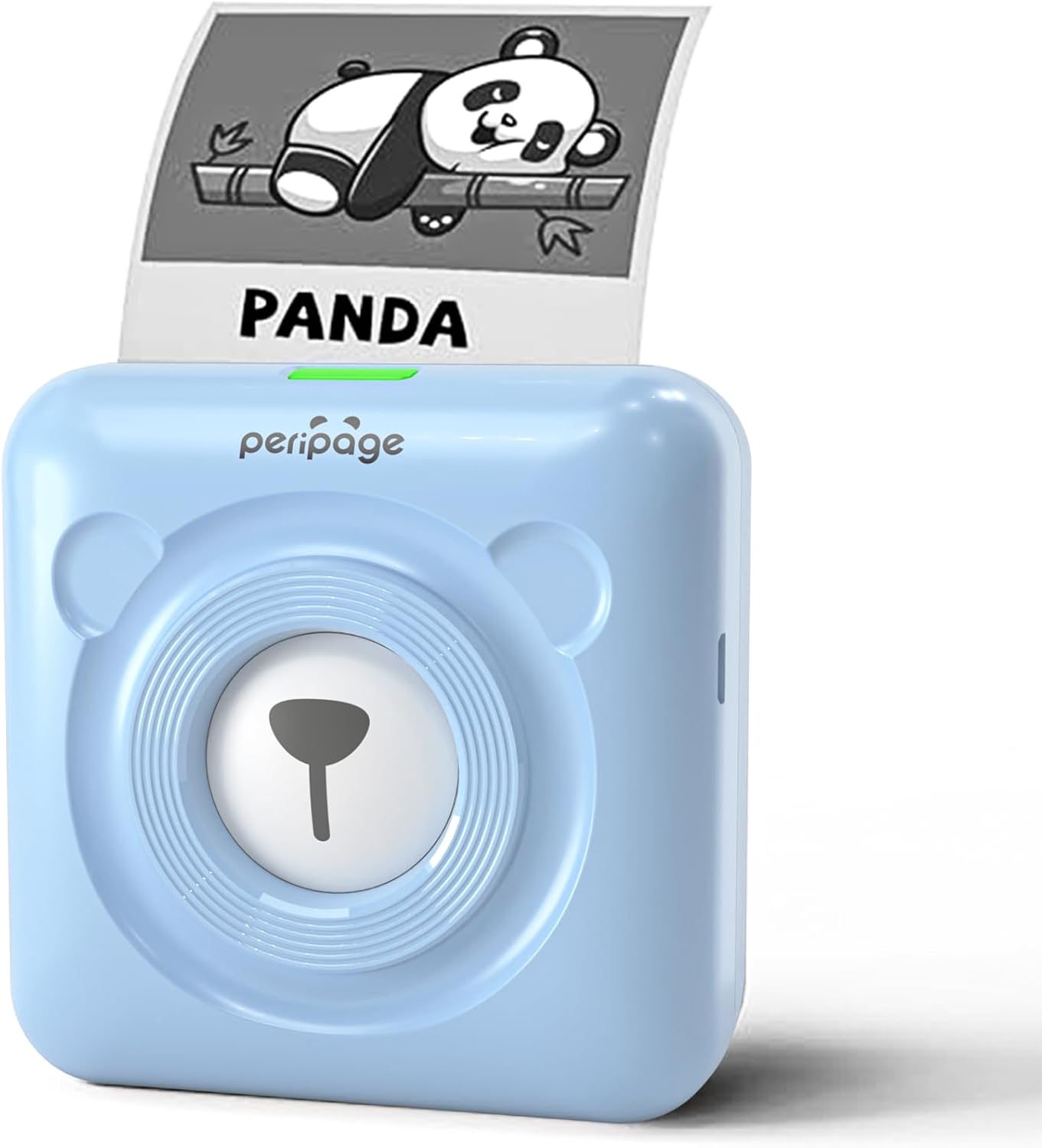
Image: The PeriPage A6 Mini Printer in blue, demonstrating a printed output. The printer features a bear-like design on its front.

Image: A visual comparison highlighting the superior print resolution of the PeriPage A6 Mini Printer (304 DPI) compared to a standard definition printer, showing finer details in the printed image.
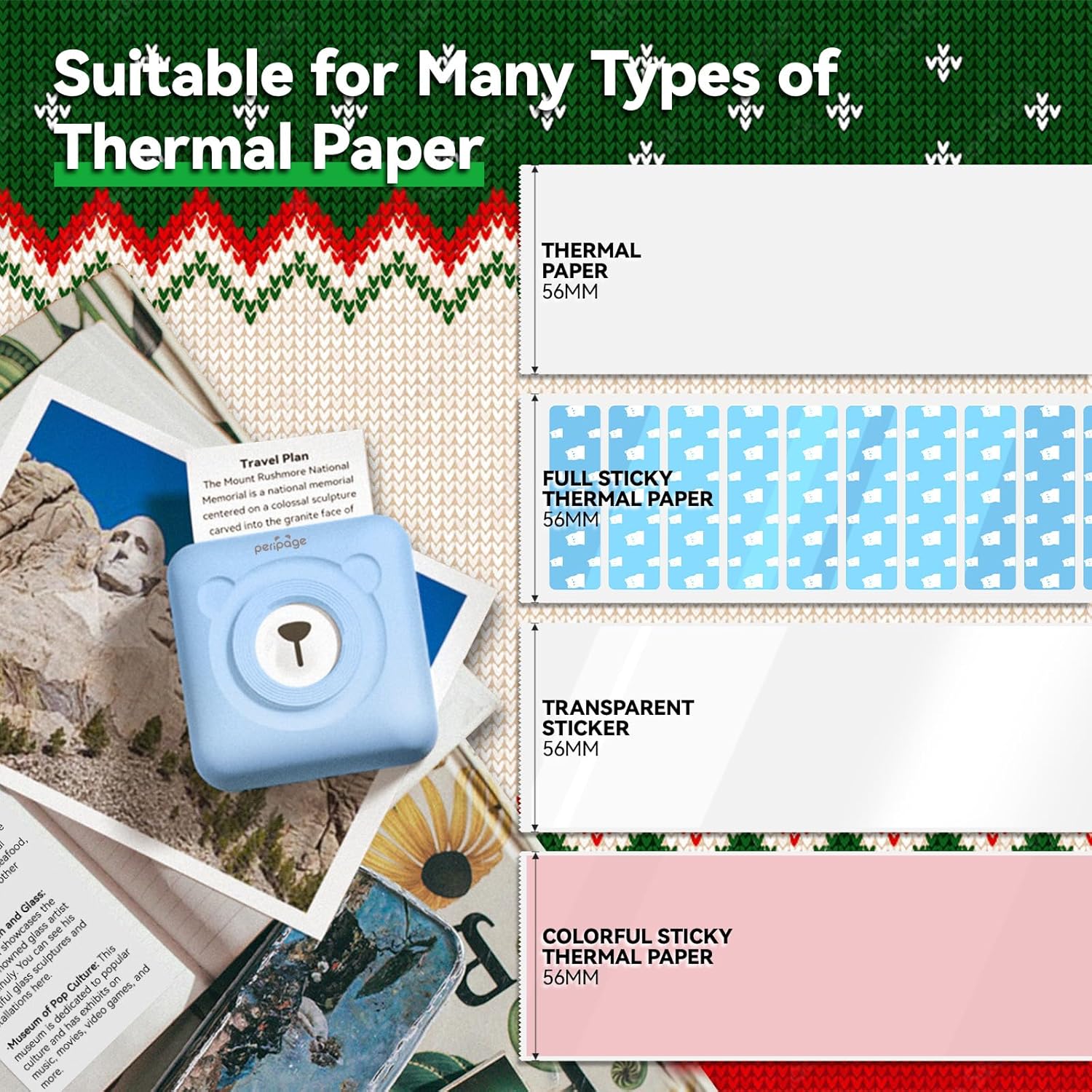
Image: An illustration showing the different types of thermal paper that can be used with the PeriPage A6 Mini Printer, such as standard thermal paper, full sticky thermal paper, transparent stickers, and colorful sticky thermal paper, all 56mm wide.
5. Guia de configuració
5.1 Càrrega de la impressora
Before first use, fully charge the printer using the provided USB cable. Connect the USB cable to the printer's charging port and the other end to a USB power adapter (not included) or a computer's USB port. The indicator light will show charging status.
5.2 Installing Thermal Paper
- Open the printer cover by gently sliding the release button or pressing the designated area.
- Insert the thermal paper roll into the paper compartment, ensuring the printing side faces the print head.
- Pull a small amount of paper out beyond the print head.
- Tanqueu la coberta de la impressora fermament fins que encaixi al seu lloc.
5.3 Downloading the PeriPage App
The PeriPage A6 Mini Printer requires the official PeriPage APP for full functionality. You can download it via:
- Searching for "PeriPage" in your device's APP store (Apple App Store for iOS, Google Play Store for Android).
- Scanning the QR code provided in the instruction manual or on the product packaging.
- Visiting the official download page: https://www.ileadtek.com/download/app/peripage.html

Image: A guide illustrating two methods to download the PeriPage App: searching on Google Play or Apple App Store, or scanning a QR code.
5.4 Connecting to Your Device (Bluetooth)
- Ensure your PeriPage A6 printer is turned on.
- Activa el Bluetooth al teu telèfon intel·ligent.
- Open the PeriPage App. The app will guide you to connect to the printer.
- Select your printer from the list of available Bluetooth devices within the app. The printer's name usually starts with "PeriPage".
- Once connected, the app will indicate a successful connection.

Image: A visual representation of connecting the PeriPage A6 Mini Printer to a smartphone via the PeriPage App, showing the app interface and Bluetooth icon.
6. Instruccions de funcionament
The PeriPage App offers a wide range of functions to maximize your printer's utility.
6.1 Basic Printing Steps (via App)
- Enceneu la impressora: Premeu el botó d'engegada de la impressora.
- Open the PeriPage App: Ensure your printer is connected via Bluetooth.
- Select Printing Type: On the app's homepage, choose the type of content you wish to print (e.g., Photo Print, Label Print, Notes, Web Page Printing, OCR Text Recognition).
- Import/Create Content: Select the image, text, or template you want to print. The app provides various fonts and themes.
- Ajustar la configuració (opcional): Modify print density, size, or other parameters as needed.
- Imprimeix: Tap the print button in the app. The printer will begin printing.

Image: A five-step visual guide demonstrating the printing process using the PeriPage App: 1. Press button to boot, 2. Enter PeriPage app, 3. Import file, 4. Connect via Bluetooth, 5. Get printed document.
6.2 Escenaris d'ús
The PeriPage A6 is suitable for a variety of applications:
- Cuina: Print labels for jars and containers.
- Estudi: Print study notes, lists, or quick references.
- Fotos: Print black and white photos for journaling or scrapbooking.
- Adhesius de bricolatge: Create custom stickers for various purposes.
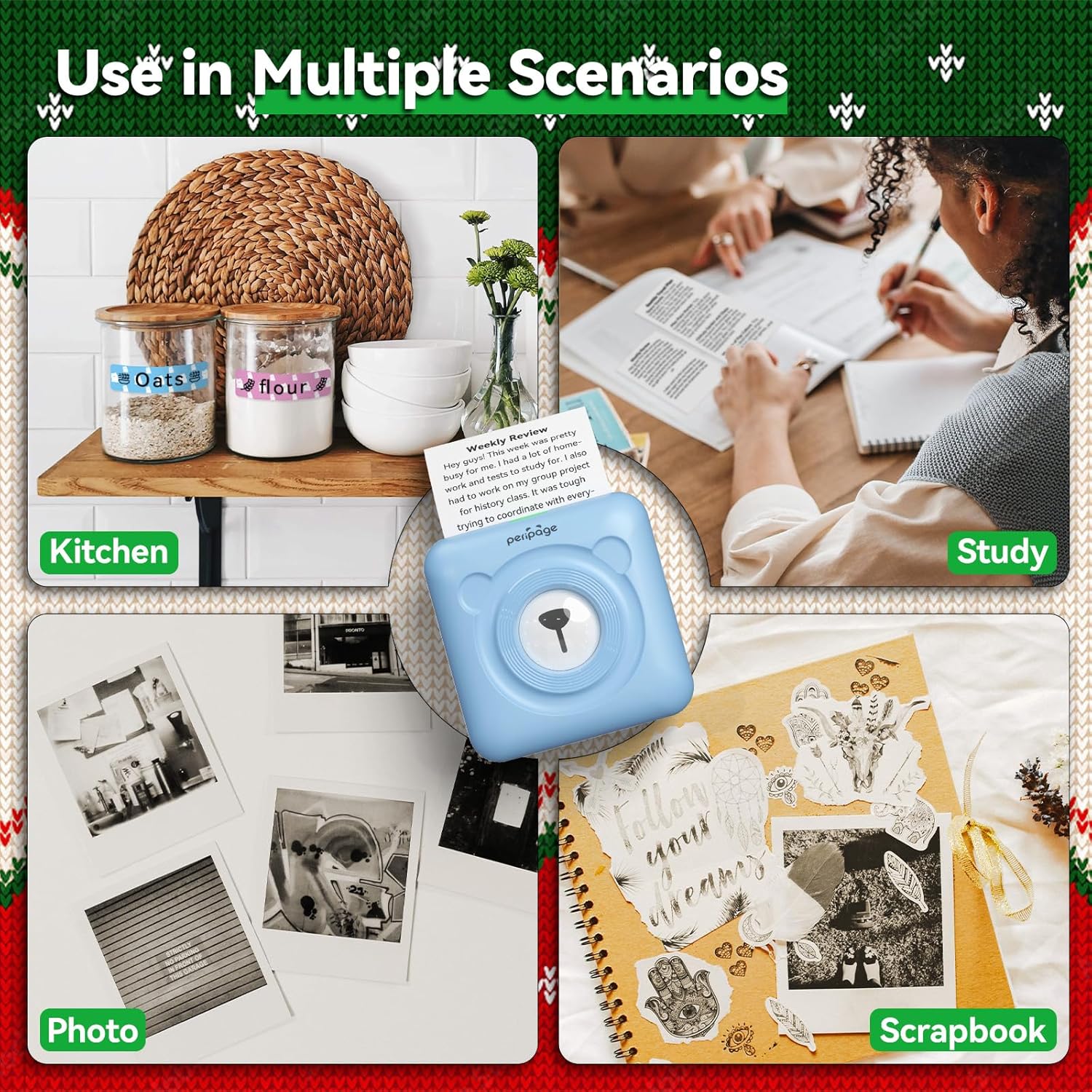
Imatge: Examples of the PeriPage A6 Mini Printer's use in multiple scenarios, including creating kitchen labels, printing study notes, printing photos, and enhancing scrapbooks.
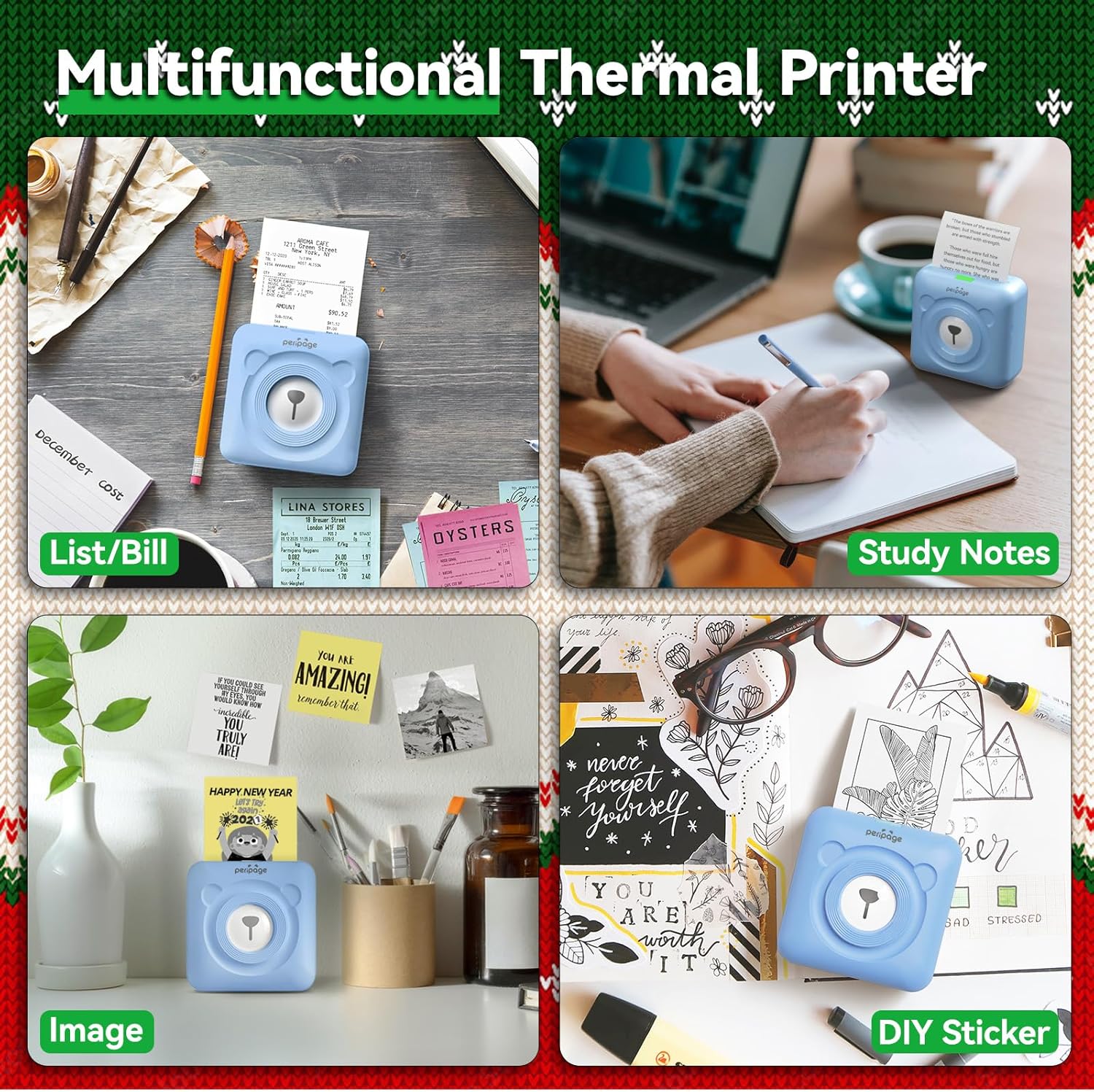
Image: A display of the PeriPage A6 Mini Printer's multifunctional thermal printing capabilities, showing its use for lists/bills, study notes, images, and DIY stickers.
7. Manteniment
7.1 Neteja de la impressora
To ensure optimal print quality and prolong the life of your printer, regular cleaning is recommended.
- Apagueu la impressora i desconnecteu el cable d'alimentació abans de netejar-la.
- Feu servir un drap suau, sec i sense borrissol per netejar l'exterior de la impressora.
- For the print head, gently wipe it with a cotton swab lightly dampenriquit amb alcohol isopropílic. Deixeu-ho assecar completament abans d'usar-lo.
- No utilitzeu netejadors abrasius ni dissolvents.
7.2 Cura de la bateria
- Charge the printer regularly, even if not in use, to maintain battery health.
- Eviteu descarregar completament la bateria amb freqüència.
- Guardeu la impressora en un lloc fresc i sec quan no la feu servir durant períodes prolongats.
8. Solució De Problemes
If you encounter issues with your PeriPage A6 Mini Printer, refer to the following common problems and solutions:
| Problema | Causa possible | Solució |
|---|
| La impressora no s'encén | Bateria baixa; el botó d'engegada no s'ha premut correctament | Carregueu la impressora; manteniu premut el botó d'engegada durant uns segons. |
| No es pot connectar mitjançant Bluetooth | Bluetooth off; Printer not discoverable; App issue | Ensure Bluetooth is enabled on your phone; Restart printer and phone; Reinstall PeriPage App. |
| Poor print quality / Faint prints | Paper installed incorrectly; Low battery; Dirty print head; Expired thermal paper | Reinstall paper with printing side facing up; Charge printer; Clean print head; Use new thermal paper. |
| Embús de paper | Paper not inserted straight; Too much paper pulled out | Open cover and carefully remove jammed paper; Reinsert paper correctly. |
| App is buggy or freezes | Software glitch; Outdated app version | Close and reopen the app; Check for app updates; Reinstall the app. |
9. Especificacions
| Característica | Detall |
|---|
| Marca | PeriPage |
| Nom del model | PeriPage A6 |
| Tecnologia d'impressió | Tèrmica |
| Resolució | 304 DPI |
| Connectivitat | Bluetooth, USB |
| Dispositius compatibles | Smartphones (iOS & Android), PC, Laptops |
| Mida màxima del suport | 57mm (width) x 30mm (roll diameter) |
| Bateria | Ió de liti de 1000 mAh (inclosa) |
| Pes de l'article | 5.6 unces (160 grams) |
| Dimensions del producte | 2.95 "P x 2.95" W x 1.57" H |
| Components inclosos | Paper |
10. Garantia i Suport
10.1 Informació de la garantia
Please note that this product is listed with Sense garantia. For specific details regarding returns or defects, please refer to the retailer's policy where the product was purchased.
10.2 Atenció al client
For further assistance, technical support, or inquiries not covered in this manual, please contact PeriPage customer service through their official website or the contact information provided by your retailer. Ensure you have your product model number (A6) and purchase details ready when contacting support.


