Introducció
The Logitech MX Brio Ultra HD 4K Webcam is designed to elevate your video communication and content creation. Featuring sharp 4K resolution, AI image enhancement, and advanced audio capabilities, it ensures you look and sound your best in any setting. This manual will guide you through the setup, operation, and maintenance of your new weblleva.

Image: The Logitech MX Brio webcam in Pale Grey, showcasing el seu disseny elegant i la seva lent prominent.
Què hi ha a la caixa
Upon unboxing your Logitech MX Brio, you will find the following components:
- Logitech MX Brio Weblleva
- Cable USB-C a USB-C (1.5 m)
- Documentació d'usuari
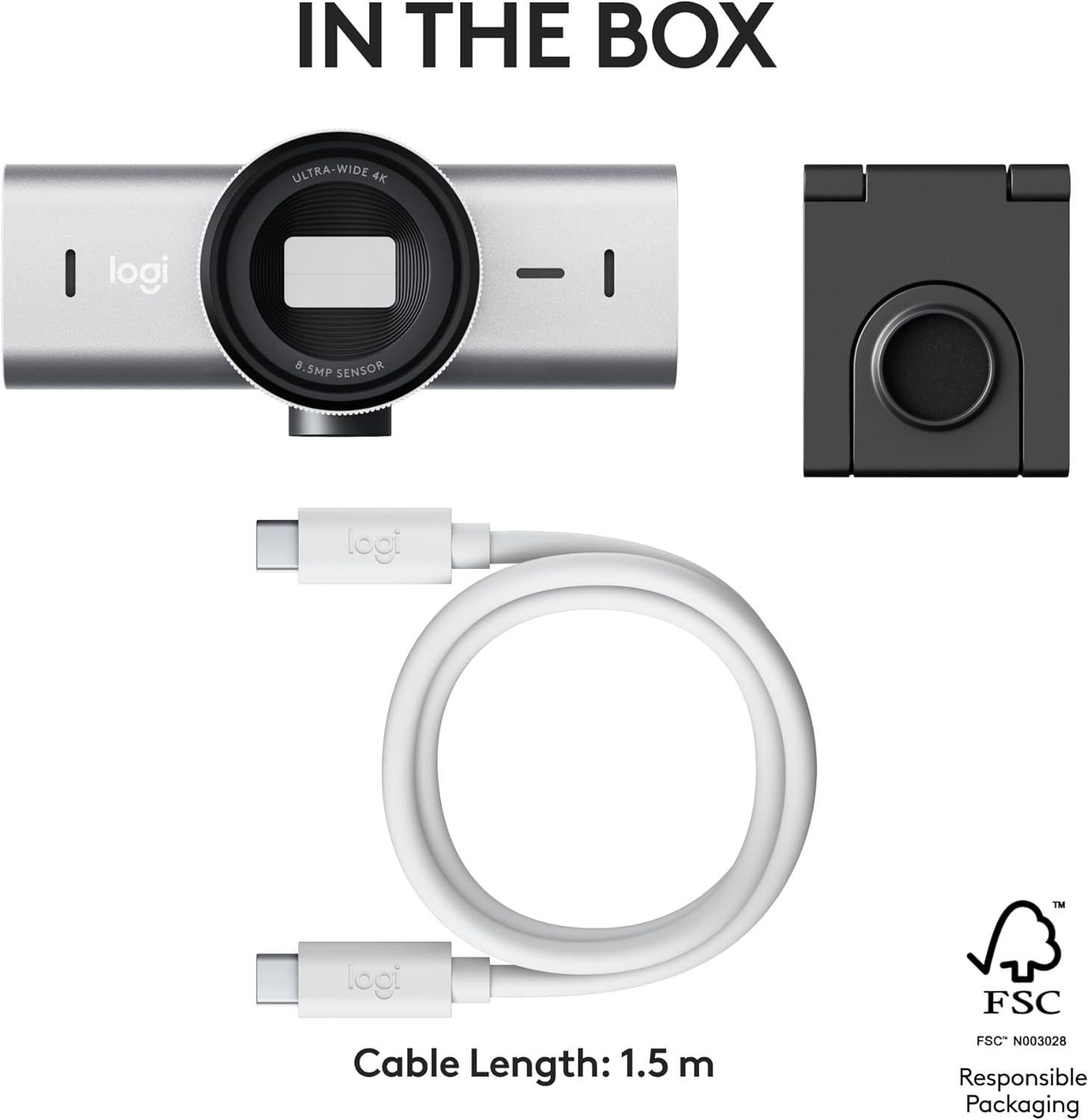
Image: A visual representation of the Logitech MX Brio webcam and its accessories included in the product packaging.
Vídeo d'unboxing
Video: An official unboxing video for the Logitech MX Brio webcam, demonstrating the contents and initial presentation of the product.
Configuració
Follow these steps to set up your Logitech MX Brio weblleva:
- Muntatge del Weblleva: Col·loca el webcam securely on top of your monitor or laptop screen using its integrated magnetic mount. Ensure it is stable and positioned to capture your desired view.
- Connexió al vostre ordinador: Connect the included USB-C cable from the webcam to an available USB-C port on your computer. The webcam is compatible with Windows, macOS, Chrome OS, and Linux.
- Software Installation (Logitech Options+): For full customization and control over your webcam's features, download and install the Logitech Options+ software from the official Logitech website. This software allows you to adjust settings such as field of view, exposure, image quality, and more.

Image: The Logitech MX Brio webcam mounted on a computer monitor, demonstrating a typical setup for video calls and streaming.

Image: The Logitech Options+ software interface, providing controls for customizing the MX Brio webcam's settings.
Característiques
The Logitech MX Brio is equipped with several advanced features to enhance your video experience:
- Resolució Ultra HD 4K: Capture video in stunning 4K at 30fps or 1080p at 60fps, ensuring sharp and detailed image quality.
- AI-Enhanced Image Quality: Benefit from auto-exposure, auto white balance, noise reduction, and autofocus for improved face visibility and finer image details, especially in challenging lighting conditions.
- Dual Noise-Reducing Microphones: Integrated omnidirectional microphones with AI-powered noise reduction minimize background sound, ensuring your voice is heard clearly.
- Mode d'exposició: Easily share physical work or notes on your desk by tilting the webcam down. The image automatically flips for correct orientation.
- Built-in Privacy Shutter: A simple rotation of the integrated webcam cover physically blocks the lens, providing immediate privacy.
- Controls personalitzables: Utilize Logitech Options+ to precisely adjust lighting, white balance (ISO, Shutter Speed, Temperature, Tint, Vibrance), and field of view (65°, 78°, 90°).
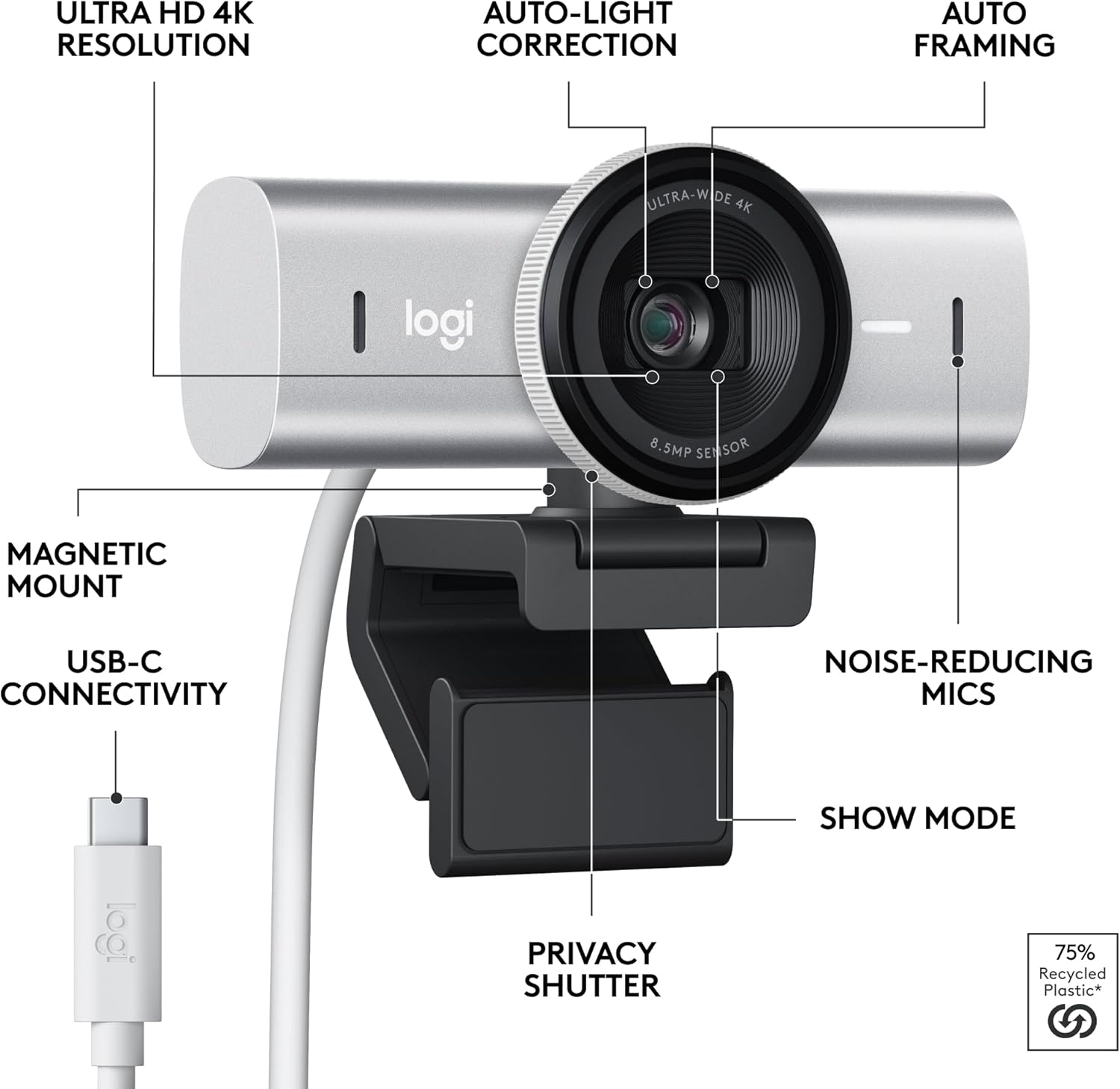
Image: An annotated diagram illustrating the various features and components of the Logitech MX Brio weblleva.

Image: A visual example of the AI-enhanced image quality, showing improved face visibility and detail in challenging light conditions.

Imatge: El/La webcam positioned on a monitor, with graphic overlays representing sound waves, emphasizing the noise-reducing microphone feature.

Image: A hand demonstrating the use of the built-in privacy shutter, rotating it to block the webcam's lens.
Instruccions de funcionament
Once set up, the Logitech MX Brio is ready for use with your preferred video conferencing or streaming applications. For optimal performance and access to advanced features, utilize the Logitech Options+ software.
Using Show Mode
Show Mode allows you to quickly share physical objects or documents on your desk during a video call:
- During a video call, gently tilt the Logitech MX Brio webcam downwards towards your desk.
- El webcam's image will automatically flip to correctly orient your desk view for participants.
- Inclineu el fitxer webcam back up to return to your face view.

Image: A user demonstrating Show Mode by tilting the webcam to display content on their desk during a video call.
Customizing with Logitech Options+
Logitech Options+ provides granular control over your webcam's settings:
- Camp de View: Select between 65°, 78°, or 90° to frame your shot perfectly.
- Exposure Settings: Manually adjust shutter speed, ISO, and exposure compensation, or enable Auto Exposure for automatic adjustments.
- Ajustaments d'imatge: Fine-tune brightness, contrast, saturation, and white balance to achieve your desired look.
- Control del focus: Switch between autofocus and manual focus for precise control over what's sharp in your video.

Image: A user adjusting the video settings of their MX Brio webcam through the Logitech Options+ software interface.
Manteniment
To ensure the longevity and optimal performance of your Logitech MX Brio webcàmera, seguiu aquestes pautes de manteniment:
- Neteja de la lent: Feu servir un drap suau i sense borrissol dissenyat específicament per a òptica per netejar suaument el weblent de càmera. Eviteu materials abrasius o productes químics agressius.
- Neteja del cos: Netegeu el webel cos de la càmera amb un suau, damp cloth. Do not submerge the device in water or use excessive moisture.
- Emmagatzematge: Quan no s’utilitzi, emmagatzemeu el fitxer webcam in a clean, dry place away from extreme temperatures and direct sunlight. Utilize the built-in privacy shutter to protect the lens.
Resolució de problemes
If you encounter issues with your Logitech MX Brio webcàmera, proveu els passos següents per resoldre problemes:
- Webcàmera no detectada: Assegureu-vos que el cable USB-C estigui connectat correctament a tots dos webcam and your computer. Try a different USB-C port or a different cable if available. Restart your computer.
- Mala qualitat d'imatge: Check your lighting conditions. Ensure the lens is clean. Adjust settings in Logitech Options+ (exposure, white balance, focus) to optimize the image.
- Sense àudio/Àudio deficient: Verify that the MX Brio is selected as the audio input device in your operating system's sound settings and in your video conferencing application. Check for any physical obstructions to the microphones.
- Problemes de programari: Ensure your Logitech Options+ software is up to date. If problems persist, try reinstalling the software.
Per obtenir més ajuda, consulteu el suport de Logitech weblloc o contacteu amb el servei d'atenció al client.
Especificacions
| Especificació | Detall |
|---|---|
| Número de model | 960-001550 |
| Dimensions del producte | 2.1 x 3.9 x 2.4 polzades |
| Pes de l'article | 13.4 unces |
| Resolució de captura de vídeo | 4K (30fps), 1080p (60fps) |
| Tecnologia del sensor fotogràfic | CMOS |
| Tecnologia de connectivitat | USB-C |
| Micròfons | Dual omnidirectional, noise-reducing |
| Compatibilitat | Windows, macOS, Chrome OS, Linux |
Garantia i Suport
Logitech products are backed by a limited hardware warranty. For specific warranty terms and conditions applicable to your region, please refer to the warranty information included with your product or visit the official Logitech weblloc.
For technical support, FAQs, and additional resources, please visit the Logitech support page for the MX Brio weblleva:


