1. Introducció
Gràcies per la compraasing the Ysametp 5G WiFi Bluetooth Projector. This device is designed to provide a high-quality home theater experience with its native 1080p Full HD resolution, 4K support, and integrated Android system. Please read this manual thoroughly before using the projector to ensure proper operation and to maximize its lifespan.
2. Informació de seguretat
Please observe the following safety precautions to prevent damage to the projector and ensure user safety:
- Font d'alimentació: Use only the specified power adapter. Ensure the power outlet voltage coincideix amb els requisits del projector.
- Ventilació: No bloquegeu les obertures de ventilació. Assegureu-vos que hi hagi un flux d'aire adequat al voltant del projector per evitar el sobreescalfament.
- Col·locació: Place the projector on a stable, level surface. Avoid placing it in direct sunlight, near heat sources, or in environments with high humidity or dust.
- Neteja: Desconnecteu l'alimentació abans de netejar. Feu servir un drap suau i sec. No utilitzeu netejadors líquids ni en aerosol.
- Protecció ocular: No mireu directament a la lent del projector quan estigui encès.amp està encès, ja que la llum brillant pot causar lesions oculars.
- Reparacions: No intenteu reparar el projector vosaltres mateixos. Encarregueu totes les tasques de manteniment a personal qualificat.
3. Contingut del paquet
Verifiqueu que tots els elements siguin presents al paquet:
- Ysametp 5G WiFi Bluetooth Projector (Model DE-M8-E-An)
- Control remot
- Power Cable (AC 220V with Schuko plug)
- Cable HDMI
- Manual d'usuari
4. Producte acabatview
Familiarize yourself with the projector's components and interfaces.
4.1 Davant View

Imatge: Frontal view of the Ysametp Projector, highlighting the projection lens and side ventilation grilles.
4.2 Rear and Side Interfaces
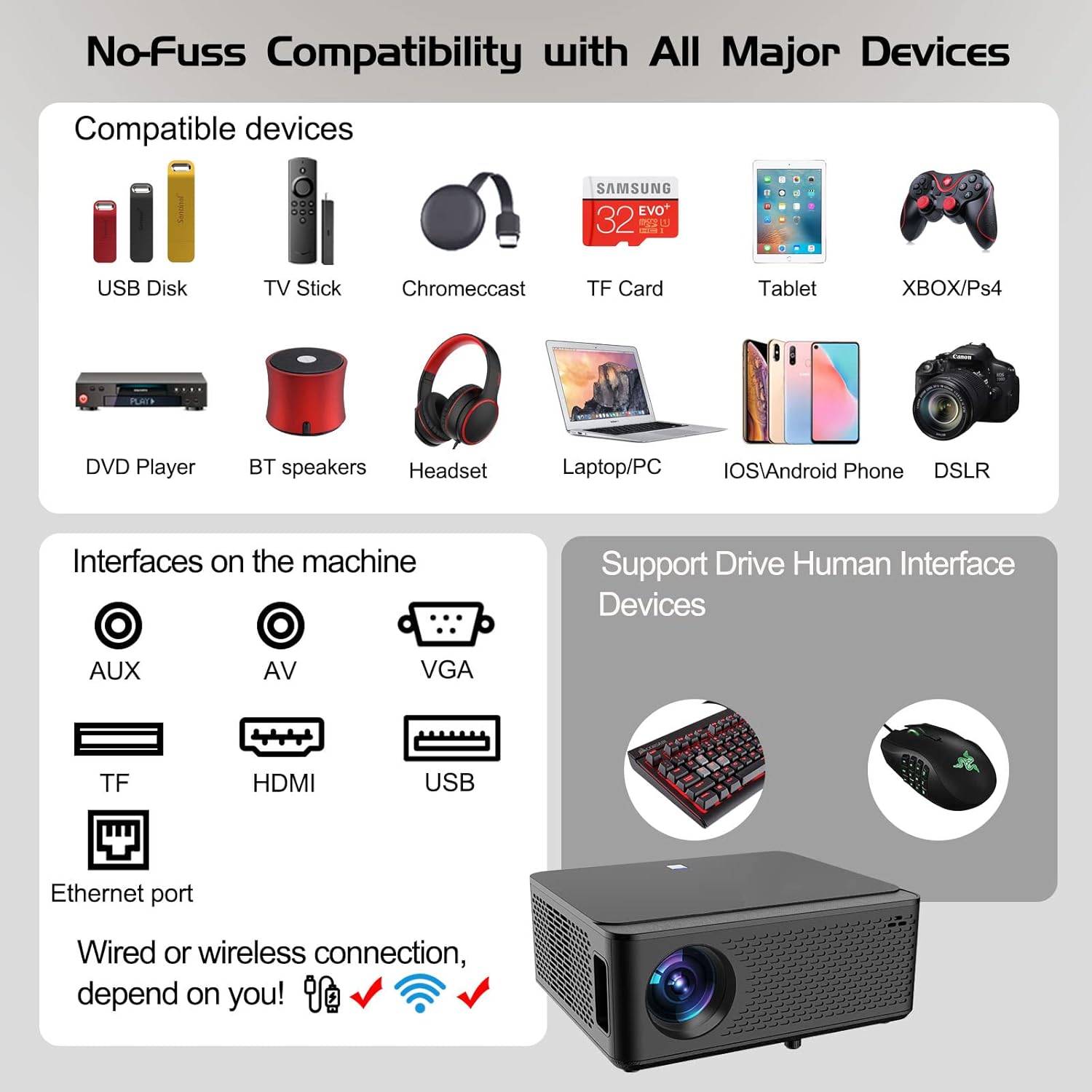
Image: Diagram illustrating the various input and output ports available on the Ysametp Projector, including USB, HDMI, AV, VGA, TF card slot, and Ethernet port.
The projector features a comprehensive set of ports for versatile connectivity:
- Port Ethernet: Per a connexió a Internet per cable.
- Port VGA: For connecting to older computers.
- Port USB-A: For connecting USB flash drives or external devices.
- Port HDMI: For high-definition audio and video input from various sources.
- Entrada AV: For connecting analog audio/video devices.
- Sortida d'àudio de 3.5 mm: Per connectar altaveus externs o auriculars.
- Ranura per a targetes TF: For reading media from Micro SD cards.
- Entrada d'alimentació: Per connectar el cable d'alimentació de CA.
4.3 Controls superiors
The top of the projector includes a power button for basic on/off functionality. Further controls are available via the remote control and the on-screen display.
4.4 Ajust del focus
A mechanical focus adjustment screw is located on the side of the lens for manual image clarity control.
5. Configuració
5.1 Col·locació
Position the projector on a stable surface. The projection distance will determine the screen size. For optimal viewassegureu-vos que el projector estigui perpendicular a la superfície de projecció.
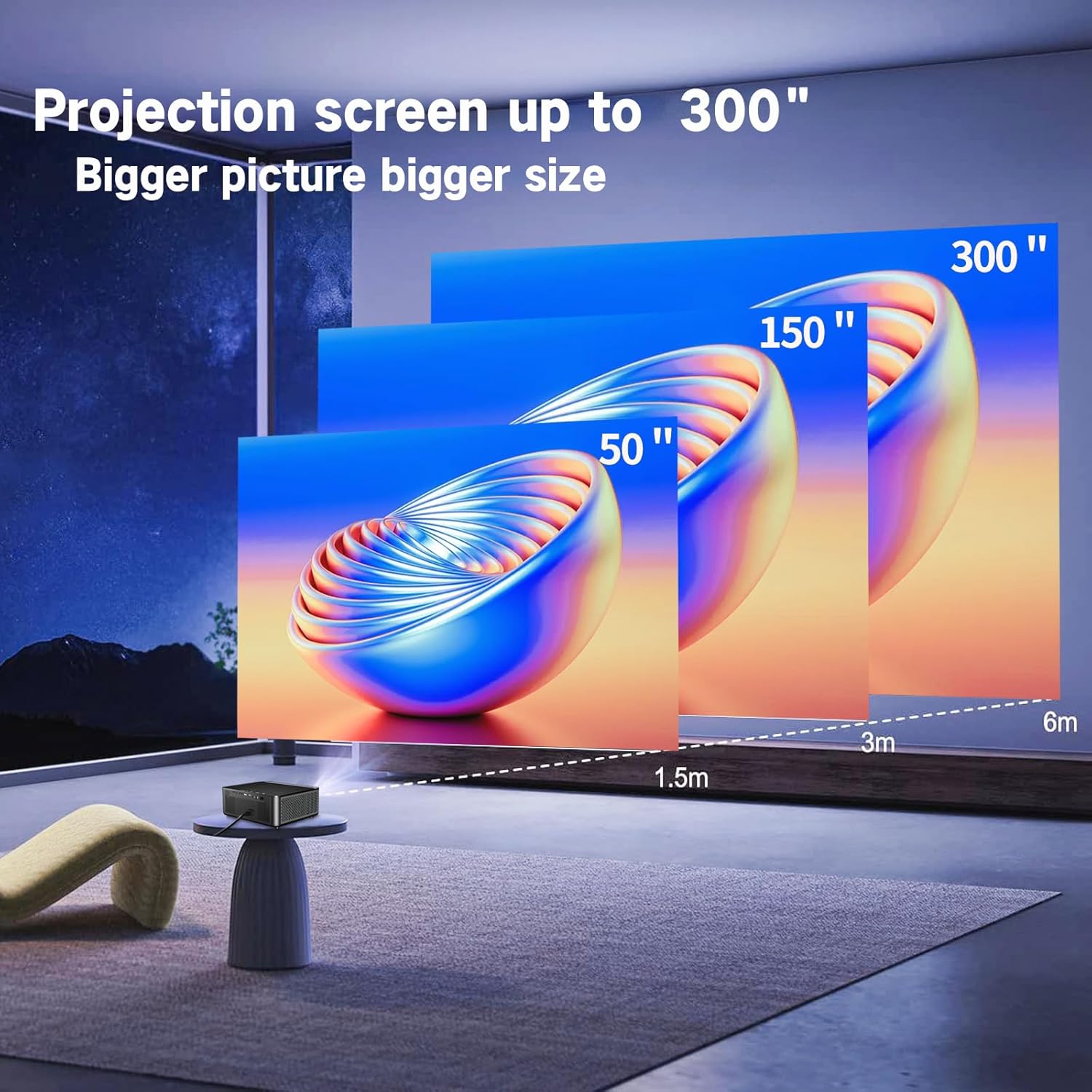
Image: Illustration demonstrating recommended projection distances for achieving screen sizes of 50, 150, and 300 inches.
5.2 Connexió d'alimentació
- Connecteu el cable d'alimentació a l'entrada d'alimentació del projector.
- Connecteu l'altre extrem del cable d'alimentació a una presa de corrent adequada.
5.3 Encès inicial
- Premeu el botó d'encesa del projector o del comandament a distància per encendre el dispositiu.
- Allow a few moments for the projector to boot up.
5.4 Correcció de focus i trapezoide
After powering on, adjust the image for clarity and proper geometry:
- Focus: Rotate the mechanical focus adjustment screw near the lens until the image appears sharp and clear.
- Correcció Keystone: If the projected image is trapezoidal (wider at the top or bottom), use the 4D keystone correction feature via the on-screen menu to adjust the image corners until it forms a perfect rectangle.

Image: Diagram showing how 4P/4D keystone correction can be used to adjust the corners of a projected image to achieve a rectangular shape.
6. Instruccions de funcionament
6.1 Connexió de dispositius externs
El projector admet diversos mètodes de connexió:
- HDMI: Connect gaming consoles (PS4, Xbox), laptops, or other HDMI-enabled devices using an HDMI cable.
- USB: Insert a USB flash drive into the USB-A port to play media files directament.
- Targeta TF: Insert a Micro SD (TF) card into the TF card slot to access media.
- VGA/AV: Use these ports for older devices requiring analog connections.
- Bluetooth: Pair Bluetooth speakers or headphones for enhanced audio.

Image: The projector shown with various compatible devices, including laptops, smartphones, gaming consoles, USB drives, and external speakers, demonstrating its versatile connectivity.
6.2 Using the Integrated Android System
The projector comes with an integrated Android system, allowing access to a wide range of applications.

Image: The projector displaying its Android interface, featuring icons for popular streaming services and apps such as Netflix, YouTube, Prime Video, Hulu, Spotify, and TikTok.
- Connexió de xarxa: Connect the projector to your home Wi-Fi network via the settings menu or use an Ethernet cable for a wired connection.
- Accés a l'aplicació: Navigate the Android interface using the remote control. You can download and install applications from the Google Play Store.
- Transmissió en temps real: Enjoy content from pre-installed or downloaded streaming services.
6.3 5G WiFi Screen Mirroring
Mirror your smartphone, tablet, or PC screen wirelessly to the projector.

Image: A family enjoying content mirrored from a smartphone onto the large projected screen, illustrating the 5G WiFi Screen Mirroring feature for iOS, Android, and Windows devices.
- Assegureu-vos que tant el projector com el dispositiu estiguin connectats a la mateixa xarxa WiFi 5G.
- Select the "Screen Mirroring" option on the projector's menu.
- On your smartphone/tablet/PC, activate its screen mirroring function (e.g., "Smart View" for Android, "AirPlay" for iOS, "Cast" for Windows).
- Select the projector from the list of available devices to establish the connection.
7. Manteniment
7.1 Neteja de la lent
Netegeu suaument la lent del projector amb un drap suau i sense borrissol dissenyat específicament per a superfícies òptiques. No utilitzeu productes de neteja abrasius ni força excessiva.
7.2 Neteja del cos del projector
Use a soft, dry cloth to clean the exterior of the projector. Avoid using harsh chemicals or solvents.
7.3 Optical Engine Protection
The projector features a full-sealed optical engine designed to prevent dust from entering the internal components, reducing the need for frequent internal cleaning and extending the device's lifespan.

Imatge: Una imatge interna view diagram of the projector's full-sealed optical engine, highlighting its design to prevent dust from entering and affecting performance.
7.4 Lamp La vida
The projector utilizes advanced SmarEco technology to minimize energy consumption and extend the lamp's lifespan up to 60,000 hours, providing long-term reliability.

Imatge: Un diagrama detallat que mostraasing the projector's lamp technology, indicating a lifespan of over 30,000 hours.
8. Solució De Problemes
Si teniu problemes amb el projector, consulteu els problemes i solucions més comuns següents:
| Problema | Causa possible | Solució |
|---|---|---|
| Cap imatge a la pantalla. | Power cable loose; incorrect input source; device not connected. | Check power connections. Select correct input source (HDMI, AV, etc.). Ensure external device is powered on and connected properly. |
| La imatge és borrosa. | Focus not adjusted; projector too far/close. | Adjust the focus ring on the lens. Ensure projector is within optimal projection distance. |
| Image is trapezoidal. | Projector no perpendicular a la pantalla. | Use the 4D keystone correction feature in the settings menu to adjust the image shape. |
| Sense so. | Volume too low; external audio device not connected; incorrect audio output selected. | Increase volume. Check external speaker/headphone connection. Ensure correct audio output is selected in settings. |
| No es pot connectar a la xarxa Wi-Fi. | Incorrect password; out of range; network issue. | Verifiqueu la contrasenya del Wi-Fi. Acosteu el projector a l'encaminador. Reinicieu l'encaminador i el projector. |
9. Especificacions
Key technical specifications for the Ysametp 5G WiFi Bluetooth Projector (Model DE-M8-E-An):
- Marca: Ysametp
- Número de model: DE-M8-E-An
- Color: Negre
- Tipus de producte: Projector portàtil
- Tecnologia de connectivitat: HDMI, USB, Wi-Fi (5G), Bluetooth
- Característiques especials: Integrated WiFi, Android System, 4D Keystone Correction
- Dispositius compatibles: Game Consoles, Speakers, Laptops, Smartphones, Tablets
- Resolució de visualització: Native 1920 x 1080 (Full HD)
- Resolució de visualització màxima: 4096 x 2160 (4K Support)
- Tipus de visualització: DLP
- Dimensions del producte: 26 L x 23 W x 11 H centímetres
- Factor de forma: Portàtil
- Tipus de muntatge: Muntatge de taula
- Lamp Vida útil: Fins a 60,000 hores

Image: A visual comparison highlighting the projector's 20,000 Lumens brightness, Native 1080P resolution, and 4K support, contrasting it with a lower specification projector.
10. Garantia i Suport
The Ysametp Projector comes with a 3-year service warranty. For technical support or warranty claims, please contact Ysametp customer service through your purchase platform or the official Ysametp weblloc.


