1. Introducció
Thank you for choosing the Cherry KW 9100 Slim Wireless Keyboard. This manual provides essential information for setting up, operating, and maintaining your new keyboard. The KW 9100 Slim is designed for both work and home office environments, offering flexible connectivity options and a comfortable typing experience with its silent SX Scissor Mechanism.

Figura 1.1: De dalt a baix view of the Cherry KW 9100 Slim Wireless Keyboard, showcasing el seu disseny complet i elegant.
2. Contingut del paquet
Si us plau, verifiqueu que tots els elements siguin presents al vostre paquet:
- Cherry KW 9100 Slim Wireless Keyboard
- Cable USB (USB-A a USB-C)
- USB Receiver (2.4 GHz RF dongle)
- Manual d'instruccions (aquest document)
- Magnetic Support Bar (pre-attached or separate)
3. Característiques clau
- Connectivitat dual: Seamlessly switch between wireless RF (2.4 GHz) and Bluetooth transmission modes.
- Bateria recarregable: Built-in lithium rechargeable battery with USB-C connection for convenient charging.
- SX Scissor Mechanism: Cherry's proprietary low-profile scissor technology ensures a quiet and precise typing experience.
- Slim and Stable Design: Features a thin profile with a built-in metal plate for maximum stability and rigidity.
- Adjustable Typing Angle: Includes a removable magnetic support bar for a steeper typing angle preference.
- LED d'estat: Integrated LEDs for CAPS LOCK, NUM, and SCROLL keys.
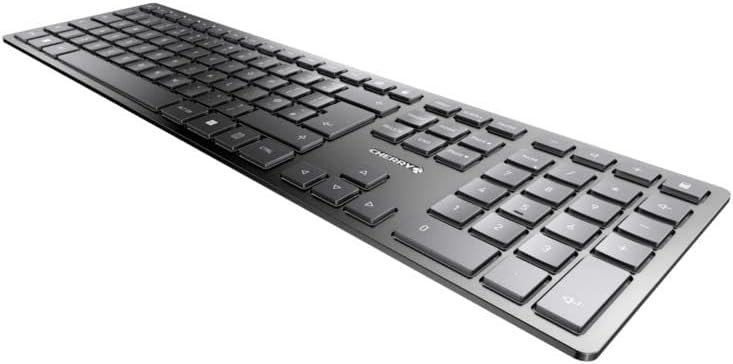
Figura 3.1: Angle view destacant el Slim Profile and key layout of the keyboard.

Figura 3.2: Primer pla view of the keys, illustrating the low-profile design and quiet SX Scissor Mechanism.
4. Configuració i connexió
4.1 Càrrega del teclat
Before first use, it is recommended to fully charge the keyboard.
- Connect the supplied USB-A to USB-C cable to the USB-C port on the keyboard.
- Connect the other end of the cable to a USB-A port on your computer or a compatible USB power adapter.
- The charging indicator LED will illuminate. The keyboard can be used while charging.

Figure 4.1: Location of the USB-C charging port on the Cherry KW 9100 Slim keyboard.
4.2 Connecting via 2.4 GHz RF Wireless
For a stable and fast wireless connection, use the included USB receiver.
- Locate the USB receiver (dongle) in the package.
- Connecteu el receptor USB a un port USB-A disponible de l'ordinador.
- On the keyboard, locate the connectivity switch (usually on the back or side) and set it to the "RF" or 2.4 GHz icon position.
- El teclat s'hauria de connectar automàticament a l'ordinador.
4.3 Connexió mitjançant Bluetooth
The keyboard supports Bluetooth connectivity for devices with Bluetooth capabilities.
- On the keyboard, set the connectivity switch to the "Bluetooth" icon position.
- The Bluetooth indicator LED on the keyboard will start blinking, indicating it's in pairing mode.
- A l'ordinador o dispositiu, obriu la configuració de Bluetooth.
- Cerca new devices and select "Cherry KW 9100 Slim" from the list.
- Seguiu les indicacions de la pantalla per completar el procés de vinculació.
4.4 Attaching the Magnetic Support Bar
The keyboard comes with a magnetic support bar that can be attached to adjust the typing angle.
- Locate the magnetic support bar.
- Align the bar with the magnetic strip on the underside of the keyboard.
- The magnets will snap the bar into place, providing an elevated typing angle.
- To remove, simply pull the bar away from the keyboard.

Figura 4.2: lateral view of the keyboard demonstrating the elevated angle with the magnetic support bar attached.

Figure 4.3: Illustration of how the magnetic support bar attaches to the keyboard's underside.
5. Funcionament
5.1 Ús bàsic
Once connected, the Cherry KW 9100 Slim functions as a standard keyboard. Type as you normally would.

Figure 5.1: A user demonstrating typing on the Cherry KW 9100 Slim keyboard in an office setting.
5.2 Function Keys (F-Keys)
The F-keys (F1-F12) on the top row may have secondary functions accessible by pressing the Fn key simultaneously. Refer to the keycap legends for specific functions such as media control, volume adjustment, or brightness control.
5.3 LED d'estat
The keyboard features indicator LEDs for:
- MAJÚSCULES ACTIVADES: Illuminates when Caps Lock is active.
- NUM: Illuminates when Num Lock is active.
- DESCOLLIDA: Illuminates when Scroll Lock is active.
- Battery/Charging: Indicates charging status or low battery.
6. Manteniment
6.1 Neteja del teclat
Per mantenir l'aspecte i la funcionalitat del teclat:
- Desconnecteu el teclat de l'ordinador abans de netejar-lo.
- Utilitzeu un drap suau i sense pelusa lleugerament dampamb aigua o una solució de neteja suau.
- Eviteu la humitat excessiva i no ruixeu productes de neteja directament sobre el teclat.
- Per a la pols i les restes entre les tecles, feu servir aire comprimit.
6.2 Cura de la bateria
The built-in rechargeable battery is designed for long life.
- Recharge the keyboard when the battery indicator shows low power.
- Eviteu descarregar completament la bateria amb freqüència per allargar-ne la vida útil.
- Guardeu el teclat en un lloc fresc i sec si no l'utilitzeu durant períodes prolongats.
7. Solució De Problemes
| Problema | Causa possible | Solució |
|---|---|---|
| Keyboard not responding (RF) | USB receiver not plugged in; keyboard not in RF mode; low battery. | Ensure USB receiver is securely plugged in. Set keyboard switch to RF mode. Charge the keyboard. Try a different USB port. |
| El teclat no respon (Bluetooth) | Keyboard not in Bluetooth mode; not paired; out of range; low battery. | Set keyboard switch to Bluetooth mode. Ensure keyboard is paired with the device. Move keyboard closer to the device. Charge the keyboard. |
| Les tecles són enganxoses o no responen | Debris under keys; liquid spill. | Clean the keyboard using compressed air. If liquid spill, disconnect immediately and allow to dry completely before use. Do not attempt to disassemble. |
| La bateria no es carrega | Faulty USB cable or port; power source issue. | Try a different USB cable and/or USB port. Ensure the power source is active. |
8. Especificacions
| Característica | Detall |
|---|---|
| Número de model | JK-9100US-2 |
| Connectivitat | Bluetooth, 2.4 GHz RF (with USB receiver), USB-C (for charging) |
| Descripció del teclat | Wireless, Full-size |
| Mecanisme clau | SX Scissor Mechanism |
| Nombre de claus | 108 |
| Color | Negre |
| Material | Metal (built-in plate) |
| Pes de l'article | 1.49 lliures (uns 676 grams) |
| Dimensions del paquet | 18.19 x 6.69 x 1.26 polzades |
| Fabricant | CIRERERA |
| Dispositius compatibles | PC |
| Usos recomanats | Gaming, Office, Work |
9. Garantia i Suport
Per obtenir informació sobre la garantia i assistència tècnica, consulteu la pàgina oficial de Cherry. website or contact Cherry customer service. Keep your proof of purchase for warranty claims.
Official Cherry Weblloc: www.cherry.de/en/
Atenció al client: Consulteu la secció de contacte del lloc web oficial weblloc web per obtenir detalls de suport regional.


