1. Introducció
Gràcies per la compraasing the Yifeng Wireless Keyboard. This keyboard offers versatile connectivity options, supporting both 2.4 GHz USB wireless and Bluetooth connections. It is designed for multi-device use, allowing simultaneous pairing with up to four devices and quick switching between them. Featuring a comfortable scissor-switch mechanism and an integrated stand, it enhances productivity across various platforms including Windows, iOS, and Android devices.
2. Informació de seguretat
- No exposeu el teclat a líquids ni a temperatures extremes.
- Avoid disassembling or attempting to repair the device yourself.
- Mantenir fora de l'abast dels nens.
- Utilitzeu només el cable USB proporcionat per carregar.
3. Contingut del paquet
Si us plau, comproveu que hi hagi tots els elements:
- Yifeng Wireless Keyboard
- Cable de càrrega USB
- 2.4 GHz USB Receiver (may be stored in the keyboard's battery compartment)
- Manual d'usuari (aquest document)
4. Configuració
4.1. 2.4 GHz USB Wireless Connection
- Locate the 2.4 GHz USB receiver. It is often stored in a dedicated slot on the keyboard.
- Connecteu el receptor USB a un port USB disponible de l'ordinador o dispositiu.
- Turn on the keyboard using the power switch (usually located on the side or back).
- The keyboard should automatically connect to your device. If not, press the dedicated 2.4GHz connection key (often labeled with a '4' or '2.4G' icon) to activate pairing mode.
4.2. Connexió Bluetooth
- Assegureu-vos que el teclat estigui carregat i encès.
- Press and hold one of the Bluetooth channel keys (e.g., Bluetooth 1, Bluetooth 2, o Bluetooth 3) durant 3-5 segons fins que l'indicador lluminós parpellegi, cosa que indica el mode d'emparellament.
- Al dispositiu (tauleta, telèfon intel·ligent, PC), aneu a la configuració de Bluetooth i activeu-lo.
- Cerca available devices. The keyboard should appear as "Yifeng Keyboard" or similar.
- Seleccioneu el teclat que voleu emparellar. Seguiu les instruccions que apareixen a la pantalla, com ara introduir un codi d'emparellament.
- Un cop emparellat, l'indicador lluminós deixarà de parpellejar i romandrà fix durant uns segons.
4.3. Multi-Device Pairing
This keyboard supports connecting up to 4 devices simultaneously: one via 2.4 GHz USB and three via Bluetooth. Follow the steps above to pair each device to a different channel (2.4GHz, Bluetooth 1, Bluetooth 2, Bluetooth 3).
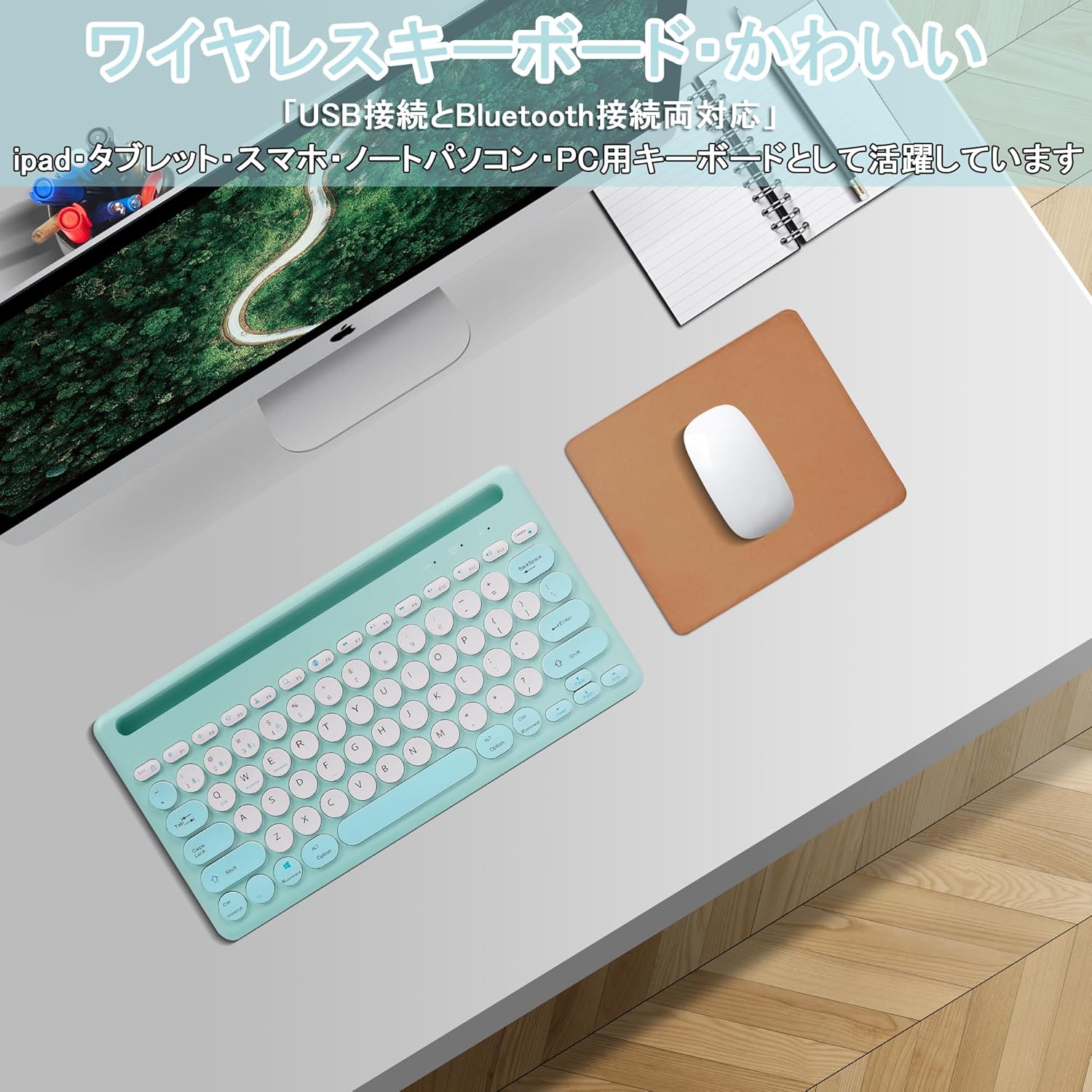
Image: The Yifeng Wireless Keyboard connected to a tablet, smartphone, and laptop, demonstrating its multi-device pairing capability.
5. Instruccions de funcionament
5.1. Canviar entre dispositius connectats
To switch between your paired devices, simply press the corresponding connection key:
- Premeu Bluetooth 1 to switch to the first Bluetooth device.
- Premeu Bluetooth 2 to switch to the second Bluetooth device.
- Premeu Bluetooth 3 to switch to the third Bluetooth device.
- Premeu el botó 2.4 GHz key (often labeled with a '4' or '2.4G' icon) to switch to the USB wireless device.
5.2. System Compatibility Switching
The keyboard supports Windows, iOS, and Android operating systems. Use the dedicated system keys to optimize key functions for your current device:
- Premeu Fn + Q per a iOS.
- Premeu Fn + W per a Android.
- Premeu Fn + E per a Windows.
5.3. Càrrega del teclat
The keyboard features a built-in rechargeable lithium-ion battery. A single full charge provides approximately 30 days of continuous use.
- Connect the included USB charging cable to the charging port on the keyboard.
- Connecteu l'altre extrem del cable USB a una font d'alimentació USB (per exemple, un port USB de l'ordinador, un adaptador de paret USB).
- El llum indicador de càrrega s'il·luminarà durant la càrrega i s'apagarà quan estigui completament carregat.

Image: The Yifeng Wireless Keyboard connected to a power strip via its USB charging cable, indicating the rechargeable feature.
5.4. Ús del suport integrat
The keyboard includes an integrated stand slot at the top, designed to hold your tablet or smartphone upright. This allows for comfortable viewing and typing, making it ideal for document creation, chatting, or watching media while commenting.
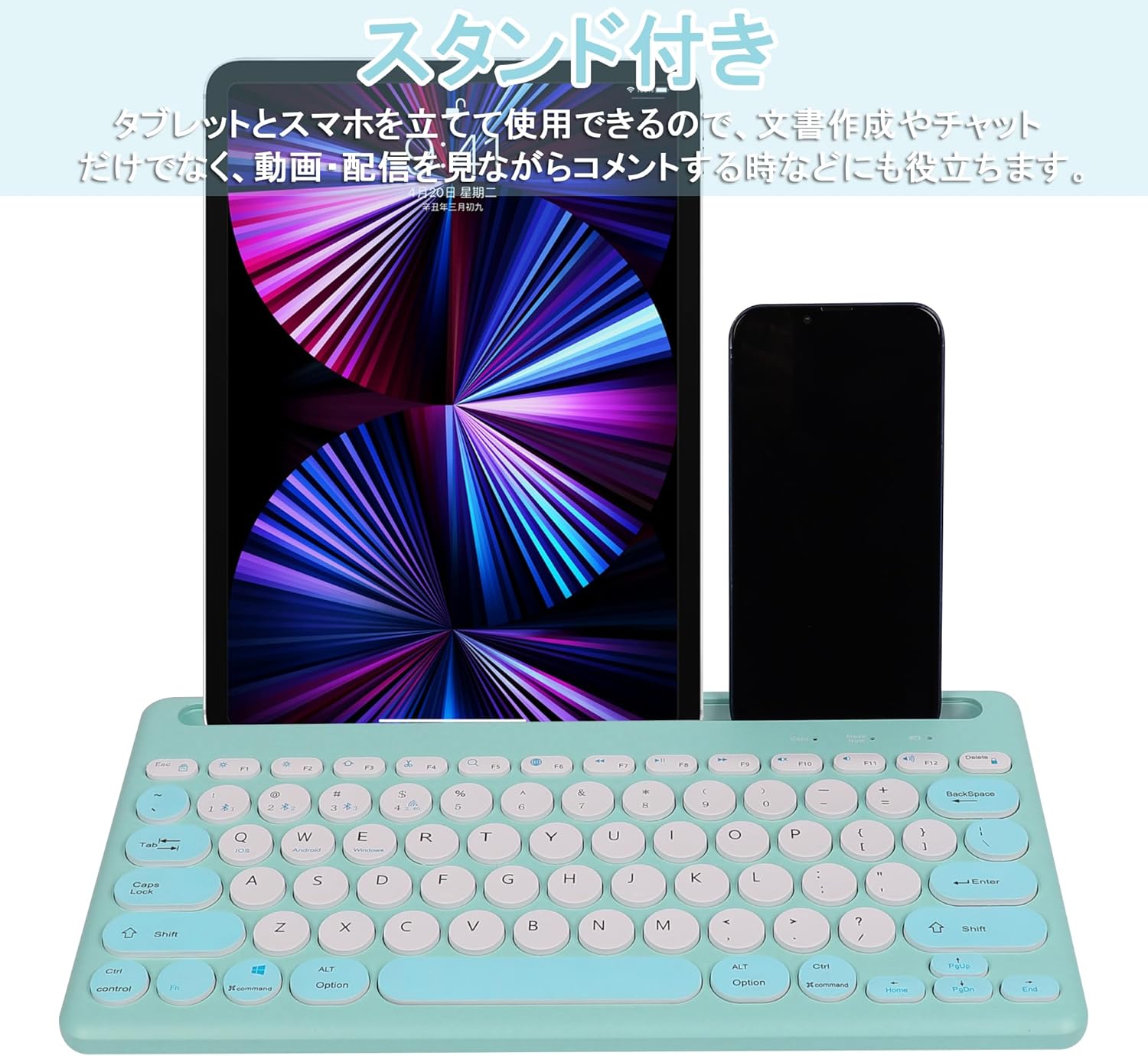
Image: The Yifeng Wireless Keyboard with a tablet and smartphone securely positioned in its integrated stand, demonstrating its utility for multi-device setups.
6. Manteniment
- Clean the keyboard regularly with a soft, dry cloth. For stubborn dirt, a slightly damp cloth can be used, ensuring no moisture enters the keyboard.
- Eviteu utilitzar productes químics aggressivs o netejadors abrasius.
- Guardeu el teclat en un lloc fresc i sec quan no l'utilitzeu.
- The keyboard features anti-slip pads on the back for stable use. Ensure these pads are clean and intact for optimal stability.

Image: The underside of the Yifeng Wireless Keyboard, highlighting the four anti-slip pads designed for stable placement on various surfaces.
7. Solució De Problemes
7.1. El teclat no es connecta
- Comproveu la potència: Assegureu-vos que el teclat estigui encès i que la bateria estigui prou carregada.
- Torna a emparellar: For Bluetooth, delete the keyboard from your device's Bluetooth list and attempt to pair again. For 2.4 GHz USB, try plugging the receiver into a different USB port.
- Canvia de canals: Ensure you have selected the correct channel (Bluetooth 1/2/3 or 2.4GHz) for your device.
- Dispositiu Bluetooth: Verify that Bluetooth is enabled on your device and that it is discoverable.
7.2. Les tecles no responen
- Nivell de bateria: Recarrega el teclat si la bateria està baixa.
- Mode del sistema: Ensure the keyboard is set to the correct operating system mode (Windows, iOS, Android) using Fn + Q/W/E.
- Interferència: Acosteu el teclat al dispositiu i allunyeu-lo d'altres dispositius sense fil que puguin causar interferències.
7.3. Problemes de càrrega
- Comprovació del cable: Ensure the USB charging cable is securely connected to both the keyboard and the power source.
- Font d'alimentació: Prova un altre port USB o adaptador de paret.
- Llum indicadora: If the charging indicator light does not turn on, the cable or power source may be faulty.
8. Especificacions
| Marca | Yifeng |
| Número de model | AMWS0584A-L |
| Tecnologia de connectivitat | Bluetooth, 2.4 GHz Wireless (USB) |
| Dispositius compatibles | Tablets, Smartphones, PCs, Laptops (Windows, iOS, Android) |
| Disposició del teclat | QWERTY (disseny dels EUA) |
| Mecanisme clau | Interruptor de tisores |
| Característica especial | Rechargeable, Integrated Stand, Multi-Pairing (4 devices) |
| Tipus de bateria | 1 bateria de ions de liti (inclosa) |
| Durada de la bateria | Approx. 30 days (per charge) |
| Dimensions | 33.7 x 16.7 x 2.9 cm |
| Pes | 820 g |
| Components inclosos | Cable USB |
9. Garantia i Suport
Aquest producte ve amb un 1 any de garantia de qualitat from the date of purchase. In case of initial defects or malfunctions occurring within the warranty period, we offer return or exchange services.
Should you encounter any issues or require assistance, please contact us directly through your purchase platform:
- Vés al teu Historial de comandes.
- Select the order for this product.
- Feu clic a Contacte amb el venedor.
Our support team will be happy to assist you.


