Introducció
Welcome to the user manual for your EasySMX 5-in-1 Docking Station, designed to enhance your gaming experience with the Steam Deck. This versatile hub provides expanded connectivity and display options, transforming your portable gaming device into a powerful desktop setup or a large-screen entertainment system.

The EasySMX 5-in-1 Docking Station with a Steam Deck connected, showcasinel seu disseny compacte i els seus múltiples ports.
Característiques clau
- Connectivitat 5 en 1: Integrates essential ports for comprehensive expansion.
- 4K HDMI 2.0 Output: Supports high-resolution display up to 4K for an immersive visual experience.
- Ports USB 3.0: Three USB 3.0 ports for high-speed data transfer and connecting peripherals like keyboards, mice, and controllers.
- Lliurament d'alimentació USB-C de 100 W: Ensures fast and efficient charging of your Steam Deck while in use.
- Integrated Stand Design: Provides a stable and convenient stand for your Steam Deck.
- Àmplia compatibilitat: Designed primarily for Steam Deck, also compatible with other USB-C devices like Nintendo Switch, tablets, and smartphones.
- Protecció integrada: Features overheat, overcurrent, overvoltage, and short circuit protection for safe operation.
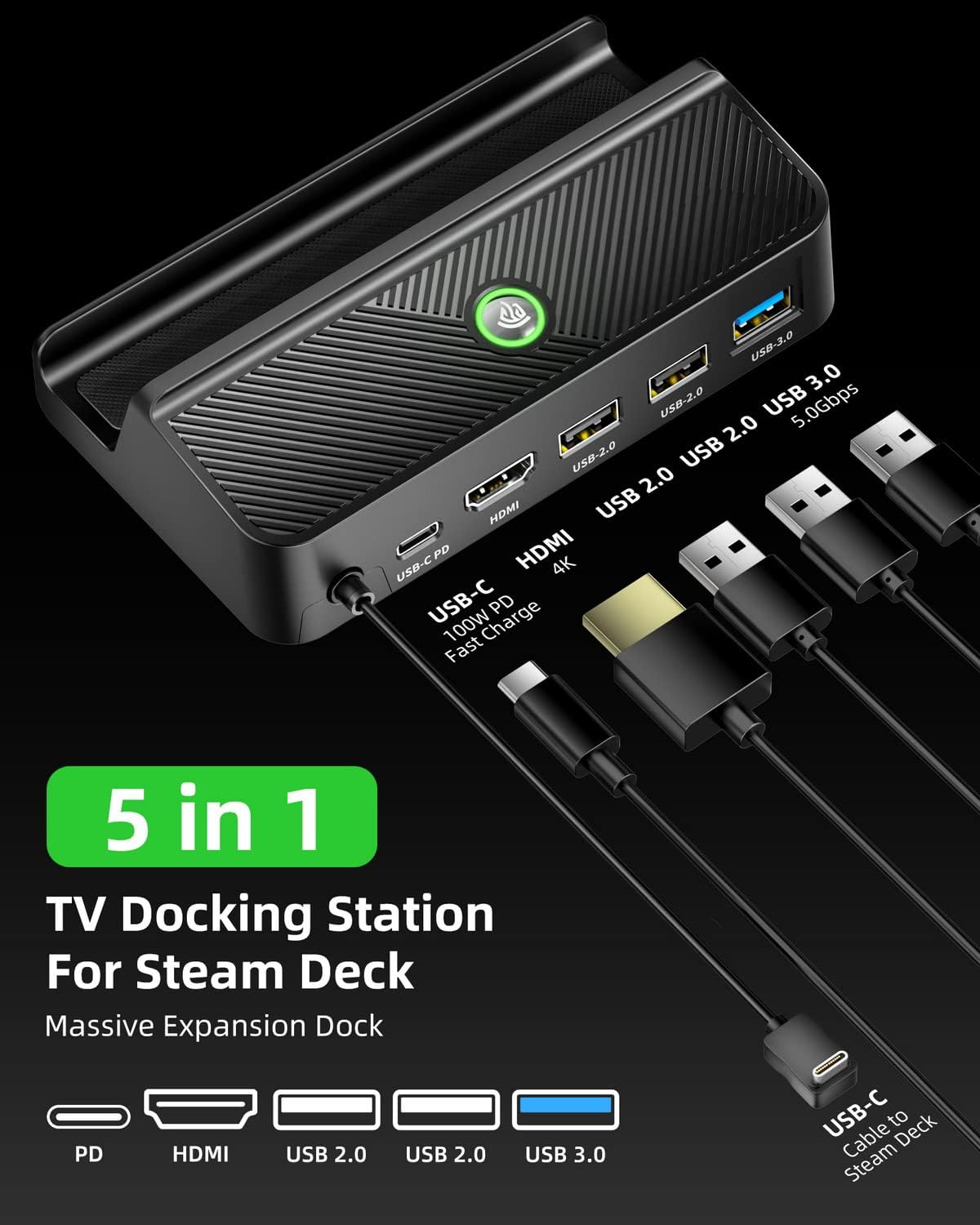
Un detallat view of the EasySMX 5-in-1 Docking Station, highlighting its USB-C PD, HDMI, USB 2.0, and USB 3.0 ports.
Contingut del paquet
- EasySMX 5-in-1 Docking Station
- Manual d'usuari (Aquest document)
Guia de configuració
Connecting Your Steam Deck
1. Place your Steam Deck securely into the docking station's integrated stand.
2. Connect the built-in USB-C cable from the docking station to the USB-C port on your Steam Deck.

This image illustrates how to connect the integrated USB-C cable from the docking station to the Steam Deck's USB-C port, ensuring a secure fit for power and data transfer.
Connexió d'alimentació
Connect your original Steam Deck power adapter (or a compatible 100W USB-C PD charger) to the USB-C PD port on the docking station. This will power the dock and charge your Steam Deck.

This image shows the Steam Deck docked and connected to a 100W power source via the USB-C PD port on the docking station, highlighting its fast charging capability.
Connecting to a Display (HDMI)
Use an HDMI 2.0 cable (not included) to connect the HDMI port on the docking station to an HDMI input on your TV or monitor.

This image demonstrates connecting the docking station to a TV via an HDMI cable, showcasing the 4K display output for an enhanced gaming or viewexperiència.
Connexió de perifèrics USB
Connect your USB devices such as keyboards, mice, game controllers, or external storage drives to the available USB 3.0 ports on the docking station.

This image illustrates various USB peripherals like a keyboard, mouse, and headset connected to the docking station's USB 3.0 and USB 2.0 ports, demonstrating expanded connectivity.
Instruccions de funcionament
Display Switching
Once connected, your Steam Deck should automatically output video to the connected display. If not, you may need to adjust display settings on your Steam Deck.
Some docking stations feature a button to switch between the Steam Deck's screen and the external display. Refer to the specific button on your dock if available.
This video demonstrates the process of docking the Steam Deck and connecting it to an external monitor, showcasing how the display automatically switches and the use of external peripherals like a keyboard and mouse. It also briefly shows compatibility with Nintendo Switch.
Funcionalitat de càrrega
The docking station supports Power Delivery (PD) up to 100W, allowing your Steam Deck to charge at its maximum 45W speed while docked and in use.
Manteniment
- Mantingueu neta l'estació d'acoblament netejant-la amb un drap suau i sec.
- Eviteu exposar el dispositiu a temperatures extremes, humitat o llum solar directa.
- Do not attempt to disassemble or repair the docking station yourself. Contact customer support for assistance.
Resolució de problemes
Sense sortida de visualització
- Ensure all cables (USB-C to Steam Deck, HDMI to display) are securely connected.
- Verify that your TV/monitor is set to the correct HDMI input source.
- Check the power connection to the docking station.
- Restart your Steam Deck.
Peripherals Not Working
- Ensure USB devices are properly inserted into the correct ports.
- Try connecting the peripheral directly to the Steam Deck (if possible) to rule out device issues.
- Restart the Steam Deck and reconnect the peripheral.
Càrrega lenta
- Ensure you are using a power adapter that supports USB-C Power Delivery (PD) and provides sufficient wattage (e.g., 45W or higher for Steam Deck).
- Check if the power cable is securely connected to both the adapter and the docking station.
Especificacions del producte
| Característica | Especificació |
|---|---|
| Dimensions del producte | 3.15 x 5.12 x 1.46 polzades |
| Pes de l'article | 1.06 unces (30 grams) |
| ASIN | B0BKZMDQMB |
| Número de model de l'article | EasySMX AL-ST661 |
| Marca | EasySMX |
| Interfície del maquinari | USB Type C, USB, USB 3.0 |
| Ports USB totals | 3 |
| Nombre de Ports | 5 |
| Ports HDMI totals | 1 |
| Wattage | 100 watts |
Garantia i Suport
EasySMX products come with a standard manufacturer's warranty. For detailed warranty information, technical support, or customer service inquiries, please visit the official EasySMX weblloc o poseu-vos en contacte amb el seu equip d'atenció al client.


