1. Introducció
This manual provides detailed instructions for the setup, operation, and maintenance of your Cudy LT12 4G LTE Cat 12 WiFi Router. The LT12 is designed to provide high-speed internet connectivity using 4G LTE-A Pro technology, offering data rates up to 600/150 Mbps. It features a Qualcomm chipset, dual SIM card slots, AC1200 dual-band WiFi, and four Gigabit Ethernet ports, making it suitable for various networking needs.
The router incorporates 4x4 MIMO high-performance antennas to enhance service capacity and expand internet coverage. It also supports multiple VPN clients and advanced network configurations.
2. Contingut del paquet
Si us plau, verifiqueu que el vostre paquet contingui els elements següents:
- Cudy LT12 4G LTE Cat 12 WiFi Router
- Adaptador d'alimentació
- Cable Ethernet
- Detachable Cellular Antennas (4x 5dBi)
- Detachable WiFi Antennas (2x 5dBi)
- Guia d'instal·lació ràpida

Image: The retail packaging box for the Cudy LT12 router, showing the device and key features.
3. Sobrecàrrega físicaview
3.1 Tauler frontal

Imatge: Frontal view of the Cudy LT12 router, displaying the Cudy logo and LED indicators for power, Wi-Fi, and cellular signal strength.
El panell frontal inclou indicadors LED que proporcionen informació d'estat:
- LED d'alimentació: Indica l'estat d'alimentació.
- LED Wi-Fi: Indica l'activitat de la xarxa Wi-Fi.
- Cellular Signal LEDs: Indicate the strength of the 4G LTE signal.
3.2 Panell posterior

Imatge: Part posterior view of the Cudy LT12 router, highlighting the power input, ON/OFF button, WPS/RESET button, WAN/LAN ports, and cellular antenna connectors.
The rear panel includes the following ports and buttons:
- Entrada d'alimentació: Es connecta a l'adaptador de corrent.
- Botó ON/OFF: Encén o apaga el dispositiu.
- Botó WPS/RESET: Press briefly for WPS function; press and hold for 5-10 seconds to reset to factory defaults.
- WAN/LAN Ports (4x Gigabit): One port can function as either WAN or LAN, while the other three are dedicated LAN ports.
- Cellular Antenna Connectors (4x SMA): For connecting the external cellular antennas.
- SIM Card Slots (2x Nano SIM): For inserting Nano SIM cards.
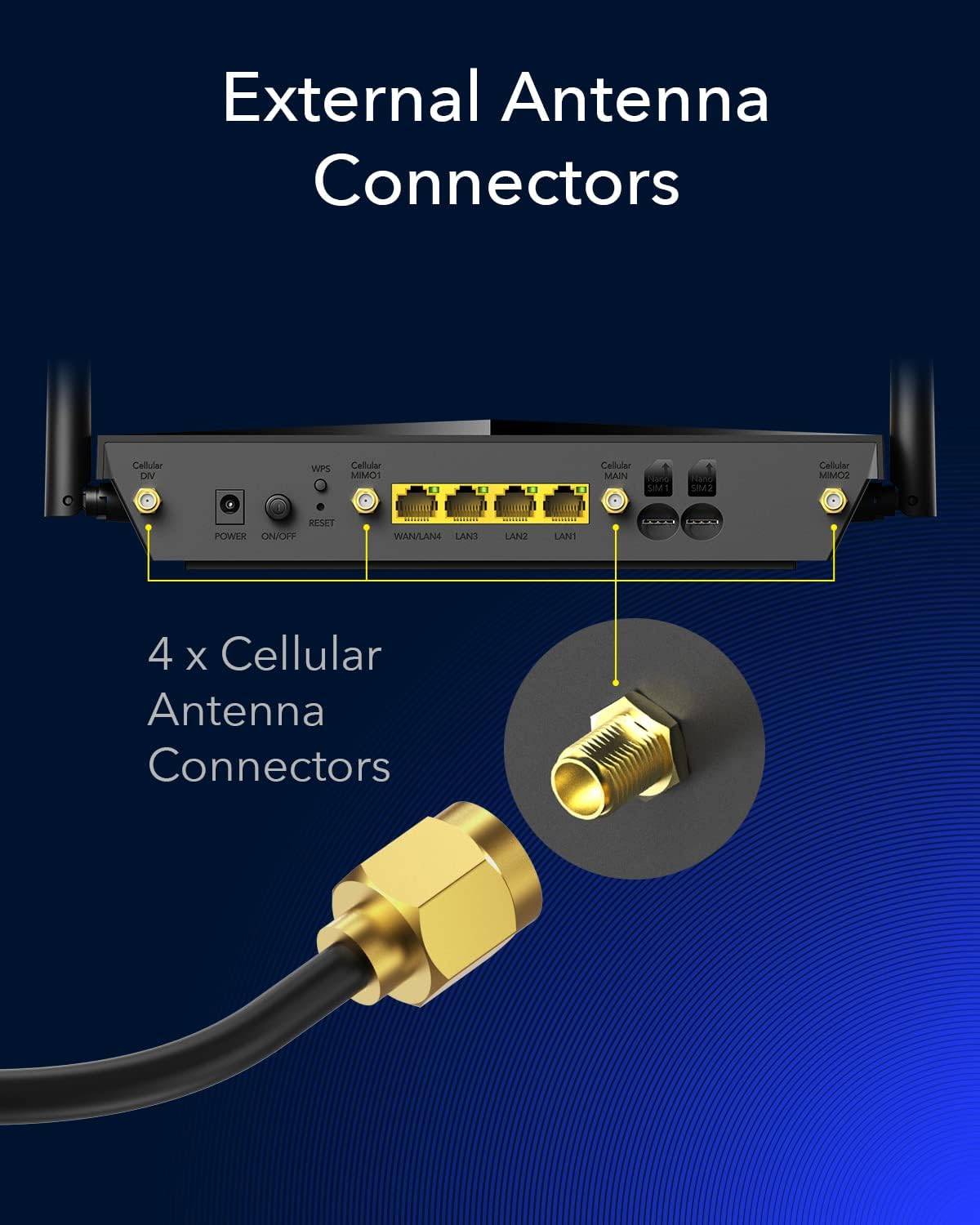
Image: A detailed diagram illustrating the four cellular antenna connectors on the rear of the Cudy LT12 router, with an example of an SMA connector.
4. Instruccions de configuració
Follow these steps to set up your Cudy LT12 router:
- Inseriu la targeta(es) SIM: Locate the Nano SIM card slots on the rear panel. Gently insert one or two Nano SIM cards into the designated slots until they click into place. Ensure the SIM cards are correctly oriented.
- Col·loca les antenes: Screw the four cellular antennas and two WiFi antennas onto their respective connectors on the rear panel. Ensure they are securely tightened.
- Connectar l'alimentació: Connect the provided power adapter to the router's power input and then plug it into a power outlet. Press the ON/OFF button to power on the router.
- Connexió inicial: Wait for the router to boot up. The Power LED should be solid blue, and the Cellular Signal LEDs should indicate signal strength. You can connect to the router via Wi-Fi using the default SSID and password printed on the label at the bottom of the router, or via an Ethernet cable to one of the LAN ports.
- Accés Web Interfície: Obre a web navegador i introduïu l'adreça IP predeterminada (normalment
192.168.10.1or192.168.1.1) to access the router's web management interface. Log in using the default credentials (usuallyadmin/admin).

Image: A visual representation of the simple 'Plug and Play' setup: 1. Insert SIM Card, 2. Power the device, 3. Enjoy Internet, with a person using a laptop connected to the router.
5. Instruccions de funcionament
5.1 Dual SIM and WAN Failover
The Cudy LT12 features dual SIM slots for redundancy, ensuring continuous internet connectivity. You can configure the router to use SIM card 1, SIM card 2, or automatically select between them. Additionally, the WAN/LAN port can be configured as a WAN port to use a landline internet connection, with the 4G cellular connection acting as a backup in case the primary WAN fails.

Image: A diagram showing two Nano SIM cards being inserted into the redundant SIM slots on the Cudy LT12 router.

Image: A diagram demonstrating the WAN Internet Cellular Backup feature, where a wired WAN connection is backed up by a cellular SIM connection.
5.2 VPN Clients
The router supports various VPN clients, allowing you to establish secure connections to VPN servers. This encrypts your online data and traffic. Supported VPN protocols include:
- PPTP
- L2TP
- OpenVPN
- WireGuard
- Zerotier
- IPsec
These features are accessible through the router's web management interface. The router is also compatible with over 20 DDNS providers for remote management of devices like cameras.

Image: A graphic displaying the logos of various VPN protocols supported by the Cudy LT12 router, including L2TP, Zerotier, PPTP VPN, OpenVPN, WireGuard, and IPsec.
5.3 Funcions avançades
- 4G Band Lock: This feature allows you to select specific LTE bands for improved signal stability and performance in certain areas.
- TTL Settings: Configure TTL (Time To Live) settings to manage how your router interacts with cellular networks, which can be useful for specific carrier requirements.
- DNS over TLS: Enhance your network security and privacy by configuring DNS over TLS with providers like Cloudflare, Google, or Quad9.
- Cudy App Management: Manage your router settings and network from your smartphone using the Cudy app.
- Cudy Mesh: The LT12 supports Cudy Mesh, allowing it to work with other Cudy Mesh devices to create a seamless whole-home Wi-Fi network.
6. Manteniment
- Neteja regular: Keep the router clean and free from dust to ensure proper ventilation. Use a soft, dry cloth for cleaning.
- Actualitzacions de firmware: Consulteu periòdicament l'oficial de Cudy website for firmware updates. Updating the firmware can improve performance, add new features, and fix bugs. Follow the instructions provided with the firmware update carefully.
- Col·locació òptima: For best Wi-Fi and cellular signal, place the router in a central location, away from obstructions and sources of interference.
7. Solució De Problemes
7.1 Sense connexió a Internet
- Comproveu la targeta SIM: Assegureu-vos que la targeta SIM estigui correctament inserida i activada amb un pla de dades.
- Intensitat del senyal: Verify the cellular signal strength LEDs on the front panel. If the signal is weak, try repositioning the router or adjusting the antennas.
- Configuració de l'APN: Confirm that the APN settings in the router's web interface match those provided by your cellular carrier.
- Connexió WAN: If using a wired WAN connection, ensure the Ethernet cable is securely connected and the modem/ONT is working correctly.
- Reinicieu: Apagueu i torneu a engegar el router apagant-lo, esperant 10 segons i tornant-lo a encendre.
7.2 Velocitat Wi-Fi lenta
- Col·locació del router: Ensure the router is centrally located and not obstructed by walls or large objects.
- Interferència: Avoid placing the router near other electronic devices that might cause interference (e.g., microwaves, cordless phones).
- Selecció de canals: In the router's Wi-Fi settings, try changing the Wi-Fi channel to avoid congestion with neighboring networks.
- Distància del dispositiu: Move closer to the router to check if the speed improves.
7.3 No es pot accedir Web Interfície de gestió
- Adreça IP: Ensure you are using the correct IP address for the router (e.g.,
192.168.10.1). - Connexió de xarxa: Verify your device is connected to the router's network (either via Wi-Fi or Ethernet).
- Memòria cau del navegador: Esborra el teu web la memòria cau i les galetes del navegador o proveu un altre navegador.
- Tallafocs/Antivirus: Desactiveu temporalment qualsevol tallafocs o programari antivirus de l'ordinador que pugui estar bloquejant l'accés.
- Restableix l'encaminador: If all else fails, perform a factory reset by pressing and holding the WPS/RESET button for 5-10 seconds. Note that this will erase all custom settings.
8. Especificacions
| Característica | Especificació |
|---|---|
| Nom del model | LT12 |
| Dimensions del producte | 9.96 x 6.02 x 1.89 polzades |
| Pes de l'article | 2.14 lliures |
| Tecnologia de connectivitat | LTE, Wi-Fi |
| Comunicació sense fils estàndard | 802.11ac (AC1200 Dual-Band) |
| Classe de banda de freqüència | Doble banda (2.4 GHz i 5 GHz) |
| Categoria LTE | Cat 12 (up to 600 Mbps DL / 150 Mbps UL) |
| Ports | 4x Gigabit Ethernet (1x WAN/LAN, 3x LAN) |
| Ranures per a targetes SIM | 2x Nano SIM |
| Antenes | 4x 5dBi Cellular, 2x 5dBi WiFi (Detachable) |
| Característiques especials | Remote Access, WPS, Dual SIM, WAN Failover, VPN Clients (PPTP/L2TP/OpenVPN/WireGuard/Zerotier/IPsec), Band Lock, TTL, DNS over TLS |
| Fabricant | Shenzhen Cudy Technology Co., Ltd. |
| Color | Negre |
9. Garantia i Suport
For warranty information, please refer to the documentation included with your product or visit the official Cudy website. Cudy provides official videos for step-by-step setup guidance, and most Cudy home devices, including the LT12, support management via the Cudy app.
For technical support, troubleshooting assistance, or to download the latest firmware and user manuals, please visit the Cudy support page on their official website. You can also contact Cudy customer service directly through the contact information provided on their weblloc.


