1. Introducció
Thank you for choosing the XTRONS PE72DLRL Android 12 Car Stereo GPS. This unit is designed to enhance your driving experience with advanced navigation, multimedia, and connectivity features. This manual provides essential information for the safe installation, setup, and operation of your new car stereo. Please read it thoroughly before use and retain it for future reference.
2. Informació de seguretat
- Instal·lació professional recomanada: A causa de la complexitat dels sistemes elèctrics dels cotxes, es recomana la instal·lació professional per evitar danys a la unitat o al vehicle.
- Desconnecta la bateria: Always disconnect the vehicle's negative battery terminal before beginning any installation work to avoid electrical shorts.
- Cablejat: Ensure all wiring is correctly connected according to the provided wiring diagram. Incorrect wiring can cause damage or malfunction.
- Seguretat de conducció: No feu servir la unitat de manera que us distregui de la conducció. Prioritzeu sempre la seguretat viària.
- Control de volum: Mantingueu el volum a un nivell que us permeti sentir els sons del trànsit exterior.
- Eviteu la humitat: No exposeu la unitat a la humitat ni a l'aigua per evitar descàrregues elèctriques o incendis.
3. Contingut del paquet
Verifiqueu que tots els elements que s'enumeren a continuació s'inclouen al vostre paquet. Si falta algun element o està malmès, poseu-vos en contacte amb el vostre distribuïdor.
- XTRONS PE72DLRL Main Unit
- Arnès de cables d'alimentació
- Antena GPS
- Cables USB (x2)
- Cables de sortida RCA
- Micròfon extern
- Manual d'usuari (aquest document)
- Suports de muntatge
- Descodificador CANbus
- Unitat de control remot

Figura 3.1: All components included with the XTRONS PE72DLRL unit. This includes the main head unit, various cables (power, USB, RCA), GPS antenna, external microphone, mounting brackets, CANbus decoder, and a separate remote control unit.
4. Producte acabatview
4.1 Panell frontal i pantalla
The XTRONS PE72DLRL features a high-resolution IPS touchscreen display, offering clear visuals and responsive touch control. The Android 12 operating system provides a modern and intuitive user interface, with options for dual UI themes.
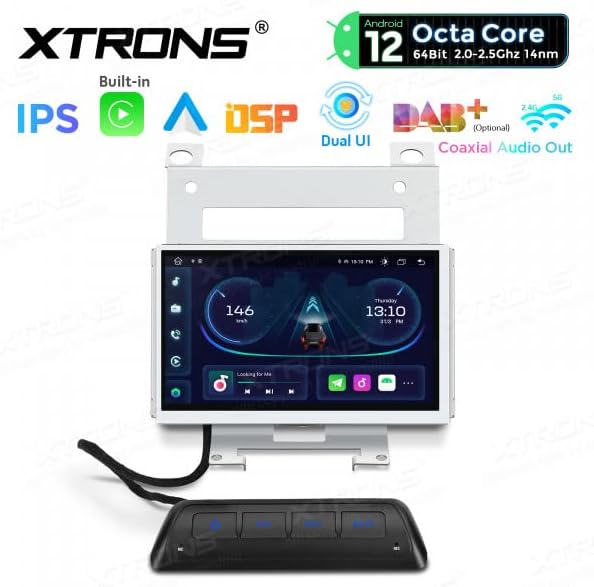
Figura 4.1: Davant view of the XTRONS PE72DLRL unit with a dynamic car dashboard interface, showing speed, time, and media controls.

Figura 4.2: The unit's display showing the main media and radio interface, with quick access icons for navigation, video, and music.

Figura 4.3: The application launcher screen, providing access to various apps like Maps, Podcasts, Phone, Calendar, Settings, and SmartThings.
4.2 Connexions posteriors
The rear panel of the unit houses all necessary ports for power, audio, video, and peripheral connections. Refer to the wiring diagram for specific pin assignments.

Figura 4.4: posterior view of the XTRONS PE72DLRL unit, illustrating the various connectors for power, speakers, RCA outputs, USB, GPS antenna, and other accessories.
4.3 Unitat de control remot
A separate remote control unit is provided for convenient access to common functions such as power, car settings, navigation, and mute.

Figura 4.5: The remote control unit, typically mounted for easy access, with buttons for power, car settings, navigation, and mute. The image also shows the overall dimensions of the main unit.
5. Instal·lació
This section outlines the general steps for installing the XTRONS PE72DLRL unit. For detailed vehicle-specific instructions, consult your vehicle's service manual or a professional installer.
5.1 Preinstal·lació
- Assegureu-vos que el vehicle estigui apagat i desconnecteu el terminal negatiu de la bateria.
- Remove the original car stereo or display unit from the dashboard.
- Carefully unpack the XTRONS unit and all accessories.
5.2 Connexions de cablejat
Connect the provided wiring harnesses to the corresponding ports on the XTRONS unit and your vehicle's wiring. Ensure all connections are secure.
- Arnès d'alimentació: Connect the main power harness to the unit and the vehicle's power supply. The CANbus decoder should be integrated here for steering wheel controls and vehicle data.
- Antena GPS: Connect the GPS antenna and route it to a location with a clear view of the sky (e.g., dashboard, under the windshield).
- Cables USB: Connect the USB cables and route them to a convenient location for connecting USB devices.
- Micròfon extern: Connect the external microphone for improved call quality and voice commands. Route it to a suitable position, such as near the rearview mirall.
- Cables RCA: Connecteu els cables RCA per a aparells externs ampamplificadors, subwoofers o sortida de vídeo si escau.
- Connexions opcionals: If using a rear camera, DVR, DAB+ box, or TPMS kit, connect them according to their respective manuals.
5.3 Muntatge de la unitat
- Attach the provided mounting brackets to the sides of the XTRONS unit.
- Carefully slide the unit into the dashboard opening, ensuring all wires are tucked away and not pinched.
- Secure the unit using the mounting screws.
- Torneu a instal·lar els panells de guarnició que hàgiu tret.
6. Configuració
6.1 Encès inicial
- Torneu a connectar el terminal negatiu de la bateria del vehicle.
- Turn on the vehicle's ignition. The XTRONS unit should power on automatically.
- Follow the on-screen prompts for initial setup, such as language selection and time zone.
6.2 Configuració del sistema
Access the 'Settings' menu from the main interface to configure various system parameters.
- Data i hora: Estableix la data i l'hora correctes o activa la sincronització automàtica mitjançant GPS/xarxa.
- Visualització: Adjust brightness, wallpaper, and UI themes.
- So: Configure audio settings, including the DSP equalizer for optimal sound.
6.3 Connexió Wi-Fi
- Aneu a "Configuració" > "Xarxa i Internet" > "Wi-Fi".
- Activeu el Wi-Fi i seleccioneu la xarxa desitjada de la llista.
- Introduïu la contrasenya si se us demana i connecteu-vos.
6.4 Vinculació Bluetooth
- Go to 'Settings' > 'Connected devices' > 'Bluetooth'.
- Ensure Bluetooth is enabled on both the XTRONS unit and your mobile device.
- Cerca available devices on your mobile phone and select 'XTRONS' (or similar name).
- Confirma el codi d'emparellament en tots dos dispositius.
7. Instruccions de funcionament
7.1 Main Interface Navigation
The Android 12 interface allows for intuitive navigation. Swipe left or right to access different home screens or the app drawer. Tap icons to launch applications.
7.2 Navegació GPS
The unit comes with integrated GPS. You can use pre-installed navigation apps or download others from the Google Play Store (requires Wi-Fi connection).
- Tap the 'Navigation' or 'Maps' icon to launch the GPS application.
- Enter your destination and follow the on-screen and voice-guided directions.

Figura 7.1: The unit's display showing a navigation map, indicating a route and current location.
7.3 Ràdio
Access the 'Radio' application to listen to FM/AM broadcasts.
- Tap the 'Radio' icon.
- Use the on-screen controls to scan for stations, manually tune, or select presets.
7.4 Reproducció multimèdia
Reprodueix àudio i vídeo files from connected USB devices or via Bluetooth streaming.
- USB: Insert a USB drive into one of the USB ports. The unit will automatically detect it, or you can access files via a file aplicació de gestor.
- Àudio Bluetooth: Once your phone is paired via Bluetooth, you can stream music directly to the unit.
7.5 Apple CarPlay i Android Auto
The unit supports integrated Apple CarPlay and Android Auto for seamless smartphone integration.
- Connexió per cable: Connect your iPhone or Android phone to one of the USB ports using a certified USB cable.
- Segueix les instruccions que apareixen a la pantalla per activar CarPlay o Android Auto.
- Once connected, you can access compatible apps, navigation, calls, and messages directly from the unit's display.
7.6 Comandaments al volant
The integrated CANbus decoder allows the unit to work with your vehicle's original steering wheel controls. These controls are typically pre-configured, but can be customized in the system settings if needed.
8. Manteniment
8.1 Neteja
- Use a soft, dry cloth to clean the display and unit exterior.
- For stubborn marks on the screen, use a screen cleaner specifically designed for electronics and a microfiber cloth.
- No utilitzeu netejadors abrasius ni dissolvents.
8.2 Actualitzacions de programari
Periodically check for software updates to ensure optimal performance and access to new features.
- Connect the unit to a Wi-Fi network.
- Go to 'Settings' > 'About device' > 'System updates'.
- Follow the on-screen instructions to download and install any available updates. Ensure the vehicle's engine is running during the update process to prevent power interruption.
9. Solució De Problemes
This section addresses common issues you might encounter. For problems not listed here, please contact XTRONS customer support.
| Problema | Causa possible | Solució |
|---|---|---|
| La unitat no s'encén. | Incorrect wiring, blown fuse, loose connection. | Check power connections and fuses. Ensure the negative battery terminal is reconnected. |
| No hi ha so dels altaveus. | Volum massa baix, silenci activat, cablejat incorrecte de l'altaveu, ampqüestió de lifier. | Increase volume, check mute status, verify speaker wiring, check external amplificador si s'utilitza. |
| GPS signal is weak or unavailable. | Antena GPS no instal·lada correctament, obstruïda view del cel, antena defectuosa. | Ensure GPS antenna is mounted in a clear location. Check antenna connection. |
| Problemes de connexió Bluetooth. | Bluetooth not enabled, device not discoverable, pairing failed. | Ensure Bluetooth is on for both devices. Make device discoverable. Re-attempt pairing. |
| La pantalla tàctil no respon. | Bloqueig del sistema, error temporal del programari. | Restart the unit (refer to manual for reset button location if available, or turn off ignition and restart vehicle). |
10. Especificacions
- Model: PE72DLRL
- Sistema operatiu: Android 12
- CPU: 8 nuclis
- RAM: 2 GB DDR4
- ROM: 32GB SSD (Expandable via USB)
- Visualització: Pantalla tàctil IPS
- Bluetooth: Versió 5.0
- Wi-Fi: Integrated (2.4Ghz & 5Ghz Dual Band)
- Connectivitat: Bluetooth, USB, Wi-Fi
- Dispositius compatibles: Smartphone (for CarPlay/Android Auto)
- Característiques especials: Built-in DSP Equalizer, Apple CarPlay, Android Auto, Steering Wheel Control Support, DAB+ Ready (DAB box not included), TPMS Ready (TPMS kit not included), Rear Camera Input, DVR Input.

Figura 10.1: Acabatview of the XTRONS PE72DLRL's core specifications and features.
11. Garantia i Suport
XTRONS products are designed for reliability and performance. For warranty information, please refer to the warranty card included with your purchase or visit the official XTRONS website. For technical support, troubleshooting assistance, or inquiries about spare parts, please contact your authorized XTRONS dealer or XTRONS customer service directly.
Please note that information regarding software updates and spare parts availability is subject to change and may not be available indefinitely.


