Introducció
Thank you for choosing the AUSDOM Wireless Keyboard and Mouse Combo. This manual provides detailed instructions for setting up, operating, and maintaining your new wireless peripheral set. Please read this manual thoroughly before use to ensure optimal performance and longevity of your product.
Contingut del paquet
- 1 x AUSDOM Wireless Keyboard
- 1 x AUSDOM Wireless Mouse
- 1 x Receptor USB (guardat al compartiment de la bateria del ratolí)
- 1 x cable de càrrega USB-C
- 1 x Manual d'usuari
Producte acabatview
The AUSDOM Wireless Keyboard and Mouse Combo offers a comfortable and efficient input solution. The keyboard features a full-size layout with a numeric keypad and shortcut keys, while the mouse provides adjustable DPI settings for precise control.

Image: The AUSDOM wireless keyboard and mouse combo, showing the full-size keyboard, the ergonomic mouse, and the compact USB receiver.

Image: A visual emphasizing the quiet operation of the keyboard's scissor-switch keys and the silent click mouse, designed for a focused work environment.
Característiques del teclat:
- Full-size layout with numeric keypad
- 16 multimedia and shortcut keys
- Slim and silent scissor-switch keys
- Recarregable mitjançant USB-C
Característiques del ratolí:
- Silent click design
- 3 adjustable DPI levels (800/1200/1600)
- Botó de retorn
- Recarregable mitjançant USB-C
- Integrated USB receiver storage
Guia de configuració
Follow these steps to connect your AUSDOM Wireless Keyboard and Mouse Combo to your computer.

Image: Step-by-step visual guide for connecting the wireless keyboard and mouse, including powering on devices and inserting the USB receiver.
- Carregueu els dispositius: Before first use, ensure both the keyboard and mouse are fully charged using the provided USB-C cable. Connect the cable to the charging port on each device and a USB power source. The charging indicator will turn off when fully charged.
- Localitza el receptor USB: The 2.4 GHz USB receiver is stored in the battery compartment on the underside of the mouse. Gently open the compartment cover and remove the receiver.
- Connecteu el receptor: Insert the USB receiver into an available USB port on your computer (desktop, laptop, or all-in-one PC).
- Engegueu el teclat: Locate the power switch on the side or back of the keyboard and slide it to the "ON" position.
- Engegar el ratolí: Locate the power switch on the underside of the mouse and slide it to the "ON" position.
- Connexió automàtica: The keyboard and mouse should automatically connect to your computer within a few seconds. No additional drivers are typically required for Windows operating systems.
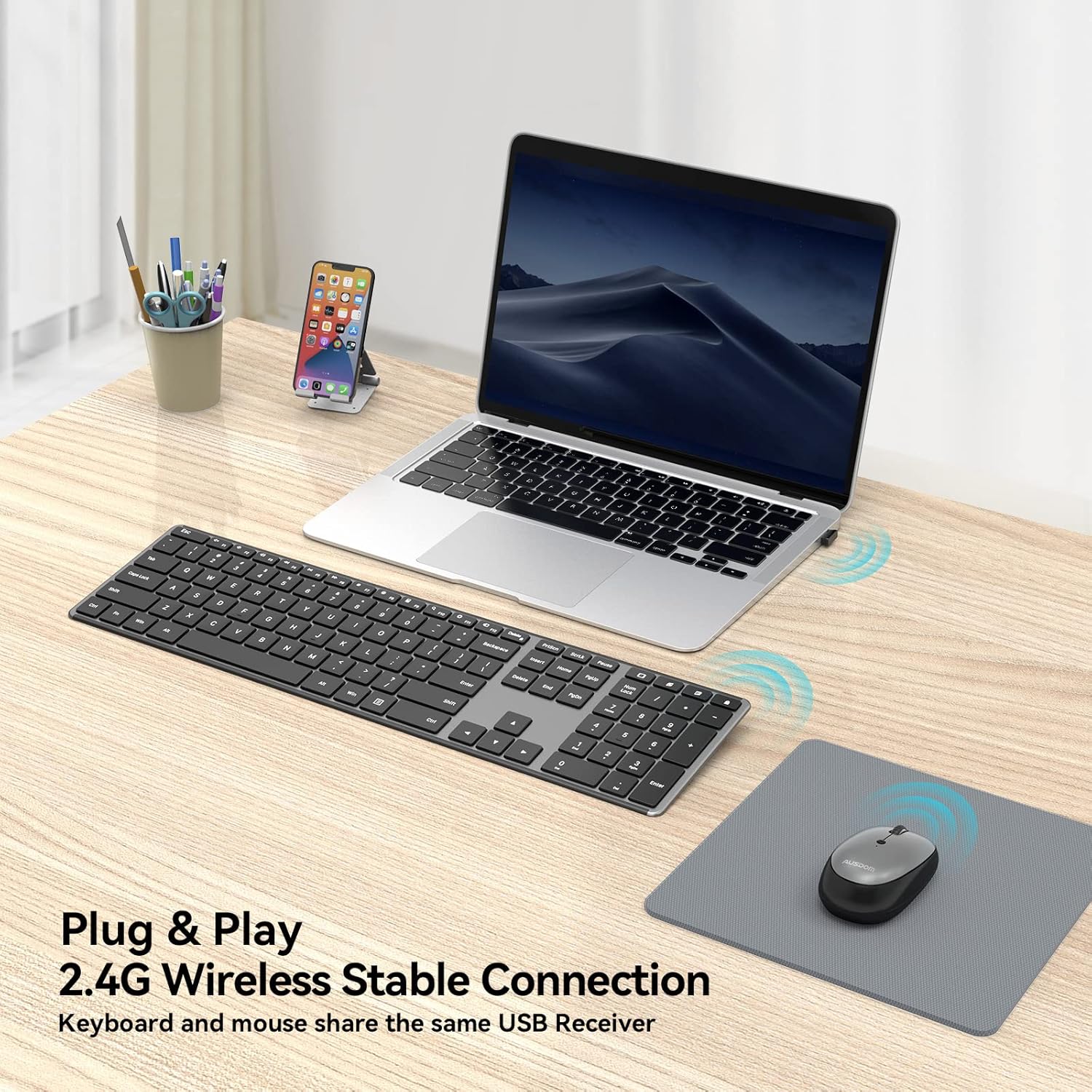
Image: The wireless keyboard and mouse connected to a laptop, illustrating the 2.4G wireless stable connection using a single USB receiver.

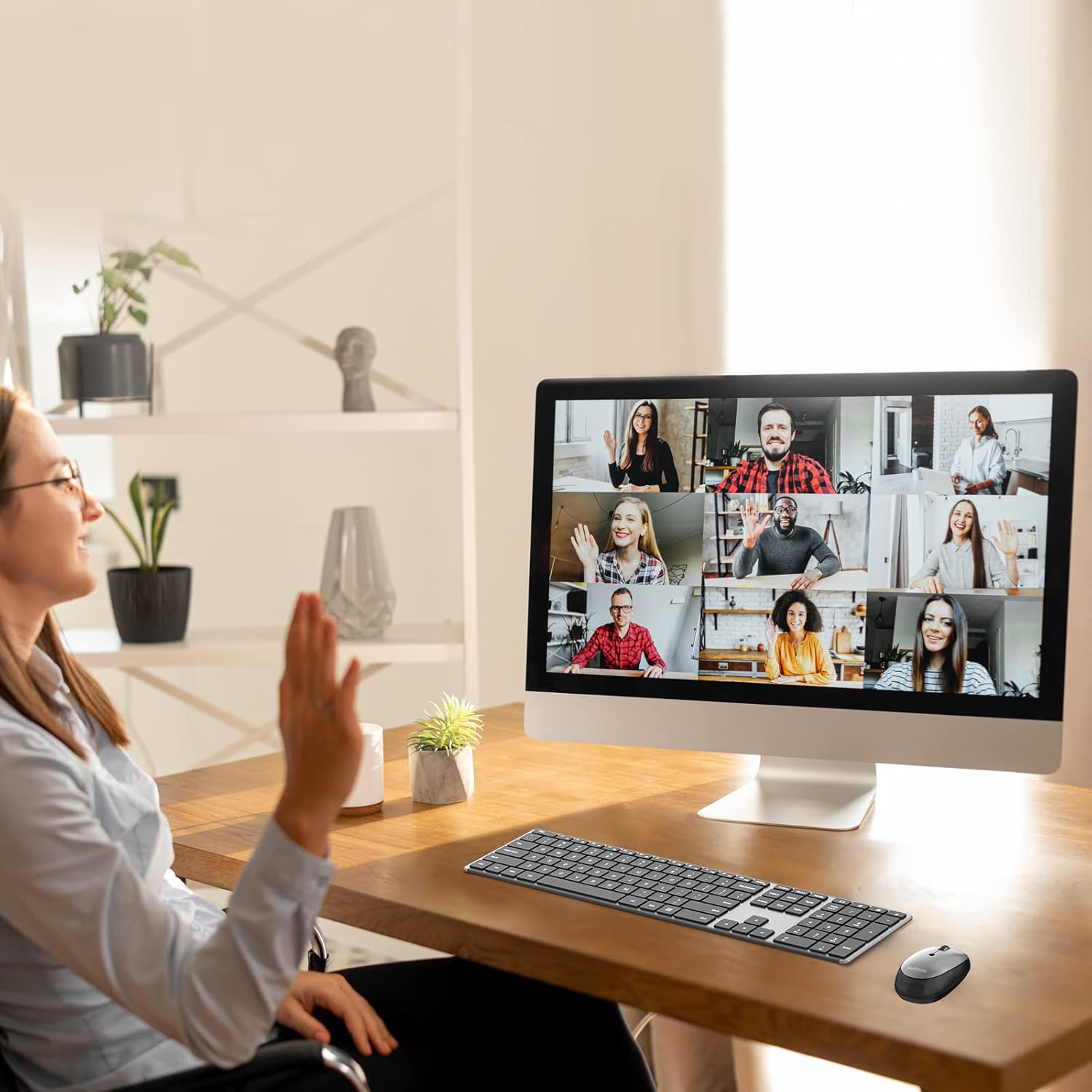
Image: The keyboard and mouse set up with a desktop computer, indicating its primary design for Windows devices including desktops, notebooks, and all-in-one PCs.
Instruccions de funcionament
Ús del teclat:
The keyboard features a standard QWERTY layout with a numeric keypad and dedicated function keys. It is designed for quiet and comfortable typing.
Imatge: Una imatge detallada view of the keyboard highlighting the 16 convenient shortcut keys for various functions like volume control, media playback, and system settings.
Tecles de drecera:
The keyboard includes 16 shortcut keys for quick access to common functions. These keys are typically activated by pressing the Fn simultàniament amb la tecla de funció desitjada (F1-F12).
- Fn+F1: Silenciar
- Fn+F2: Baixa el volum
- Fn+F3: Puja el volum
- Fn+F4: Pista anterior
- Fn+F5: Reproduir/Pausa
- Fn+F6: Pista següent
- Fn+F7: Brillantor avall
- Fn+F8: Brillantor cap amunt
- Fn+F9: Calculadora
- Fn+F10: Cerca
- Fn+F11: Configuració
- Fn+F12: Enceneu el dispositiu
- Windows Search Key: Opens Windows Search.
- Clau oberta del navegador: Launches default web navegador.
- Display Desktop Key: Minimizes all open windows.
- Lock Screen Key: Locks the computer screen.
Nota: Some multimedia features may not be available or function differently on Mac OS.
Ús del ratolí:
The wireless mouse offers precise tracking and silent clicks for a focused work environment.

Image: The silent mouse with its underside visible, indicating the DPI adjustment button, power switch, and the compartment for the USB receiver.
Ajust de DPI:
The mouse features three adjustable DPI (Dots Per Inch) levels to control cursor sensitivity. Press the DPI button (usually located near the scroll wheel or on the underside) to cycle through the settings:
- 800 DPI: Slower cursor movement for precise tasks.
- 1200 DPI: Moviment estàndard del cursor.
- 1600 DPI: Faster cursor movement for quick navigation.
The mouse also includes a "Return Button" for quick navigation, typically functioning as a back button in web navegadors.
Manteniment
Càrrega:
Both the keyboard and mouse are equipped with built-in rechargeable batteries. Use the provided USB-C charging cable to recharge them.
- Connect the USB-C end of the cable to the charging port on the keyboard or mouse.
- Connect the USB-A end of the cable to a USB power adapter (not included), a computer's USB port, or a power bank.
- Una càrrega completa sol trigar aproximadament 1.5 hores.
- A single full charge can provide over a month of usage time, depending on usage frequency.
- Els dispositius es poden utilitzar mentre es carreguen.

Image: The wireless keyboard and mouse connected to USB-C charging cables, illustrating the rechargeable feature and estimated charging/usage times.
Estalvi d'energia:
To conserve battery life, both the keyboard and mouse feature power switches. Turn them off when not in use for extended periods.
Neteja:
Per netejar els dispositius, netegeu-los suaument amb un drap suauamp drap. Eviteu utilitzar productes químics agressius o materials abrasius que puguin danyar les superfícies.
Resolució de problemes
If you encounter issues with your AUSDOM Wireless Keyboard and Mouse Combo, please refer to the following common solutions:
- Dispositius que no responen:
- Assegureu-vos que tant el teclat com el ratolí estiguin encesos.
- Comproveu si el receptor USB està connectat correctament a un port USB que funcioni de l'ordinador. Proveu-ho amb un altre port USB.
- Verify that the devices are fully charged. Recharge them if the battery is low.
- Move the devices closer to the USB receiver to ensure they are within the 10m wireless range.
- Reinicieu l'ordinador.
- Connexió intermitent:
- Ensure there are no large metal objects or other wireless devices (e.g., Wi-Fi routers, other wireless peripherals) causing interference between the devices and the receiver.
- Try plugging the USB receiver into a different USB port, preferably one on the front of your computer if using a desktop.
- El cursor del ratolí salta o és inexacte:
- Netegeu el sensor òptic de la part inferior del ratolí.
- Ensure you are using the mouse on a suitable surface (not highly reflective or transparent). A mouse pad is recommended.
- Adjust the DPI settings using the DPI button on the mouse to find a comfortable sensitivity.
- Keyboard Keys Not Working:
- Check for any debris under the non-functioning key.
- Assegureu-vos que el teclat estigui completament carregat.
- If only function keys are not working as expected, ensure you are pressing the Fn key if required, or check your operating system's settings for function key behavior.
- Compatibility Issues with Mac OS:
- This combo is primarily designed for Windows devices. While basic typing and pointing functions will work, some multimedia or shortcut keys may not be fully functional or may require specific software/driver installations on Mac OS.
Especificacions
| Característica | Detall |
|---|---|
| Número de model | KAM200 |
| Tecnologia de connectivitat | Sense fil de 2.4 GHz |
| abast sense fils | Fins a 10 metres (33 peus) |
| Dimensions del teclat | 16.85 x 4.49 x 0.62 polzades (42.8 x 11.4 x 1.57 cm) |
| Pes del teclat | Aproximadament 12.8 unces (362.87 grams) |
| Nivells de DPI del ratolí | 800/1200/1600 DPI |
| Tipus de bateria | Built-in Rechargeable Lithium-Ion |
| Port de càrrega | USB-C |
| Temps de càrrega | Aprox. 1.5 hores |
| Temps d'ús (càrrega completa) | Over 1 month (depending on usage) |
| Sistemes operatius compatibles | Windows (Desktop, Laptop, All-in-One PC) |

Image: A visual representation of the keyboard and mouse dimensions, highlighting the ultra-slim design of the keyboard at 0.62 inches thick.
Garantia i Suport
AUSDOM provides a one-year warranty service for this product. If you encounter any problems during use, please contact AUSDOM customer support for assistance.
For warranty claims or technical support, please visit the official AUSDOM weblloc web o poseu-vos en contacte amb el seu departament d'atenció al client a través de la informació de contacte proporcionada amb la vostra compra.


