1. Introducció
This manual provides essential information for setting up, operating, maintaining, and troubleshooting your Alienware 16 Aurora Gaming Laptop AC16250. Designed for optimal performance and an immersive gaming experience, this laptop features a WQXGA 120Hz display, Intel Core 7-240H Processor, 16GB DDR5 RAM, 1TB SSD, and NVIDIA GeForce RTX 5050 Graphics.
2. Configuració
2.1 Desempaquetant el portàtil
Traieu amb cura tots els components de l'embalatge. Assegureu-vos que hi hagi tots els elements que figuren a la secció "Què hi ha a la caixa".

Image: Alienware 16 Aurora Laptop in its protective packaging.
2.2 Engegada i configuració inicials
- Connect the 180-Watt adapter to the laptop's power port and then to a power outlet.
- Obriu la tapa del portàtil i premeu el botó d'engegada.
- Seguiu les instruccions que apareixen a la pantalla per completar la configuració del Windows 11 Home, incloent-hi l'idioma, la regió, la connexió de xarxa i la creació del compte d'usuari.
2.3 Connexió de perifèrics
Utilize the various ports available on your Alienware 16 Aurora for connecting external devices such as mice, keyboards, external displays, and storage devices.

Imatge: Lateral view of the Alienware 16 Aurora Laptop highlighting its various connectivity ports.
2.4 Unboxing and Setup Video
Vídeo: Un overview of the Alienware Aurora 16 Gaming Laptop, showcasing el seu disseny i les seves característiques.
3. Com fer servir el portàtil
3.1 Pantalla i gràfics
Experience games and media on the 16-inch WQXGA 120Hz display with 300 nits brightness. The NVIDIA GeForce RTX 5050 Laptop GPU, powered by NVIDIA Blackwell and AI, delivers exceptional visual performance.

Image: The Alienware 16 Aurora Laptop's WQXGA display showcasing a high-resolution game.
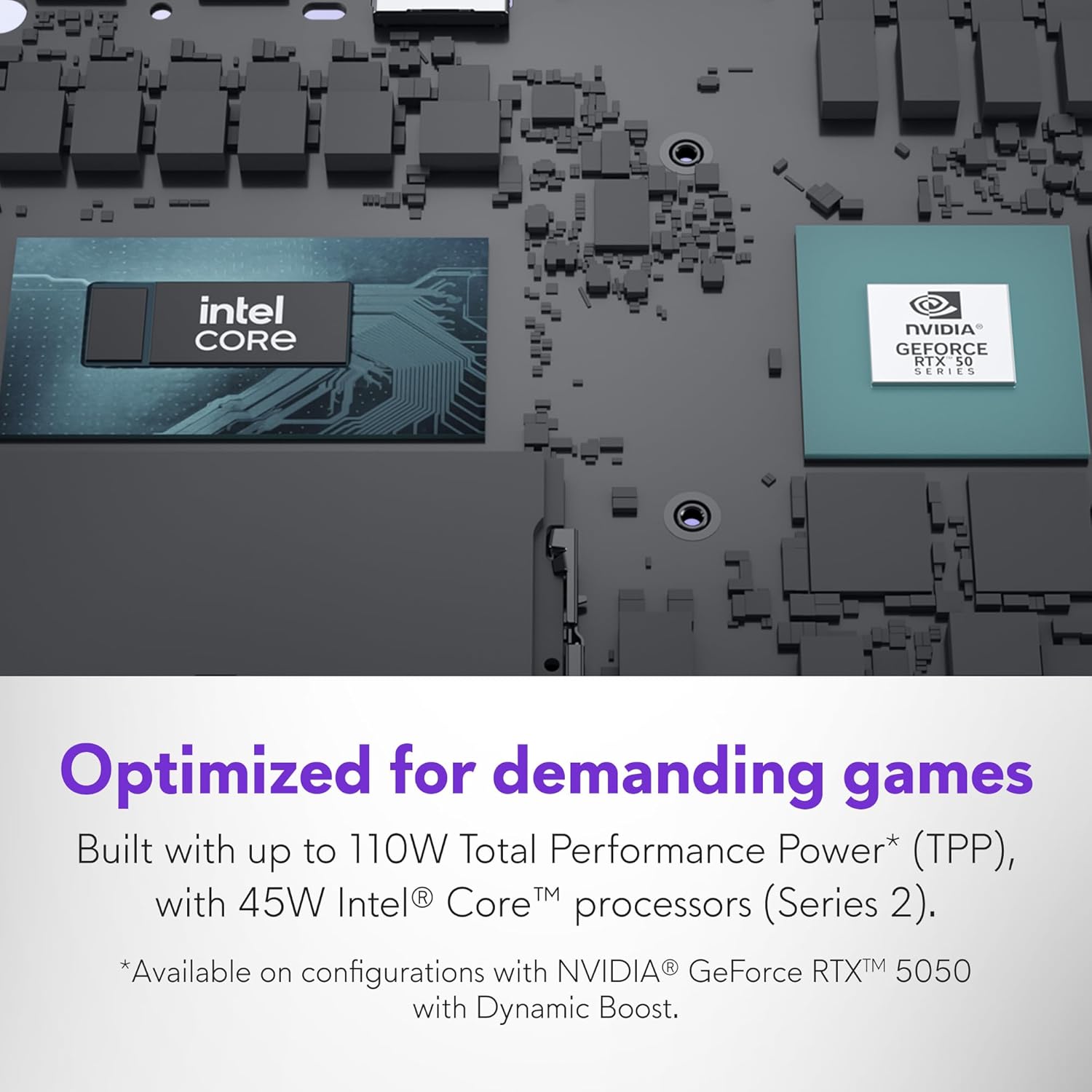
Imatge: Detallada view of the NVIDIA GeForce RTX 5050 and Intel Core processor chips on the laptop's motherboard.
3.2 Rendiment i refrigeració
The Intel Core 7-240H processor and innovative Cryo-Chamber cooling system ensure sustained high performance during demanding tasks and gaming sessions.

Image: The Alienware 16 Aurora Laptop's cooling system with air flowing through the vents.
3.3 Teclat i touchpad
The laptop features a white-backlit keyboard with a dedicated AI key and full Numpad for comfortable and efficient input. The precision touchpad offers smooth navigation.

Image: A close-up of the Alienware 16 Aurora's white-backlit keyboard and touchpad.
3.4 Alienware Command Center and Stealth Mode
Manage performance presets, lighting, and more through the Alienware Command Center. Activate Stealth Mode for a discreet, low-noise experience in quieter settings.

Image: Screenshot of the Alienware Command Center interface, showing system monitoring and customization options.

Image: The Alienware 16 Aurora Laptop with an illustration of Stealth Mode, indicating quiet operation.
3.5 Processador acabatview Vídeo
Vídeo: Un breu resumview of Intel Core Ultra Processors, highlighting their capabilities.
4. Manteniment
To ensure the longevity and optimal performance of your Alienware 16 Aurora, regular maintenance is recommended:
- Mantingueu-lo net: Regularly clean the screen with a microfiber cloth and the keyboard with compressed air to remove dust and debris.
- Actualitzacions de programari: Keep your operating system, drivers, and Alienware Command Center software updated to the latest versions.
- Cura de la bateria: Avoid completely draining the battery frequently. For prolonged storage, charge the battery to about 50-60%.
- Ventilació: Ensure the laptop's vents are unobstructed to allow for proper airflow and cooling.
5. Solució De Problemes
If you encounter issues with your Alienware 16 Aurora, consider the following basic troubleshooting steps:
- Sense energia: Ensure the power adapter is securely connected to both the laptop and the power outlet. Try a different outlet.
- Problemes de visualització: If the screen is black, try connecting an external monitor to check if the issue is with the laptop's display. Restart the laptop.
- Retard de rendiment: Close unnecessary applications, check for background processes, and ensure drivers are up to date. Monitor temperatures using Alienware Command Center.
- Problemes de connectivitat: Per problemes de Wi-Fi, reinicieu el router i el portàtil. Per a connexions amb cable, comproveu el cable Ethernet.
- Errors de programari: Restart the application or the entire system. If persistent, consider reinstalling the problematic software.
6. Especificacions
Below are the detailed technical specifications for the Alienware 16 Aurora Gaming Laptop AC16250:
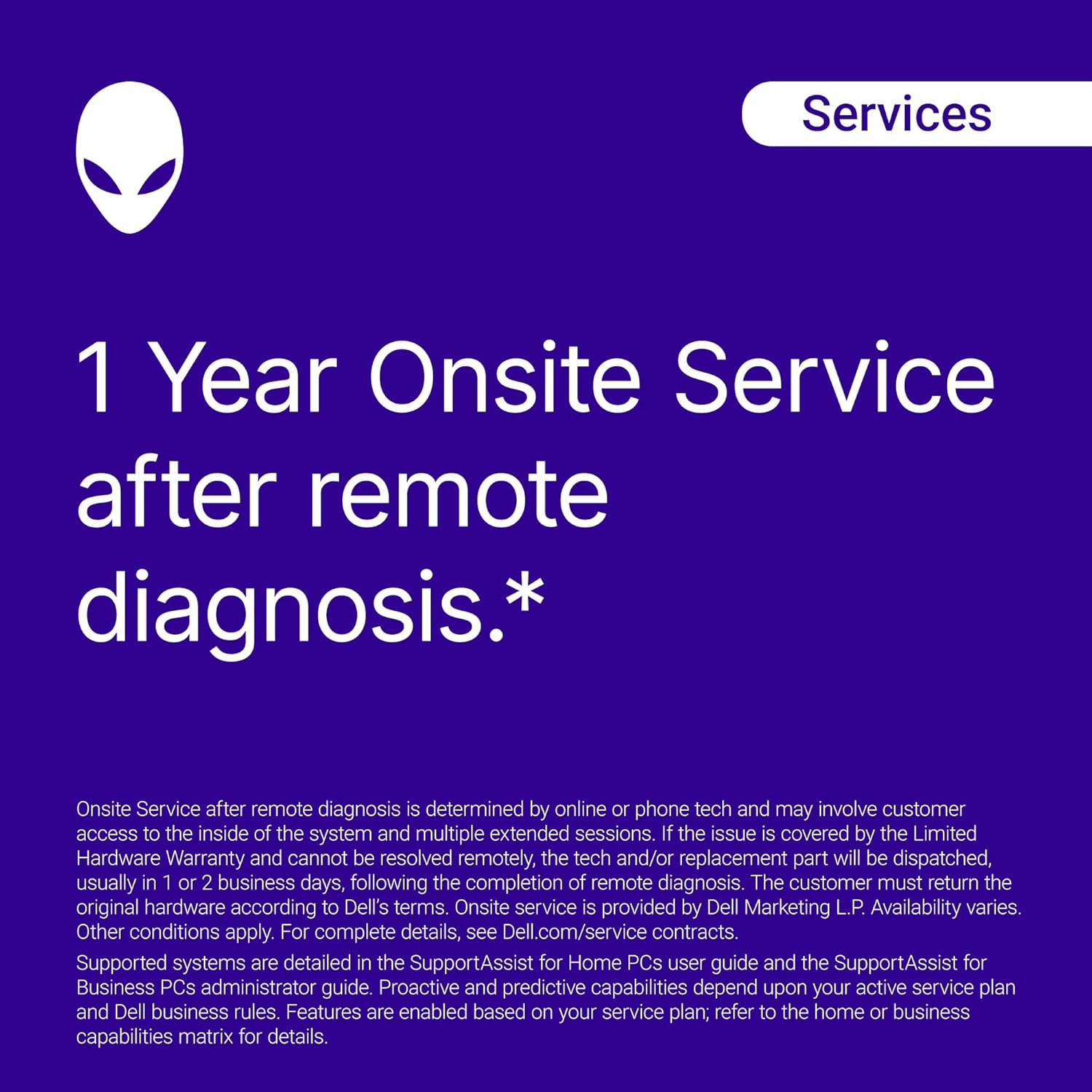
Image: A visual summary of the Alienware 16 Aurora Laptop's core specifications.
| Característica | Detall |
|---|---|
| Mida de la pantalla de peu | 16 polzades |
| Resolució de pantalla | 2560 x 1600 píxels (WQXGA) |
| Resolució de pantalla màxima | 2560 x 1600 píxels |
| Processador | 1.8 GHz Intel Core 7-240H (10 cores, up to 5.2 GHz P-Core Turbo) |
| RAM | 16 GB DDR5 |
| Velocitat de memòria | 5600 MHz |
| Disc dur | SSD de 1 TB |
| Coprocessador gràfic | NVIDIA GeForce RTX 5050 |
| Mida RAM de la targeta gràfica | 8 GB |
| Tipus sense fil | 802.11.be, Bluetooth |
| Nombre de ports USB 3.0 | 4 |
| Sistema operatiu | Windows 11 Home |
| Pes de l'article | 5.49 lliures |
| Dimensions del producte | 10.45 x 14.06 x 0.73 polzades |
| Color | Blau |
7. Garantia i Suport
Your Alienware 16 Aurora Gaming Laptop AC16250 comes with comprehensive support options:
7.1 1-Year Onsite Service
Enjoy 1 Year Onsite Service after remote diagnosis. Dell will provide support at your home, office, or location of choice if an issue covered by the Limited Hardware Warranty cannot be resolved remotely. The tech and/or replacement part will be dispatched, usually within 1 to 2 business days, following the completion of remote diagnosis. Other conditions apply. For complete details, refer to Dell's service contracts.

Image: Details about Dell's onsite support services, including hardware support and PC repairs.
7.2 Suport addicional
Per a més ajuda, visiteu el lloc web oficial Suport de Dell weblloc or consult the documentation included with your laptop.


