Introducció
This manual provides comprehensive instructions for the setup, operation, and maintenance of your vretti Bluetooth Thermal Label Printer (Model 420B). Designed for efficiency and ease of use, this printer is ideal for small businesses and individuals needing reliable label printing for shipping, inventory, and more.
Les característiques clau inclouen:
- Support for multiple operating systems including Windows, Linux, and Mac (USB connection).
- Bluetooth connectivity for Android, iPhone, iPad, and Windows devices via the "4barcode" app.
- Adjustable label width from 1" (25.4mm) to 4.5" (115mm), with a maximum print width of 4.25" (108mm).
- High-speed printing at 152mm/s (72 labels/min) for increased efficiency.
- Direct thermal printing technology, eliminating the need for ink or TTR ribbon.
- Built-in label bin, removing the need for an external label holder.
Què hi ha a la caixa
En desempaquetar, comproveu que hi hagi tots els components següents:
- 1 x vretti Bluetooth Shipping Label Printer
- 1 x adaptador de corrent
- 1 x cable d'alimentació
- 1 x cable USB
- 1 x Manual d'usuari
- 1 x Paper Roll Shaft
- 2 x Fixing Plates
- 1 x U Disk (containing drivers and how-to videos)
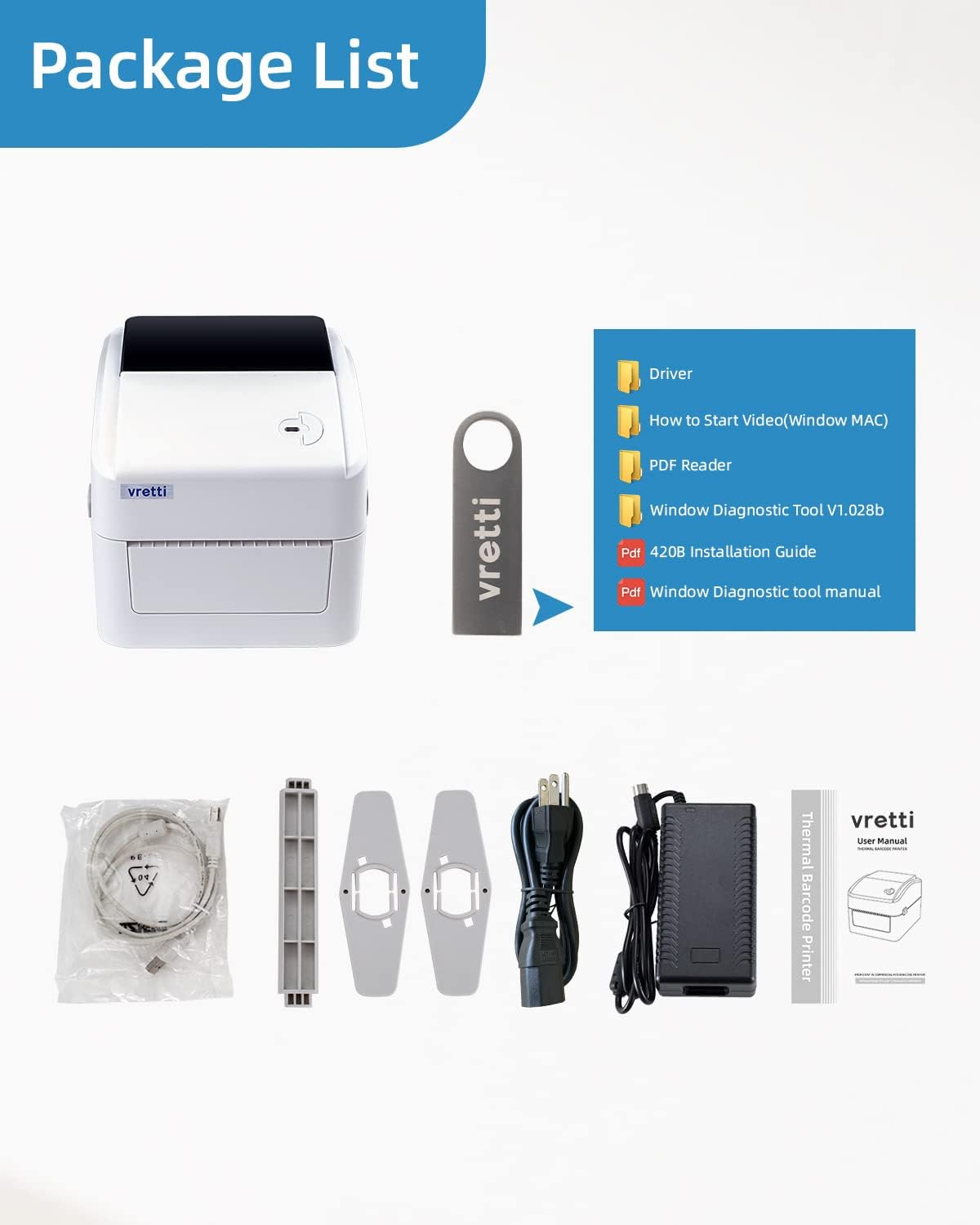
Image: All components included in the vretti thermal label printer package.
Configuració
1. Connexió física
- Connect the power adapter to the printer's power port and plug the power cord into a wall outlet.
- For USB connection, plug one end of the USB cable into the printer and the other end into your computer.
- Ensure the printer is placed on a stable, flat surface.
2. Carregant etiquetes
The vretti printer supports both roll labels and fanfold labels. It features a built-in label bin for convenience.
- Obriu la coberta superior de la impressora.
- Place the label roll onto the paper roll shaft and secure it with the fixing plates.
- Feed the leading edge of the labels into the printer's feed slot until it is detected by the sensor. The printer will automatically adjust the label position.
- Tanqueu la coberta superior.

Image: The built-in label bin and label loading mechanism of the printer.
3. Instal·lació de controladors i programari
The printer supports various operating systems and connection methods:
- Connexió USB: Compatible with Windows XP/7/8/10/11, Linux, and Mac OS. Insert the provided U Disk into your computer and follow the installation instructions for the appropriate driver.
- Connexió Bluetooth: Compatible with Android, iPhone, iPad, and Windows laptops. Note: Bluetooth is NOT compatible with Mac systems.

Imatge: Més deview of USB and Bluetooth connectivity options for different devices.
For Bluetooth Printing (Mobile/Windows Laptop):
- Download the "4barcode" app from Google Play Store (for Android) or Apple App Store (for iOS/iPad).
- Enable Bluetooth on your mobile device or Windows laptop.
- Open the "4barcode" app and follow the in-app instructions to connect to your vretti printer.
- For Windows laptops, you may need to manually set up a Bluetooth COM port. Refer to the videos on the provided U Disk for detailed steps.

Image: Instructions for using the "4barcode" app for Bluetooth connectivity.
Nota de seguretat important: The Bluetooth connection on this printer does not require a PIN code for pairing. This means any device within range can potentially connect and print labels. For business environments or situations requiring higher security, it is recommended to use the USB connection.
Instruccions de funcionament
1. Imprimir una etiqueta
Once the printer is set up and connected, you can print labels from various platforms and applications.
- From PC (USB): Open your desired document or shipping platform (e.g., Amazon, eBay, Shopify, Etsy, PayPal, UPS, USPS, Stamps.com). Select the vretti printer from your printer list and initiate the print command.
- From Mobile (Bluetooth): Use the "4barcode" app to design or import labels, then send them to the printer via Bluetooth.

Image: The vretti printer in operation, demonstrating both physical printing and mobile app control.
The printer is designed for high-speed output, capable of printing up to 72 labels per minute, ensuring efficient workflow for your business needs.

Image: Visual representation of the printer's clear and high-speed printing at 72 labels per minute.
2. Adjusting Label Width
The printer supports a wide range of label sizes. You can adjust the guides inside the label bin to accommodate labels with widths between 1 inch (25.4mm) and 4.5 inches (115mm). The maximum print width is 4.25 inches (108mm).

Image: Guide for adjusting label width to support various label sizes.
3. Plataformes compatibles
The vretti printer is designed to work seamlessly with most major shipping and sales platforms, including but not limited to:
- Amazon
- eBay
- Shopify
- UPS
- USPS
- Etsy
- PayPal
- Stamps.com
- Walmart
- DHL
- AliExpress
- Obres Navals
- EasyPost
- Shippo
- Estació de vaixell
- Endicia
- J&T Express
- Canadà Post

Image: Visual representation of the printer's compatibility with numerous e-commerce and shipping platforms.
Manteniment
Regular maintenance ensures optimal performance and extends the lifespan of your vretti thermal label printer.
1. Neteja del capçal d'impressió
The print head is a critical component and should be cleaned periodically to prevent print quality issues.
- Apagueu la impressora i desconnecteu el cable d'alimentació.
- Open the top cover and allow the print head to cool down if the printer has been recently used.
- Gently wipe the print head surface with an alcohol swab or a lint-free cloth lightly dampened with isopropyl alcohol. Do not use abrasive materials or sharp objects.
- Deixeu que el capçal d'impressió s'assequi completament abans de tancar la tapa i tornar a engegar la impressora.
2. Neteja general
Netegeu l'exterior de la impressora amb un drap suau i secamp tela. Eviteu utilitzar productes químics o dissolvents aggressivs.
3. Emmagatzematge
When not in use for extended periods, store the printer in a clean, dry environment away from direct sunlight and extreme temperatures.
Resolució de problemes
This section addresses common issues you might encounter with your vretti thermal label printer.
| Problema | Causa possible | Solució |
|---|---|---|
| La impressora no respon / No hi ha alimentació | Power cable loose; printer off; power outlet issue. | Check all power connections. Ensure the printer is turned on. Try a different power outlet. |
| Poor print quality / Faint print | Print head dirty; incorrect print darkness setting; low-quality labels. | Clean the print head (see Maintenance section). Adjust print darkness settings in your printer driver. Use high-quality thermal labels. |
| Embús de paper | Labels not loaded correctly; foreign object in paper path. | Open the cover and carefully remove any jammed labels. Reload labels correctly, ensuring they are aligned. The printer is designed to minimize jams, but proper loading is crucial. |
| Printer not connecting via USB | Driver not installed or corrupted; incorrect USB port; cable issue. | Reinstall the printer driver from the U Disk or manufacturer's website. Try a different USB port or cable. Ensure the printer is not connected to an ARM-based processor in Windows, as it is not compatible. |
| La impressora no es connecta per Bluetooth | Bluetooth off on device; "4barcode" app not used; Mac system (not supported). | Ensure Bluetooth is enabled on your mobile device or Windows laptop. Use the "4barcode" app for connection. Remember, Bluetooth is not supported on Mac systems. |
| Labels printing incorrectly / Misalignment | Incorrect label size setting; labels not calibrated; software/platform specific issue. | Ensure the label size is correctly set in your printing software. Press the feed button on the printer to calibrate the labels. If printing from specific platforms (e.g., Etsy), you may need to adjust scaling or margins within that platform's print settings. |
Especificacions
| Característica | Detall |
|---|---|
| Marca | vretti |
| Nom del model | 420BW |
| Número de model de l'article | 420B |
| Dimensions del producte | 8 "P x 6.69" W x 5.9" H |
| Pes de l'article | 3.3 lliures (1.5 quilograms) |
| Tecnologia de connectivitat | Bluetooth, USB |
| Tecnologia d'impressió | Thermal (Direct Thermal) |
| Sortida de la impressora | Monocrom (Negre) |
| Mida màxima del suport | 4 x 6 polzada |
| Adjustable Label Width | 1" (25.4 mm) a 4.5" (115 mm) |
| Amplada màxima d'impressió | 4.25" (108 mm) |
| Maximum Print Length | 70" |
| Resolució màxima d'impressió en blanc i negre | 203 dpi (203 x 203 DPI) |
| Velocitat màxima d'impressió (monocrom) | 152mm/s (72 ppm) |
| Dispositius compatibles | Smartphones, Windows PC, Linux PC, Mac PC (USB only for Mac) |
| Tipus de controlador | Android, iOS, Windows |
| Tipus de visualització | Sense pantalla |
| UPC | 794969931597 |
| País d'origen | Xina |
Informació de la garantia
The vretti Bluetooth Thermal Label Printer comes with a garantia limitada. For specific terms and conditions, please refer to the warranty card included in your product packaging or visit the official vretti weblloc web. Si us plau, conserveu el comprovant de compra per a reclamacions de garantia.
Suport
For further assistance, technical support, or to download the latest drivers and software, please visit the official vretti website. You can also refer to the "How to videos" and diagnostic tools provided on the included U Disk.
Manufacturer: vretti
For online resources, you may visit the vretti Store on Amazon.


