Introducció
This manual provides detailed instructions for the Keychron K14 Pro Wireless Custom Mechanical Keyboard. It covers setup, operation, maintenance, troubleshooting, and product specifications to ensure optimal use of your device.

Image: The Keychron K14 Pro keyboard positioned on a desk, alongside a laptop and a smartphone, illustrating a typical workspace setup.

Imatge: Un diagrama desplegat que mostraasing the internal components of the Keychron K14 Pro keyboard, including keycaps, switches, sound-absorbing foam, plate, silicone bottom pad, PCB, and bottom case, highlighting its 'Upgraded Typing Experience' design.
Configuració
1. Contingut del paquet
- Teclat Keychron K14 Pro
- Cable USB de tipus C a tipus C.
- Adaptador USB tipus A a tipus C
- Extractor de tecles
- Tirador de commutació
- Manual d'usuari
2. Càrrega inicial
Before first use, connect the keyboard to a power source using the provided USB Type-C cable. The keyboard features a 4000 mAh battery. A full charge is recommended for optimal wireless performance.
3. Modes de connectivitat
The K14 Pro supports both wireless (Bluetooth 5.1) and wired (USB Type-C) connections.
- Mode per cable: Connect the USB Type-C cable directly to your computer.
- Mode Bluetooth:
- Toggle the switch on the side of the keyboard to "BT".
- Mantén premut Fn1 + 1 (o Fn1 + 2 / Fn1 + 3) for 4 seconds to enter pairing mode. The backlight will flash rapidly.
- On your device (laptop, phone, tablet), search for "Keychron K14 Pro" in Bluetooth settings and connect.
- The keyboard can connect to up to three devices simultaneously. Switch between paired devices by pressing Fn1 + 1, Fn1 + 2, o Fn1 + 3.

Image: Visual representation of the keyboard's Bluetooth 5.1 connectivity supporting three channels and its USB Type-C detachable cable for wired connection.
4. Compatibilitat del sistema operatiu
The K14 Pro is compatible with macOS, Windows, and Linux. Use the OS toggle switch located on the side of the keyboard to select your operating system for correct key mapping.
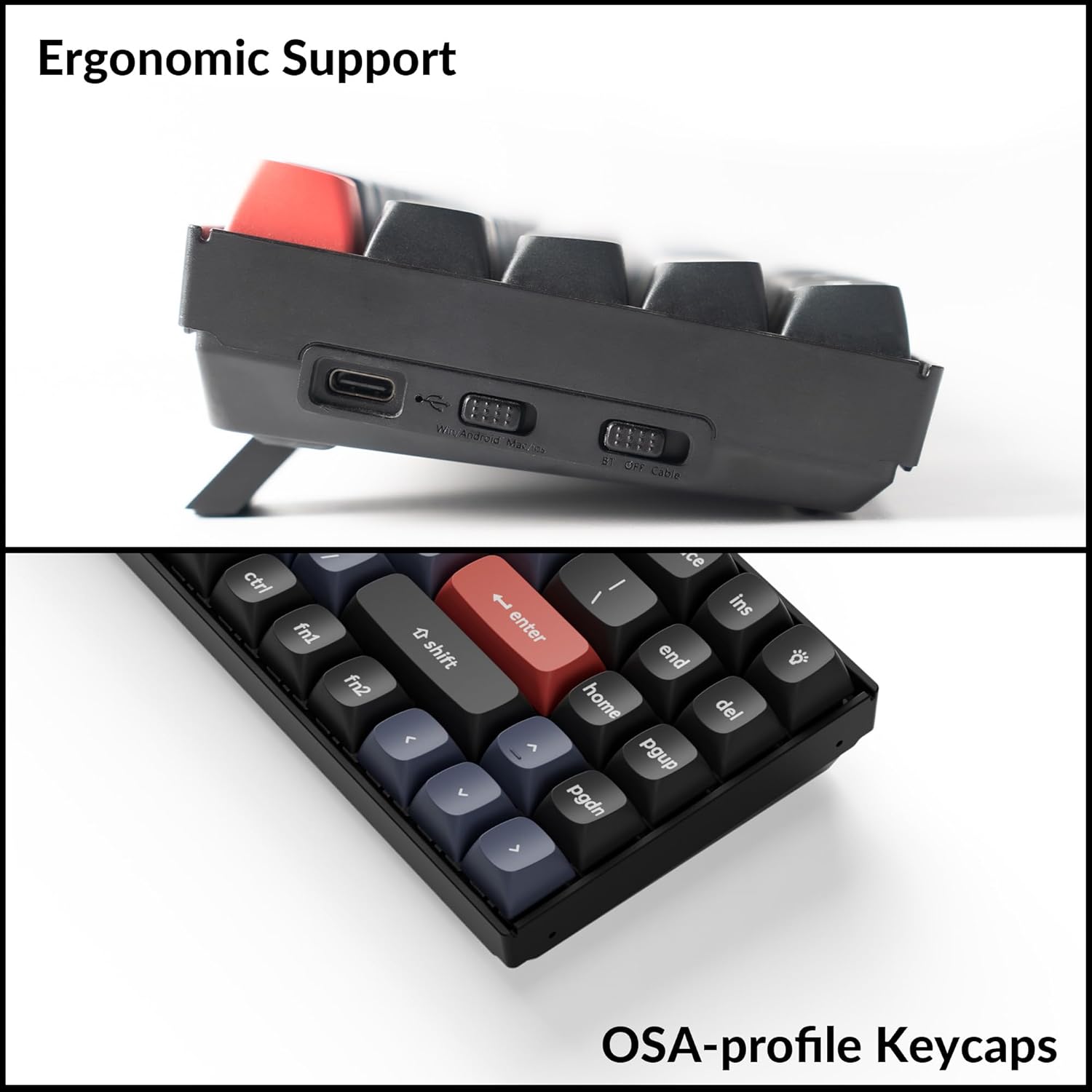
Image: The Keychron K14 Pro keyboard demonstrating its compatibility with macOS, Windows, and Linux, highlighting the physical switch for OS selection and corresponding keycap legends.
5. Característiques físiques
The keyboard features adjustable feet for three typing angles (3.5°, 8°, and 12°) and a USB-C port for wired connection and charging.

Imatge: Un costat view of the Keychron K14 Pro keyboard, illustrating its adjustable feet for ergonomic typing angles and the USB-C port. A separate close-up shows the profile of the OSA keycaps.
Instruccions de funcionament
1. Programabilitat de QMK/VIA
The K14 Pro supports QMK/VIA for advanced customization. This allows you to remap keys, create macros, and configure lighting effects.
- Baixeu el programari VIA des del lloc web oficial de Keychron weblloc.
- Connect the keyboard to your computer via USB Type-C cable. Key remapping functions are only active in wired mode.
- Use the VIA software to drag and drop desired key functions or macros to any key. The changes will apply to both wired and wireless modes once configured.

Image: A screenshot of the QMK/VIA software interface, displaying the graphical layout for key remapping and macro creation on the Keychron K14 Pro.
2. Key Combinations
The K14 Pro features various key combinations for multimedia control, function keys, and backlight adjustments.
- Tecles multimèdia: Premeu Fn1 + corresponding key for media control (e.g., play/pause, volume).
- Tecles de funció (F1-F12): Premeu Fn2 + corresponding number key to access F1-F12 functions.
- Efectes de contrallum:
- Fn1 + A: Change lighting effect.
- Fn1 + Caps Lock: Activa/desactiva la retroiluminació.
- Fn1 + S: Augmenta la brillantor de la retroiluminació.
- Fn1 + X: Reduir la brillantor de la retroiluminació.

Image: A visual guide detailing the various key combinations on the K14 Pro for controlling multimedia, accessing function keys, and adjusting backlight settings.
3. Interruptors intercanviables en calent
The K14 Pro features hot-swappable sockets, allowing you to change mechanical switches without soldering. It supports most 3-pin and 5-pin MX mechanical switches.

Image: A hand demonstrating the process of removing a mechanical switch from the keyboard using a switch puller, highlighting the hot-swappable feature.
Per substituir un interruptor:
- Gently remove the keycap using the provided keycap puller.
- Use the switch puller to carefully grip the top and bottom clips of the switch.
- Estireu l'interruptor cap amunt per treure'l de la placa de circuit imprès.
- Align the pins of the new switch with the holes on the PCB and press down firmly until it clicks into place. Ensure pins are not bent.
- Substitueix la tapa de les tecles.

Imatge: Un primer pla view of the keyboard's hot-swappable switches, showcasing the backlighting beneath the keycaps.
Manteniment
1. Neteja del teclat
- Desconnecteu el teclat de totes les fonts d'alimentació.
- Feu servir un raspall suau o aire comprimit per eliminar la pols i les restes que hi ha entre les tecles.
- For stubborn dirt, gently remove keycaps using the keycap puller and clean the switch housing with a cotton swab lightly dampamb alcohol isopropílic.
- Wipe the keycaps and keyboard surface with a microfiber cloth. Avoid excessive moisture.
2. Keycap Care (Double-shot PBT)
The K14 Pro comes with durable double-shot PBT keycaps, known for their oil resistance and longevity. To clean them, remove them from the keyboard and wash with mild soap and water. Ensure they are completely dry before reattaching.

Image: An illustrative diagram explaining the construction of double-shot keycaps, showing how two separate plastic molds are used to create the keycap and its legend for enhanced durability and legibility.
Resolució de problemes
1. El teclat no respon
- Mode per cable: Assegureu-vos que el cable USB tipus C estigui connectat correctament tant al teclat com a l'ordinador. Proveu un altre port o cable USB.
- Mode Bluetooth:
- Check if the keyboard is in "BT" mode using the toggle switch.
- Assegureu-vos que el Bluetooth estigui habilitat al vostre dispositiu.
- Try re-pairing the keyboard (press and hold Fn1 + 1 durant 4 segons).
- Verify the correct Bluetooth channel is selected (Fn1 + 1/2/3).
- Assegureu-vos que la bateria del teclat estigui carregada.
2. Les claus no es registren o s'escriuen dues vegades
- Això podria indicar un interruptor defectuós. Utilitzeu la funció d'intercanvi en calent per substituir l'interruptor problemàtic.
- Assegureu-vos que l'interruptor estigui completament col·locat a la seva base.
3. Problemes de retroiluminació
- Assegureu-vos que la retroiluminació no estigui apagada (Fn1 + Caps Lock).
- Ajusta la brillantor amb Fn1 + S (augmentar) o Fn1 + X (disminució).
- Check if the keyboard is in a low-power state; charge the battery.
4. El programari VIA no detecta el teclat
- Ensure the keyboard is connected via USB Type-C cable. VIA only works in wired mode.
- Verify you have the correct VIA firmware loaded for the K14 Pro.
- Restart the VIA software and reconnect the keyboard.
Especificacions
| Model | Keychron K14 Pro |
| Disseny | 70% (72 tecles) |
| Connectivitat | Bluetooth 5.1 (3 devices), USB Type-C (wired) |
| Dispositius compatibles | Laptop, Desktop, Smartphone, Tablet, Mac, Windows, Linux |
| Tipus de canvi | Keychron K Pro Mechanical (Red Switch) |
| Intercanviable en calent | Yes (supports 3-pin and 5-pin MX mechanical switches) |
| Taps de claus | OSA Double-shot PBT |
| Llum de fons | RGB Backlit (South-facing) |
| Bateria | 4000 mAh rechargeable Li-polymer |
| Bluetooth Working Time (Backlight off) | Approx. 260 hours (Lab result, actual use may vary) |
| Taxa de sondeig (cablejat) | 1000 Hz |
| MCU | Ultra-low-power ARM Cortex-M4 32-bit STM32L432 (128KB Flash) |
| Angle d'escriptura | 3.5°, 8°, and 12° (adjustable feet) |
| Dimensions | 331.1 x 102.45 mm (13.03 x 4.03 polzades) |
| Pes de l'article | 1.85 lliures |
| Fabricant | Keychron |

Image: A visual summary of the Keychron K14 Pro's technical specifications, including dimensions, connectivity, battery life, and compatible systems.
Informació de la garantia
Keychron products typically come with a standard manufacturer's warranty covering defects in materials and workmanship. For specific warranty terms and duration, please refer to the warranty card included with your product or visit the official Keychron weblloc.
Suport
For further assistance, technical support, or to download the latest firmware and VIA software, please visit the official Keychron support page:
You may also find helpful resources and community forums on the Keychron weblloc.


