Introducció
This manual provides comprehensive instructions for the setup, operation, maintenance, and troubleshooting of your Keenetic Extra DSL AC1200 Wi-Fi Mesh VDSL2/ADSL2+ Modem Gigabit Fiber Router. Please read this manual carefully before using the device to ensure optimal performance and safety.
The Keenetic Extra DSL AC1200 is a versatile networking device designed to provide high-speed internet access and robust Wi-Fi coverage. It supports VDSL2/ADSL2+ connections and features Gigabit Ethernet ports for wired connectivity, along with dual-band Wi-Fi for seamless wireless networking.
Contingut del paquet
Before proceeding with the setup, please verify that all items are present in your package:
- Keenetic Extra DSL AC1200 Router (KN-2112-01TR)
- Adaptador d'alimentació
- Cable Ethernet
- Cable DSL
- Quick Start Guide (This manual serves as the detailed guide)
Físic acabatview
Familiarize yourself with the various ports and indicators on your Keenetic Extra DSL router.

Figura 1: Frontal view of the Keenetic Extra DSL AC1200 Router, showing its compact design and antenna configuration.
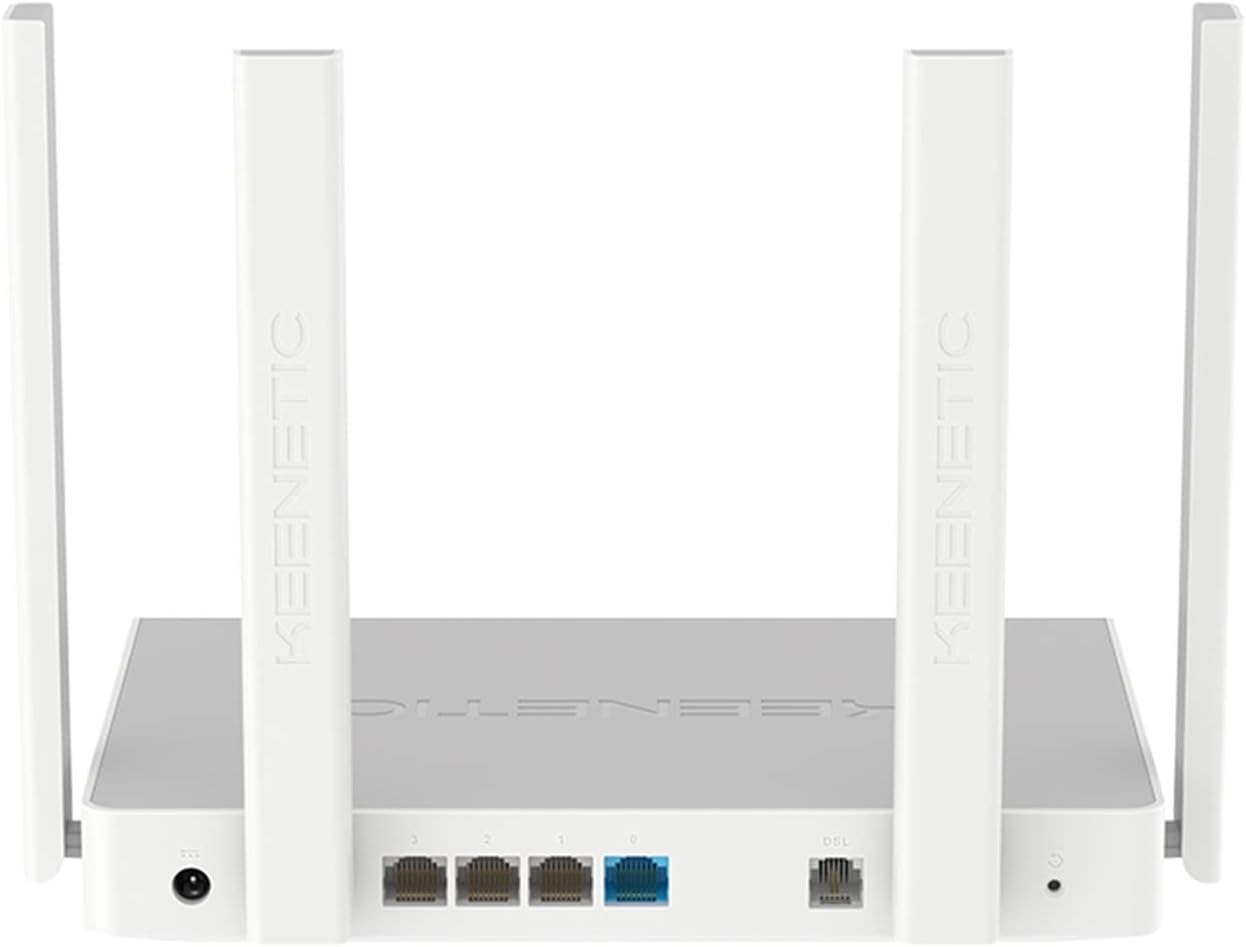
Figura 2: posterior view of the Keenetic Extra DSL AC1200 Router, highlighting the DSL port, four Gigabit Ethernet ports, and the USB 2.0 port.
- Port DSL: Connects to your VDSL2/ADSL2+ line.
- Ethernet Ports (LAN/WAN): Four 1Gbit/s ports for wired devices or WAN connection.
- Port USB 2.0: For connecting external storage or 3G/4G modems.
- Entrada d'alimentació: Es connecta a l'adaptador de corrent proporcionat.
- Botó de restabliment: S'utilitza per restaurar la configuració predeterminada de fàbrica.
Configuració
1. Connexió de maquinari
- Connecteu la línia DSL: Plug one end of the DSL cable into the DSL port on the router and the other end into your wall's DSL jack.
- Connecteu-vos a l'alimentació: Connect the power adapter to the router's power input and then plug it into a power outlet. The router will power on automatically.
- Connecteu dispositius amb cable (opcional): Use an Ethernet cable to connect your computer or other wired devices to any of the Gigabit Ethernet ports on the router.
- Espera la inicialització: Allow a few minutes for the router to boot up and establish a connection. The indicator lights on the front panel will show the status of the connection.
2. Configuració Inicial
The Keenetic Extra DSL features a user-friendly interface for easy setup.
- Accedeix al Web Interfície: Obre a web browser on a device connected to the router (either wired or wirelessly using the default Wi-Fi name and password found on the router's label). Type
my.keenetic.netor192.168.1.1a la barra d’adreces i premeu Retorn. - Segueix l'Auxiliar de configuració: The first time you access the interface, a setup wizard will guide you through the initial configuration steps, including setting up your internet connection (VDSL/ADSL parameters), Wi-Fi network name (SSID), and password.
- Estableix la contrasenya de l'administrador: Create a strong administrator password for accessing the router's settings.
- Desa la configuració: Després de configurar-ho, deseu els paràmetres i reinicieu el router si se us demana.
Funcionament del router
Connectivitat Wi-Fi
The router supports dual-band Wi-Fi (2.4 GHz and 5 GHz) for optimal wireless performance.
- Dispositius de connexió: On your wireless device, search for available Wi-Fi networks. Select your configured network name (SSID) and enter the password.
- Wi-Fi Mesh: This router supports Wi-Fi Mesh technology. For extending coverage, additional Keenetic devices can be added to create a seamless mesh network. Refer to the Keenetic website for detailed instructions on mesh setup.
Funcions avançades
The Keenetic OS provides a wide range of features accessible through the web interfície:
- Xarxa Wi-Fi per a convidats: Create a separate Wi-Fi network for guests to isolate them from your main network.
- Controls parentals: Gestionar l'accés a Internet per a dispositius o usuaris específics.
- Transmissió de ports: Configure rules for specific applications or services.
- Servidor/Client VPN: Establish secure connections.
- Aplicacions USB: Utilize the USB 2.0 port for file sharing (FTP/SMB), connecting a printer, or using a 3G/4G USB modem as a backup internet source.
Manteniment
- Actualitzacions de firmware: Comproveu i instal·leu regularment si hi ha actualitzacions de firmware a través del router. web interfície. Les actualitzacions sovint inclouen millores de rendiment, pegats de seguretat i noves funcions.
- Col·locació del router: Col·loca el router en un lloc central, allunyat d'obstacles i fonts d'interferències (per exemple, microones, telèfons sense fil) per maximitzar la cobertura Wi-Fi.
- Neteja: Mantingueu el router net i lliure de pols. Feu servir un drap suau i sec per netejar-lo. No utilitzeu netejadors líquids.
- Reiniciant: Si teniu problemes de xarxa, proveu de reiniciar el router desendollant l'adaptador de corrent durant 10 segons i després tornant-lo a connectar.
Resolució de problemes
| Problema | Causa possible | Solució |
|---|---|---|
| Sense accés a Internet | DSL line not connected, incorrect ISP settings, modem not synced. | Check DSL cable connection. Verify ISP settings in the router's web interface. Restart the router and wait for DSL sync. Contact your ISP if the issue persists. |
| Weak Wi-Fi Signal | Router placement, interference, too many devices. | Relocate the router to a central, open area. Avoid placing near other electronics. Consider adding a Keenetic Wi-Fi Mesh extender. |
| No es pot accedir al router Web Interfície | Incorrect IP address, network configuration issues. | Ensure your device is connected to the router. Try my.keenetic.net or 192.168.1.1. Clear browser cache. Try a different browser. If all else fails, perform a factory reset (see below). |
| Velocitat d'Internet lenta | Network congestion, outdated firmware, ISP issues. | Update router firmware. Limit bandwidth-intensive activities. Perform a speed test directly connected to the router. Contact your ISP. |
Restabliment de fàbrica
If you encounter persistent issues, you may need to perform a factory reset. This will erase all custom settings and restore the router to its default configuration.
- Amb el router engegat, localitzeu el Restableix button (usually a small pinhole button) on the back panel.
- Use a paperclip or a thin object to press and hold the Reset button for approximately 10 seconds until the system LED blinks rapidly.
- Release the button and wait for the router to restart. You will then need to reconfigure the router from scratch.
Especificacions
| Característica | Detall |
|---|---|
| Nom del model | KN-2112-01TR |
| Marca | Keenetic |
| Estàndard sense fils | 802.11ac, 802.11n |
| Classe de banda de freqüència | Banda Dual |
| Característiques clau | Wi-Fi Mesh, User-Friendly Interface |
| Ports Ethernet | 4 x Gigabit (1Gbit/s) |
| Ports USB | 1 x USB 2.0 |
| Dimensions (L x A x A) | 37 x 28.6 x 6.2 cm |
| Pes | 1 quilograms |
| Color | Blanc |
| País d'origen | Xina |
Garantia i Suport
For warranty information and technical support, please refer to the official Keenetic website or contact Keenetic customer service. Specific warranty terms may vary by region and retailer.
Note: No specific warranty duration or detailed support contact information was provided in the product data. Please consult your purchase documentation or the manufacturer's official resources for the most accurate and up-to-date information.


