1. Introducció
This manual provides instructions for the JLab GO Charge Wireless Mouse. Please read this manual thoroughly before using the product to ensure proper operation and to maximize its features.

Figure 1: JLab GO Charge Wireless Mouse, top view with USB dongle.
2. Contingut del paquet
Verifiqueu que tots els elements siguin presents al paquet:
- GO Charge Wireless Mouse
- Cable de càrrega (USB-C a USB-A)
- Adaptador sense fil USB de 2.4 GHz
- Guia d'inici ràpid
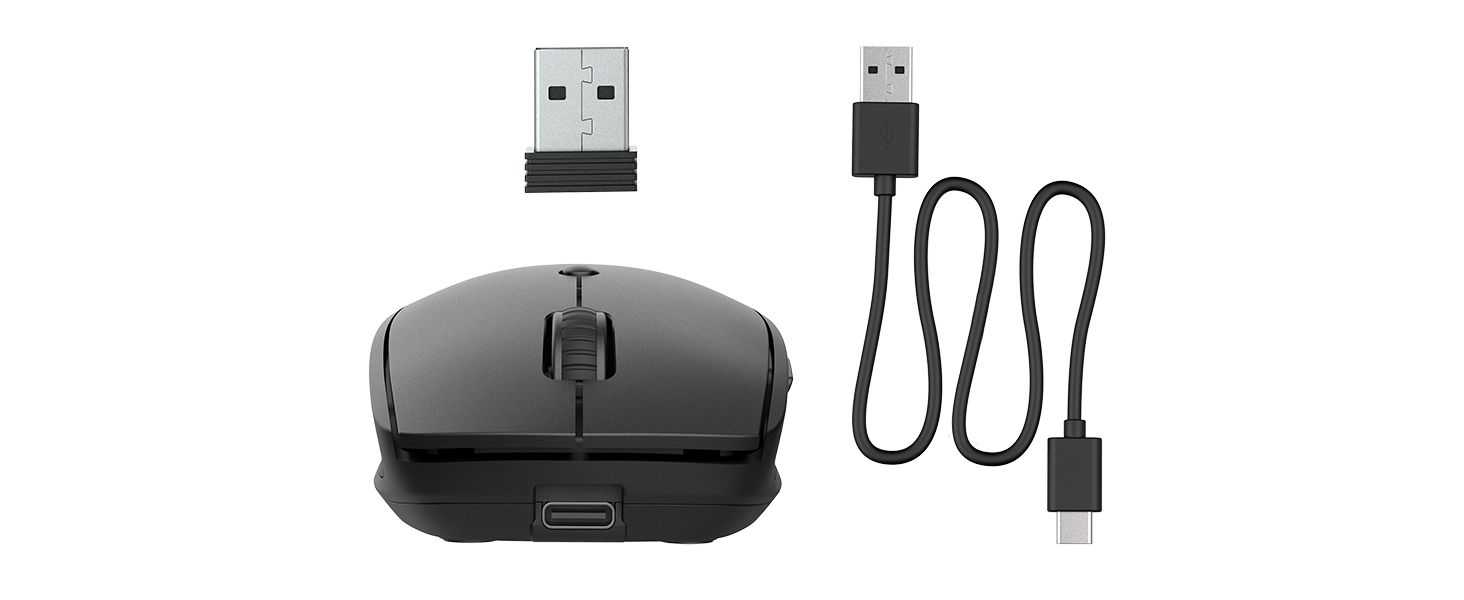
Figure 2: Included components: JLab GO Charge Wireless Mouse, USB-C to USB-A charging cable, and 2.4GHz USB wireless dongle.
3. Configuració
3.1 Càrrega del ratolí
The JLab GO Charge Wireless Mouse features a rechargeable battery, eliminating the need for disposable batteries. Use the provided USB-C to USB-A charging cable to charge the mouse. The charging port is located at the front of the mouse.
- Connect the USB-C end of the cable to the mouse.
- Connect the USB-A end to a compatible USB power adapter (not included) or a computer USB port.
- A red indicator light on the underside of the mouse will illuminate during charging and turn off when fully charged.
3.2 Opcions de connectivitat
The mouse offers two primary connection methods: 2.4GHz USB wireless dongle and Bluetooth.
3.2.1 2.4GHz USB Wireless Dongle Connection
- Locate the USB wireless dongle stored in the compartment on the underside of the mouse.
- Insert the USB dongle into an available USB-A port on your computer.
- Turn on the mouse using the power switch on its underside. The red optical sensor light will activate.
- El ratolí s'hauria de connectar automàticament a l'ordinador.

Figure 3: Underside of the mouse, highlighting the USB dongle storage compartment and the power switch.
3.2.2 Connexió Bluetooth
The mouse supports connecting wirelessly to up to two Bluetooth devices.
- Engegueu el ratolí amb l'interruptor d'engegada que es troba a la part inferior.
- Press the Bluetooth pairing button (often labeled 'BT1' or 'BT2') on the underside of the mouse. The corresponding LED indicator will blink, indicating pairing mode.
- On your device (computer, tablet, etc.), navigate to Bluetooth settings and search for new devices.
- Select "JLab GO Charge Mouse" from the list of available devices to pair.
- Repeat for a second Bluetooth device using the 'BT2' button if available.
3.3 Multi-Device Toggle
The JLab GO Charge Mouse allows seamless switching between up to three connected devices (one via USB dongle, two via Bluetooth). Use the dedicated toggle button on the underside of the mouse to switch between the paired devices.
4. Funcionament del ratolí
4.1 Funcions bàsiques
- Clic esquerre: Selecció i activació primàries.
- Clic dret: Accedeix als menús contextuals.
- Roda de desplaçament: Desplaça el contingut verticalment. També es pot fer clic amb el botó central per a la funcionalitat de clic.

Figure 4: Proper hand placement for operating the JLab GO Charge Wireless Mouse.
4.2 Adjustable Tracking (DPI)
The mouse features an adjustable DPI (Dots Per Inch) button, typically located below the scroll wheel. Press this button to cycle through different sensitivity settings, allowing you to adjust the cursor speed to your preference.
4.3 Botons laterals
The mouse is equipped with side buttons, usually for 'Forward' and 'Back' navigation in web navegadors o file explorers. These can often be customized through your operating system's mouse settings.
5. Manteniment
5.1 Neteja
To maintain optimal performance, regularly clean your mouse. Use a soft, dry cloth to wipe the surface. For the optical sensor, use a cotton swab lightly dampened with isopropyl alcohol, ensuring no liquid enters the mouse's interior.
5.2 Cura de la bateria
To prolong the life of the internal rechargeable battery:
- Eviteu descarregar completament la bateria amb freqüència.
- Guardeu el ratolí en un lloc fresc i sec quan no l'utilitzeu durant períodes prolongats.
- Charge the mouse regularly, even if not completely depleted.
6. Solució De Problemes
6.1 El ratolí no respon
- Assegureu-vos que el ratolí estigui encès.
- Comproveu el nivell de la bateria i carregueu-la si cal.
- For 2.4GHz connection: Ensure the USB dongle is securely inserted into a working USB port. Try a different USB port.
- For Bluetooth connection: Verify Bluetooth is enabled on your device and the mouse is paired. Try re-pairing the mouse.
- Reinicieu l'ordinador o el dispositiu.
6.2 Moviment erràtic del cursor
- Netegeu el sensor òptic de la part inferior del ratolí.
- Assegureu-vos que feu servir el ratolí sobre una superfície adequada (per exemple, una estora de ratolí). Eviteu superfícies molt reflectants o transparents.
- Adjust the DPI setting to a lower sensitivity.
6.3 Problemes de càrrega
- Verify the charging cable is correctly connected to both the mouse and the power source.
- Proveu un altre port USB o adaptador de corrent.
- Assegureu-vos que el cable de càrrega no estigui danyat.
7. Especificacions
| Marca | JLab |
| Model | GO Charge Wireless Mouse |
| Color | Negre |
| Tecnologia de connectivitat | Bluetooth, USB, Wireless (2.4GHz) |
| Tecnologia de detecció de moviment | Òptic |
| Característica especial | Sense fil, recarregable |
| Compatibilitat | Mac, Windows, Chrome OS |
8. Garantia i Suport
8.1 Informació de la garantia
JLab products are designed with quality and durability in mind. For detailed warranty information, please refer to the official JLab weblloc web o la targeta de garantia inclosa amb el producte. Conserveu el comprovant de compra per a reclamacions de garantia.
8.2 Atenció al client
If you encounter any issues or have questions regarding your JLab GO Charge Wireless Mouse, please visit the official JLab support page or contact their customer service. Contact information can typically be found on the JLab weblloc web o a la Guia d'inici ràpid.


