1. Introducció
The AOLION Wired Controller is designed to provide a reliable and responsive gaming experience across multiple platforms. This controller is compatible with Xbox One, Xbox Series X|S, and Windows 10/11 PCs. This manual provides comprehensive instructions for setting up, operating, maintaining, and troubleshooting your controller to ensure optimal performance.
2. Contingut del paquet
- AOLION Wired Controller
- Manual d'usuari
3. Disseny del controlador
Familiarize yourself with the various buttons and components of your AOLION Wired Controller:
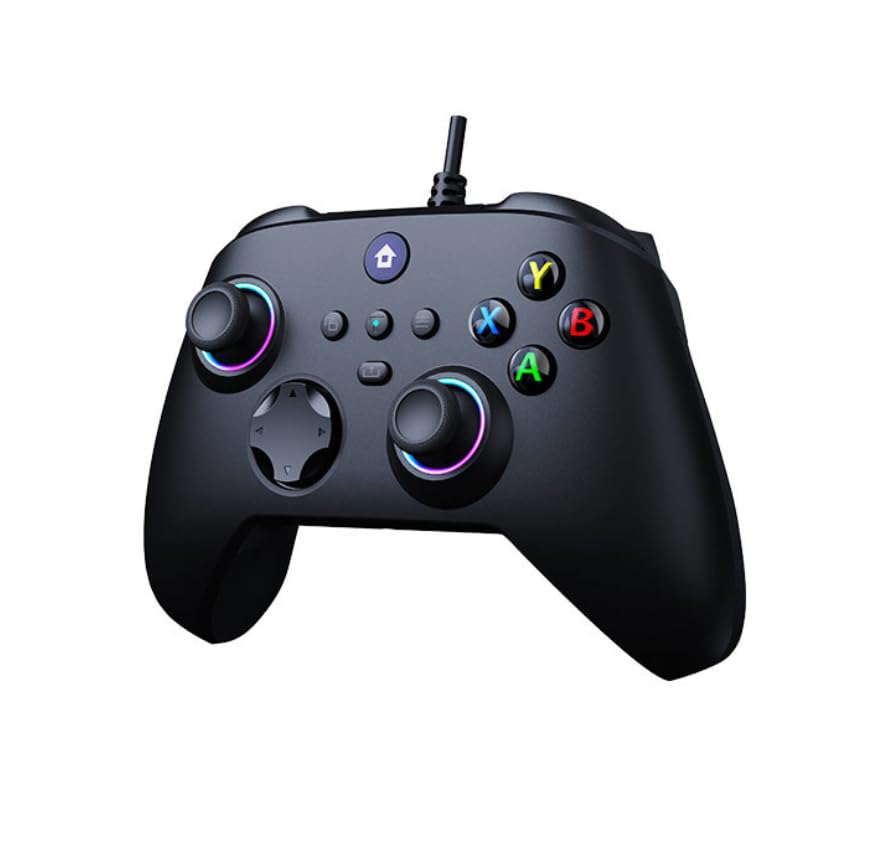
This image displays the AOLION Wired Controller. Key features visible include the dual analog sticks, D-pad, ABXY buttons, shoulder buttons (LB, RB), triggers (LT, RT), and central function buttons (View, Menu, Share, Xbox Home button).
- Stick analògic esquerre: For character movement and navigation.
- Stick analògic dret: Per al control de la càmera i l'apuntament.
- D-Pad (coixinet direccional): Per a una entrada direccional precisa.
- Botons A/B/X/Y: Action buttons, typically color-coded.
- LB/RB (Left/Right Bumper): Botons a l'espatlla per a diverses accions del joc.
- LT/RT (Left/Right Trigger): Analog triggers for precise input, often used for acceleration/braking or shooting.
- View Botó: Accesses in-game maps or menus.
- Botó de menú: Accesses game menus or system options.
- Botó Compartir: Captures screenshots or video clips (functionality may vary by platform).
- Xbox Home Button: Powers on the console, accesses the Xbox Guide, or returns to the home screen.
- Cable USB: For connecting the controller to your device.
4. Configuració
4.1 Connecting to Xbox One / Xbox Series X|S
- Locate an available USB port on your Xbox One or Xbox Series X|S console.
- Plug the USB connector of the AOLION Wired Controller firmly into the USB port on your console.
- The controller will automatically power on and connect to your console. The Xbox Home button on the controller will illuminate to indicate a successful connection.
4.2 Connecting to Windows 10 / 11 PC
- Locate an available USB port on your Windows 10 or 11 PC.
- Plug the USB connector of the AOLION Wired Controller firmly into the USB port on your PC.
- Your PC will automatically detect the controller and install the necessary drivers. This process may take a few moments.
- Once the drivers are installed, the controller will be ready for use. You can verify its status in your PC's Device Manager or game controller settings.
5. Instruccions de funcionament
Once connected, the AOLION Wired Controller functions similarly to standard Xbox controllers. Here are general operating guidelines:
- Control bàsic: Use the Left Analog Stick for character movement and the Right Analog Stick for camera control or aiming.
- Botons d'acció: Press the A, B, X, Y buttons for in-game actions as indicated by the game's interface.
- Shoulder Buttons & Triggers: Utilize LB, RB, LT, and RT for specific actions like weapon switching, aiming down sights, or vehicle controls.
- Navegació del sistema: Press the Xbox Home button to access the console's guide or the PC's Xbox Game Bar. Use the View and Menu buttons to navigate in-game menus or system settings.
- Feedback de vibració: The controller features built-in vibration motors that provide haptic feedback during gameplay, enhancing immersion.
6. Manteniment
Proper care and maintenance will extend the lifespan of your AOLION Wired Controller:
- Neteja: Use a soft, dry cloth to wipe down the controller's surface. For stubborn dirt or grime, slightly dampen the cloth with water (do not use harsh chemicals or abrasive cleaners). Ensure no liquid enters the controller's openings.
- Emmagatzematge: Store the controller in a cool, dry place away from direct sunlight, extreme temperatures, and excessive humidity. Avoid placing heavy objects on the controller.
- Cura del cable: Do not sharply bend or pull on the USB cable. Always grasp the connector when plugging or unplugging the cable.
7. Solució De Problemes
If you encounter issues with your AOLION Wired Controller, refer to the following common solutions:
- El controlador no respon:
- Assegureu-vos que el cable USB estigui connectat correctament tant al controlador com a la consola/PC.
- Try plugging the controller into a different USB port on your console/PC.
- Reinicieu la consola o l'ordinador.
- Botons o joysticks analògics que no funcionen correctament:
- Check for any physical obstructions or debris around the buttons or sticks.
- On PC, ensure your operating system and controller drivers are up to date.
- Test the controller with another game or application to determine if the issue is specific to one program.
- Sense retroalimentació de vibració:
- Verify that vibration feedback is enabled in the game's settings or your console/PC's system settings.
Si el problema persisteix després d'intentar aquests passos, poseu-vos en contacte amb l'atenció al client per obtenir més ajuda.
8. Especificacions
| Característica | Detall |
|---|---|
| Número de model (ASIN) | B0C3CZV5C6 |
| Fabricant | AOLION |
| Connectivitat | USB per cable |
| Compatibilitat | Xbox One, Xbox Sèries X|S, Windows 10/11 |
| Data de primera disponibilitat | 24 d'abril de 2023 |
9. Garantia i Suport
This AOLION product is covered by a standard manufacturer's warranty. For detailed information regarding warranty terms and conditions, please refer to the warranty card included with your product or visit the official AOLION weblloc.
For technical support, troubleshooting assistance, or any inquiries not covered in this manual, please contact AOLION customer support through the contact information provided on the product packaging or the official website. When contacting support, please have your product model number (B0C3CZV5C6) and purchase details ready.


