Introducció
This manual provides detailed instructions for the setup, operation, maintenance, and troubleshooting of your UnionSine HD3511 8TB Desktop External Hard Drive. Please read this manual carefully before using the product to ensure optimal performance and longevity.
Producte acabatview
The UnionSine HD3511 is a high-capacity 8TB desktop external hard drive designed for reliable data storage and fast transfer speeds. It features a robust design and broad compatibility with various operating systems and devices.
Característiques principals:
- Emmagatzematge massiu: Provides 8TB of storage capacity for backing up and managing large amounts of data.
- Compatibilitat àmplia: Compatible with PS4, Xbox One, Mac, PC, Android, and supports Windows, macOS, and Linux systems.
- Transferència de dades d'alta velocitat: USB 3.2 Gen2 Type-C interface offers read/write speeds up to 130MB/s-270MB/s.
- Modern Compact Design: Horizontal design for stability and seamless integration into home or work environments.

Figure 1: UnionSine HD3511 8TB Desktop External Hard Drive. This image shows the sleek, black enclosure of the external hard drive.
Configuració
Follow these steps to set up your UnionSine HD3511 external hard drive:
- Connectar l'alimentació: First, connect the provided AC power adapter to the hard drive's DC IN port and then plug it into a power outlet. Ensure the power connection is secure.
- Connecta't al dispositiu: Use the appropriate USB cable (USB-A to USB-C or USB-C to USB-C) to connect the hard drive's USB 3.2 Gen2 Type-C port to your computer, game console, or other compatible device.
- Reconeixement del dispositiu: The external hard drive should be recognized by your operating system within seconds. For new drives, you may need to initialize and format the drive through your operating system's disk management utility before use.

Figure 2: Connection Guide. This diagram illustrates the two-step process of connecting the power supply and then the USB cable to your device.

Figura 3: posterior view of the hard drive showing the USB 3.2 Gen2 Type-C port and the DC IN power port with cables connected.
Instruccions de funcionament
Once connected and recognized, your UnionSine HD3511 is ready for use.
Transferència de dades:
Arrossegueu i deixeu anar files or use your operating system's copy/paste functions to transfer data to and from the drive. For optimal transfer speeds (up to 270MB/s), ensure you are using the USB 3.2 Gen2 Type-C cable and connecting to a compatible USB 3.2 Gen2 port on your device.
Usage with TV/Media Centers:
To use the hard drive with a TV or media center, connect it as described in the setup section. After the device is powered on, wait a few minutes for the hard drive to be recognized. Use your TV's remote control to select the correct input source (e.g., "USB Mode") to access the stored media files.
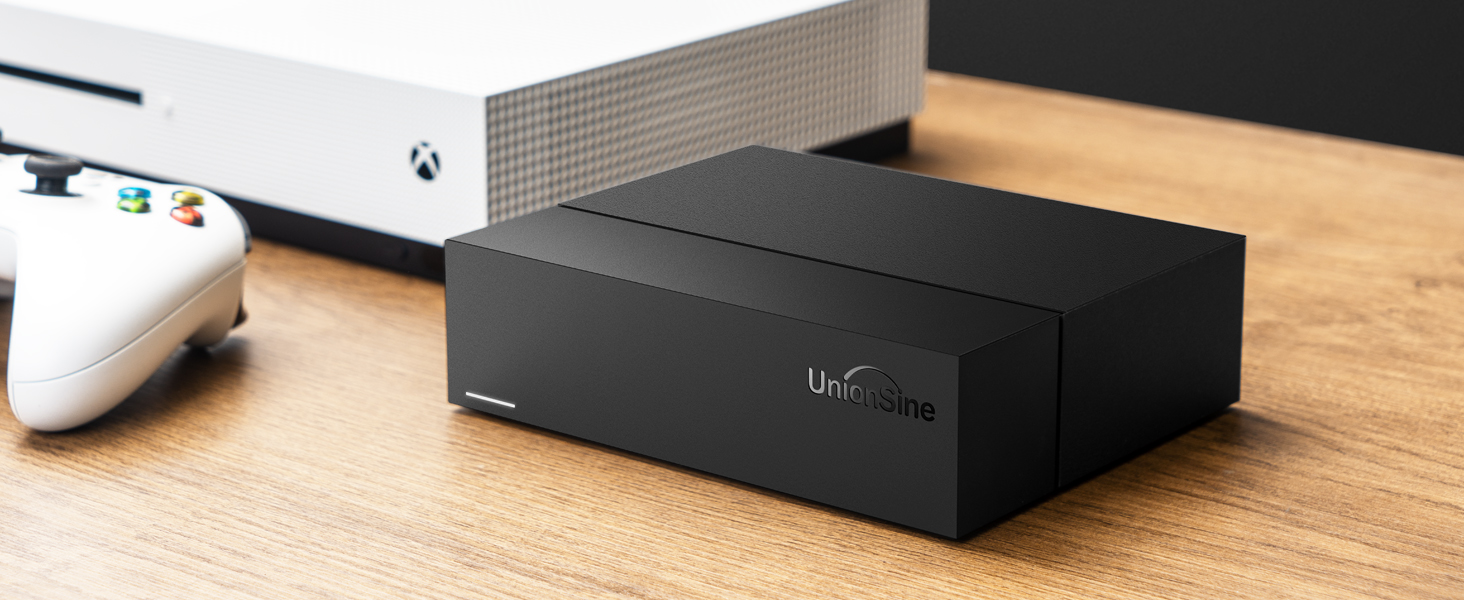
Figure 4: Steps for connecting the external hard drive to a television for media playback.

Figure 5: The external hard drive positioned on a desk, serving as a home edition multimedia storage center.
Manteniment
Proper care ensures the longevity and reliability of your hard drive:
- Eliminació segura: Always safely eject the hard drive from your operating system before disconnecting the USB cable or power. This prevents data corruption.
- Protecció física: Avoid dropping or subjecting the drive to physical shocks, as this can damage the internal mechanical components.
- Ventilació: Ensure the drive is placed in a well-ventilated area. The horizontal design and back cutouts are engineered for heat dissipation. Do not block the ventilation holes.
- Neteja: Use a soft, dry cloth to clean the exterior of the drive. Do not use liquid cleaners.
Figure 6: Illustration of the back cutout design, highlighting its role in heat dissipation during operation.
Resolució de problemes
If you encounter issues with your hard drive, refer to the following common problems and solutions:
- Unitat no reconeguda:
- Ensure the power adapter is securely connected and the drive is receiving power.
- Verify the USB cable is properly connected to both the drive and your device.
- Prova de connectar la unitat a un port USB diferent de l'ordinador.
- If using a USB hub, try connecting the drive directly to your computer, as some hubs may not provide sufficient power or data bandwidth.
- Check your operating system's Disk Management (Windows) or Disk Utility (macOS) to see if the drive is detected but uninitialized or unformatted.
- Frequent Disconnections During File Transferència:
- Ensure all cables (power and USB) are firmly connected.
- Try a different USB cable, especially if you suspect the original cable is faulty.
- Connect the drive directly to your computer's USB port, bypassing any hubs.
- Assegureu-vos que els controladors USB de l'ordinador estiguin actualitzats.
- Velocitats de transferència lentes:
- Confirm you are using the USB 3.2 Gen2 Type-C cable and connecting to a USB 3.2 Gen2 compatible port on your device. Older USB ports (e.g., USB 2.0) will result in significantly slower speeds.
- Eviteu transferir moltes petites files simultàniament, ja que això pot ser més lent que transferir uns quants grans files.
- Unusual Noises (Clicking, Grinding):
- Mechanical hard drives produce some operational noise. However, loud or persistent clicking, grinding, or scraping sounds can indicate a potential hardware issue.
- If you hear such noises, immediately back up any critical data if possible and contact customer support.
- "Scan and Fix Errors" Prompt on Windows:
- This can occur if the drive was not safely ejected previously. Allow Windows to scan and fix errors.
- If the drive is new and empty, and this persists, consider reformatting the drive through Disk Management.
Especificacions
| Característica | Detall |
|---|---|
| Marca | UnionSine |
| Número de model | HD3511 |
| Capacitat d'emmagatzematge digital | 8 TB |
| Tipus de disc dur | 3.5" Mechanical Hard Disk |
| Interfície | USB 3.2 Gen2 Type-C (also compatible with USB 2.0/3.0) |
| Velocitat de lectura/escriptura | Up to 130MB/s - 270MB/s |
| Velocitat de rotació | 7200 RPM |
| Plataforma de maquinari | Linux, Mac, PC |
| Dispositius compatibles | Desktop computers, PS4, Xbox One, TVs, Android devices |
| Sistemes operatius | Windows, macOS, Linux |
| Dimensions (L x A x A) | 16 x 13 x 4 cm (6.3 x 5.1 x 1.6 polzades) |
| Pes | 1.3 kg (2.87 lliures) |
| Color | Negre |
Garantia i Suport
The UnionSine HD3511 Desktop External Hard Drive comes with a garantia de dos anys. This warranty covers technical malfunctions and ensures free replacement services within the warranty period.
For technical support, warranty claims, or further assistance, please contact UnionSine customer service. You can find contact information on the official UnionSine weblloc web o a través de la vostra plataforma de compra.
Fabricant: UnionSine
Lloc de treball: Unionsine-CA
Weblloc: www.unionsine.com

