1. Introducció
This manual provides detailed instructions for the Alxum S1222A M.2 NVMe and SATA Dual-Bay Enclosure. Please read this manual thoroughly before using the product to ensure proper operation and to maximize its functionality. This device allows for high-speed data transfer and offline cloning between M.2 NVMe SSDs and 2.5"/3.5" SATA HDDs/SSDs.
1.1 Contingut del paquet
- Alxum S1222A M.2 NVMe and SATA Dual-Bay Enclosure
- USB-C to USB-A/USB-C Data Cable
- Adaptador de corrent de 12 V/2 A
- Manual d'usuari
2. Producte acabatview
2.1 Característiques clau
- Efficient Thermal Conductivity: Features an aluminum alloy upper cover for enhanced heat dissipation, ensuring optimal performance and longevity of your M.2 SSD.
- Alta compatibilitat: Supports M.2 SSDs of sizes 2242, 2260, and 2280, and 2.5"/3.5" SATA hard drives. Compatible with Windows, Unix, Linux, Mac, and Android operating systems.
- Transferència ràpida de dades: Achieves data transfer rates of up to 10Gbps using the USB 3.2 interface. Supports PCIe Gen 3x2 NVMe M.2 SSDs, enabling superb performance and accelerated data processing. SSD TRIM and UASP acceleration further enhance system responsiveness.
- Offline Duplicator: Allows for quick data copying between two SSDs without requiring a computer connection. It can also function as a dual-bay docking station to expand storage capacity for NVMe M.2 SSDs and 2.5"/3.5" SATA HDDs. Note: Does not support SATA M.2 SSDs.
- Flexible Cloning: Simple one-button cloning process with real-time progress indication. Ensures the target disk has a larger capacity than the source disk for successful cloning. Includes a 12V/2A power adapter to prevent power-related issues.
2.2 Diagrama del producte

Figure 1: Alxum S1222A Enclosure and Accessories
This image displays the Alxum S1222A dual-bay enclosure, an M.2 NVMe SSD, a USB-C to USB-A/USB-C data cable, and a power adapter cable. The enclosure features indicator lights for SATA and M.2 drives, power, and cloning progress.
2.3 Interface and Indicators

Figure 2: Enclosure Indicators and Ports
This image highlights the various indicators and ports on the Alxum S1222A enclosure. It shows the SATA indicator, M.2 indicator, Power indicator, Cloning Progress Indicators, USB-C port, DC 12V 2A power input, Power ON/OFF switch, and Clone Switch Setting (M.2 to SATA or SATA to M.2).
| Component | Descripció |
|---|---|
| SATA Indicator | Indicates activity for the SATA drive slot. |
| M.2 Indicator | Indicates activity for the M.2 NVMe drive slot. |
| Indicador d'alimentació | S'il·lumina quan el dispositiu està encès. |
| Cloning Progress Indicators | Multiple LEDs indicate cloning progress (e.g., 25%, 50%, 75%, 100%). |
| Port USB-C | Connects the enclosure to your computer for data transfer. |
| Entrada d'alimentació DC 12V 2A | Connects to the included 12V/2A power adapter. Essential for stable operation and cloning. |
| Interruptor d'encesa/apagada | Controls the power supply to the enclosure. |
| Clone Switch Setting | Allows selection of cloning direction (M.2 to SATA or SATA to M.2). |
3. Configuració i instal·lació
3.1 M.2 NVMe SSD Installation
- Assegureu-vos que la carcassa estigui apagada i desconnectada de l'ordinador.
- Locate the M.2 slot on the enclosure. Gently insert your M.2 NVMe SSD (2242/2260/2280 size) into the slot at an angle.
- Press down the SSD and secure it with the provided retention mechanism (if applicable, usually a rubber stopper or screw).
3.2 2.5"/3.5" SATA HDD/SSD Installation
- Assegureu-vos que la carcassa estigui apagada i desconnectada de l'ordinador.
- Slide your 2.5" or 3.5" SATA HDD/SSD into the SATA drive bay until it firmly connects with the SATA connector.
3.3 Connexió a un ordinador
- Connect the included 12V/2A power adapter to the DC 12V 2A input port on the enclosure, then plug it into a power outlet.
- Connect the USB-C data cable to the USB-C port on the enclosure and the other end to an available USB-A or USB-C port on your computer.
- Turn on the enclosure using the Power ON/OFF switch. The power indicator light will illuminate.
- Your computer should automatically detect the connected drives. For new drives, you may need to initialize and format them through your operating system's disk management utility before use.

Figure 3: Plug and Play Connectivity
This image illustrates the plug-and-play nature of the Alxum S1222A enclosure, showing it connected to a laptop. Icons for Mac OS, Windows, Unix, Linux, and Android indicate broad operating system compatibility.
4. Instruccions de funcionament
4.1 Data Transfer Mode (External Drive Function)
Once connected to your computer and powered on, the installed M.2 NVMe SSD and/or SATA HDD/SSD will appear as external storage devices. You can drag and drop files, copy, paste, or perform any standard file operations as you would with any other external drive.

Figure 4: High-Speed Data Transfer
This image shows the Alxum S1222A enclosure connected to a laptop, illustrating its capability for super-fast data transfer rates of up to 10Gbps, suitable for various media files i aplicacions.
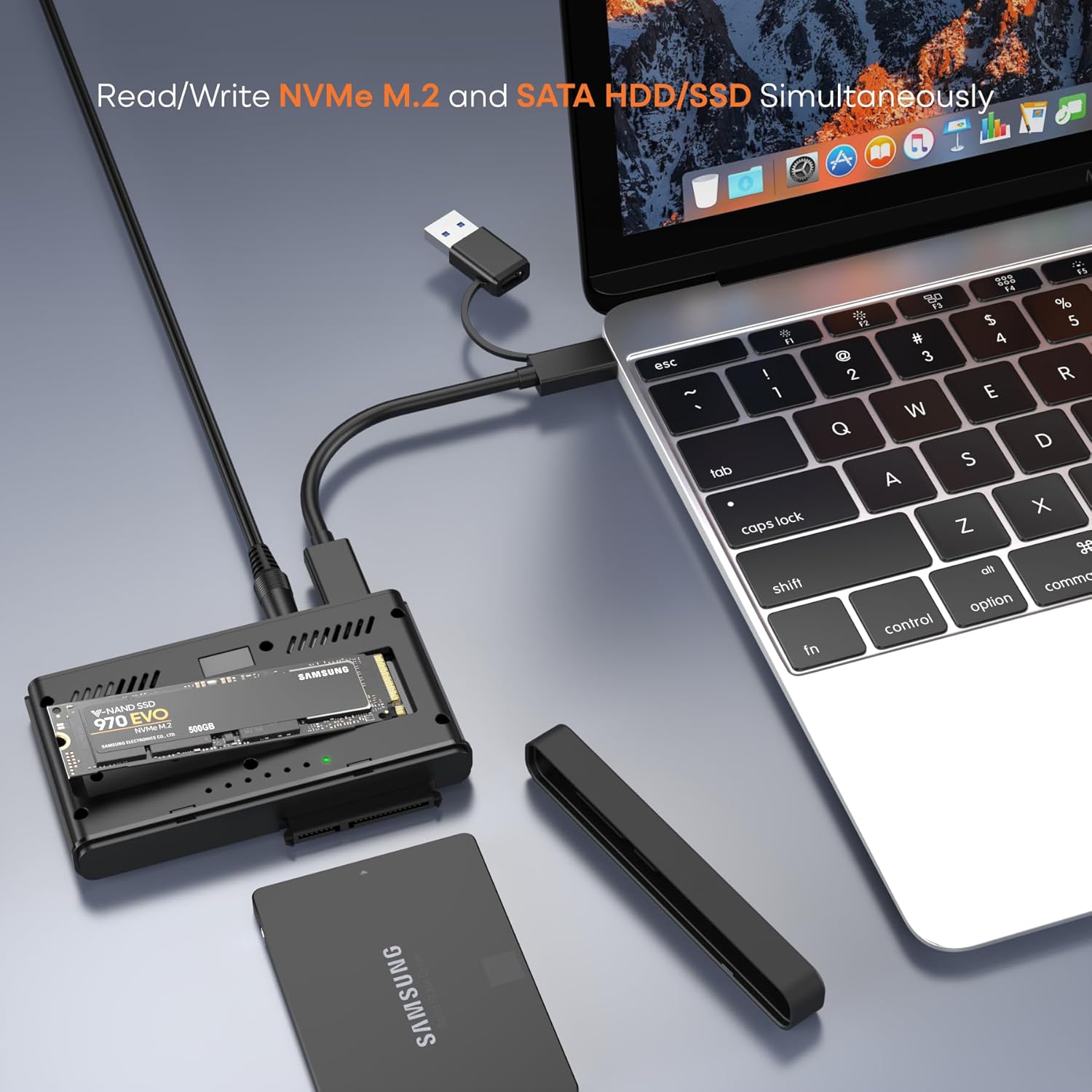
Figure 5: Simultaneous Read/Write Operations
This image depicts the Alxum S1222A enclosure performing simultaneous read/write operations on both an NVMe M.2 SSD and a SATA HDD/SSD, connected to a laptop.
4.2 Offline Cloning Function
The offline cloning function allows you to duplicate data from a source drive to a target drive without connecting to a computer. Ensure the target drive has a capacity equal to or larger than the source drive.

Figure 6: Offline Cloning Overview
Aquesta imatge ofereix una visió generalview of the offline cloning feature, showing an M.2 NVMe SSD as the source and a SATA SSD as the target. Progress indicators (25%, 50%, 75%, 100%) are visible, emphasizing the requirement for the destination disk to be equal to or larger than the source disk.
- Preparar les unitats: Ensure both the source M.2 NVMe SSD and the target 2.5"/3.5" SATA HDD/SSD are properly installed in their respective slots. The enclosure should be powered off and disconnected from any computer.
- Set Clone Direction: Use the "Clone Switch Setting" to select the desired cloning direction (M.2 to SATA or SATA to M.2).
- Connectar l'alimentació: Plug in the 12V/2A power adapter to the enclosure and a power outlet.
- Iniciar la clonació: Press and hold the "Clone" button for 3 seconds until all four blue cloning progress indicator lights illuminate. Release the button, then quickly press it again to start the cloning process.
- Supervisar el progrés: The blue indicator lights will illuminate sequentially (25%, 50%, 75%, 100%) to show the cloning progress.
- Finalització: Once all indicator lights are solid, the cloning process is complete. Switch off the power, then safely eject the hard disks.

Figure 7: Step-by-Step Offline Cloning
This image provides a visual four-step guide for offline cloning: 1. Insert drives and power supply. 2. Press and hold the clone button for 3 seconds, then press again. 3. Monitor blue progress lights. 4. Power off and eject drives upon completion.
4.3 Important Considerations for Cloning
- The target disk must have a capacity equal to or greater than the source disk.
- All data on the target disk will be overwritten during the cloning process. Back up any important data from the target disk before proceeding.
- Ensure a stable power supply throughout the cloning process to prevent data corruption.
- The enclosure does not support cloning from SATA M.2 SSDs. Only NVMe M.2 SSDs are supported in the M.2 slot.
5. Compatibilitat
5.1 Compatibilitat del sistema operatiu
- Windows
- macOS
- Linux
- Unix
- Android
5.2 Compatibilitat de la unitat
- Ranura M.2: Supports PCIe Gen 3x2 NVMe M.2 SSDs (M-Key and B&M-Key) of sizes 2242, 2260, and 2280. Does NOT support SATA M.2 SSDs.
- SATA Slot: Supports 2.5" and 3.5" SATA HDDs/SSDs. Does NOT support IDE drives.

Figure 8: Drive Interface Compatibility
This diagram visually clarifies the supported M.2 interfaces (B&M-Key, M-Key for 2242/2260/2280 NVMe SSDs) and SATA interface (SATA ✓, IDE X), ensuring users select compatible drives.
6. Manteniment
6.1 Cura i emmagatzematge
- Mantingueu el dispositiu net i lliure de pols. Feu servir un drap suau i sec per netejar-lo.
- Eviteu exposar la carcassa a temperatures extremes, humitat o llum solar directa.
- Guardeu el dispositiu en un lloc fresc i sec quan no l'utilitzeu.
- No intenteu desmuntar ni reparar el dispositiu vosaltres mateixos. Això podria anul·lar la garantia.
- Always safely eject drives from your operating system before disconnecting the enclosure to prevent data loss.
7. Solució De Problemes
7.1 Problemes comuns i solucions
- Problema: L'ordinador no ha detectat la unitat.
Solució:- Ensure the power adapter is connected and the enclosure is powered on.
- Check all cable connections (USB and power).
- Proveu un port USB diferent a l'ordinador.
- Per a les unitats noves, assegureu-vos que estiguin inicialitzades i formatades a l'Administració de discos (Windows) o a la Utilitat de discos (macOS) del vostre sistema operatiu.
- Verify the drive is correctly seated in its slot.
- Confirm the drive type is compatible (NVMe M.2 for M.2 slot, SATA for SATA slot).
- Problema: Cloning fails or does not start.
Solució:- Assegureu-vos que la capacitat de la unitat de destinació sigui igual o superior a la capacitat de la unitat d'origen.
- Verify both drives are properly inserted.
- Confirm the power adapter is connected and providing sufficient power.
- Ensure the clone button sequence is followed correctly (press and hold for 3s, release, then quick press).
- Check the clone switch setting for correct source/target direction.
- Ensure you are not attempting to clone a SATA M.2 SSD.
- Problema: Velocitats de transferència de dades lentes.
Solució:- Ensure you are connected to a USB 3.2 (or USB 3.0/3.1) port on your computer. Older USB 2.0 ports will result in slower speeds.
- Check the quality of the USB cable.
- The actual speed may vary depending on the SSD/HDD performance and your computer's system configuration.
8. Especificacions
| Característica | Detall |
|---|---|
| Número de model | S1222A |
| Marca | Alxum |
| Interfície del maquinari | USB 3.1 tipus A, USB 3.1 tipus C |
| Tecnologia de connectivitat | SATA, NVMe (M.2) |
| Velocitat de transferència de dades | Up to 10 Gigabits Per Second (USB 3.2 Gen2) |
| Dispositius compatibles | Laptops, Desktops, Tablets (with compatible USB ports) |
| Tipus de unitat compatibles | M.2 NVMe SSD (2242/2260/2280), 2.5"/3.5" SATA HDD/SSD |
| Nombre màxim de dispositius compatibles | 2 (1x M.2 NVMe, 1x SATA) |
| Entrada de potència | DC 12V 2A |
| Dimensions del producte | 4.02 x 2.66 x 0.57 polzades |
| Pes de l'article | 11.3 unces |
| Material | Plastic, Aluminum Alloy (upper cover) |
| Característiques | Offline Cloning, Hot-swapping, UASP, TRIM |
9. Garantia i Suport
9.1 Informació de la garantia
Alxum products are designed and manufactured to high-quality standards. For specific warranty details regarding your Alxum S1222A enclosure, please refer to the warranty card included in your package or visit the official Alxum weblloc web. Conserveu el rebut de compra com a comprovant de compra per a reclamacions de garantia.
9.2 Atenció al client
If you encounter any issues or have questions about your Alxum S1222A enclosure, please contact Alxum customer support. You can typically find contact information on the product packaging, the official Alxum website, or through the retailer where you purchased the product. Please have your model number (S1222A) and purchase details ready when contacting support.


