1. Producte acabatview
The FITNATE Smart Door Knob offers convenient keyless entry with biometric fingerprint recognition and remote app control. Designed for enhanced security and ease of use, it is suitable for various indoor applications such as bedrooms, apartments, hotels, and offices. This smart lock combines modern design with advanced security features, including unlock records and automatic locking.

Figure 1: FITNATE Smart Door Knob with app interface and traditional keys.
2. Contingut del paquet
- FITNATE Smart Door Knob (Exterior and Interior Knobs)
- Mecanisme de tancament
- Cargols de muntatge
- Claus mecàniques (2)
- Plantilla d'instal·lació
- Manual d'usuari (aquest document)
3. Especificacions
| Característica | Detall |
|---|---|
| Marca | FITNATE |
| Nom del model | Door Knob (HS0396K-BDFBA) |
| Tipus de bloqueig | Biomètric |
| Característica especial | empremta digital |
| Material | Metall |
| Color | Negre mat |
| Dimensions de l'article (L x A x A) | 7.95 x 3.23 x 3.23 polzades |
| Pes de l'article | 2 lliures |
| Mètode de control | Aplicació, Toc |
| Protocol de connectivitat | Bluetooth |
| Font d'alimentació | 4 piles AA (no incloses) |
4. Guia d'instal·lació
Before installation, ensure your door meets the required dimensions:
- Door Hole Diameter: 2-1/8" (54mm)
- Door Thickness: 1-3/8" to 2-1/8" (35-54mm)
- Backset: Adjustable for 2-3/8" or 2-3/4" (60 or 70mm)

Figura 2: Requisits de dimensions de la porta per a la instal·lació.
4.1 Instal·lació pas a pas
- Prepara la porta: If replacing an existing knob, remove it. Use the provided template to mark and drill holes if installing on a new door.
- Instal·leu el tancament: Insert the latch into the door edge hole. Ensure the latch bolt faces the correct direction for your door swing. Secure it with screws.
- Install Exterior Knob: Pass the spindle and power cable from the exterior knob through the latch and door hole.
- Install Interior Knob: Connect the power cable from the exterior knob to the interior knob. Align the interior knob with the exterior knob and secure it with the long screws. Ensure the power cable is not pinched.
- Insereix les piles: Open the battery cover on the interior knob. Insert 4 AA alkaline batteries, ensuring correct polarity (+/-).
- Fixeu la coberta de la bateria: Col·loqueu de manera segura la tapa de la bateria.

Figure 3: Visual guide for easy installation, showing components and suitable door types.
4.2 Guia de vídeo d'instal·lació
For a detailed visual guide on installation, please refer to the official video below:
Video 1: "How to Install - FITNATE Door Knob HS0396". This video provides a comprehensive step-by-step guide for installing the smart door knob.
5. Instruccions de funcionament
5.1 App Download and Setup
To utilize the smart features of your FITNATE door knob, download the "TUYA SMART" or "SMART LIFE" app from your device's app store (iOS App Store or Google Play Store).

Figure 4: The smart lock integrates with the app for user management and tracking unlock history.
- Crea un compte: Obre l'aplicació i crea un compte d'usuari nou o inicia la sessió si ja en tens un.
- Afegeix un dispositiu: Click the "+" icon in the upper right corner of the app. Ensure Bluetooth is enabled on your phone. Touch the fingerprint screen of the lock to enable Bluetooth for easier connection.
- Discover & Add: The app will discover the "JB-ZAM" device. Click "Add" to pair.
- Rename Lock: Once successfully connected, you can click the device icon (e.g., "KNOB LOCK") to rename your lock for easy identification.
For a visual guide on app setup and usage, refer to the videos below:
Video 2: "FITNATE Fingerprint Door Knob with App Control". This video demonstrates the app control features of the smart door knob.
Video 3: "FITNATE HS0396 Door Knob - How to Use the APP". This video provides instructions on how to effectively use the app with your smart door knob.
5.2 Gestió d'empremtes digitals
The lock supports storing up to 20 fingerprints for various users.

Figure 5: The smart door knob supports multiple user fingerprints for access.
- Afegeix empremta digital: In the app, navigate to "Member Management". Choose "Admin" or another user, then click "Fingerprint" and "Add".
- Registrar empremta digital: Follow the on-screen prompts to place your finger on the sensor multiple times, adjusting the angle slightly for comprehensive enrollment. Ensure your finger is clean and dry.
- Rename Fingerprint: After successful enrollment, you can name the fingerprint for easy identification.
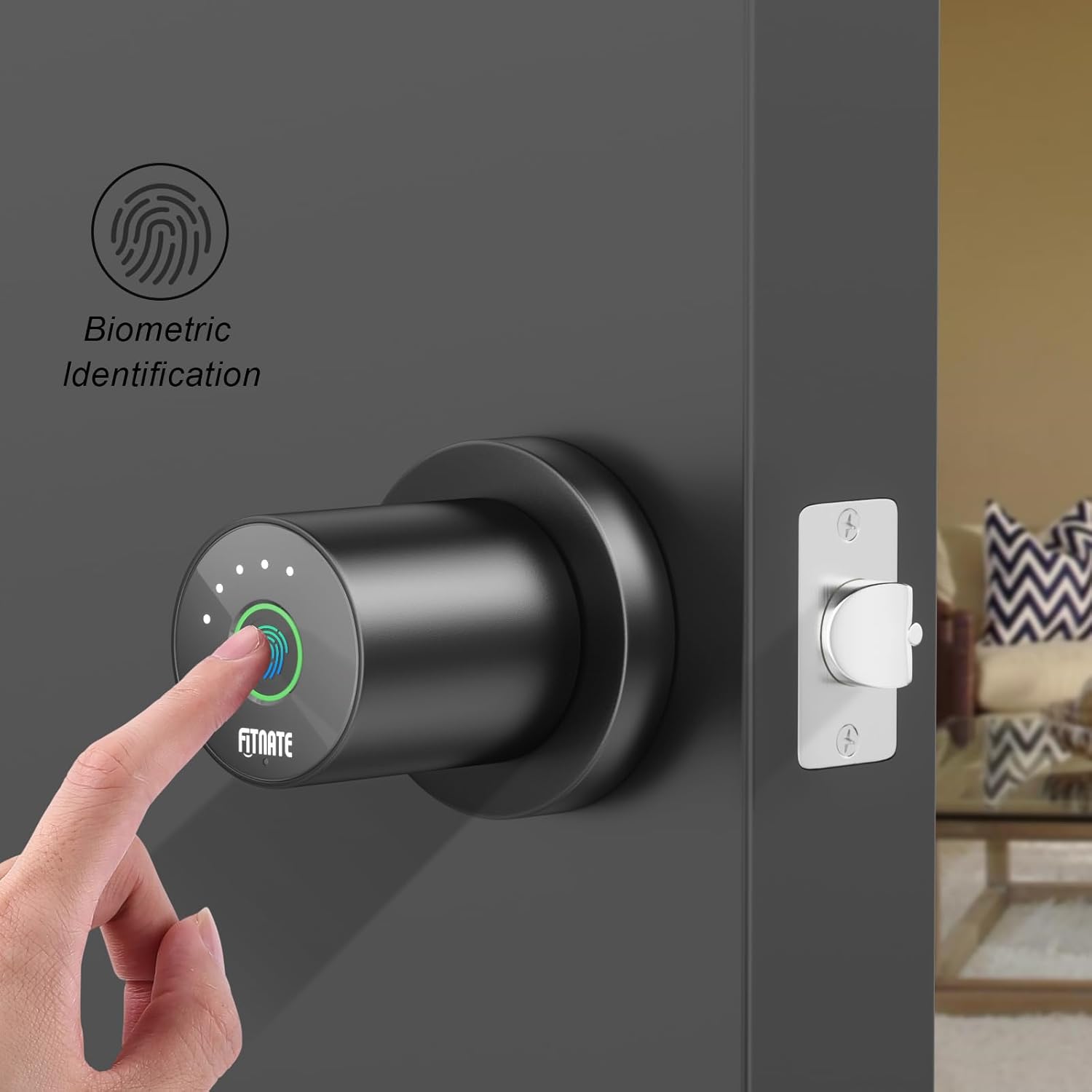
Figure 6: Biometric identification in action on the smart door knob.
5.3 Mètodes de desbloqueig
- Desbloqueig de les empremtes digitals: Place your enrolled finger on the sensor. The light will turn green, and the lock will unlock.
- Desbloqueig de l'aplicació: Open the app, and on the main lock page, hold and drag the key icon to the unlocked padlock icon to unlock the door remotely.
- Desbloqueig amb clau mecànica: In case of battery depletion or electronic malfunction, use the provided mechanical keys to unlock the door. The keyhole is located at the bottom of the knob.

Figure 7: The smart door knob offers convenient one-touch fingerprint unlocking.

Figure 8: The lock features a low battery alarm and a mechanical key for backup access.
5.4 Funcions avançades de l'aplicació
- Unlock History: View a record of when the lock was opened and by which user. Access this by entering the lock page and clicking "Unlock Record" at the bottom.
- Mode de pas: Enable this mode in the app (under "More") to keep the lock in a normally open state, allowing free passage without requiring a fingerprint or app unlock.
- Mute Lock Volume: Adjust or mute the lock's sound volume through the app settings (under "More" > "Lock Volume").
- Desbloqueig remot: The app allows for remote unlocking, enabling you to grant access from anywhere.
- Bloqueig automàtic: Configure automatic locking settings to ensure the door is secured after a set period.
6. Manteniment
- Substitució de la bateria: The door lock requires four LR6/AA/1.5V alkaline batteries. When a low battery reminder occurs (battery icon red with continuous beeping), replace the batteries within a week to ensure proper functionality.
- Neteja: Netegeu la superfície del pany amb un drap suau i sec. Eviteu utilitzar productes de neteja abrasius o dissolvents que puguin danyar l'acabat o els components electrònics.
- Cura del sensor d'empremtes dactilars: Mantingueu el sensor d'empremtes dactilars net i sec per a un rendiment òptim.
7. Solució De Problemes
- El pany no respon:
- Comproveu el nivell de la bateria i substituïu-la si és baixa.
- Ensure the power cable connection inside the interior knob is secure.
- Empremta digital no reconeguda:
- Assegureu-vos que el vostre dit estigui net i sec.
- Try re-enrolling your fingerprint, adjusting the angle during the process.
- Ensure the fingerprint sensor is clean.
- Problemes de connexió de l'aplicació:
- Assegureu-vos que el Bluetooth estigui habilitat al vostre telèfon.
- Reinicieu l'aplicació i proveu de tornar a connectar-vos.
- Touch the fingerprint sensor on the lock to activate Bluetooth pairing mode.
- La porta no es tanca/desbloqueja correctament:
- Check for any obstructions in the door frame or latch.
- Verify that the latch mechanism is installed correctly and moves freely.
- Ensure the interior and exterior knobs are properly aligned and secured.
- Red light on fingerprint sensor: Indicates an unlock failed. Re-attempt with an enrolled fingerprint.
8. Garantia i Suport
FITNATE products are designed for durability and performance. For warranty information, technical support, or assistance with your Smart Door Knob (Model: HS0396K-BDFBA), please refer to the contact information provided on the product packaging or the official FITNATE weblloc.
També podeu trobar ajuda addicional i preguntes freqüents a FITNATE Store on Amazon.