1. Producte acabatview
The Waveshare AW-CB375NF is a high-performance dual-band wireless network interface card (NIC) designed for various computing platforms, including Jetson Xavier NX, Orin NX, and Orin Nano. It integrates Wi-Fi 5 (802.11ac) for high-speed wireless connectivity and Bluetooth 5.0 for seamless peripheral connections.
- Wi-Fi de doble banda: Supports 2.4GHz and 5GHz bands, offering speeds up to 300Mbps on 2.4GHz and 867Mbps on 5GHz.
- Bluetooth 5.0: Compatible with Bluetooth 2.1+EDR for a wide range of devices.
- Interfície: Utilizes the NGFF (M.2 A/E Key) interface for easy integration.
- Nucli: Powered by the RTL8822CE-CG core.
- Compatibilitat: Supports Linux, Windows 10/11, and specific Jetson platforms.

Image: The Waveshare AW-CB375NF wireless NIC, shown with its accompanying antennas and connection cables.
2. Contingut del paquet
Verifiqueu que tots els elements siguin presents al paquet abans de continuar amb la instal·lació.
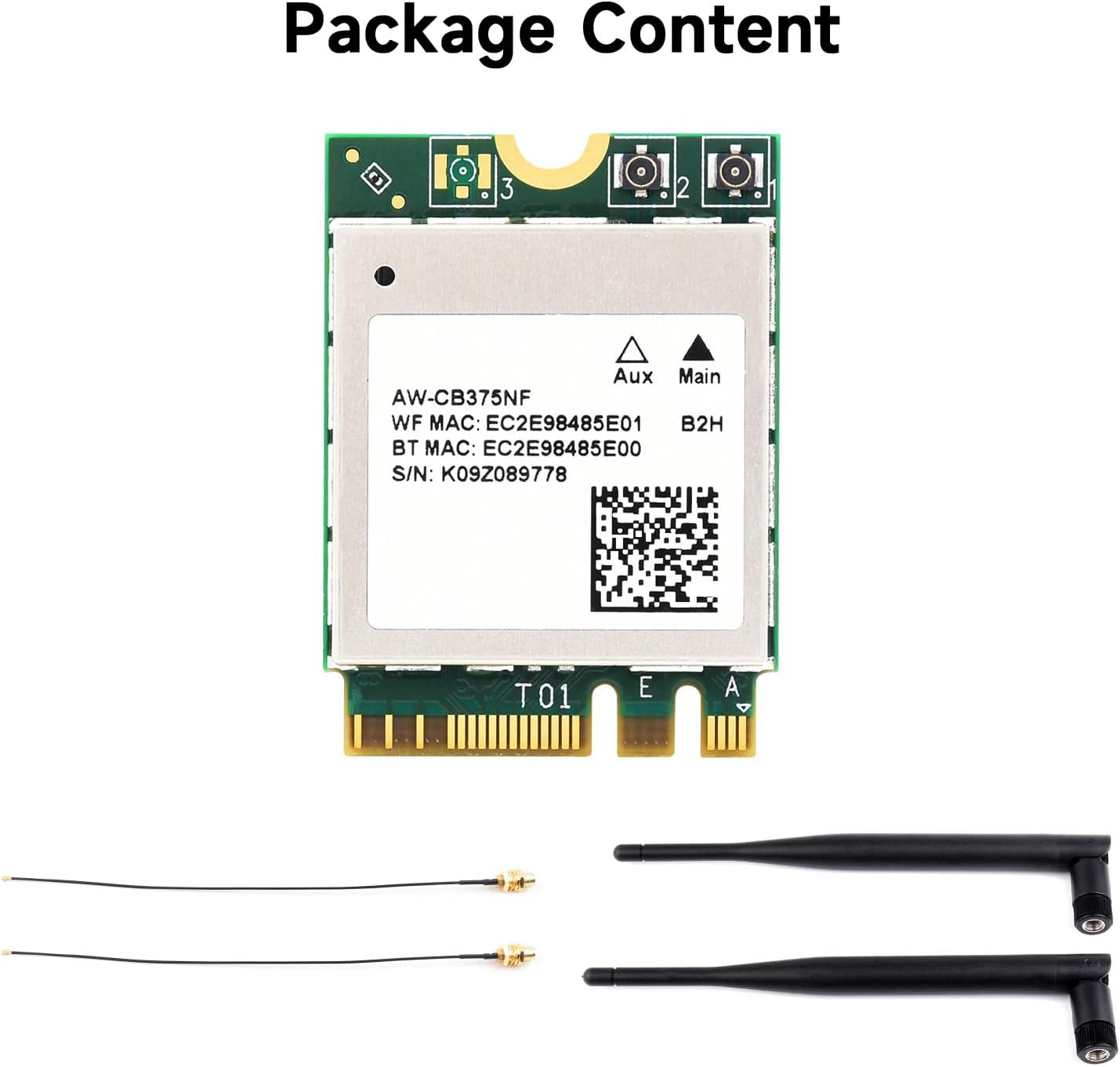
Image: Contents of the product package, typically including the wireless NIC, two antennas, and two IPEX to SMA adapter cables.
- 1x Waveshare AW-CB375NF Wireless NIC
- 2x antenes
- 2x IPEX to SMA Adapter Cables
Note: A mounting screw for the M.2 slot is typically not included and may need to be sourced separately.
3. Configuració i instal·lació
Follow these steps to properly install the AW-CB375NF Wireless NIC into your compatible device.
3.1 Identify the M.2 A/E Key Interface
Locate the M.2 A/E Key slot on your motherboard or development board. This slot is specifically designed for Wi-Fi and Bluetooth modules.

Image: Diagram illustrating the NGFF (M.2 A/E Key) interface, screw hole, and I-PEX MHF4 antenna connectors on the AW-CB375NF card.
3.2 NIC Installation
- Carefully align the notch on the AW-CB375NF NIC with the key in the M.2 A/E Key slot.
- Insert the NIC into the slot at approximately a 45-degree angle.
- Gently push the NIC down until it lies flat against the motherboard.
- Secure the NIC with a small screw (not included) into the designated screw hole on the motherboard.
3.3 Connexió de l'antena
Connect the provided IPEX to SMA adapter cables to the I-PEX MHF4 connectors on the NIC. Ensure a secure connection.

Image: Illustration showing how to connect the antennas to the IPEX connectors on the wireless NIC via IPEX to SMA adapters.
- Attach one end of each IPEX to SMA adapter cable to the small circular connectors (I-PEX MHF4) on the AW-CB375NF card. These are typically labeled "Aux" and "Main".
- Connect the other end of the adapter cables (SMA connectors) to the base of the external antennas.
- Position the antennas for optimal signal reception. If your device has designated antenna ports, route the cables accordingly.
3.4 Instal·lació del controlador
The AW-CB375NF typically uses the Realtek RTL8822CE chipset. For most modern Linux distributions and Windows 10/11, drivers may be automatically detected and installed. If not, manual driver installation may be required.
- Windows: Check Device Manager for unrecognized devices. Drivers can often be found on the Waveshare website or Realtek's official support page.
- Linux: Ensure your kernel is up-to-date. Many distributions include the necessary drivers. If issues persist, consult online forums or documentation specific to your Linux distribution and the RTL8822CE chipset.
4. Instruccions de funcionament
Once installed and drivers are recognized, the AW-CB375NF will enable Wi-Fi and Bluetooth functionalities on your system.
Connectivitat Wi-Fi 4.1
Per connectar-se a una xarxa Wi-Fi:
- Access your operating system's network settings.
- Activa el Wi-Fi si encara no ho està.
- Seleccioneu la xarxa Wi-Fi desitjada de la llista de xarxes disponibles.
- Introduïu la contrasenya de xarxa si se us demana.
- Confirm connection. The NIC supports both 2.4GHz and 5GHz bands for optimal performance.

Image: Visual representation of the RTL8822CE-CG core and the dual-band Wi-Fi capability (2.4G/5G) of the AW-CB375NF.
4.2 Connectivitat Bluetooth
Per vincular un dispositiu Bluetooth:
- Aneu a la configuració de Bluetooth del vostre sistema operatiu.
- Assegureu-vos que el Bluetooth estigui habilitat.
- Posa el teu dispositiu Bluetooth en mode de vinculació.
- Select the device from the list of available Bluetooth devices on your system.
- Follow any on-screen prompts to complete the pairing process (e.g., entering a PIN).
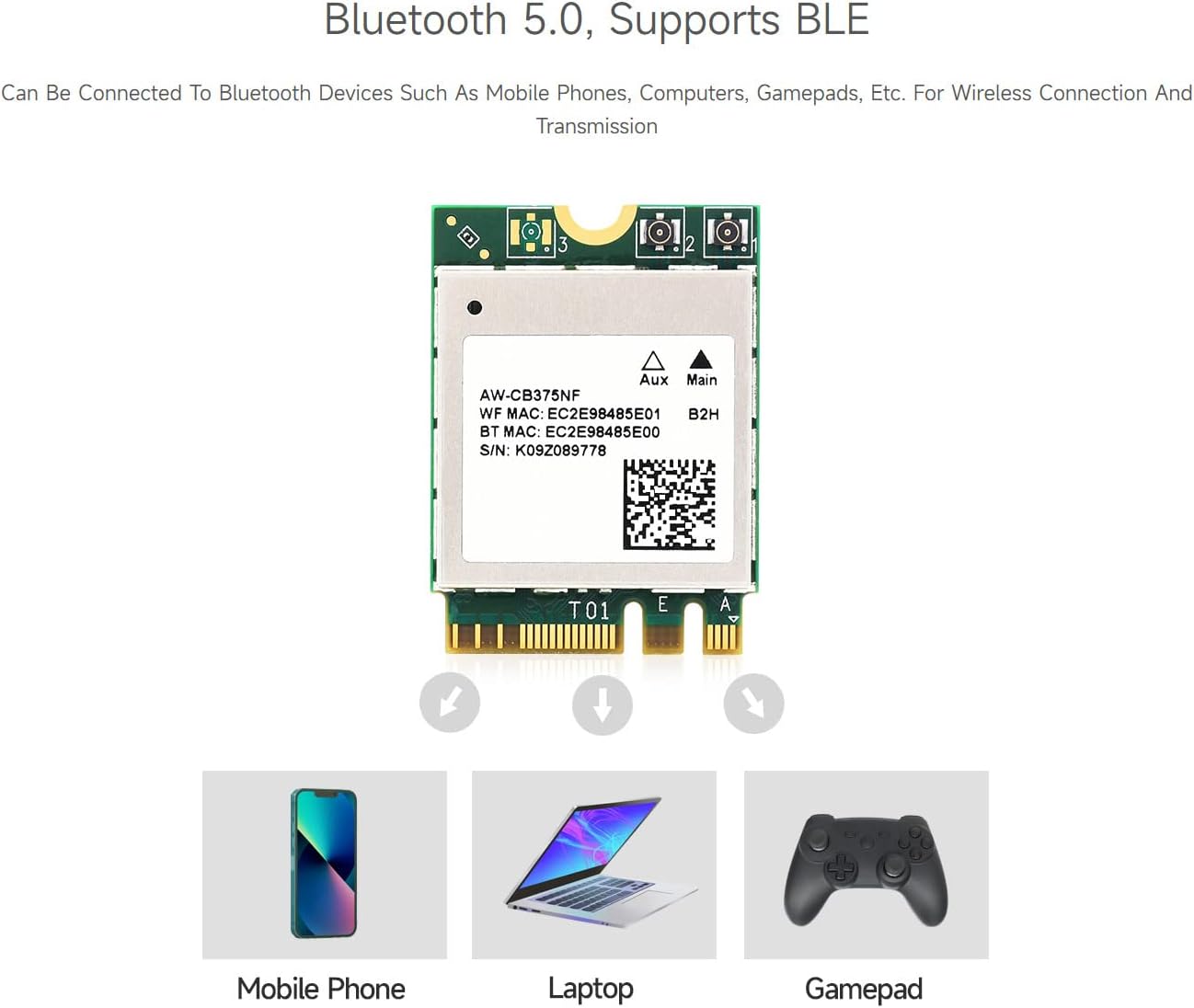
Image: Depiction of the AW-CB375NF's Bluetooth 5.0 capabilities, showing connectivity with mobile phones, laptops, and gamepads.
5. Manteniment
The Waveshare AW-CB375NF Wireless NIC is designed for reliable operation with minimal maintenance. Adhering to the following guidelines can help ensure its longevity:
- Mantenir net: Ensure the area around the NIC within your device is free from dust and debris to prevent overheating and maintain optimal performance.
- Ventilació adequada: Ensure your system has adequate airflow to prevent excessive heat buildup, which can affect the performance and lifespan of internal components.
- Eviteu danys físics: Handle the NIC with care during installation. Once installed, avoid any physical impacts or excessive vibrations to the system that could dislodge or damage the card or its connections.
- Actualitzacions de programari: Regularly update your operating system and drivers to benefit from performance improvements, bug fixes, and security enhancements.
6. Solució De Problemes
If you encounter issues with your AW-CB375NF Wireless NIC, consider the following troubleshooting steps:
6.1 No Wi-Fi or Bluetooth Functionality
- Comprovació de la instal·lació: Verify that the NIC is securely seated in the M.2 A/E Key slot and that the mounting screw is in place.
- Connexió d'antena: Ensure the IPEX to SMA adapter cables are firmly connected to both the NIC and the external antennas. Loose connections can severely impact signal.
- Estat del conductor: Check your operating system's Device Manager (Windows) or equivalent system information (Linux) to confirm that the device is recognized and drivers are installed correctly without errors. Reinstall drivers if necessary.
- Configuració de la BIOS/UEFI: Some motherboards may have options to enable/disable M.2 slots or integrated wireless modules in the BIOS/UEFI settings. Ensure these are enabled.
6.2 Slow Wi-Fi Speeds or Intermittent Connection
- Intensitat del senyal: Check the Wi-Fi signal strength. Weak signals can lead to slow speeds. Try repositioning antennas or moving closer to the access point.
- Interferència: Other electronic devices (cordless phones, microwaves, other Wi-Fi networks) can cause interference. Try changing your Wi-Fi channel on your router.
- Selecció de la banda: Ensure your device is connecting to the 5GHz band for higher speeds if your router supports it and you are within range.
- Actualització del controlador: Ensure you have the latest drivers installed for the RTL8822CE chipset.
6.3 Problemes d'emparellament Bluetooth
- Mode d'emparellament de dispositius: Confirm that the Bluetooth device you are trying to pair is in discoverable/pairing mode.
- Distància: Ensure the Bluetooth device is within range of your system.
- Interferència: Reduir les interferències d'altres dispositius sense fil.
- Restart Bluetooth Service: Try disabling and re-enabling Bluetooth in your operating system settings, or restart your computer.
7. Especificacions
| Característica | Detall |
|---|---|
| Número de model | Wireless-AW-CB375NF |
| Estàndard sense fils | IEEE 802.11ac/a/b/g/n (Wi-Fi 5) |
| Estàndard Bluetooth | Bluetooth 5.0 (compatible with 2.1+EDR) |
| Wi-Fi Data Rate (2.4GHz) | Fins a 300 Mbps |
| Wi-Fi Data Rate (5GHz) | Fins a 867 Mbps |
| Interfície | NGFF (M.2 A/E Key) |
| Chipset | RTL8822CE-CG |
| Connectors d'antena | I-PEX MHF4 |
| Sistemes operatius compatibles | Linux, Windows 10/11 |
| Dispositius compatibles | Jetson Xavier NX, Jetson Orin NX, Jetson Orin Nano |
| Dimensions | 22.00 mm x 33.00 mm x 2.40 mm (aprox.) |
| Pes de l'article | 1.6 unces (aprox.) |

Imatge: Diversos views of the AW-CB375NF wireless NIC, including detailed outline dimensions in millimeters.
8. Garantia i Suport
For specific warranty information regarding your Waveshare AW-CB375NF Wireless NIC, please refer to the documentation provided at the time of purchase or visit the official Waveshare weblloc web. Els termes de la garantia poden variar segons la regió i el distribuïdor.
For technical support, driver downloads, or further assistance, please visit the Waveshare official support page or contact their customer service directly. Keep your product model number (Wireless-AW-CB375NF) and purchase details readily available when seeking support.
Official Waveshare Weblloc: www.waveshare.com


