1. Producte acabatview
The Logitech Signature K650 is a full-size wireless ergonomic keyboard designed for all-day comfort with an integrated soft palm rest and quiet keys. The Logitech Lift Vertical Ergonomic Mouse promotes a more natural forearm posture with its 57-degree vertical angle, ideal for small to medium-sized hands. Both devices offer flexible connectivity options via Bluetooth Low Energy or the included Logi Bolt USB receiver.

Image: The Logitech Signature K650 wireless ergonomic keyboard and the Logitech Lift vertical ergonomic mouse.
2. Què hi ha a la caixa
- Teclat sense fil Logitech Signature K650
- Ratolí ergonòmic vertical Logitech Lift
- Receptor USB Logi Bolt
- 1 x AA battery (for mouse)
- 2 x AA batteries (for keyboard)
- Documentació d'usuari

Image: The Logitech Lift mouse, a AA battery, and the Logi Bolt USB receiver, representing typical box contents.
3. Guia de configuració
3.1. Instal·lació de la bateria
- Teclat: Open the battery compartment on the underside of the keyboard. Insert two AA batteries, ensuring correct polarity. Close the compartment.
- Ratolí: Open the battery compartment on the underside of the mouse. Insert one AA battery, ensuring correct polarity. Close the compartment.
3.2. Connexió dels dispositius
You can connect your keyboard and mouse using either the Logi Bolt USB receiver or Bluetooth Low Energy.
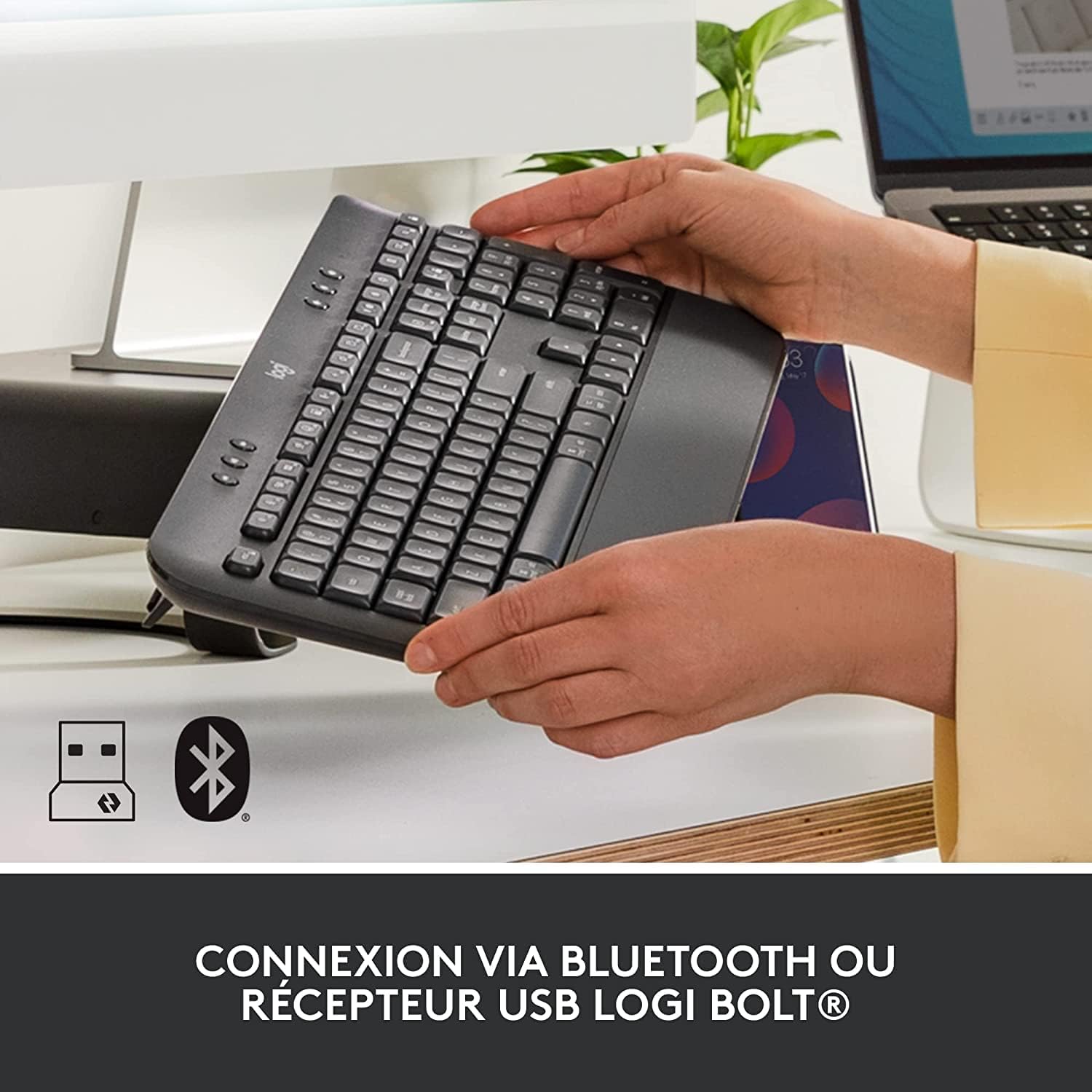
Image: The Logitech K650 keyboard with icons indicating USB and Bluetooth connectivity options.
Option A: Logi Bolt USB Receiver (Recommended for stable connection)
- Connecteu el receptor USB Logi Bolt a un port USB disponible de l'ordinador.
- Turn on the keyboard and mouse using their respective power switches (located on the underside).
- The devices should automatically connect to the receiver. If not, press and hold the Easy-Switch button on the keyboard (F1, F2, or F3) or the channel button on the mouse (bottom) until the LED blinks rapidly, then follow on-screen prompts if any.
Option B: Bluetooth Low Energy
- Engegueu el teclat i el ratolí utilitzant els seus respectius interruptors d'alimentació.
- On the keyboard, press and hold one of the Easy-Switch keys (F1, F2, or F3) for 3 seconds until the LED above the key starts blinking rapidly. This indicates it's in pairing mode.
- On the mouse, press the channel button on the bottom until the LED starts blinking rapidly.
- A l'ordinador, obriu la configuració de Bluetooth i cerqueu dispositius nous.
- Select "Signature K650" and "Lift" from the list of available devices to pair.
- Seguiu les instruccions a la pantalla per completar el procés de vinculació.
For multi-device pairing, repeat the Bluetooth pairing steps for each device you wish to connect, using a different Easy-Switch key (F1, F2, F3) on the keyboard and the channel button on the mouse to switch between paired devices.
4. Funcionament dels dispositius
4.1. Keyboard Features (Signature K650)
- Reposa-palms integrat: The soft, integrated palm rest provides comfortable support for your wrists during long typing sessions.
- Tecles silencioses: Designed for a familiar and pleasant typing experience with reduced noise.
- Tecles de drecera: Access common functions quickly with dedicated shortcut keys for mute/unmute, screen capture, web navigation, and more.

Image: The soft-touch palm rest of the Logitech Signature K650 keyboard.

Image: A hand demonstrating the use of the dedicated shortcut keys on the Logitech K650 keyboard.
4.2. Mouse Features (Lift Vertical Ergonomic Mouse)
- Disseny ergonòmic: The 57-degree vertical angle promotes a natural handshake posture, reducing wrist strain and promoting a more natural forearm position.
- Roda intel·ligent: Enjoy precise line-by-line scrolling or switch to super-fast free spin mode for long documents.
- Botons personalitzables: Program the side buttons and other controls using the Logi Options+ software for personalized shortcuts.
- Clics silenciosos: Experience significantly reduced click noise for a quieter work environment.

Image: A hand comfortably gripping the Logitech Lift vertical ergonomic mouse, showcasing its natural 57-degree angle.
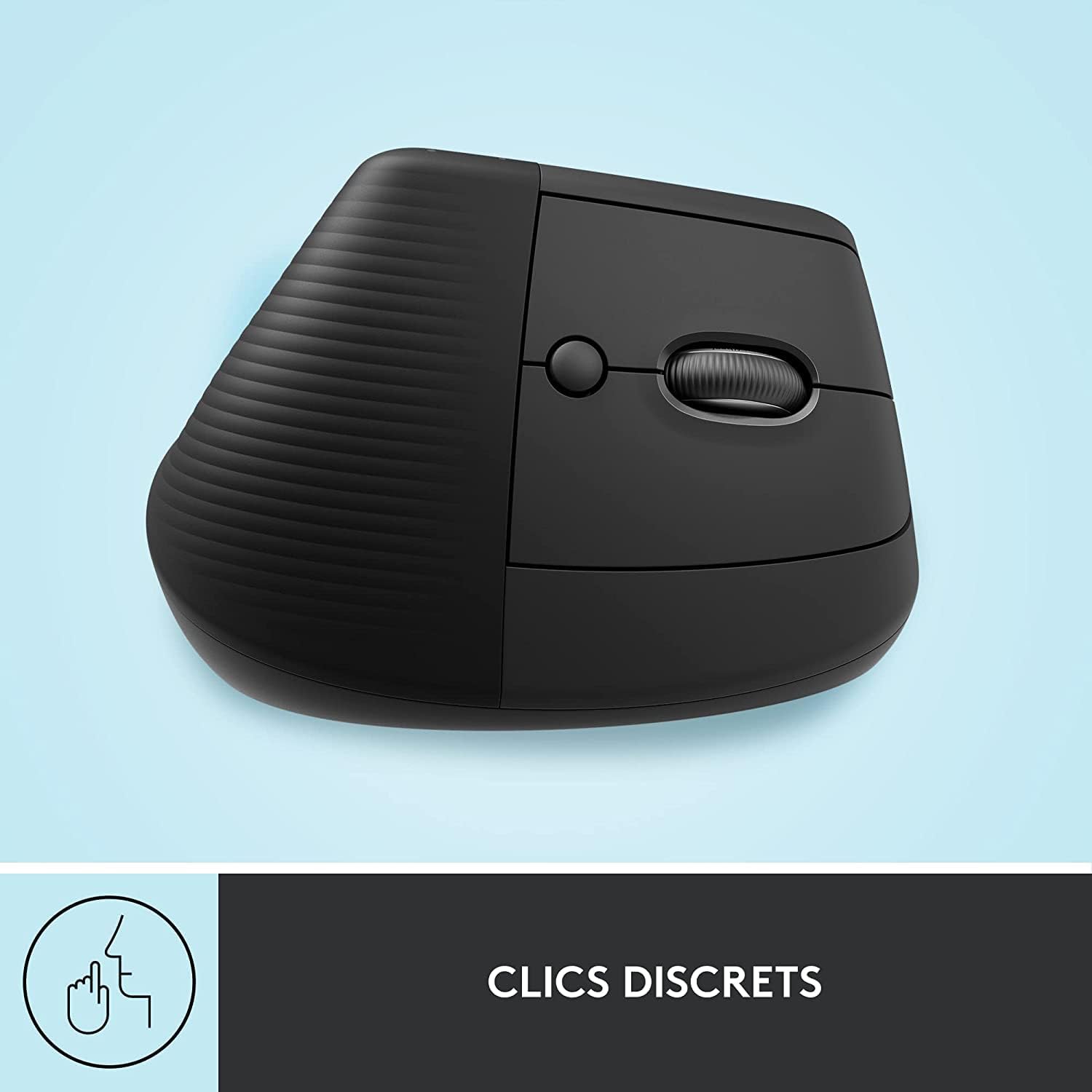
Image: The Logitech Lift mouse highlighting its quiet click feature.

Image: A detailed diagram illustrating the SmartWheel, customizable button, multi-device connectivity, and battery life of the Logitech Lift mouse.
4.3. Software (Logi Options+)
Download the Logi Options+ software from the official Logitech website to unlock the full potential of your devices. This software allows you to:
- Customize keyboard shortcut keys.
- Program mouse buttons and adjust pointer speed.
- Gestionar connexions multidispositiu.
- Rebre actualitzacions de programari.
4.4. Compatibilitat
The Logitech Signature K650 Keyboard and Lift Mouse are compatible with multiple operating systems:
- Windows
- macOS
- Chrome OS
- iPadOS

Image: The Logitech K650 keyboard demonstrating compatibility with Windows, Apple (macOS/iPadOS), and Chrome OS.
5. Manteniment
5.1. Durada de la bateria
- Teclat: Up to 36 months (3 years) on two AA batteries.
- Ratolí: Up to 24 months (2 years) on one AA battery.
Battery life may vary based on user and computing conditions. Replace batteries when the low battery indicator light illuminates.
5.2. Neteja
Per netejar el teclat i el ratolí:
- Utilitzeu un drap suau i sense pelusses.
- Per a la brutícia persistent, lleugerament dampen the cloth with water or a mild, non-abrasive cleaning solution.
- Eviteu ruixar líquids directament sobre els dispositius.
- The keyboard is spill-resistant, meaning it can withstand minor liquid spills, but it is not waterproof.

Image: A hand wiping down the Logitech K650 keyboard, demonstrating its spill resistance and ease of cleaning.
6. Solució De Problemes
6.1. Problemes de connexió
- Sense conexió: Ensure the devices are turned on and batteries are correctly installed and charged.
- Connexió intermitent: Try moving the devices closer to the receiver or computer. Avoid placing them near other wireless devices that might cause interference.
- Torna a emparellar: If connection is lost, try re-pairing the devices as described in the
Documents relacionats - Signature K650 Keyboard + Lift Mouse

Ratolí ergonòmic vertical Logitech Lift: manual d'usuari i característiques
Un manual d'usuari complet per al ratolí ergonòmic vertical Logitech Lift. Aprèn sobre el seu disseny ergonòmic, les opcions de connectivitat (Bluetooth, LogiBolt), la funcionalitat SmartWheel, el programari Logitech Options+ i com configurar-lo per a Windows, macOS i iPadOS. Cobreix tant les variants estàndard com les per a esquerrans.
Manual d'usuari del ratolí ergonòmic vertical Logitech Lift
Manual d'usuari del ratolí ergonòmic vertical Logitech Lift, que tracta la configuració, la connectivitat (Bluetooth, LogiBolt), funcions com ara SmartWheel, disseny ergonòmic i programari Logitech Options+.
Guia d'usuari i configuració del ratolí ergonòmic vertical Logitech LIFT
Guia completa per configurar, connectar i utilitzar el ratolí ergonòmic vertical Logitech LIFT. Aprèn sobre les seves funcions com ara SmartWheel, Easy-Switch i Logitech Flow.
Guia de l'usuari del teclat sense fil Logitech K650 Signature amb reposacanell
Una guia completa per configurar i utilitzar el teclat sense fil Logitech K650 Signature amb reposacabells, que inclou l'emparellament Bluetooth i LogiBolt, les funcions del teclat i la personalització del programari.
Guia de configuració del Logitech MX Ergo S | Ratolí ergonòmic amb trackball
Configura i connecta el teu ratolí ergonòmic amb trackball Logitech MX Ergo S. Descobreix funcions com ara angle ajustable, roda de desplaçament de precisió, canvi fàcil i tecnologia Logitech Flow per a una productivitat sense problemes amb diversos dispositius. Inclou instruccions de configuració de Bluetooth i LogiBolt.
Logitech MX Ergo S Trackball Setup Guide and Product Overview
Learn how to set up and use your Logitech MX Ergo S wireless trackball mouse. Discover its ergonomic features, connectivity options, and Logitech Flow technology.