1. Introducció
This manual provides detailed instructions for the setup, operation, maintenance, and troubleshooting of your Qulose Ultra-Slim Wireless Bluetooth Keyboard. This keyboard is designed for seamless compatibility across iOS, iPadOS, Android, and Windows operating systems, offering a comfortable and efficient typing experience for various devices including tablets, smartphones, desktops, and laptops.

Image: The Qulose Ultra-Slim Wireless Bluetooth Keyboard, showcasing its compact and sleek design in white silver.
2. Informació de seguretat
- Do not expose the keyboard to liquids, moisture, or extreme temperatures.
- Eviteu deixar caure el teclat ni sotmetre'l a impactes forts.
- Mantenir fora de l'abast dels nens.
- Desfeu-vos de la bateria d'acord amb la normativa local. No la incinereu.
- Feu servir només el cable USB tipus C proporcionat per carregar.
3. Contingut del paquet
Marqueu la casella per als elements següents:
- 1 x Qulose Ultra-Slim Wireless Bluetooth Keyboard
- 1 x cable de càrrega USB-A a tipus C
- 1 x Manual d'usuari (aquest document)
4. Producte acabatview i Característiques
The Qulose Ultra-Slim Wireless Bluetooth Keyboard features a compact layout with responsive scissor-switch keys for a comfortable and quiet typing experience. It includes dedicated multimedia keys for quick access to various functions.
4.1 Característiques clau
- Compatibilitat universal: Automatically recognizes iOS, iPadOS, Android, and Windows systems.
- Connexió Bluetooth 5.0 estable: Provides a reliable connection up to 33 feet (10 meters).
- Responsive Scissor-Switch Keys: Dissenyat per a una escriptura silenciosa i còmoda.
- Bateria recarregable incorporada: 300mAh Lithium-ion battery for long standby time.
- Funció de repòs automàtic: Estalvia energia entrant en mode de repòs després de 30 minuts d'inactivitat.
- Compacte i portàtil: Slim design (11.29 x 5 x 0.77 inches) and lightweight (12 ounces).
4.2 Multimedia Keys Overview
The top row of keys provides quick access to various functions. These functions may vary slightly depending on the operating system.
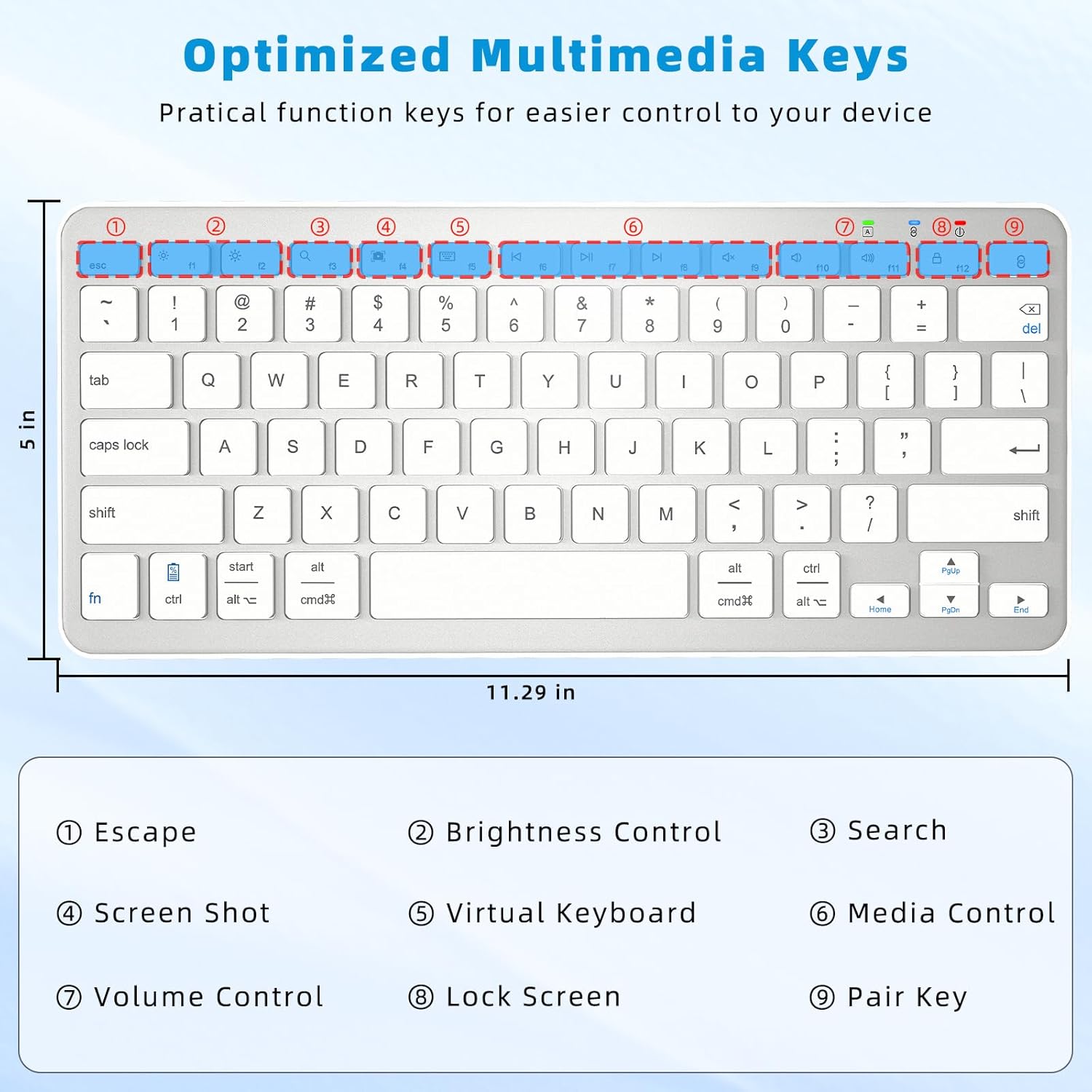
Image: A diagram highlighting the multimedia keys on the keyboard, including Escape, Brightness Control, Search, Screenshot, Virtual Keyboard, Media Control, Volume Control, Lock Screen, and Pair Key.
- Escapada: Functions as an Escape key. Note: This is not a home screen function for iOS. For iOS, use Command + H to return to the home screen.
- Control de brillantor: Ajusta la brillantor de la pantalla.
- Cerca: Obre la funció de cerca.
- Captura de pantalla: Captures a screenshot.
- Teclat virtual: Toggles the on-screen virtual keyboard.
- Control de mitjans: Play/Pause, Previous Track, Next Track.
- Control de volum: Silenciar, baixar volum, pujar volum.
- Pantalla de bloqueig: Locks the device screen.
- Pair Key: Inicia el mode d'emparellament Bluetooth.
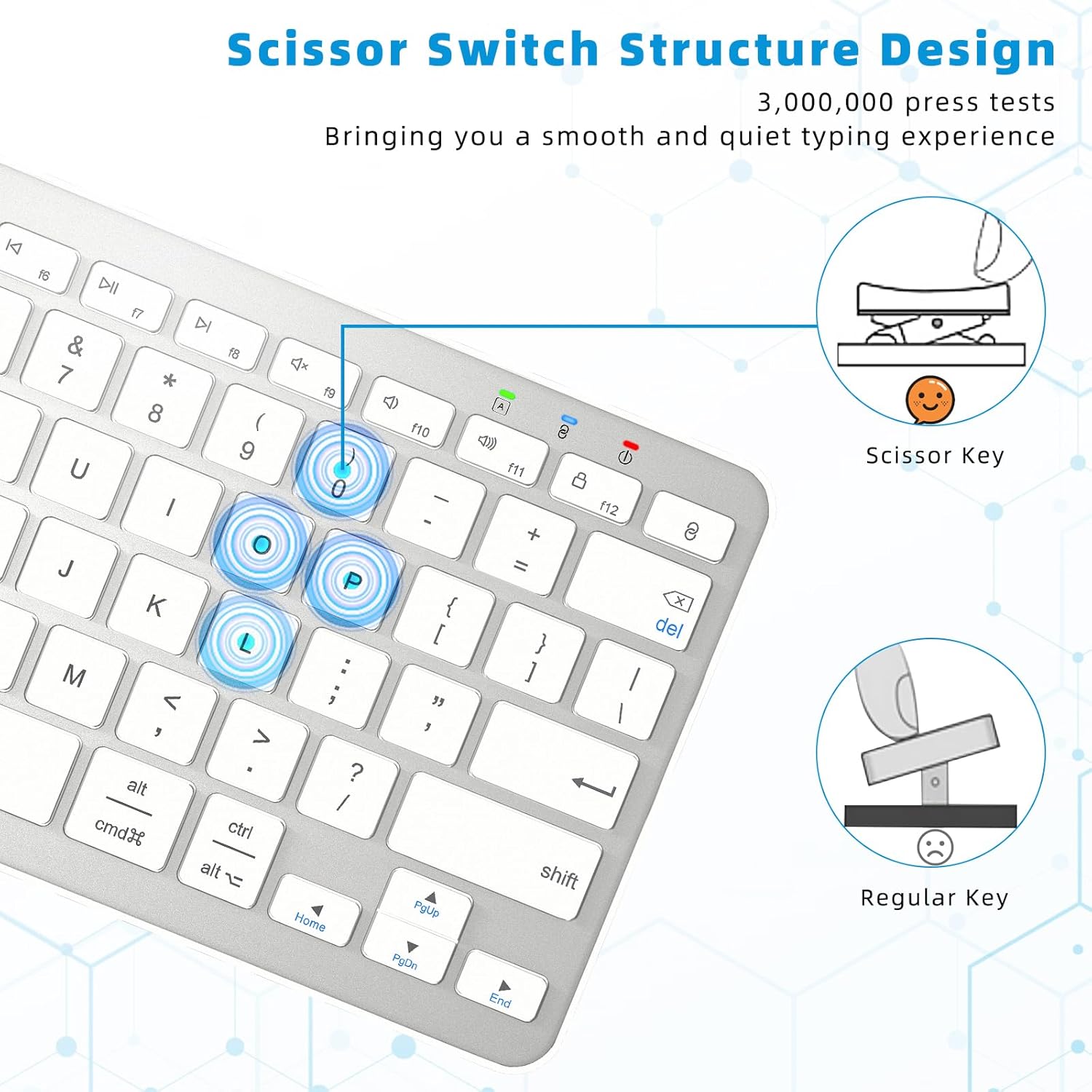
Image: A close-up diagram comparing the scissor-switch key structure, which provides a smooth and quiet typing experience, to a regular key mechanism.
5. Configuració
5.1 Càrrega del teclat
Before first use, or when the battery indicator light flashes red, charge the keyboard fully.
- Locate the USB Type-C charging port on the keyboard (typically on the top edge).
- Connect the provided USB-A to Type-C cable to the keyboard and a USB power source (e.g., computer USB port, USB wall adapter).
- El llum indicador de càrrega s'il·luminarà durant la càrrega i s'apagarà quan estigui completament carregat.
- A full charge takes approximately 3-4 hours and provides over 100 hours of continuous use or about 150 days of standby time.
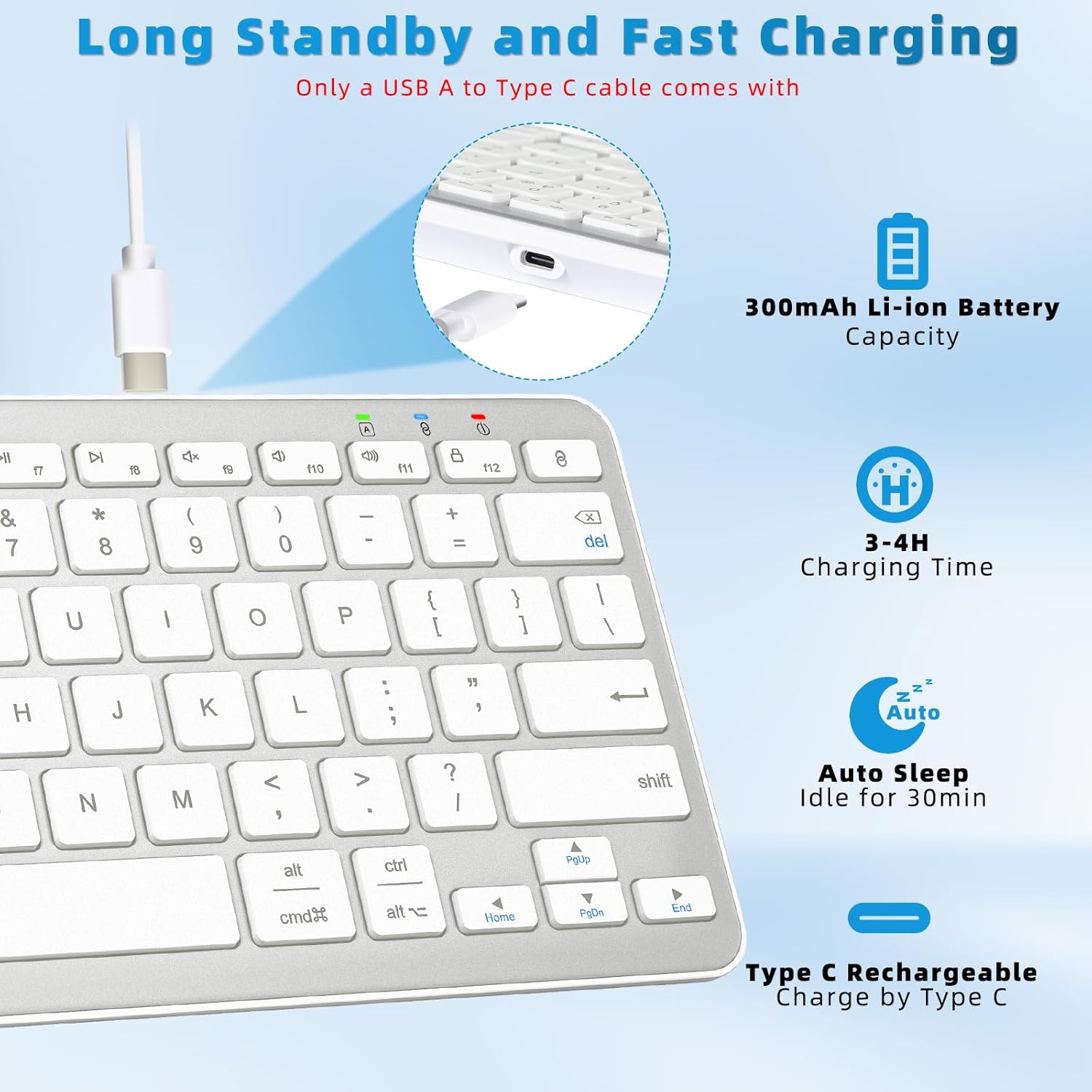
Image: A diagram illustrating the Type-C charging port, the 300mAh Li-ion battery capacity, 3-4 hour charging time, and 30-minute auto-sleep feature.
5.2 Instruccions d'emparellament Bluetooth
Follow these steps to connect your keyboard to your device via Bluetooth:

Image: A visual guide demonstrating the four steps to connect the Qulose Bluetooth keyboard to a device.
- Encès: Locate the ON/OFF switch on the back of the keyboard and slide it to the "ON" position. The power indicator light will briefly illuminate.
- Activa el mode de vinculació: Manteniu premut el botó Clau de parella (usually marked with a Bluetooth symbol or '8' on the F-row) for 3 seconds. The Bluetooth indicator light will start flashing, indicating it's in pairing mode.
- Activa el Bluetooth al teu dispositiu: On your device (iPad, phone, computer), go to Settings > Bluetooth and ensure Bluetooth is turned ON.
- Selecciona el teclat: In the list of available Bluetooth devices, select "Qulose Keyboard" (or similar name). Your device will indicate when the pairing is successful.
Nota: This wireless Bluetooth keyboard can only be connected to one device at a time. If your desktop computer/PC does not have Bluetooth functionality, an additional Bluetooth receiver (not included) is required.
6. Funcionament del teclat
6.1 Compatibilitat del sistema
The keyboard automatically recognizes the operating system of the connected device (iOS, iPadOS, Android, Windows), so you do not need to manually select compatibility modes. This ensures optimal functionality across different platforms.
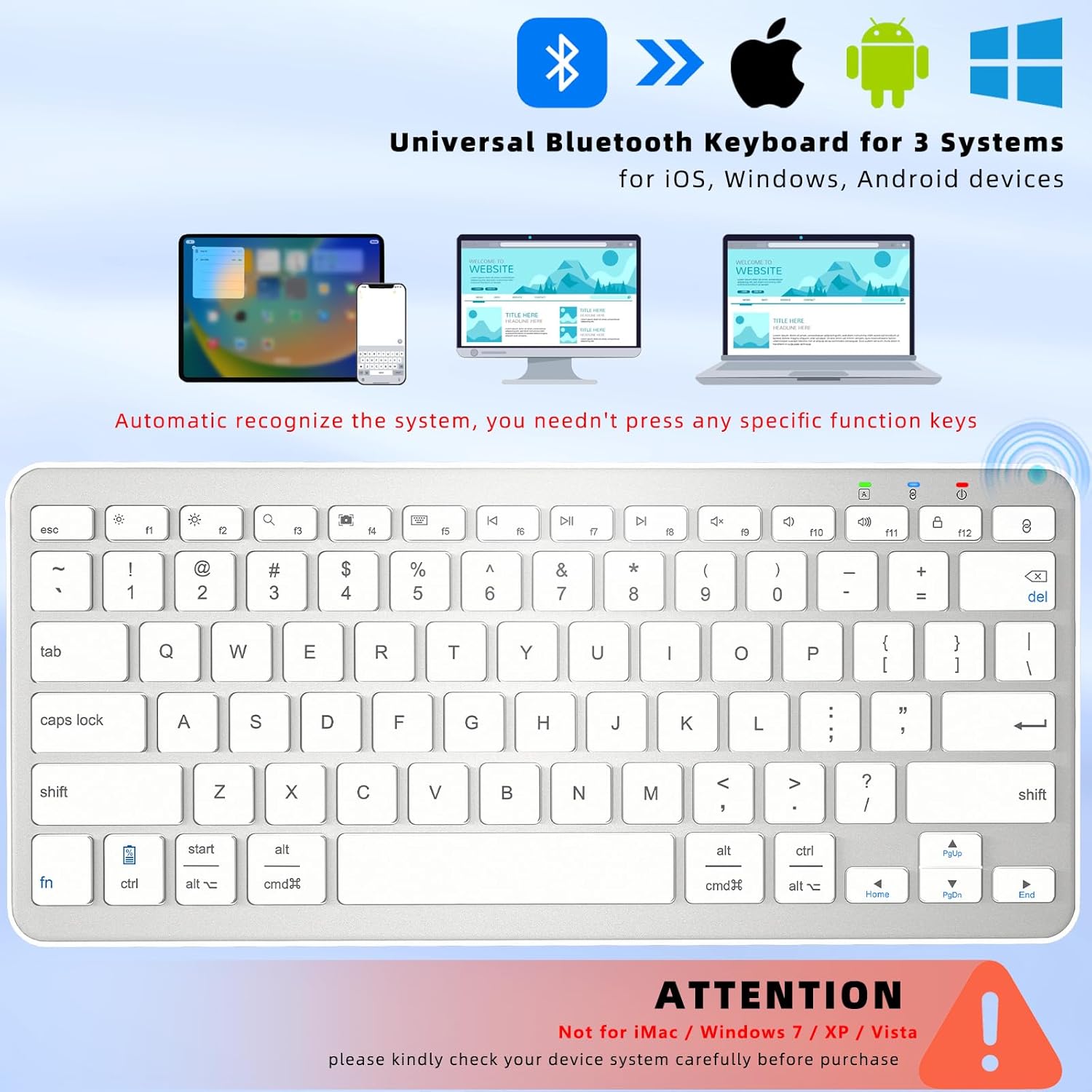
Image: A visual representation of the keyboard's universal compatibility with iOS, Android, and Windows operating systems, showing it can connect to iPads, smartphones, and laptops.
Nota important: The keyboard is no compatible with iMac, Windows 7, Windows XP, or Windows Vista systems. Please verify your device's operating system before purchase.
6.2 Funció de repòs automàtic
To conserve battery life, the keyboard features an intelligent auto-sleep mode. If left inactive for 30 minutes, it will automatically enter sleep mode. To wake the keyboard, simply press any key and wait for 2-3 seconds for it to reconnect to your device.
7. Manteniment
7.1 Neteja
- Gently wipe the keyboard surface with a soft, lint-free cloth.
- Per a la brutícia persistent, lleugerament dampal drap amb aigua o un netejador suau i no abrasiu.
- Do not spray cleaners directly onto the keyboard.
- Use compressed air to remove debris from between the keys.
7.2 Emmagatzematge
- Guardeu el teclat en un lloc fresc i sec, allunyat de la llum solar directa i de temperatures extremes.
- If storing for an extended period, ensure the keyboard is fully charged before storage and recharge it every few months to maintain battery health.
8. Solució De Problemes
If you encounter issues with your keyboard, please refer to the following common problems and solutions:
| Problema | Causa possible | Solució |
|---|---|---|
| El teclat no s'encén. | La bateria està esgotada. | Charge the keyboard for 3-4 hours. |
| El teclat no es connecta per Bluetooth. | Bluetooth is off on device; keyboard not in pairing mode; device already connected to another keyboard; incompatible OS. | Ensure Bluetooth is ON on your device. Put keyboard in pairing mode (hold Pair Key for 3s). Disconnect other Bluetooth keyboards. Check OS compatibility (not compatible with Windows 7/XP/Vista, iMac). |
| Les tecles no responen o s'escriuen incorrectament. | Low battery; connection issue; software glitch. | Recharge the keyboard. Re-pair the keyboard with your device. Restart your device. |
| El teclat es desconnecta sovint. | Bateria baixa; massa lluny del dispositiu; interferències. | Recharge the keyboard. Ensure keyboard is within 33 feet (10m) of your device. Move away from other wireless devices that may cause interference. |
9. Especificacions
| Característica | Detall |
|---|---|
| Model | B0C9959R94 |
| Dimensions | 11.29 x 5 x 0.77 polzades (28.68 x 12.7 x 1.96 cm) |
| Pes | 12 unces (340 grams) |
| Tecnologia de connectivitat | Bluetooth 5.0 |
| Interval d'operació | Fins a 33 peus (10 metres) |
| Tipus de bateria | Built-in 300mAh Lithium-ion rechargeable battery |
| Temps de càrrega | 3-4 hores |
| Temps de funcionament | Aprox. 100 hores (ús continu) |
| Temps d'espera | Aprox. 150 dies |
| Tipus de clau | Interruptor de tisora |
| Nombre de claus | 78 |
| Sistemes compatibles | iOS, iPadOS, Android, Windows (excluding Windows 7/XP/Vista, iMac) |
10. Garantia i Suport
Qulose products are designed for reliability and performance. For specific warranty details, please refer to the warranty card included with your product packaging or visit the official Qulose website. If you require technical assistance or have questions not covered in this manual, please contact Qulose customer support through the following channels:
- Qulose Store on Amazon: Visit the Qulose Store
- Consultes generals: Refer to the contact information provided on your product packaging or the Qulose brand store for the most up-to-date support options.


