Introducció
Welcome to the user manual for your new TECLAST F16 Plus 15.6-inch Laptop. This guide provides essential information to help you set up, operate, maintain, and troubleshoot your device. Please read this manual carefully to ensure proper use and to maximize the performance and lifespan of your laptop.
Configuració
Unboxing i configuració inicial
Carefully remove the laptop and all accessories from the packaging. Ensure all components are present: the TECLAST F16 Plus laptop, power adapter, and this user manual. Connect the power adapter to the laptop's charging port and then to a power outlet. Allow the laptop to charge for at least 30 minutes before its first use.
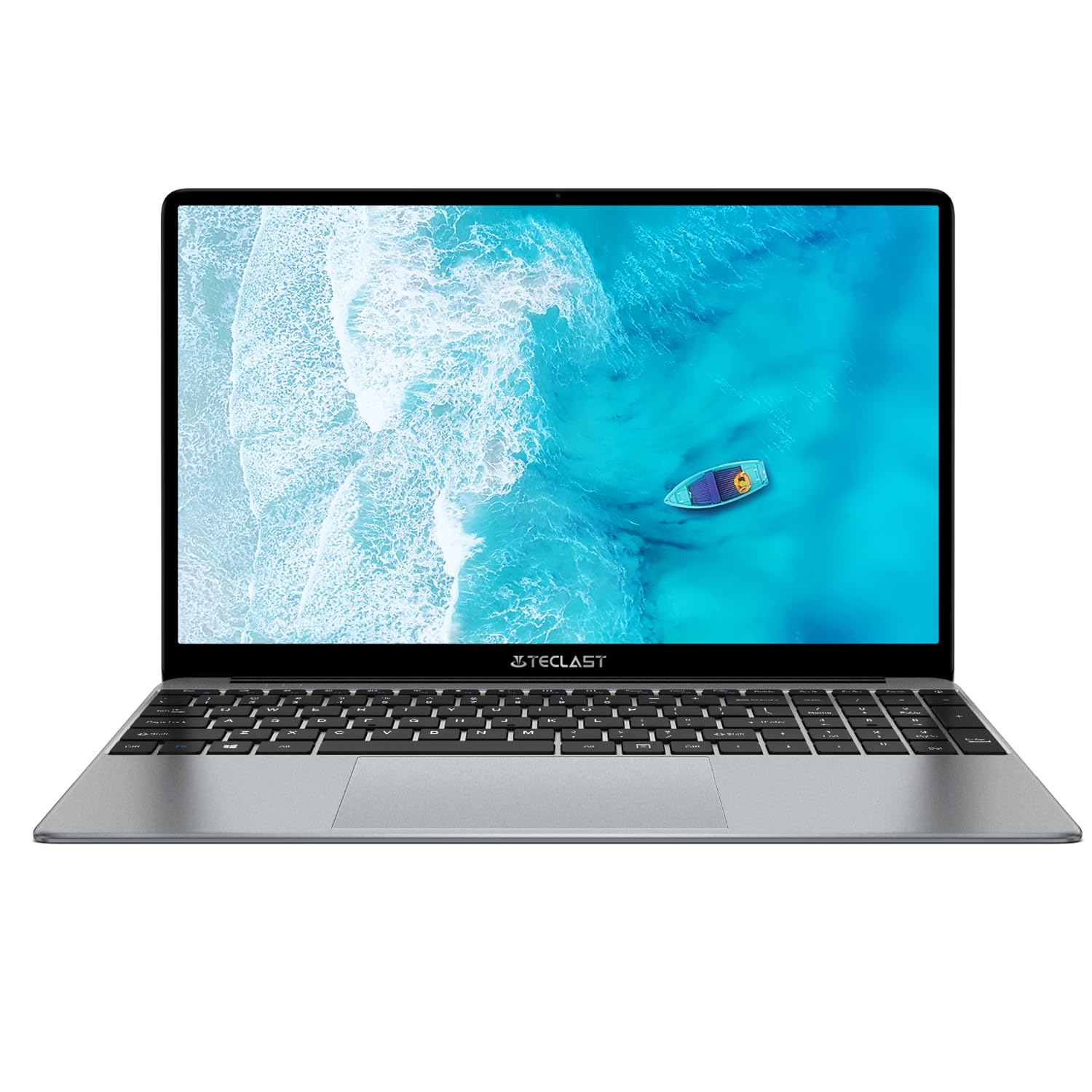
Image: The TECLAST F16 Plus laptop, showcasing its sleek design and 15.6-inch display with the Windows 11 operating system interface.
Encès/Apagat
- Per encendre: Press and hold the power button located on the top right of the keyboard until the screen illuminates.
- Per apagar: Click the Start button in Windows 11, then select the Power icon, and choose 'Shut down'.
- Per reiniciar: Click the Start button, select the Power icon, and choose 'Restart'.
Connexió de perifèrics
Your TECLAST F16 Plus laptop is equipped with multiple ports for connecting external devices. Insert USB devices such as mice, keyboards, or external storage drives into the available USB ports. For external displays, use the appropriate video output port (e.g., HDMI) if available, and configure display settings in Windows.
En funcionament
Teclat i Touchpad
The laptop features a full-sized keyboard and a responsive touchpad. Use the touchpad for navigation and gestures. Many function keys (F1-F12) have secondary functions, activated by pressing the 'Fn' key simultaneously. For example, 'Fn + F5' may control keyboard backlighting.
Configuració de la pantalla
Adjust screen brightness using the dedicated function keys (often Fn + F5/F6 or similar). To change display resolution or scaling, right-click on the desktop, select 'Display settings', and make your adjustments.
Configuració d'àudio
Control volume using the dedicated function keys (often Fn + F2/F3 or similar) or through the sound icon in the Windows taskbar. Connect headphones or external speakers to the audio jack for private listening or enhanced sound.
Connectivitat de xarxa
To connect to Wi-Fi, click the network icon in the taskbar, select your desired network, enter the password, and click 'Connect'. Bluetooth devices can be paired via 'Settings > Bluetooth & devices'.
Conceptes bàsics de Windows 11
Your laptop runs on Windows 11. Familiarize yourself with the Start menu, taskbar, and File Explorer for efficient navigation and file management. Regular Windows updates are crucial for security and performance.
Manteniment
Neteja del portàtil
Utilitzeu un drap suau i sense pelusa lleugerament dampened with water or a screen cleaner to clean the display. For the keyboard and chassis, use a soft brush or compressed air to remove dust. Avoid harsh chemicals or abrasive materials.
Cura de la bateria
To prolong battery life, avoid fully discharging the battery frequently. It is recommended to keep the battery charge between 20% and 80% when possible. Store the laptop in a cool, dry place when not in use for extended periods.
Actualitzacions de programari
Regularly check for and install Windows updates and driver updates to ensure your system has the latest security patches and performance enhancements. This can be done through 'Settings > Windows Update'.
Gestió d'emmagatzematge
The 256GB SSD provides fast storage. To maintain optimal performance, regularly delete unnecessary files, empty the recycle bin, and consider using cloud storage for large files to free up local space.
Resolució de problemes
Problemes comuns i solucions
- El portàtil no s'encén: Ensure the power adapter is securely connected and the battery has sufficient charge. Try holding the power button for 15-20 seconds for a hard reset.
- No es mostra a la pantalla: Connect an external monitor to check if the issue is with the laptop's display. Ensure brightness is not set to minimum.
- El Wi-Fi no es connecta: Check if Wi-Fi is enabled in Windows settings. Restart your router and the laptop. Verify the Wi-Fi password.
- Rendiment lent: Tanqueu les aplicacions innecessàries. Comproveu si hi ha processos en segon pla al Gestor de tasques. Assegureu-vos que hi hagi prou espai d'emmagatzematge lliure.
- Dispositius USB no reconeguts: Prova de connectar el dispositiu a un port USB diferent. Assegura't que els controladors del dispositiu estiguin instal·lats. Reinicia el portàtil.
Si trobeu problemes persistents que no es cobreixen aquí, consulteu la secció d'assistència per obtenir més ajuda.
Especificacions
Detalls tècnics
| Característica | Detall |
| Marca | TECLAST |
| Model | F16 Plus |
| Mida de la pantalla | 15.6 polzades |
| Processador | Intel Celeron N (4 Cores) |
| RAM | 12 GB |
| Emmagatzematge | SSD de 256 GB |
| Sistema operatiu | Windows |
| Color | New Gray |
| Composició de la bateria | Polímer de liti |
| Interfície d'entrada | Teclat |
| Dimensions del paquet | 50.79 x 29.2 x 7.9 cm |
| Pes del paquet | 2.62 quilos |
Garantia i Suport
Your TECLAST F16 Plus laptop comes with a standard manufacturer's warranty. Please refer to the warranty card included in your product packaging for specific terms and conditions. For technical support, driver downloads, or service inquiries, visit the official TECLAST weblloc web o poseu-vos en contacte amb el seu departament d'atenció al client. Mantingueu a mà el rebut de compra i el número de sèrie del producte quan busqueu assistència.


