1. Introducció
This manual provides essential information for setting up, operating, maintaining, and troubleshooting your Dell Precision 3581 Mobile Workstation. Please read this guide thoroughly to ensure proper use and to maximize the performance and longevity of your device.

Figure 1: Dell Precision 3581 Mobile Workstation displaying a graphical user interface.
2. Què hi ha a la caixa
Verifiqueu que tots els elements estiguin presents a l'embalatge:
- Estació de treball mòbil Precision 3581
- Bateria estàndard
- Adaptador de CA
3. Configuració
3.1 Connexió de l'adaptador de CA
Connect the AC adapter to the power connector on your workstation and then to a power outlet. The AC adapter provides power to the workstation and charges the battery.

Figure 2: Right side of the workstation with the power connector.
3.2 Encès inicial
Open the display lid and press the power button located on the keyboard deck. Follow the on-screen instructions to complete the initial setup of the Windows 11 operating system.
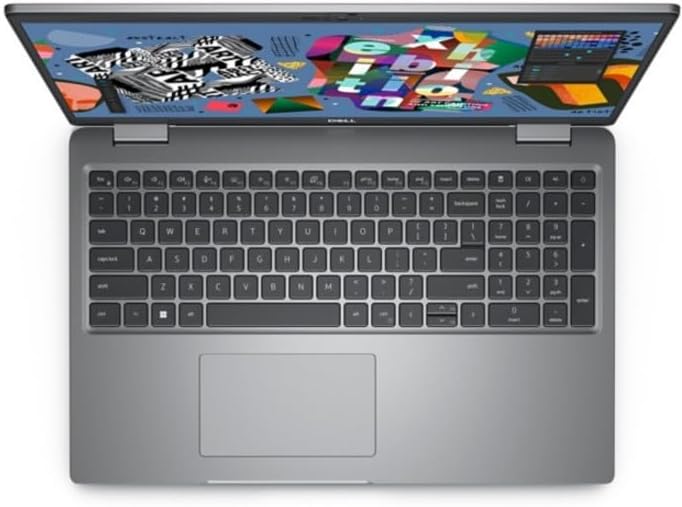
Figura 3: superior view of the workstation, showing the keyboard and display.
3.3 Connexió de perifèrics
Utilize the available ports to connect external devices such as a mouse, keyboard, external monitor, or USB drives.
- Ports USB: Per connectar dispositius USB.
- Port HDMI: Per connectar una pantalla externa.
- Port Ethernet: Per a la connexió de xarxa amb cable.
- Jack d'àudio: Per a auriculars o altaveus externs.

Figure 4: Left side of the workstation with various connectivity ports.
4. Com utilitzar la vostra estació de treball
4.1 Gestió de l'energia
- Encès: Premeu el botó d'encesa.
- Mode de repòs: Tanqueu la tapa o seleccioneu "Repos" al menú Inici.
- Apagar: Seleccioneu "Apagar" al menú Inici.
- Reinicia: Select 'Restart' from the Start menu.
4.2 Ús del teclat i del touchpad
The workstation features a full-size keyboard and a precision touchpad. Refer to the operating system's help documentation for advanced gestures and keyboard shortcuts.
4.3 WebÚs de la càmera
La integrada webcam is located at the top center of the display. It can be used for video conferencing and other applications requiring camera input.

Figura 5: Detallada view of the integrated webcam and its components.
5. Manteniment
5.1 Instruccions de neteja
- Pantalla: Utilitzeu un drap suau i sense pelusa dampNetegeu amb aigua o un netejador de pantalles. No ruixeu líquid directament sobre la pantalla.
- Teclat i xassís: Feu servir un drap suau i sec. Per a la brutícia persistent, feu servir un drap lleugerament sec.amp es pot fer servir un drap, assegurant-se que no entri líquid a les obertures.
- Reixetes: Periodically clean air vents with compressed air to prevent dust buildup and ensure proper cooling.

Figura 6: superior view of the workstation, illustrating the surface for cleaning.
5.2 Cura de la bateria
To prolong battery life, avoid extreme temperatures and fully discharging the battery frequently. Store the workstation with a partial charge if not used for extended periods.
5.3 Actualitzacions de programari
Regularly update your operating system, drivers, and applications to ensure optimal performance and security. Dell provides driver updates on its official support weblloc.
6. Solució De Problemes
6.1 Sense poder
- Assegureu-vos que l'adaptador de CA estigui connectat correctament tant a l'estació de treball com a una presa de corrent que funcioni.
- Check the power indicator light on the workstation. If it's off, try a different power outlet.
- Si feu servir energia de bateria, assegureu-vos que la bateria estigui carregada.
6.2 Problemes de visualització
- Si la pantalla està en blanc, proveu de prémer Fn + F8 (or the appropriate function key for display toggle) to cycle through display modes.
- Assegureu-vos que els monitors externs estiguin connectats i encesos correctament.
- Update graphics drivers from the Dell support weblloc.
6.3 Problemes de connectivitat de xarxa
- For Wi-Fi, ensure Wi-Fi is enabled and you are connected to the correct network.
- Per a connexions amb cable, comproveu l'estat del cable Ethernet i del router.
- Reinicieu el vostre encaminador/mòdem i l'estació de treball.
7. Especificacions
The following table outlines the key technical specifications of the Dell Precision 3581 Mobile Workstation:
| Característica | Especificació |
|---|---|
| Nom del model | Precision 3000 (3581) |
| Mida de la pantalla | 15.6 polzades |
| Resolució de pantalla màxima | 1920 x 1080 píxels (Full HD) |
| Processador | Intel Core i7-13700H (13th Gen, Tetradeca-core) |
| Memòria (RAM) | 16 GB DDR4 SDRAM |
| Emmagatzematge | SSD de 512 GB |
| Gràfics | Gràfics Intel Iris Xe integrats |
| Sistema operatiu | Windows 11 |
| Tipus sense fil | 802.11ax |
| Pes de l'article | 3.7 lliures |
| Dimensions del producte (LxWxH) | 9.2 x 14.1 x 0.97 polzades |
| Color | Gris |
| Característica especial | Revestiment anti-enlluernament |
8. Garantia i Suport
For detailed warranty information, please refer to the warranty documentation included with your product or visit the official Dell support website. Dell provides comprehensive support resources, including drivers, manuals, and troubleshooting guides.
To contact Dell support, visit www.dell.com/support i introdueix el teu servei tag for product-specific assistance.


