SSK SST-DS14

SSK 14-in-1 USB C Laptop Docking Station Instruction Manual (Model: SST-DS14)

Comprehensive guide for setup, operation, and troubleshooting.

1. Introducció

This manual provides detailed instructions for the SSK 14-in-1 USB C Laptop Docking Station. Please read this manual carefully before using the product to ensure proper functionality and to maximize your experience.

The SSK 14-in-1 docking station is designed to expand the connectivity of your USB-C enabled laptop or device, offering a wide array of ports for various peripherals and display configurations.

2. Contingut del paquet

Verifiqueu que tots els elements siguin presents al vostre paquet:

3. Característiques del producte

The SSK 14-in-1 USB C Laptop Docking Station offers extensive connectivity options:

SSK 14-in-1 USB C Docking Station with all ports labeled

Figura 1: Mésview of the SSK 14-in-1 Docking Station with labeled ports. This image illustrates the various input and output ports available on the device, including HDMI, VGA, USB, Ethernet, and card reader slots.

4. Requisits de compatibilitat

For full functionality, your host device (laptop, tablet, or smartphone) must meet the following criteria:

Compatibility chart for USB-C ports

Figure 2: USB-C port compatibility guide. This diagram helps users identify if their laptop's USB-C port supports data, DisplayPort Alt Mode, and Power Delivery, which are crucial for the docking station's full functionality.

5. Instruccions de configuració

  1. Connecta't al dispositiu amfitrió: Plug the integrated USB-C cable from the docking station into a compatible USB-C port on your laptop or host device.
  2. Connecteu l'alimentació (opcional però recomanat): For stable operation and laptop charging, connect a USB-C Power Delivery (PD) charger (up to 100W) to the PD 3.0 USB-C port on the docking station. (Wall charger and cable are not included.)
    Connecting power to the docking station

    Figure 3: Power Delivery connection. This image shows how to connect a USB-C power adapter to the docking station to provide power to both the dock and the connected laptop.

  3. Connecteu pantalles externes:
    • For HDMI displays, connect HDMI cables from your monitors to the HDMI ports on the docking station.
    • Per a pantalles VGA, connecteu un cable VGA del monitor al port VGA de la base d'acoblament.
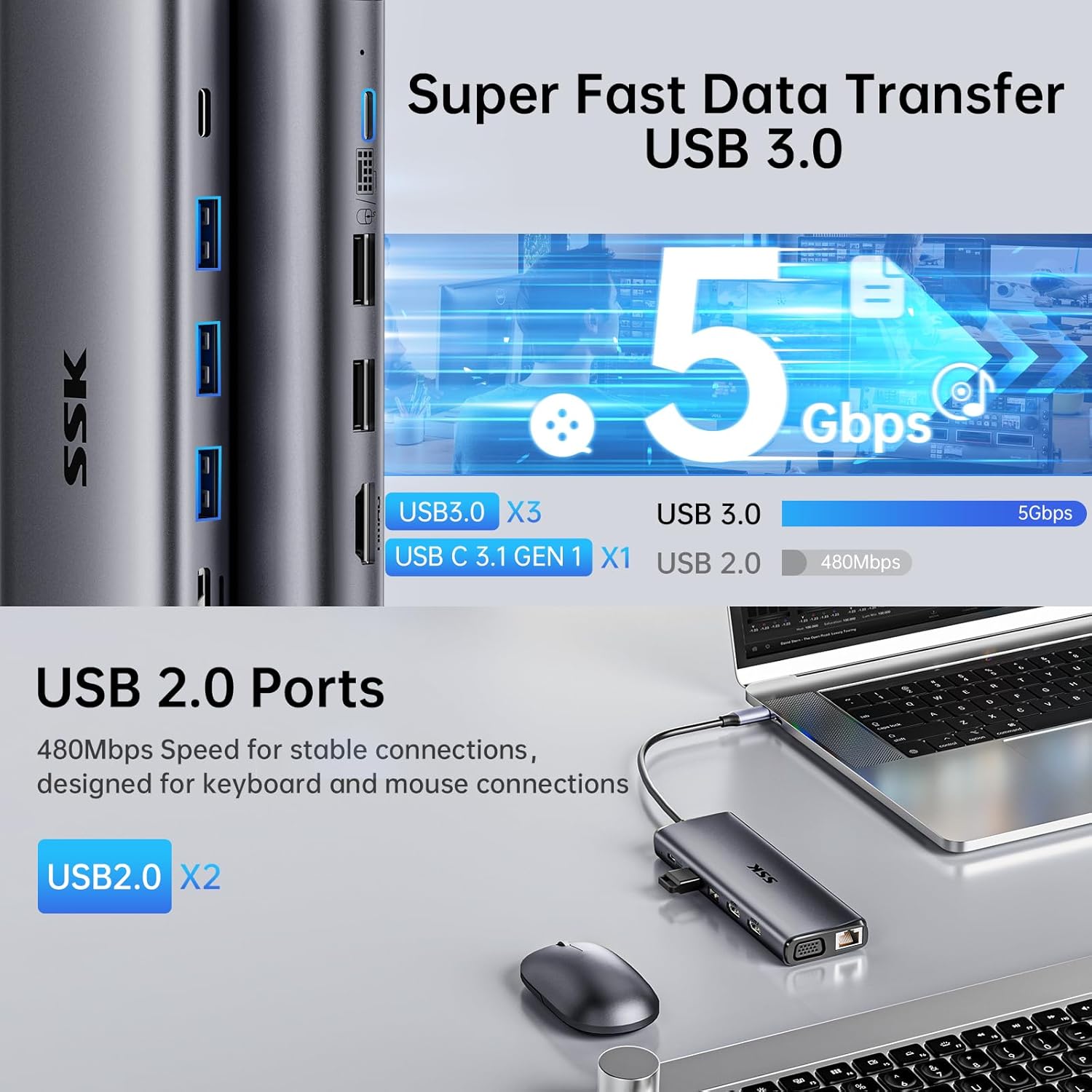
  4. Connecteu els perifèrics: Plug your USB devices (keyboard, mouse, external drives, etc.) into the available USB 3.0, USB 2.0, or USB C data ports.
    Connecting USB devices to the docking station

    Figure 4: USB data transfer ports. This image highlights the USB 3.0 and USB 2.0 ports, demonstrating their use for connecting various peripherals like mice, keyboards, and external storage devices.

  5. Connecta Ethernet: For a wired network connection, plug an Ethernet cable into the RJ45 port.
    Connecting Ethernet and audio to the docking station

    Figure 5: RJ45 Ethernet and 3.5mm audio port. This image shows the connection of an Ethernet cable for a stable network and headphones to the audio jack.

  6. Inserir targetes SD/TF: If needed, insert your SD or TF cards into the corresponding slots.
    Inserting SD and TF cards into the docking station

    Figure 6: SD/TF card reader. This image demonstrates how to insert SD and MicroSD (TF) cards into the dedicated slots for data transfer.

  7. Connecta l'àudio: Plug headphones or speakers into the 3.5mm audio/mic port.

6. Instruccions de funcionament

6.1. Modes de visualització

L'estació d'acoblament admet diverses configuracions de pantalla segons el sistema operatiu:

Triple monitor display modes for Windows and Mac OS

Figure 7: Display mode configurations. This image illustrates the different display modes (Mirror and Extend) available for both Windows and Mac OS, showing how multiple monitors can be arranged.

Resolution Notes:

6.2. Configuració de la sortida d'àudio

If using the 3.5mm audio port, you may need to select the correct audio output device in your operating system settings:

7. Manteniment i cura

8. Solució De Problemes

Q: No video output to external monitors.
A: Ensure your laptop's USB-C port supports DisplayPort Alternate Mode. Check all cable connections. Try restarting your laptop and reconnecting the docking station.
Q: Laptop is not charging.
A: Verify that your laptop's USB-C port supports Power Delivery. Ensure a compatible USB-C PD charger (up to 100W) is connected to the docking station's PD port.
Q: Ethernet connection is not working (Windows 7/XP/Linux).
A: You may need to manually install the Gigabit RJ45 Ethernet driver. Refer to the manufacturer's weblloc per a la descàrrega de controladors.
Q: External monitors show the same content on macOS in Extend Mode.
A: This is a limitation of macOS, which does not support Multi-Stream Transport (MST). The docking station will mirror the extended display across all external monitors (A-BBB).
Q: USB devices are not recognized.
A: Ensure the docking station is properly connected to your host device. Try connecting the USB device directly to your laptop to confirm functionality. If using high-power devices, ensure the docking station is connected to a power source.

9. Especificacions tècniques

CaracterísticaDetall
ModelSST-DS14
MarcaSSK
ConnectivitatUSB-C (connexió de l'amfitrió)
Ports HDMI2 (Max 4K@60Hz single, 4K@30Hz dual)
Port VGA1 (Max 1080P@60Hz)
Ports USB 3.03 (Up to 5Gbps)
Ports USB 2.02
USB C Data Port1 (USB C 3.1 Gen1, up to 5Gbps)
USB C PD Port1 (PD 3.0, 100W input, 85W output)
Port EthernetRJ45 Gigabit (1000Mbps)
Lector de targetesSD/TF (simultaneous, up to 104MB/s)
Port d'àudioÀudio/micròfon de 3.5 mm
Dimensions9.02 x 3.98 x 0.87 polzades
Pes7.4 unces

10. Garantia i Suport

SSK products are designed for reliability and performance. For warranty information and technical support, please refer to the official SSK weblloc web o contacteu directament amb el seu servei d'atenció al client.

Conserveu el vostre comprovant de compra per a reclamacions de garantia.

Documents relacionats - SST-DS14

Preview SSK SC211 Type-C All-in-One Adapter Product Manual
Comprehensive user manual for the SSK SC211 Type-C All-in-One Adapter, detailing its specifications, interfaces, connection diagrams, and frequently asked questions. This adapter expands connectivity for laptops and other Type-C devices.
Preview Manual d'usuari de l'estació d'acoblament multifuncional SSK SC302 Tipus C
Manual d'usuari de l'estació de càrrega multifuncional SSK SC302 tipus C. Aquesta guia proporciona informació detallada sobre la descripció del producte, els diagrames de connexió, les especificacions tècniques i les preguntes més freqüents. L'adaptador admet una resolució 4K/60 Hz mitjançant HDMI i càrrega ràpida Power Delivery (PD) de 100 W, compatible amb diversos sistemes, com ara Windows, macOS, Android i Linux.
Preview Manual d'usuari de l'estació d'acoblament de disc dur de doble badia SSK-DK100
Manual d'usuari de la base d'acoblament per a disc dur de doble badia SSK-DK100, que detalla les seves característiques, especificacions, instal·lació, mode de disc dur mòbil i capacitats de clonació fora de línia.
Preview Manual d'usuari de l'estació d'acoblament de disc dur de doble badia SSK DK108
Manual d'usuari de la base d'acoblament per a disc dur de doble badia SSK DK108. Apreneu sobre les seves característiques, com utilitzar-la en els modes de disc dur mòbil i HUB i trobeu solucions a problemes comuns. Admet discs durs/SSD SATA de 2.5/3.5 polzades amb connectivitat USB 3.0.
Preview Manual d'usuari de la unitat flaix d'estat sòlid portàtil SSK SD300
Manual d'usuari de la unitat de memòria flaix d'estat sòlid portàtil SSK SD300, que detalla les característiques del producte, les instruccions de connexió, la compatibilitat i la resolució de problemes.
Preview SSK Portable Solid State Drive SD500 User Manual
User manual for the SSK Portable Solid State Drive SD500, providing instructions on connection, usage, disconnection, and file management with various devices including Windows, Mac, iPhone, iPad, and Android.