Producte acabatview
The KEFEYA Laptop Screen Extender is a portable dual monitor designed to enhance productivity by providing additional screen real estate for laptops ranging from 13 to 17 inches. It features a 14-inch FHD 1080P IPS display, offering vibrant colors and wide viewing angles. This device supports multiple display modes and offers flexible connectivity options for various operating systems and devices.

Image: The KEFEYA Laptop Screen Extender in use, demonstrating its dual-screen capability alongside a laptop. Also shown are its compact folded form and a carrying case.
Característiques principals:
- Productivitat millorada: Increase work efficiency by up to 200% by extending or mirroring your laptop's content, reducing the need to switch between tasks on a single screen.
- Pantalla d'alta qualitat: Features a 14-inch Full HD (1920x1080P) IPS panel with a 16:9 aspect ratio, 60Hz refresh rate, 300nit brightness, and 72% NTSC color gamut for a clear and vibrant viewexperiència.
- Connectivitat Plug & Play: Supports direct connection via Type-C, HDMI, and USB-A without requiring additional driver installations.
- Modes de visualització versàtils: Offers Mirror mode, Extension mode, Landscape, and Portrait modes, along with 180° rotation for flexible viewing and screen sharing.
- Àmplia compatibilitat: Compatible with Windows, macOS, Chrome, Linux, Android, Nintendo Switch, PS4, PS5, and various laptop processors (Intel, AMD, ARM, M1, M2, M3).
- Disseny portàtil: Easy to fold and carry, allowing for a mobile workstation setup anywhere.
Contingut del paquet
Verifiqueu que tots els elements siguin presents al paquet:
- 1 x KEFEYA Laptop Screen Extender
- 1 x cable USB-C a USB-C
- 1 x HDMI to USB-C Cable
- 1 x cable USB-A a USB-C
- 1 x User Guide (Printed)
- 1 x bossa d'emmagatzematge

Image: A visual representation of the KEFEYA Laptop Screen Extender and its accompanying accessories, including cables, user guide, and storage bag.
Configuració i instal·lació
Follow these steps to set up your KEFEYA Laptop Screen Extender:
1. Attaching the Extender to Your Laptop
The screen extender is designed to attach securely to your laptop. Ensure your laptop screen size is between 13 and 17.3 inches for optimal fit.

Image: A user interacting with a laptop that has the KEFEYA Screen Extender attached, highlighting its integrated and portable setup.
2. Mètodes de connexió
The KEFEYA screen extender offers flexible connection options. Choose the method that best suits your laptop's available ports.
Method A: USB-C One-Cable Connection (Recommended)
This method provides both video transmission and power through a single cable.
- Ensure your laptop's USB-C port is full-featured (supports both power delivery and data transmission).
- Connect the provided USB-C to USB-C cable from your laptop's full-featured USB-C port to either the TYPE-C1 or TYPE-C2 port on the KEFEYA screen extender.

Image: A close-up diagram illustrating the single USB-C cable connection from a laptop to the screen extender, emphasizing the full-featured USB-C port requirement.
Method B: HDMI and USB-A Two-Cable Connection
Use this method if your laptop does not have a full-featured USB-C port.
- Connect the provided HDMI to USB-C cable from your laptop's HDMI port to the HDMI port (marked "HDMI") on the bottom of the screen extender. This transmits video.
- Connect the provided USB-A to USB-C cable from your laptop's USB-A port to either the TYPE-C1 or TYPE-C2 port on the screen extender. This provides power to the screen extender.
- Ensure your laptop is active after connecting to power on the screen extender.

Image: A diagram detailing the two-cable connection method, showing separate HDMI and USB-A cables connecting the laptop to the screen extender for video and power.
For detailed port locations on the extender, refer to the Specifications section.
Instruccions de funcionament
Modes de visualització
The KEFEYA screen extender supports various display modes to suit your needs:
- Mode d'ampliació: Expands your desktop across both screens, allowing for more workspace.
- Mode mirall: Duplicates your laptop's display on the extender, ideal for presentations or sharing content.
- Mode de paisatge: Standard horizontal orientation.
- Mode de retrat: Vertical orientation, useful for documents or coding.
You can typically configure these settings through your operating system's display settings (e.g., Display Settings on Windows, System Preferences > Displays on macOS).

Imatge: Visual examples of the screen extender in various display configurations, including extended desktop, mirrored display, and portrait orientation.
Ajustant Viewing Angle and Brightness
The screen extender features a 180° rotation capability and an anti-slip kickstand for optimal viewing angles. Brightness and volume controls are also available on the device.
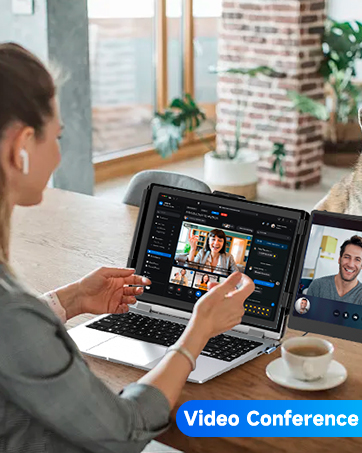
Image: A demonstration of the screen extender's 180-degree rotation and its integrated kickstand for adjustable viewangles d'ajust.

Imatge: Detallada view of the screen extender's side, highlighting the brightness/volume control slider and the speaker, along with labels for the USB-C and HDMI ports.
Manteniment
To ensure the longevity and optimal performance of your KEFEYA Laptop Screen Extender, follow these maintenance guidelines:
- Neteja: Use a soft, lint-free cloth to gently wipe the screen and exterior surfaces. For stubborn marks, slightly dampNetegeu el drap amb aigua o una solució de neteja segura per a pantalles. Eviteu productes químics agressius o materials abrasius.
- Emmagatzematge: When not in use, store the screen extender in its provided storage bag to protect it from dust, scratches, and impacts. Avoid placing heavy objects on top of the device.
- Manipulació: Handle the extender with care. Avoid dropping it or subjecting it to strong impacts. Do not apply excessive force when adjusting the screen or kickstand.
- Temperatura i humitat: Operate and store the device in a dry environment within recommended temperature ranges. Avoid extreme temperatures or high humidity, which can damage electronic components.
- Cura del cable: Always grasp the plug when disconnecting cables, rather than pulling on the cable itself, to prevent damage to the connectors and wires.
Resolució de problemes
If you encounter issues with your KEFEYA Laptop Screen Extender, refer to the common problems and solutions below:
Problem: Screen Displays "No Signal"
Solució:
- USB-C One-Cable Connection: Verify that your laptop's USB-C port is full-featured (supports both charge and data transmit). Ensure the USB-C cable is connected to the correct port (TYPE-C1 or TYPE-C2) on the KEFEYA screen extender.
- HDMI + USB-A Two-Cable Connection: Confirm that the HDMI to USB-C cable is inserted into the HDMI-marked port (BOTTOM port) on the screen extender. Also, ensure the USB-A to USB-C cable is connected to your laptop and the screen extender (TYPE-C1 or TYPE-C2 port) to provide power. Activate your laptop screen after connection.
- Integritat del cable: Check all cables for damage or loose connections. Try using different cables if available.
Problem: Screen Flickers or Goes Black
Solució:
- Potència insuficient: This often indicates low battery on your laptop or insufficient voltage. Use an extra USB-A to USB-C cable to power your laptop or the monitor extender directly from a power adapter (5V/2A recommended).
- Comprovació del cable: Ensure all cables are securely connected and undamaged.
Problem: Screen Does Not Light Up After Connecting
Solució:
- Font d'alimentació: Your laptop may not be providing enough power. Please charge the monitor with an extra power supply that provides 5V/2A.
- Laptop Activation: Ensure your laptop screen is active and not in sleep mode.
- Connexió per cable: Double-check all cable connections as described in the Setup section.
Especificacions
| Característica | Detall |
|---|---|
| Número de model | S1 |
| Mida de la pantalla | 14 polzades (36 cm en diagonal) |
| Resolució | 1920 x 1080 píxels (FHD 1080p) |
| Relació d'aspecte | 16:9 |
| Tipus de panell | IPS |
| Freqüència d'actualització | 60 Hz |
| Brillantor | 300 candela (nit) |
| Gamma de colors | 72% NTSC |
| Superfície de la pantalla | Mat |
| Dimensions del producte | 13.89 x 8.14 x 0.9 polzades |
| Pes de l'article | 2.3 lliures |
| Ports USB totals | 5 (including Type-C for power/data, HDMI for video) |
| Compatibilitat | Windows, macOS, Chrome, Linux, Android, Nintendo Switch, PS4, PS5 (for laptops 13-17.3 inches) |
Garantia i Suport
KEFEYA is committed to providing reliable products and excellent customer service. For any inquiries, technical assistance, or warranty claims, please contact KEFEYA Direct customer service. Refer to the contact information provided with your product packaging or on the official KEFEYA weblloc web per obtenir els detalls d'assistència més actualitzats.
For additional resources, you may refer to the official PDF documents:


