Introducció
This manual provides comprehensive instructions for setting up, operating, and maintaining your AVerMedia Live Gamer Ultra 2.1 (GC553G2) capture card. Designed for seamless game capture and streaming, this device offers high-quality video passthrough and recording capabilities. Please read this manual thoroughly to ensure optimal performance and longevity of your device.

Image: The AVerMedia Live Gamer Ultra 2.1 (GC553G2) capture card, a compact black device with a colorful RGB light strip on the front, designed for external video capture.
Què hi ha a la caixa
Verifiqueu que tots els elements siguin presents al paquet:
- LIVE GAMER ULTRA 2.1 (GC553G2)
- Cable HDMI 2.1
- USB 3.2 Gen 2 Type-C Cable
- Cable d'àudio de 4 pols de 3.5 mm
- Guia d'inici ràpid

Image: The back of the product box, detailing the included accessories: the capture card, HDMI 2.1 cable, USB 3.2 Gen 2 Type-C cable, 4-pole 3.5mm audio cable, and a quick start guide.
Guia de configuració
Follow these steps to set up your AVerMedia Live Gamer Ultra 2.1 (GC553G2) for optimal performance:
- Connect the Capture Card: Connect your gaming console (PS5, Xbox, Nintendo Switch) or PC to the HDMI IN port on the GC553G2 using the provided HDMI 2.1 cable.
- Connecta a la pantalla: Connect your display (monitor or TV) to the HDMI OUT port on the GC553G2 using another HDMI 2.1 cable (not included, unless specified).
- Connexió a l'ordinador: Connect the GC553G2 to your PC or Mac using the provided USB 3.2 Gen 2 Type-C cable. This connection powers the device and enables data transfer for capture and streaming.
- Connexió d'àudio (opcional): For live party chat support, connect your gaming headset directly to the 4-Pole 3.5mm Audio Jack on the GC553G2 using the provided 4-pole 3.5mm audio cable. This allows for integrated game and chat volume management.
- Instal·lació de programari: Download and install the necessary AVerMedia software (e.g., Gaming Utility, RECentral) from the official AVerMedia website. This software is required for configuring settings, capturing, and streaming.

Image: A diagram illustrating the connection flow for the AVerMedia Live Gamer Ultra 2.1. It shows a console/PC connecting to HDMI IN, HDMI OUT connecting to a display, a headset/gamepad connecting to the 4-Pole 3.5mm Jack, and a laptop/desktop connecting via USB 3.2 Gen2 Type-C.
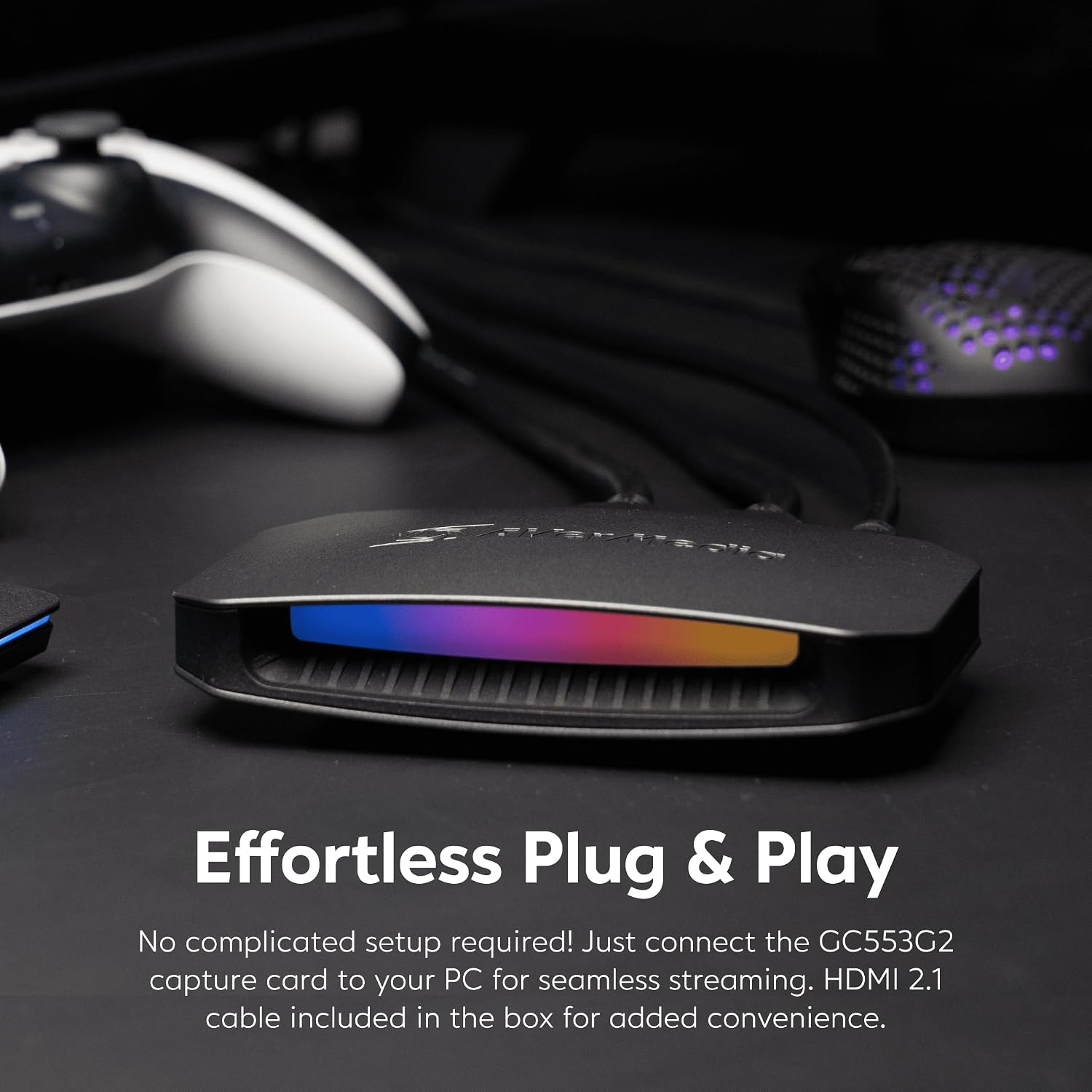
Imatge: Un primer pla view of the AVerMedia GC553G2 capture card on a desk, emphasizing its "Effortless Plug & Play" nature. The image highlights the simplicity of connecting the device to a PC for streaming, with the HDMI 2.1 cable included for convenience.
Instruccions de funcionament
Característiques i funcionalitats clau
- 4K60 Capture: Seamlessly capture and stream gameplay from PS5, PS5 Pro, Xbox, and Nintendo Switch in stunning 4K60 resolution. Compatible with popular streaming platforms like Twitch, YouTube, OBS Studio, and Streamlabs.
- 4K144 HDR/VRR Pass-Through: Experience smooth gameplay with 4K144 HDR/VRR pass-through, ensuring high-quality visuals for streaming, recording, and gaming on PS5/Pro, Xbox Series X/S, PC, and Mac.
- Latència baixa: Enjoy real-time gameplay streaming and recording with minimal delay, ensuring synced audio and video for an immersive experience.
- Live Party Chat Support: Connect your gaming headset directly to the GC553G2 to manage game and chat volume during streaming or recording, eliminating the need for extra party chat cables. Supports 5.1 channel audio capture.
- Il·luminació RGB personalitzable: Personalize your setup with customizable RGB lighting. Control options include Windows 11 Dynamic Lighting, AVerMedia Tool, or MSI Software.
Software Usage (General)
Once connected, launch your preferred streaming or capture software (e.g., OBS Studio, Streamlabs OBS, AVerMedia RECentral). Select the GC553G2 as your video and audio input device. Configure your streaming or recording settings according to your preferences and platform requirements.

Image: A dual-monitor gaming setup with the AVerMedia capture card, illustrating the ability to "Unlock the Power of HDMI 2.1" for gaming and streaming with 4Kp144 pass-through (PC) and 4Kp120 pass-through (console), alongside 4Kp60 capture.

Image: A gaming setup featuring a PlayStation 5 console, a monitor displaying gameplay, and the AVerMedia capture card. The text "Seize the Next-Gen Experience" highlights the card's ability to capture flawless gameplay from PS5, Xbox Series X/S, and PC/Mac, maximizing HDMI 2.1 for captivating live streams.

Image: A collection of logos including Xbox, PlayStation, YouTube, Twitch, and OBS, accompanied by the phrase "Empower Your Content Everywhere," indicating the broad compatibility of the AVerMedia capture card with various gaming consoles and streaming platforms.
RGB Control Setup
The AVerMedia Live Gamer Ultra 2.1 features customizable RGB lighting. You can control this lighting through the AVerMedia Gaming Utility or compatible third-party software like MSI Mystic Light.
Video: A tutorial demonstrating how to set up RGB control for the AVerMedia GC553G2 Live Gamer Ultra 2.1 using the AVerMedia Gaming Utility and third-party software like MSI Mystic Light. The video guides users through syncing lighting effects across their gaming setup.
For detailed instructions on RGB control, refer to the video above. It covers both third-party light control software (e.g., MSI Center's Mystic Light) and the Gaming Utility's own light control settings. Ensure that if you are using third-party software, the "Third-party light control software" option is enabled in the AVerMedia Gaming Utility's RGB Control section. If you prefer to control RGB directly from the Gaming Utility, disable the third-party option.

Image: A gaming PC setup with various components displaying synchronized RGB lighting, including the AVerMedia capture card. Logos for MSI Mystic Light Sync, ASRock Polychrome Sync, and GIGABYTE RGB Fusion 2.0 are shown, indicating compatibility with different RGB ecosystems.
Manteniment
To ensure the longevity and optimal performance of your AVerMedia Live Gamer Ultra 2.1 (GC553G2), follow these simple maintenance guidelines:
- Neteja: Use a soft, dry cloth to gently wipe the exterior of the device. Avoid using liquid cleaners, aerosols, or abrasive solvents, as these can damage the surface or internal components.
- Ventilació: Assegureu-vos que el dispositiu estigui col·locat en una zona ben ventilada per evitar el sobreescalfament. No bloquegeu cap obertura de ventilació.
- Emmagatzematge: When not in use for extended periods, store the capture card in a cool, dry place, away from direct sunlight and extreme temperatures.
- Gestió de cables: Keep cables organized and free from kinks or excessive bending to prevent damage to the connectors or internal wires.
- Actualitzacions de programari: Regularly check the official AVerMedia website for firmware and software updates. Keeping your software up-to-date can improve performance, add new features, and resolve potential issues.
Resolució de problemes
If you encounter issues with your AVerMedia Live Gamer Ultra 2.1 (GC553G2), refer to the common problems and solutions below:
- Sense senyal/Pantalla negra:
- Assegureu-vos que tots els cables HDMI i USB estiguin connectats correctament.
- Verify that your source device (console/PC) is powered on and outputting video.
- Check your software settings to ensure the correct input source is selected.
- Try using different HDMI cables to rule out cable issues.
- Confirm your display supports the passthrough resolution and refresh rate.
- Audio Issues (No Sound, Distorted Audio, Party Chat Problems):
- Check audio settings in your capture/streaming software and ensure the correct audio input (GC553G2) is selected.
- Verify that the 4-pole 3.5mm audio cable is correctly connected for party chat.
- Adjust volume levels in both the AVerMedia Gaming Utility and your operating system.
- If using a headset, ensure it is properly connected and functioning.
- Lag or Stuttering during Capture/Streaming:
- Ensure your computer meets the minimum system requirements for the capture card and your chosen software.
- Tanqueu les aplicacions innecessàries que s'executen en segon pla per alliberar recursos del sistema.
- Update your graphics card drivers and AVerMedia software/firmware to the latest versions.
- Reduce the capture/streaming resolution or bitrate in your software settings.
- Ensure you are using a USB 3.2 Gen 2 port for the capture card.
- RGB Lighting Not Working/Syncing:
- Check the RGB Control settings in the AVerMedia Gaming Utility.
- If using third-party RGB software (e.g., MSI Mystic Light), ensure the "Third-party light control software" option is enabled in the Gaming Utility.
- If not using third-party software, ensure that option is disabled and control directly from the Gaming Utility.
- Restart the AVerMedia Gaming Utility and any third-party RGB software.

Image: A visual comparison demonstrating the benefits of the Live Gamer Ultra 2.1's integrated party chat support versus a capture card without it. The left side shows the AVerMedia setup requiring no extra cables and allowing easy volume control, while the right side illustrates issues like buzzing noise and audio pickup problems with traditional setups.

Image: A side-by-side comparison of a game scene with HDR (High Dynamic Range) turned off and on, demonstrating the enhanced visual quality and detail when HDR is active through the capture card's passthrough.

Image: A visual comparison of a game scene with and without VRR (Variable Refresh Rate) enabled. The "NO VRR - Tearing" side shows visual artifacts, while the "VRR - No Tearing" side demonstrates smooth, tear-free gameplay, highlighting the benefit of the capture card's VRR passthrough.

Image: A split image showing two different game displays: one labeled "PC Game" and the other "Console Game." This illustrates the versatility of the capture card in handling inputs from both PC and console gaming platforms.
Especificacions tècniques
| Característica | Detall |
|---|---|
| Marca | AVerMedia |
| Sèrie | Live Gamer ULTRA 2.1 |
| Número de model | GC553G2 |
| Interfície del maquinari | 3.5mm Audio, USB Type C |
| Resolució de captura de vídeo | 4K60 |
| Passthrough Resolution | 4K144 / 4K120 (console) |
| Sistema operatiu | Windows 10 x64 / 11 x64 or later |
| Pes de l'article | 4.1 unces |
| Dimensions del producte | 2.7 x 7.3 x 6.3 polzades |
| Color | Negre |
| Usos recomanats | Video Recording, Live Streaming |

Image: A graphic highlighting key features of the AVerMedia Live Gamer Ultra 2.1, including "Perfect for Consoles," "RGB Lighting," and "Supports 4K@144Hz as specified in HDMI 2.1."
Garantia i Suport
AVerMedia products are designed for reliability and performance. For specific warranty details, please refer to the warranty information included with your product or visit the official AVerMedia weblloc.
Atenció al client:
- For technical assistance, troubleshooting, or product inquiries, please visit the AVerMedia support page.
- Official AVerMedia Weblloc: www.avermedia.com
- Support Contact: Refer to the weblloc web amb informació de contacte regional i recursos de suport.
Registre de productes: We recommend registering your product on the AVerMedia weblloc web per rebre actualitzacions i suport.

Image: A graphic with a green forest background and text stating "Global Sustainability: AVerMedia follows strict ESG guidelines to minimize carbon emission and other environmental pollution." This highlights the company's commitment to environmental responsibility.


