Introducció
Gràcies per la compraasing the SANSUI 24 Inch Gaming Monitor, model ES-G24F4. This manual provides essential information for the proper setup, operation, and maintenance of your monitor. Please read this manual thoroughly before using the product and retain it for future reference.
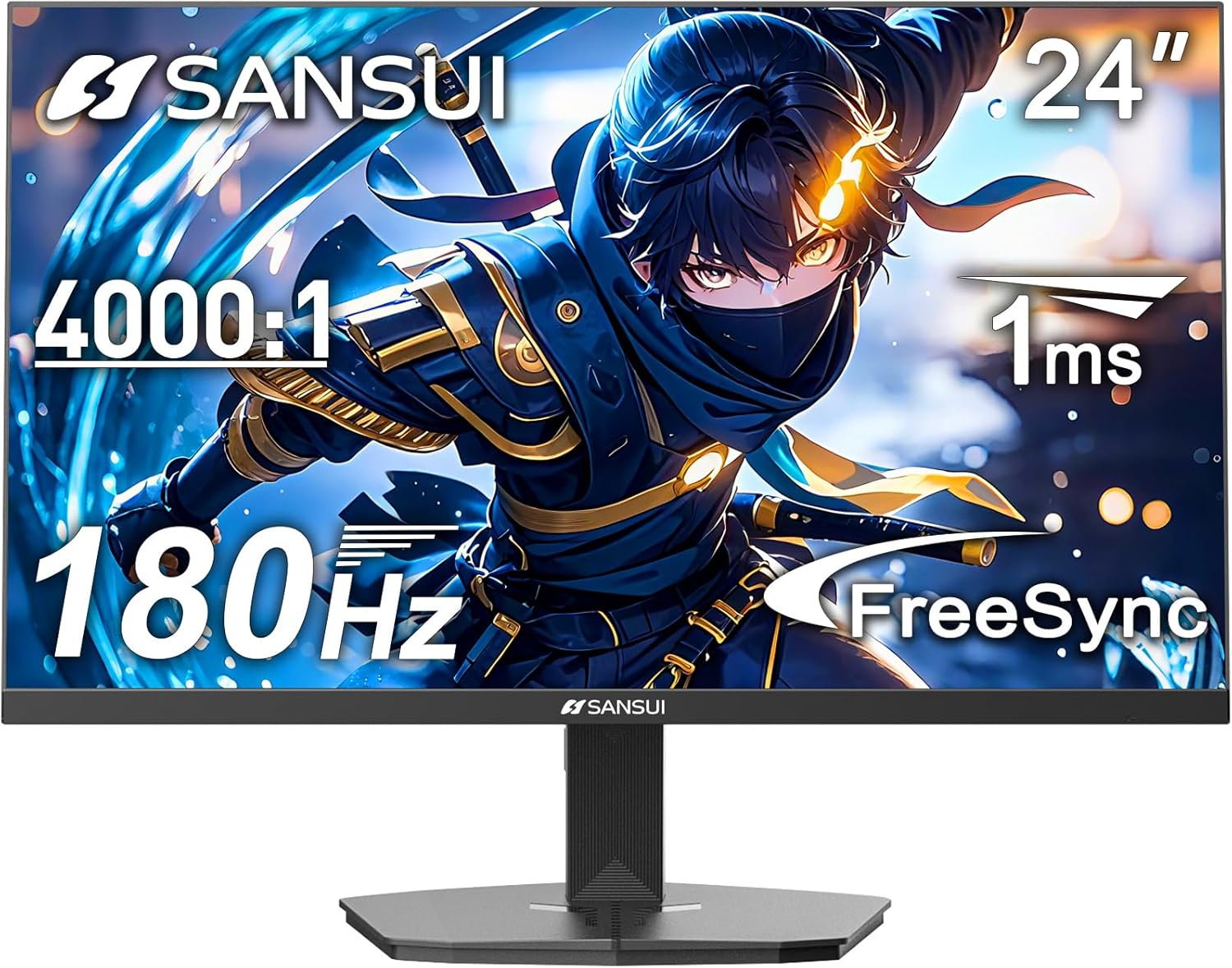
Imatge: Frontal view of the SANSUI 24 Inch Gaming Monitor (ES-G24F4).
Informació de seguretat
- Assegureu-vos que el monitor estigui col·locat sobre una superfície estable i plana per evitar caigudes accidentals.
- Feu servir només l'adaptador de corrent que s'inclou amb el monitor.
- Do not expose the monitor to rain or moisture to avoid electric shock.
- Eviteu bloquejar les obertures de ventilació per evitar el sobreescalfament.
- No intenteu reparar el monitor vosaltres mateixos. Encarregueu totes les tasques de manteniment a personal qualificat.
- Desendolleu el monitor de la presa de corrent durant tempestes o quan no el feu servir durant períodes prolongats.
Contingut del paquet
Verifiqueu que tots els elements siguin presents al paquet:
- SANSUI 24 Inch Gaming Monitor (ES-G24F4)
- Suport de monitor (base i coll)
- Adaptador d'alimentació
- Cable HDMI (1.5 m)
- Manual d'usuari (aquest document)
Funcions del monitor
The SANSUI ES-G24F4 monitor is designed with features to enhance your viewexperiència de joc i ing:
- 24 Inch Full HD (1920x1080) Display: Ofereix imatges clares i detallades.
- Freqüència de refresc de 180 Hz: Delivers smooth motion for gaming and fast-paced content.
- Temps de resposta MPRT d'1 ms: Reduces motion blur and ghosting.
- Tecnologia de sincronització adaptativa: Synchronizes the monitor's refresh rate with your graphics card to eliminate screen tearing.
- Gamma de colors sRGB del 110%: Offers vibrant and accurate color reproduction.
- DP 1.4 and HDMI 2.0 Ports: Multiple connectivity options for various devices.
- 75x75mm VESA Mount Compatibility: Allows for alternative mounting solutions.
- Disseny ergonòmic: Features eye care technology and a tilt-adjustable stand (-5° to 15°).
- Exclusive Gaming Modes: Pre-set modes for Racing, FPS, and RTS games.

Imatge: Més deview of key features including HDMI+DP Ports, 180Hz Refresh Rate, 1ms Response Time, VESA 75*75mm, FreeSync, FHD 1920*1080, HDR10+, and Eye Care.
Configuració
1. Muntatge del suport
- Traieu amb cura els components del monitor i del suport de l'embalatge.
- Fixeu el coll del suport al panell del monitor. Assegureu-vos que encaixi correctament al seu lloc o que estigui fixat amb cargols si n'hi ha.
- Connect the stand base to the stand neck, securing it with the thumb screw or screws from the bottom.
- Col·loqueu el monitor muntat sobre un escriptori o una superfície estable.
2. Cables de connexió
Refer to the image below for port locations:
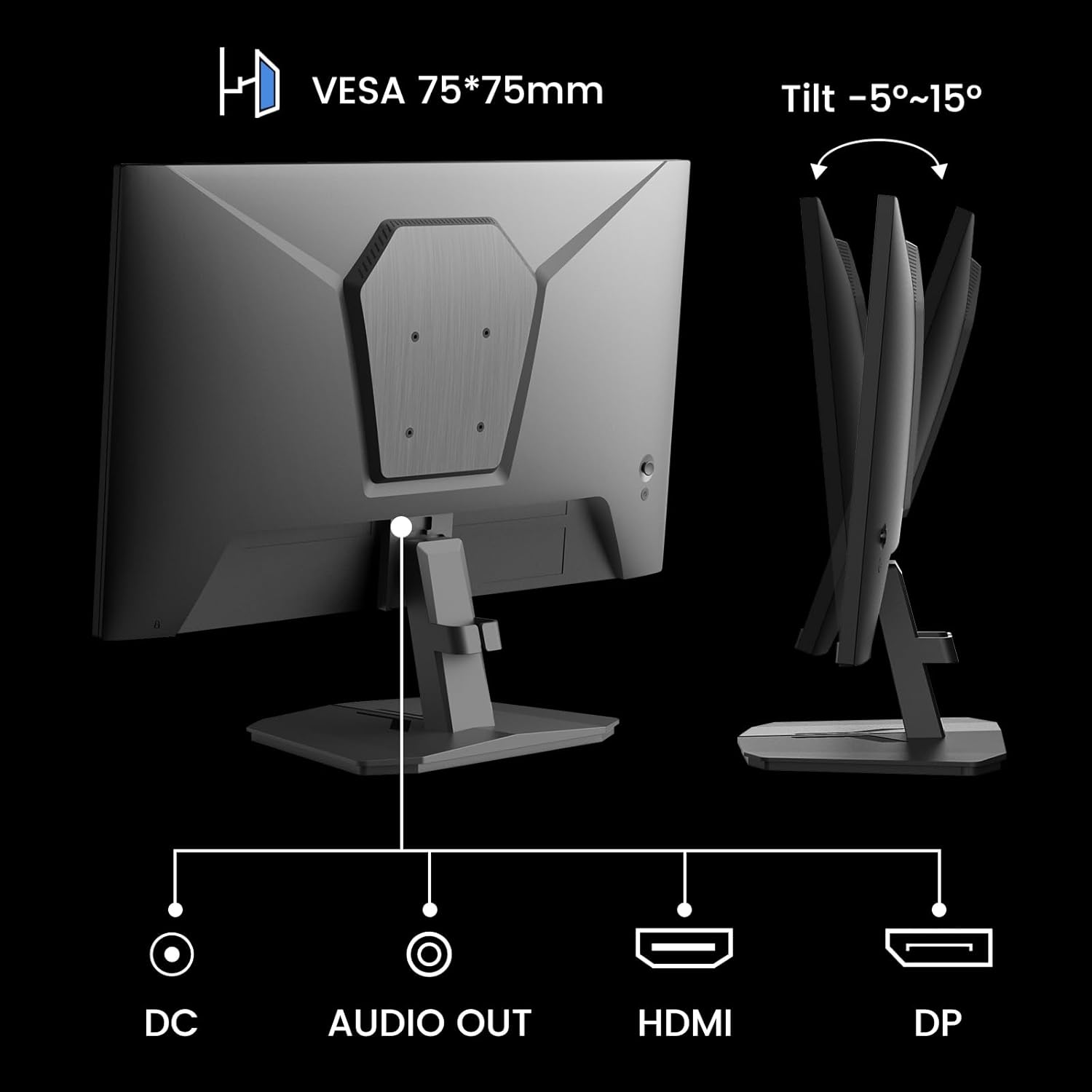
Imatge: Part posterior view of the monitor showing DC power input, Audio Out, HDMI, and DisplayPort (DP) connections.
- Connexió d'alimentació: Connect the power adapter to the DC input port on the monitor, then plug the adapter into a power outlet.
- Connexió de vídeo:
- For optimal performance, use the included HDMI cable or a DisplayPort (DP) cable to connect your computer's graphics card to the corresponding port on the monitor.
- Assegureu-vos que el cable estigui ben connectat als dos extrems.
- Sortida d'àudio: If desired, connect external speakers or headphones to the Audio Out port.
3. Muntatge VESA (opcional)
The monitor supports a 75x75mm VESA mount. If you wish to use a wall mount or an alternative monitor arm:
- Remove the stand from the monitor by pressing the release button or unscrewing the attachment points.
- Attach your VESA-compatible mount to the four screw holes on the back of the monitor using appropriate screws (typically M4 screws, not included with the monitor).
- Follow the instructions provided with your VESA mount for installation.
Funcionament del monitor
1. Encendre/apagar
Press the power button, usually located on the back or bottom right of the monitor, to turn it on or off. The power indicator light will illuminate when the monitor is on.
2. Menú de visualització en pantalla (OSD).
The OSD menu allows you to adjust various monitor settings. Typically, buttons on the back or bottom of the monitor are used to navigate the OSD. Common controls include:
- Botó de menú: Obre el menú OSD.
- Botons de navegació: Used to move up, down, left, or right within the menu.
- Botó Introdueix/Selecciona: Confirma una selecció.
- Botó de sortida: Tanca el menú OSD.
3. Ajustar la configuració
Key settings you can adjust via the OSD menu include:
- Configuració de la imatge: Brightness, Contrast, Sharpness, Gamma.
- Configuració de color: Color Temperature, Hue, Saturation.
- Font d'entrada: Manually select between HDMI and DisplayPort inputs.
- Modes de joc: Select pre-optimized modes for different game types.
- FreeSync/Adaptive Sync: Enable or disable adaptive synchronization.
- HDR: Enable or disable High Dynamic Range.
- Temps de resposta (MPRT): Adjust the monitor's response time setting. Note that higher settings might introduce artifacts as mentioned in customer reviews. It is recommended to use the default setting if artifacts appear.
- Cura dels ulls: Activate features designed to reduce eye strain.

Imatge: Examples of the monitor's various picture modes, including Game, Photo, Movie, and Standard.
4. Característiques de joc
The ES-G24F4 monitor includes several features optimized for gaming:
- Freqüència d'actualització de 180 Hz i temps de resposta d'1 ms: These specifications ensure fluid visuals and minimal input lag, crucial for competitive gaming.
- Sincronització adaptativa: This technology synchronizes the monitor's refresh rate with your GPU's frame rate, eliminating screen tearing and stuttering for a smoother gaming experience.
- Suport HDR10: Provides a wider range of colors and contrast for a more immersive visual experience in compatible content.
- Exclusive Gaming Modes: Access pre-calibrated display settings for specific game genres:
- Mode de cursa: Optimitzat per a jocs de carreres.
- Mode FPS: Optimized for First-Person Shooter games.
- RTS Mode: Optimized for Real-Time Strategy games.

Image: Visual comparison demonstrating the effect of FreeSync (Adaptive Sync) being ON versus OFF, showing reduced screen tearing when active.

Image: Visual comparison of HDR (High Dynamic Range) being ON versus OFF, illustrating enhanced clarity and color depth when active.

Imatge: Examples of the monitor's exclusive gaming modes: Racing, FPS (First-Person Shooter), and RTS (Real-Time Strategy).
Manteniment
- Neteja de la pantalla: Netegeu suaument la pantalla amb un drap suau i sense borrissol. Per a marques difícils, dampen the cloth with a small amount of screen cleaner specifically designed for monitors. Do not spray cleaner directly onto the screen.
- Neteja de la Casing: Feu servir un drap suau i sec per netejar el monitor casing. Eviteu netejadors o dissolvents abrasius.
- Ventilació: Ensure the monitor's ventilation holes are clear of dust and obstructions to prevent overheating.
- Apagar: Always turn off and unplug the monitor before cleaning or when not in use for extended periods.
Resolució de problemes
Si teniu problemes amb el monitor, consulteu els problemes i solucions més comuns següents:
| Problema | Causa possible | Solució |
|---|---|---|
| No hi ha imatge a la pantalla | Monitor no encès; Font d'entrada incorrecta; Cable de vídeo fluix. | Ensure power cable is connected and monitor is on. Select correct input source (HDMI/DP). Check video cable connections. |
| La imatge és borrosa o distorsionada | Incorrect resolution; Graphics card driver issues; Faulty cable. | Set display resolution to 1920x1080. Update graphics drivers. Try a different video cable. |
| Pantalla trencada o entretallat | Adaptive Sync not enabled; Graphics card not compatible or drivers outdated. | Enable Adaptive Sync in the OSD menu and your graphics card control panel. Ensure graphics drivers are up to date. |
| No hi ha so de la sortida d'àudio | External speakers/headphones not connected; Volume too low; Audio output not selected on PC. | Check connections. Adjust volume. Ensure monitor is selected as audio output device in PC settings. |
| Parpelleig del monitor | Faulty cable; Graphics card issue; Monitor settings. | Try a different video cable. Update graphics drivers. Reset monitor settings to factory defaults. |
If the problem persists after trying these solutions, please contact SANSUI customer support.
Especificacions
| Característica | Detall |
|---|---|
| Model | ES-G24F4 |
| Mida de la pantalla | 24 polzades |
| Resolució | 1920 x 1080 (Full HD) |
| Freqüència d'actualització | 180 Hz |
| Temps de resposta | MPRT d'1 ms |
| Brillantor | 300 Nit |
| Gamma de colors | 110% sRGB |
| Relació d'aspecte | 16:9 |
| Viewangle ing | 178° (Horitzontal/Vertical) |
| Connectivitat | 1x DisplayPort 1.4, 1x HDMI 2.0, 1x Audio Out, 1x DC Power Input |
| Compatibilitat VESA | 75 x 75 mm |
| Ajust d'inclinació | -5° a 15° |
| Altaveus | No |
| Pes de l'article | 5.94 lliures |

Image: Diagram illustrating the product dimensions of the SANSUI 24 Inch Gaming Monitor.

Image: Visual representation of the monitor's color depth and gamut, showing 72% NTSC, 8-bit color depth, and 16.7 million color support.
Garantia i Suport
SANSUI provides the following support for your monitor:
- Garantia: A 30-day money-back and free replacement warranty from the order date.
- Suport tècnic: Hi ha disponible assistència tècnica de per vida.
- Contacte: For warranty claims or technical assistance, please refer to the contact information provided on the SANSUI official weblloc web o la documentació de la compra.

Image: Information regarding SANSUI's lifetime technical support, 12-month warranty, and free one-month back and replacement policy.


