1. Introducció i finalview
The Google Nest Doorbell Wireless Battery Doorbell and 7-inch Screen Bundle offers a convenient and comprehensive solution for home security and communication. This bundle includes a battery-powered Nest Doorbell and a Google Nest 7-inch Screen, providing effortless installation and real-time monitoring.
The Nest Doorbell is designed for versatility, being wire-free and weather-resistant, allowing for placement almost anywhere, indoors or outdoors. Its battery operation eliminates the need for an electrical outlet, simplifying the setup process. The system provides intelligent alerts, enabling users to stay informed about activities at their home and interact with visitors through the built-in speaker and microphone, even when away.
This manual will guide you through the setup, operation, maintenance, and troubleshooting of your new Google Nest Doorbell and Screen bundle.
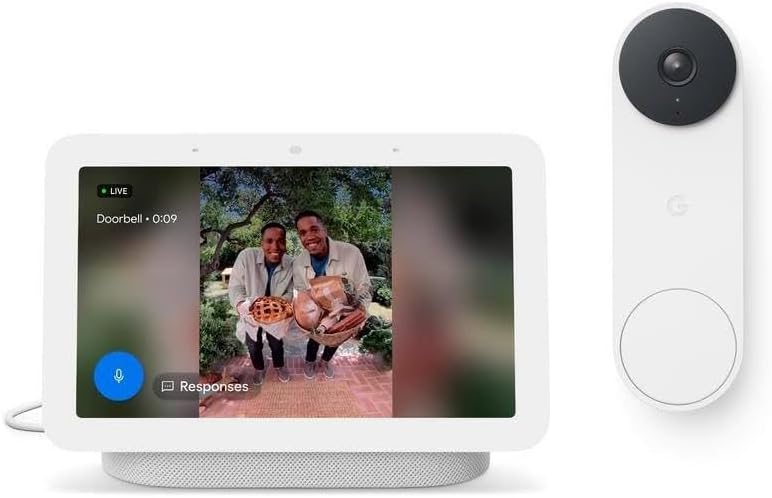
Figure 1.1: Google Nest Doorbell and 7-inch Screen showing a live feed from the doorbell camera.
2. Guia de configuració
2.1 Desembalatge i càrrega inicial
Carefully unbox all components. Before installation, it is recommended to fully charge the Nest Doorbell battery using the provided USB cable. Connect the cable to the doorbell and a compatible USB power adapter (not included).
2.2 Google Home App Installation
Download the Google Home app on your smartphone or tablet from the App Store (iOS) or Google Play Store (Android). You will need a Google account to proceed.
2.3 Nest Doorbell Setup
- Open the Google Home app and tap the '+' icon to add a new device.
- Select 'New device' and follow the on-screen prompts to set up your Nest Doorbell.
- Scan the QR code on the back of the doorbell when prompted.
- Choose a location for your doorbell. Since it's wireless, you have flexibility. Ensure it has a clear view of your entryway.
- Mount the doorbell using the included mounting plate and screws. Ensure it is securely fastened.
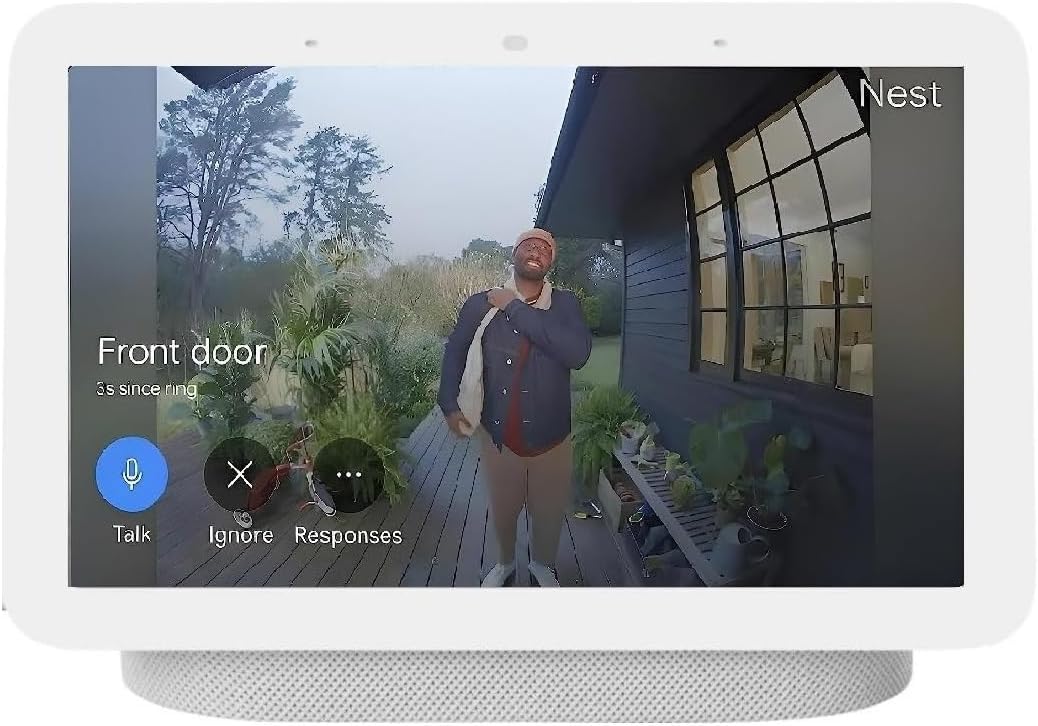
Figure 2.1: A user interacting with the Google Nest Doorbell by pressing its button.
2.4 Google Nest 7-inch Screen Setup
- Plug in the Google Nest 7-inch Screen using the provided power cable.
- Follow the on-screen instructions to connect it to your Wi-Fi network.
- Ensure the screen is linked to the same Google account used for your Nest Doorbell. This will allow it to display the doorbell feed and notifications.

Figure 2.2: The Google Nest 7-inch Screen showing a live view from the doorbell camera, with options to talk or ignore.
3. Instruccions de funcionament
3.1 Recepció d'alertes
When someone approaches your door or presses the doorbell, you will receive an alert on your smartphone via the Google Home app and on your Google Nest 7-inch Screen. The screen will automatically display the live video feed from the doorbell.
3.2 Conversa bidireccional
To speak with a visitor, tap the microphone icon on your smartphone app or the 'Talk' button on the Nest Screen. Your voice will be projected through the doorbell's speaker. To listen, ensure the microphone is not muted.
3.3 Viu View
You can access a live video feed from your Nest Doorbell at any time through the Google Home app or by asking your Google Nest Screen (e.g., "Hey Google, show me the front door").
3.4 Intelligent Alerts
The Nest Doorbell can differentiate between people, packages, and animals, sending specific alerts based on what it detects. Customize these alerts within the Google Home app settings for your doorbell.
4. Manteniment
4.1 Gestió de la bateria
The Nest Doorbell is battery-powered. Monitor the battery level in the Google Home app. When the battery is low, remove the doorbell from its mount and recharge it using a USB-C cable. Battery life can vary based on activity, temperature, and settings.
4.2 Neteja
Wipe the doorbell and screen surfaces with a soft, damp cloth. Avoid using harsh chemicals or abrasive cleaners, as these can damage the devices. Ensure the camera lens on the doorbell is clean for optimal video quality.
4.3 Resistència a la intempèrie
The Nest Doorbell is weather-resistant (IP54 rated), designed to withstand typical outdoor conditions. However, extreme weather conditions may affect performance. Ensure it is securely mounted to prevent dislodging in strong winds.
5. Solució De Problemes
5.1 Durada curta de la bateria
- Frequent Activity: High traffic areas or frequent motion detection can drain the battery faster. Adjust motion sensitivity settings in the Google Home app.
- Clima fred: Low temperatures can significantly reduce battery performance.
- Senyal Wi-Fi: A weak Wi-Fi signal can cause the doorbell to work harder, consuming more power. Ensure a strong connection.
- Configuració: Review video quality and recording settings; higher quality or continuous recording uses more battery.
5.2 No Video Feed or Offline Status
- Comproveu la Wi-Fi: Ensure your home Wi-Fi network is active and the doorbell/screen are connected.
- Potència: Verify the Nest Screen is plugged in and the doorbell battery is charged.
- Reinicieu els dispositius: Try restarting your Wi-Fi router, then the Nest Doorbell (if possible, by removing and reinserting the battery), and the Nest Screen.
- Problemes amb l'aplicació: Ensure your Google Home app is updated to the latest version.
5.3 Audio Problems (No Sound/Distorted Sound)
- Microphone/Speaker Settings: Check the microphone and speaker settings for the doorbell in the Google Home app.
- Obstruccions: Ensure nothing is blocking the microphone or speaker on the doorbell.
- Latència de xarxa: Poor network connection can cause audio delays or distortion.
6. Especificacions
| Característica | Especificació |
|---|---|
| Marca | |
| Model | Timbre de bateria |
| ASIN | B0CGZ1G7Y3 |
| UPC | 659680630924 |
| Ús interior/exterior | Interior, Exterior |
| Classificació de protecció internacional | IP54 |
| Tipus de muntatge | Muntatge de paret |
| Color | Neu |
| Data de primera disponibilitat | 29 de març de 2023 |
7. Garantia i Suport
Your Google Nest Doorbell and 7-inch Screen Bundle is covered by a limited manufacturer's warranty. Please refer to the warranty information provided in the product packaging or visit the official Google Nest support weblloc web per obtenir més informació sobre els termes, les condicions i la durada de la garantia.
For technical support, troubleshooting assistance, or to access frequently asked questions, please visit the Google Nest Help Center online. You can typically find contact information for customer service on the official Google support pages.
Assistència en línia: support.google.com/nest


