1. Introducció
This manual provides comprehensive instructions for the setup, operation, and maintenance of your ZTE MF935 4G LTE Mobile Wifi Hotspot. Please read this manual carefully before using the device to ensure proper functionality and to maximize its performance. The ZTE MF935 is designed to provide high-speed mobile internet access, allowing multiple devices to connect simultaneously.
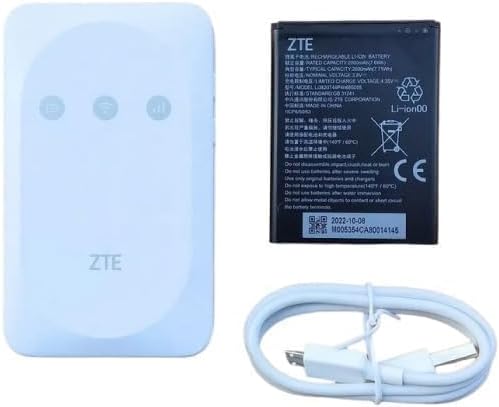
2. Contingut del paquet
Si us plau, comproveu el paquet per veure si hi ha els elements següents:
- ZTE MF935 4G LTE Mobile Wifi Hotspot
- Bateria extraïble
- Cable de càrrega micro USB
- Guia d'inici ràpid (si s'inclou)

Image 2.1: ZTE MF935 Mobile Wifi Hotspot in its retail packaging. The image shows the white hotspot device partially visible within a blue and white box, indicating the product and model number.
3. Dispositiu acabatview
Familiarize yourself with the physical components and indicators of your ZTE MF935 device.
3.1 Tauler frontal

Imatge 3.1: Frontal view of the ZTE MF935 Mobile Wifi Hotspot. The device is white with a smooth finish, featuring three indicator icons (signal, Wi-Fi, battery) and the 'ZTE' logo at the bottom.
The front panel features three LED indicators:
- Indicador d'estat de la xarxa: Displays the mobile network signal strength and connection status.
- WiFi Status Indicator: Shows the Wi-Fi network activity.
- Indicador d'estat de la bateria: Indicates the current battery level and charging status.
3.2 Panell lateral

Imatge 3.2: Lateral view of the ZTE MF935 Mobile Wifi Hotspot. This image highlights the power button and the WPS button located on the side of the device.
The side panel typically includes:
- Botó d'encesa: S'utilitza per encendre o apagar el dispositiu.
- Botó WPS: For quick and secure Wi-Fi Protected Setup connections.
3.3 Rear Panel and Internal Components
Imatge 3.3: Interna view of the ZTE MF935 Mobile Wifi Hotspot with the back cover removed. This reveals the 4FF nano SIM card slot, the battery compartment, and a label with important network information such as SSID, Wi-Fi Key, and the device's web interfície URL.
Under the removable back cover, you will find:
- 4FF nano SIM Slot: Insert your nano SIM card here.
- Compartiment de la bateria: For the removable 2000mAh battery.
- Port micro USB: Per carregar el dispositiu i connectar-lo a un ordinador.
- Device Information Label: Contains default Wi-Fi SSID, Wi-Fi Key, and web pàgina de gestió URL (p. ex., 192.168.0.1).
4. Configuració
Follow these steps to set up your ZTE MF935 Mobile Wifi Hotspot for the first time.
4.1 Instal·lació de la targeta SIM i la bateria
- Traieu la coberta posterior del dispositiu.
- Carefully insert your 4FF nano SIM card into the SIM card slot with the gold contacts facing down and the notched corner aligned correctly.
- Insert the removable 2000mAh battery into its compartment, ensuring the contacts align.
- Torneu a col·locar la coberta posterior fins que sentiu un clic i que quedi ben fixada al seu lloc.
4.2 Càrrega del dispositiu
Abans del primer ús, es recomana carregar completament el dispositiu.
- Connect the Micro USB charging cable to the device's Micro USB port.
- Connecteu l'altre extrem del cable a un adaptador de corrent USB (no inclòs) o al port USB d'un ordinador.
- The battery indicator LED will show charging status. A full charge typically takes a few hours.
4.3 Engegada i connexió inicial
- Press and hold the Power button until the indicators light up.
- Wait for the Network Status indicator to show a stable connection (e.g., solid blue or green, depending on the network type).
- Al dispositiu amb Wi-Fi (telèfon intel·ligent, tauleta, ordinador portàtil), cerqueu les xarxes Wi-Fi disponibles.
- Select the network name (SSID) found on the device information label (e.g., "WIFI SSID: MTN_4G_116114").
- Enter the Wi-Fi Key (password) also found on the label (e.g., "WIFI Key: 5Z25625AZ4").
- Un cop connectat, hauríeu de tenir accés a Internet.
5. Instruccions de funcionament
This section details how to use your ZTE MF935 Mobile Wifi Hotspot.
5.1 Encès/Apagat
- Per encendre: Premeu i manteniu premut el botó d'engegada durant aproximadament 3 segons fins que els indicadors s'encenguin.
- Per apagar: Premeu i manteniu premut el botó d'engegada durant aproximadament 3 segons fins que els indicadors s'apaguin.
5.2 Connexió de dispositius mitjançant Wi-Fi
The ZTE MF935 supports up to 8 simultaneous Wi-Fi users.
- Ensure the hotspot is powered on and has an active mobile network connection.
- On your client device, enable Wi-Fi and scan for networks.
- Select your hotspot's SSID and enter the Wi-Fi Key.
5.3 Ús de WPS (configuració protegida Wi-Fi)
WPS allows for a quick and secure connection without manually entering the Wi-Fi password.
- Press the WPS button on the side of the ZTE MF935. The Wi-Fi indicator may flash.
- Within two minutes, activate WPS on your client device (e.g., by pressing its WPS button or selecting the WPS option in its Wi-Fi settings).
- Els dispositius es connectaran automàticament.
5.4 Accés a Web Interfície de gestió
El web management interface allows you to configure advanced settings, monitor usage, and manage SMS messages.
- Connect your device to the ZTE MF935 via Wi-Fi.
- Obre a web navegador i introduïu URL found on the device label (e.g., http://192.168.0.1).
- Enter the default username and password (usually 'admin' for both, as indicated on the label).
- From here, you can manage settings such as Wi-Fi security, DHCP, port forwarding, IP filter, DMZ, UPnP, Wi-Fi control, SMS, and USSD.
6. Manteniment
Un manteniment adequat garanteix la longevitat i el rendiment òptim del vostre dispositiu.
- Cura de la bateria: Avoid exposing the battery to extreme temperatures. Do not puncture or disassemble the battery. If the device will not be used for an extended period, store it with a partial charge.
- Neteja: Feu servir un drap suau i sec per netejar el dispositiu. Eviteu utilitzar netejadors líquids o aerosols.
- Actualitzacions de programari: Comproveu periòdicament el web management interface for available firmware updates to ensure your device has the latest features and security enhancements.
- Emmagatzematge: Guardeu el dispositiu en un lloc fresc i sec, lluny de la llum solar directa i la humitat.
7. Solució De Problemes
This section addresses common issues you might encounter with your ZTE MF935.
7.1 Sense senyal de xarxa
- Comproveu la targeta SIM: Assegureu-vos que la targeta SIM estigui correctament inserida i activada.
- Ubicació: Trasllada't a una zona amb millor cobertura de xarxa mòbil.
- Indicador d'estat de la xarxa: Observe the Network Status LED. If it's off or red, there might be a network issue or no SIM.
7.2 Sense accés a Internet
- Pla de dades: Verifiqueu que la vostra targeta SIM tingui un pla de dades actiu.
- Configuració de l'APN: Comproveu la configuració de l'APN a la web management interface. These are usually configured automatically but may need manual adjustment for some carriers.
- Reinicieu: Try restarting the hotspot and your connected device.
7.3 No es pot connectar a la Wi-Fi
- Wi-Fi activat: Ensure Wi-Fi is enabled on both the hotspot and your client device.
- Contrasenya: Double-check the Wi-Fi Key (password). It is case-sensitive.
- Distància: Ensure your device is within the Wi-Fi range of the hotspot.
- Màxim d'usuaris: The device supports up to 8 users. If more devices are connected, some may be unable to join.
7.4 El dispositiu no respon
- Reinicieu: If the device is unresponsive, remove the battery, wait a few seconds, and then reinsert it and power on.
- Restabliment de fàbrica: If issues persist, you may perform a factory reset via the web interfície de gestió. Note: This will erase all custom settings and restore default values.
8. Especificacions
Key technical specifications for the ZTE MF935 4G LTE Mobile Wifi Hotspot:
| Característica | Descripció |
|---|---|
| Nom del model | MF935 |
| Tipus de xarxa | 4G LTE |
| Bandes LTE | FDD-LTE bands B1/3/7/8/20/28, TDD-LTE bands B38/40/41 |
| LTE Peak Speed | DL 150 Mbps, UL 50 Mbps |
| Wi-Fi estàndard | 802.11b / g / n, 2.4GHz |
| Usuaris màxims de Wi-Fi | Up to 8 simultaneous users |
| Bateria | Removable 2000mAh, up to 8 hours battery life |
| Interfícies | 4FF nano SIM slot, Micro USB |
| Indicadors LED | Network Status, WiFi Status, Battery Status |
| Característiques especials | WPS, WiFi security, DHCP, Port forwarding, IP filter, DMZ, UPnP, WiFi Control, SMS, USSD |
| Dispositius compatibles | Smartphone, Tablet, Notebooks, various WiFi devices |
| Dimensions (paquet) | 11.3 x 7.5 x 4.3 cm |
| Pes (paquet) | 170 g |
9. Garantia i Suport
For warranty information and technical support, please refer to the warranty card included with your product or contact the seller/manufacturer directly. Keep your purchase receipt as proof of purchase for warranty claims.


