1. Introducció
This manual provides instructions for the setup, operation, and maintenance of your AgfaPhoto Realiview APF700 Wi-Fi Digital Photo Frame. Please read this manual thoroughly before using the device to ensure proper functionality and to prevent damage.
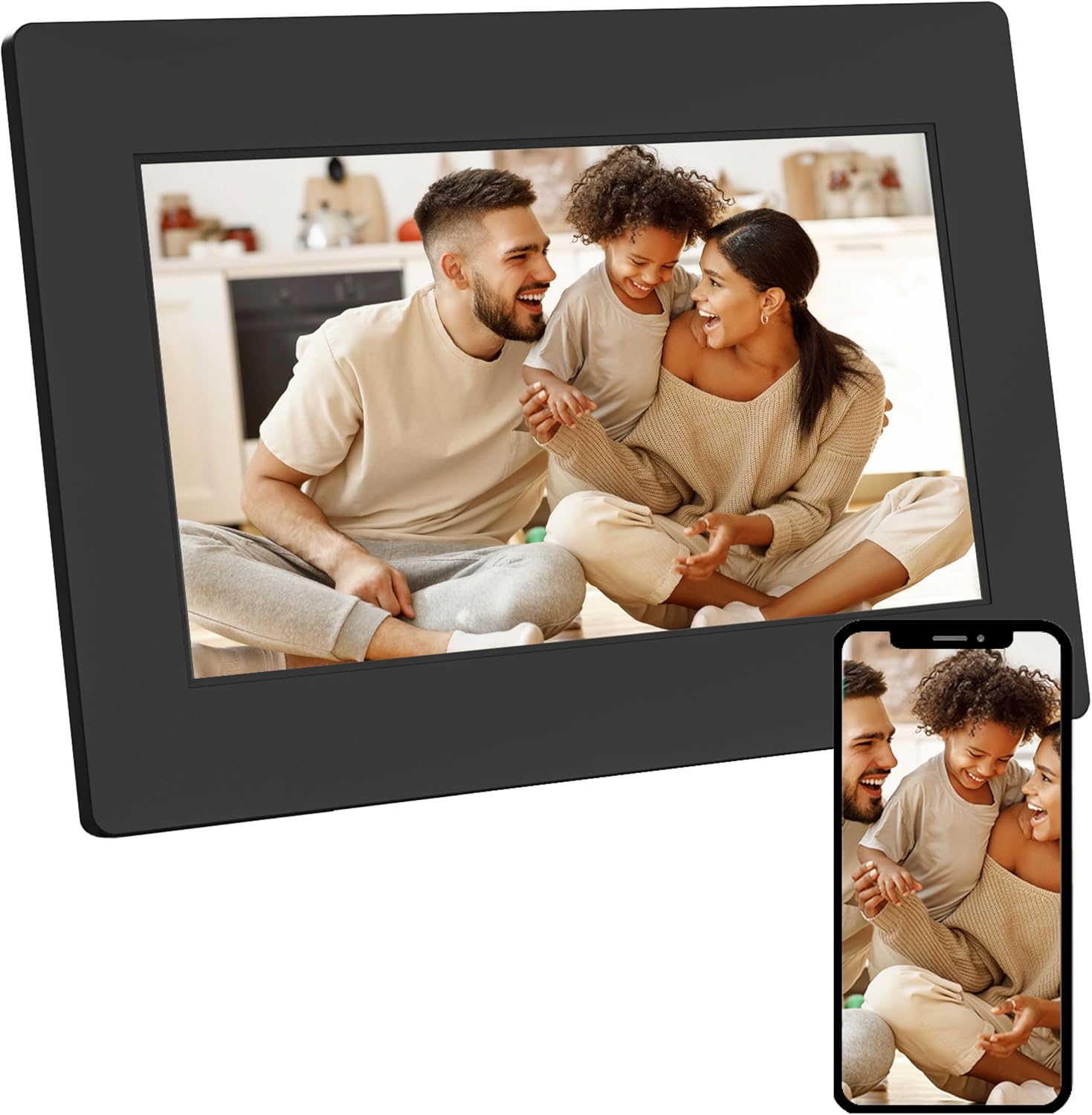
Image 1.1: AgfaPhoto Realiview APF700 Digital Photo Frame with a family photo displayed.
2. Contingut del paquet
Verifiqueu que tots els elements siguin presents al paquet:
- AgfaPhoto Realiview APF700 Digital Photo Frame (7-inch)
- Adaptador d'alimentació
- Manual d'usuari (aquest document)
- Suport (preinstal·lat o separat)
3. Producte acabatview
The AgfaPhoto Realiview APF700 is a 7-inch Wi-Fi enabled digital photo frame designed to display photos and videos. It features a touchscreen interface and integrates with the FRAMEO application for easy content sharing.
3.1 Davant View
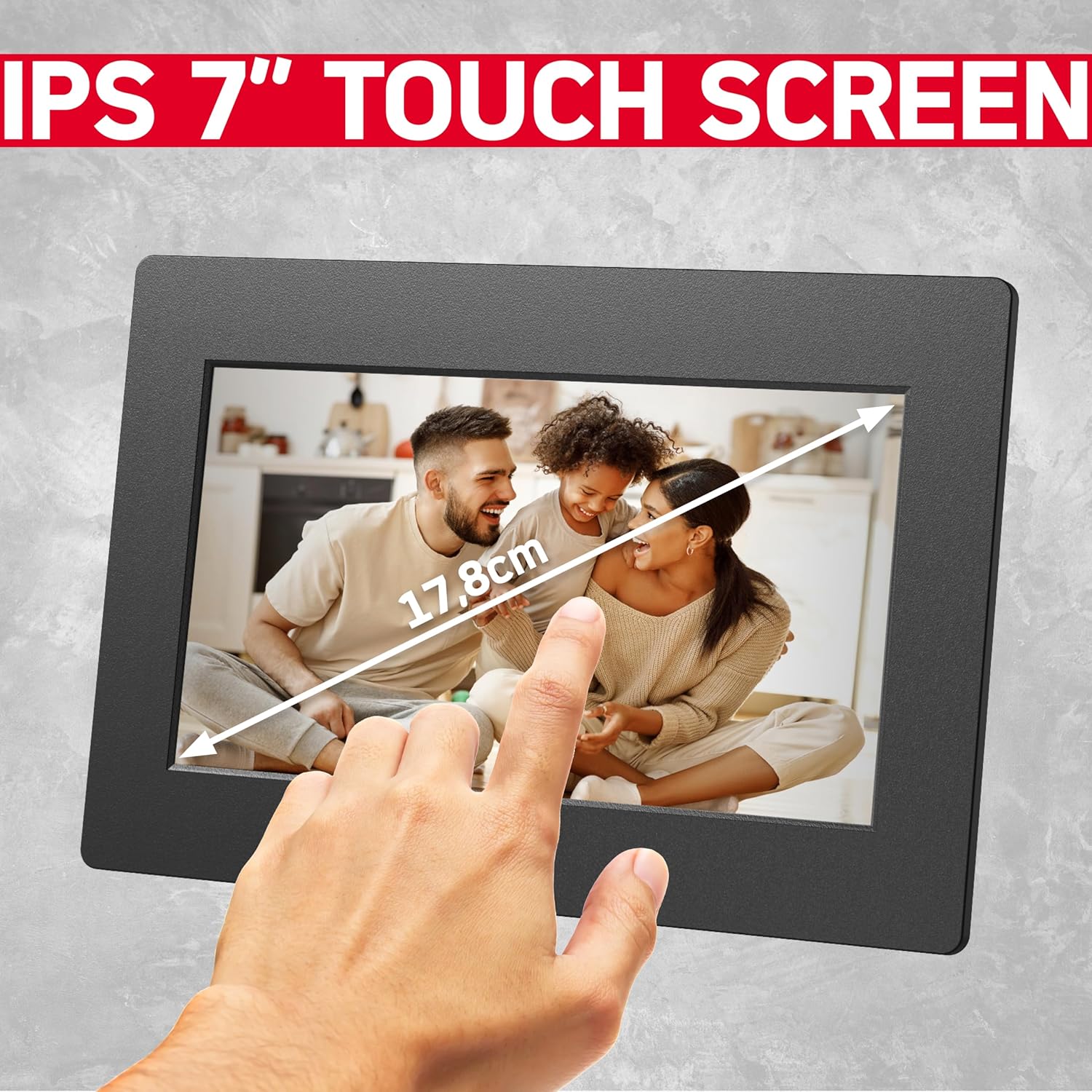
Imatge 3.1: Frontal view of the 7-inch touchscreen display.
The front of the frame features the 7-inch IPS touchscreen display, which is the primary interface for interaction.
3.2 Darrera View i Ports

Imatge 3.2: Davant i darrere views of the digital photo frame, highlighting ports and features.
The rear of the frame typically includes:
- Port d’entrada d’alimentació
- USB Port (for external storage)
- MicroSD Card Slot (for external storage)
- Botó de restabliment
- Mounting Holes (for wall mounting, if applicable)
4. Configuració
4.1 Engegar el marc
- Connect the power adapter to the frame's power input port.
- Connecteu l'adaptador de corrent a una presa de corrent.
- The frame will automatically power on and display the startup screen.
4.2 Configuració inicial i connexió Wi-Fi
Upon first use, the frame will guide you through the initial setup process:
- Seleccioneu el vostre idioma preferit.
- Trieu la vostra zona horària.
- Connect to a Wi-Fi network: The frame will scan for available networks. Select your network and enter the password.
- Once connected, the frame will display a unique device ID. Note this ID for connecting with the FRAMEO app.
5. Instruccions de funcionament
5.1 Using the FRAMEO App
The FRAMEO app is essential for sending photos and videos to your digital frame.
- Descarrega l'aplicació: Download the "FRAMEO" app from the Apple App Store (for iOS) or Google Play Store (for Android).
- Crea un compte: Open the app and follow the instructions to create a user account.
- Connect to Frame: In the app, select "Add Friend" or a similar option. Enter the unique device ID displayed on your AgfaPhoto Realiview frame. This establishes a connection, allowing you to send media.

Image 5.1: The FRAMEO application interface on a smartphone.
5.2 Enviament de fotos i vídeos
Once connected via the FRAMEO app:
- Open the FRAMEO app on your smartphone.
- Select the photos or videos you wish to send from your device's gallery.
- Choose your AgfaPhoto Realiview frame as the recipient.
- Add a caption if desired, then send. The media will appear on your frame shortly, provided both the frame and your phone are connected to the internet.

Image 5.2: Instant sharing functionality with the FRAMEO app.
5.3 Configuració de la pantalla
Access display settings by tapping the screen and navigating to the settings menu.
- Brillantor: Ajusta la brillantor de la pantalla per a una òptima viewing.
- Mode de repòs: Set a schedule for the frame to automatically turn off/on.
- Interval de presentació de diapositives: Customize how long each photo or video is displayed.
- Rotació automàtica: The frame supports automatic rotation of content based on its orientation (portrait or landscape).

Image 5.3: Demonstration of the auto-rotate function.
5.4 Clock and Weather Functions
The frame can display current time and weather information. These functions are typically enabled and configured within the frame's settings menu, requiring an active internet connection to retrieve data.

Image 5.4: Icons representing the frame's various display functions.
6. Gestió de l'emmagatzematge
The AgfaPhoto Realiview APF700 comes with 32GB of built-in memory. You can also expand storage using a MicroSD card or a USB drive.

Image 6.1: Illustration of the frame's 32GB built-in storage capacity.
6.1 Managing Internal Storage
Within the frame's settings, you can view storage usage and delete unwanted photos or videos to free up space.
6.2 Using External Storage
Insert a MicroSD card into the designated slot or connect a USB drive to the USB port. The frame will typically detect the external storage, allowing you to import media to the internal memory or play content directly from the external source.
7. Solució De Problemes
Aquesta secció tracta problemes comuns que podeu trobar.
| Problema | Causa possible | Solució |
|---|---|---|
| El marc no s'encén. | Sense connexió elèctrica. | Assegureu-vos que l'adaptador de corrent estigui connectat correctament al marc i a una presa de corrent que funcioni. |
| No es pot connectar a la Wi-Fi. | Incorrect password, out of range, or network issue. | Verify Wi-Fi password. Move the frame closer to the router. Restart the router. |
| Les fotos/vídeos no apareixen a l'enquadrament. | No internet connection, incorrect frame ID, or app issue. | Check frame's Wi-Fi connection. Confirm the correct frame ID is entered in the FRAMEO app. Ensure the app is updated. |
| La pantalla tàctil no respon. | Error temporal de programari. | Reinicieu el marc desendollant i tornant a endollar l'adaptador de corrent. |
8. Especificacions
- Model: APF700
- Mida de la pantalla: 7 polzades
- Tipus de visualització: Pantalla tàctil LCD
- Resolució: 1024 x 600 (as per A+ content, overriding 1080p from specs list for consistency with typical 7-inch frames)
- Memòria interna: 32 GB
- Connectivitat: Wi-Fi
- Aplicacions compatibles: FRAMEO (iOS & Android)
- Emmagatzematge extern: MicroSD Card, USB Drive
- Dimensions del producte: 7.7 x 5.3 x 0.99 polzades
- Pes de l'article: 1.34 lliures
9. Cura i Manteniment
- Neteja: Feu servir un drap suau i sec per netejar la pantalla i el marc. Eviteu productes de neteja o dissolvents abrasius.
- Col·locació: Place the frame on a stable surface, away from direct sunlight, heat sources, and moisture.
- Potència: Utilitzeu només l'adaptador d'alimentació subministrat.
- Actualitzacions de programari: Periodically check for and install software updates via the frame's settings menu to ensure optimal performance and security.
10. Garantia i Suport
For warranty information and technical support, please refer to the official AgfaPhoto weblloc web o contacteu directament amb el seu servei d'atenció al client. Conserveu el rebut de compra com a comprovant de compra.
Assistència en línia: www.agfaphoto.com


