1. Introducció
This manual provides instructions for the installation, operation, and maintenance of your ZTE MF297D Router. The ZTE MF297D is a networking device designed to provide Wi-Fi connectivity and wired Ethernet LAN connections for your home or office network. It features a compact design and supports various network functionalities.
Si us plau, llegiu aquest manual detingudament abans d'utilitzar el dispositiu per garantir una configuració correcta i un rendiment òptim.
2. Contingut del paquet
Verifiqueu que tots els elements següents estiguin inclosos al vostre paquet:
- ZTE MF297D Router
- Adaptador de corrent (12 V)
- Cable Ethernet (RJ-45)
- Guia d'inici ràpid (si escau)
3. Producte acabatview
3.1 Característiques
- Connectivitat Wi-Fi
- Ports LAN Ethernet
- WPS (Wi-Fi Protected Setup) support
- Guest Mode functionality
- Mode de punt d'accés
- LED Display for status indication
- Reset Button for system restoration
3.2 Ports i indicadors
The ZTE MF297D Router features several ports and LED indicators on its casing. These typically include:
- Port d'alimentació: Connects to the 12V power adapter.
- Ethernet LAN Ports (RJ-45): For wired connections to computers or other network devices.
- Botó de restabliment: S'utilitza per restaurar el router a la configuració de fàbrica.
- Indicadors LED: Typically show power status, internet connectivity, Wi-Fi activity, and LAN port status.
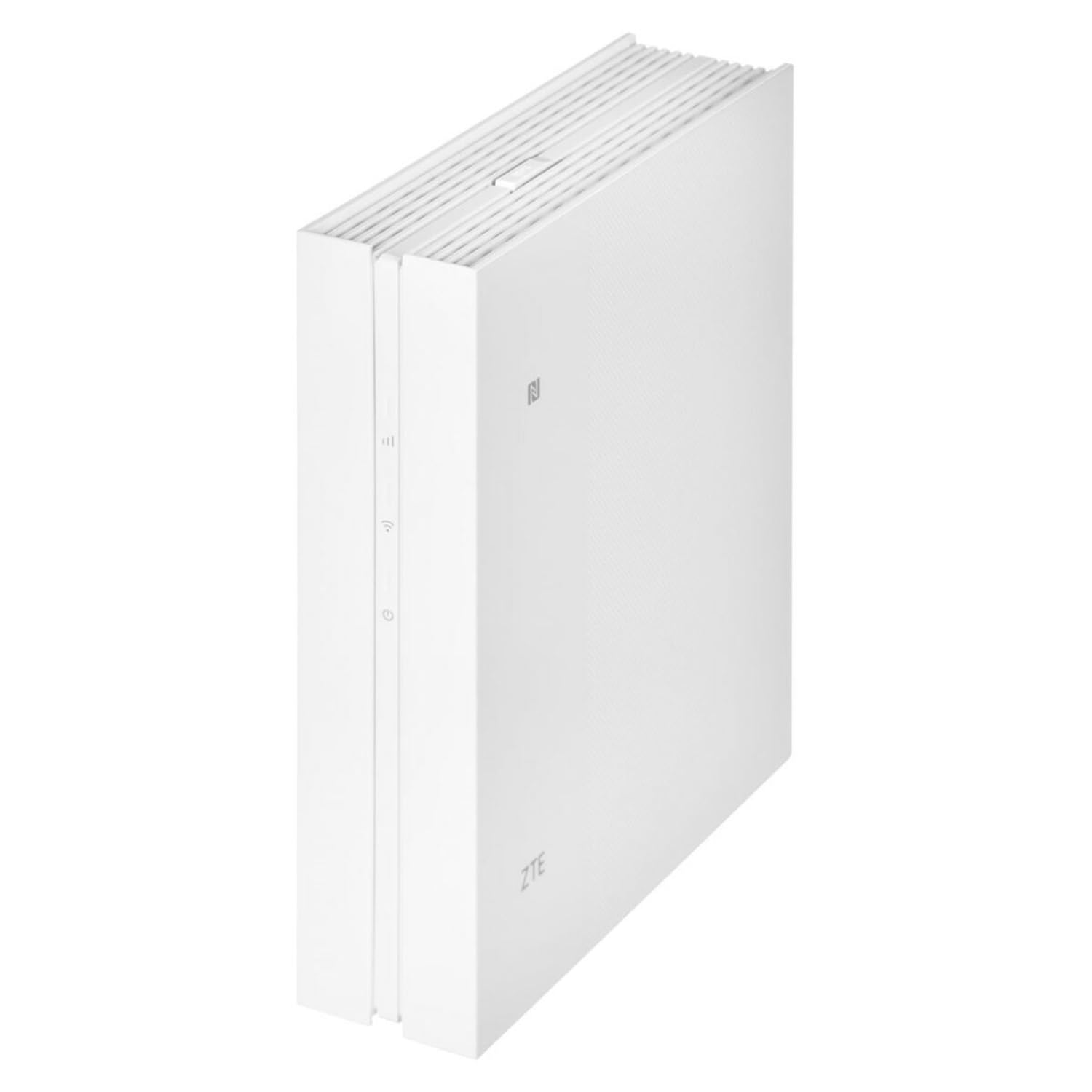
This image shows the front and side view of the ZTE MF297D Router, highlighting its compact design and the location of its various ports and LED indicators.
4. Configuració
Follow these steps to set up your ZTE MF297D Router:
- Connecteu l'adaptador de corrent: Plug one end of the provided power adapter into the router's power port and the other end into a standard electrical outlet. The power LED indicator should light up.
- Connect to the Internet Source: If your router requires an external modem or internet source, connect an Ethernet cable from your modem's LAN port to the router's WAN/Internet port (if available, otherwise follow specific instructions for your internet service provider).
- Connectar dispositius (opcional): For wired connections, connect an Ethernet cable from a LAN port on the router to the Ethernet port on your computer or other network device.
- Espera la inicialització: Allow a few minutes for the router to power on and initialize. The LED indicators should stabilize, indicating readiness.
- Connecta't a Wi-Fi: On your computer or mobile device, search for available Wi-Fi networks. Select the network name (SSID) printed on the label on the bottom or back of your router. Enter the Wi-Fi password (also known as the Wi-Fi Key or Network Key) provided on the same label.
5. Instruccions de funcionament
5.1 Accés a Web Interfície de gestió
To configure advanced settings, you can access the router's webInterfície de gestió basada en:
- Assegureu-vos que el dispositiu estigui connectat al router mitjançant Wi-Fi o Ethernet.
- Obre a web navegador (per exemple, Chrome, Firefox, Edge).
- A la barra d'adreces, escriviu l'adreça IP predeterminada del router (normalment
192.168.1.1or192.168.0.1, or as specified on the router's label) and press Enter. - Introduïu el nom d'usuari i la contrasenya predeterminats (normalment
adminper a tots dos, o tal com s'especifica a l'etiqueta del router). - You will now be in the router's configuration interface.
5.2 Configuració bàsica de Wi-Fi
Dins del web management interface, you can modify your Wi-Fi settings:
- Change Wi-Fi Name (SSID): Navigate to the Wireless or Wi-Fi settings section to change the network name.
- Canviar la contrasenya de Wi-Fi: Es recomana molt canviar la contrasenya predeterminada del Wi-Fi per una contrasenya forta i única per motius de seguretat.
- Enable Guest Network: If supported, enable a separate guest network for visitors to keep your main network secure.
6. Manteniment
To ensure the longevity and optimal performance of your ZTE MF297D Router, consider the following maintenance tips:
- Col·locació: Place the router in a central location, away from obstructions, large metal objects, and other electronic devices that may cause interference. Ensure good ventilation to prevent overheating.
- Neteja: Periodically clean the router's exterior with a soft, dry cloth. Do not use liquid cleaners or aerosols. Ensure vents are free from dust accumulation.
- Actualitzacions de firmware: Consulta el lloc web oficial de ZTE website for firmware updates. Keeping your router's firmware up-to-date can improve performance, add new features, and enhance security.
- Reiniciant: Si teniu problemes de xarxa, proveu de reiniciar el router desendollant l'adaptador de corrent durant 10 segons i després tornant-lo a connectar.
- Seguretat de contrasenya: Canvieu regularment les contrasenyes d'inici de sessió del Wi-Fi i del router per combinacions fortes i úniques.
7. Solució De Problemes
This section addresses common issues you might encounter with your ZTE MF297D Router.
7.1 Sense connexió a Internet
- Check if all cables are securely connected (power, Ethernet from modem).
- Verify that your modem (if separate) is working correctly and has an internet connection.
- Reinicieu tant el mòdem com el router.
- Check the internet status LED on the router. If it's off or red, there might be an issue with your internet service provider.
7.2 Slow Wi-Fi Speed or Intermittent Connection
- Ensure the router is placed in an open area, away from obstacles and interference sources (e.g., microwaves, cordless phones).
- Reduce the number of devices connected to the network, or limit bandwidth-intensive activities.
- Try changing the Wi-Fi channel in the router's settings to avoid interference from neighboring networks.
- Actualitzeu el firmware del router a la darrera versió.
7.3 Router Overheating
- Ensure the router is placed in a well-ventilated area. Do not cover the router or place it in an enclosed space.
- Check that the ventilation holes are not blocked by dust or other objects.
- If overheating persists and causes shutdowns, contact your retailer or ZTE support.
7.4 Heu oblidat la contrasenya d'inici de sessió del router?
- Locate the reset button on the router.
- With the router powered on, use a paperclip or a thin object to press and hold the reset button for about 10 seconds.
- The router will restart and revert to factory default settings, including the default login credentials (usually
admin/admin). - You will need to reconfigure your internet and Wi-Fi settings after a factory reset.
8. Especificacions
| Característica | Detall |
|---|---|
| Marca | ZTE |
| Nom del model | MF297D |
| Color | Multicolor |
| Tecnologia de connectivitat | Ethernet |
| Comunicació sense fils estàndard | 802.11n |
| Classe de banda de freqüència | Doble banda |
| Característiques especials | WPS, Guest Mode, Access Point Mode, LED Display |
| Dispositius compatibles | Ordinador personal, portàtil, tauleta, televisor intel·ligent |
| Ús recomanat del producte | Internet connection for devices on a local network |
| Sistema operatiu | [Sistema operatiu propietari] |
| Fabricant | ZTE |
9. Garantia i Suport
For warranty information, please refer to the documentation provided with your purchase or contact your retailer directly. Standard return policies, such as Amazon's 30-day guarantee, may apply from the date of purchase.
For technical support or further assistance, please visit the official ZTE website or contact their customer service. Be prepared to provide your product model number (MF297D) and any relevant purchase details.
Please note that spare parts availability and software update guarantees may vary and information may not be available directly from the manufacturer for all regions or models. It is advisable to check with your point of purchase for specific details.


