1. Introducció
The Rii RK801 is a versatile wireless keyboard designed for multi-device compatibility. It supports both Bluetooth 5.0 (BT1, BT2) and 2.4G wireless connections, allowing seamless switching between up to three devices. Featuring a rechargeable battery, RGB backlighting, and a built-in phone/tablet holder, this keyboard enhances productivity across various operating systems including Mac OS, Windows PC, and Android Smart TVs.
2. Contingut del paquet
- Rii RK801 Wireless Keyboard
- Receptor USB 2.4G
- Cable de càrrega USB
- Manual d'usuari (aquest document)
3. Configuració
3.1 Càrrega inicial
Before first use, fully charge the keyboard using the provided USB charging cable. Connect the cable to the keyboard's charging port and a USB power source. The charging indicator will show the charging status.
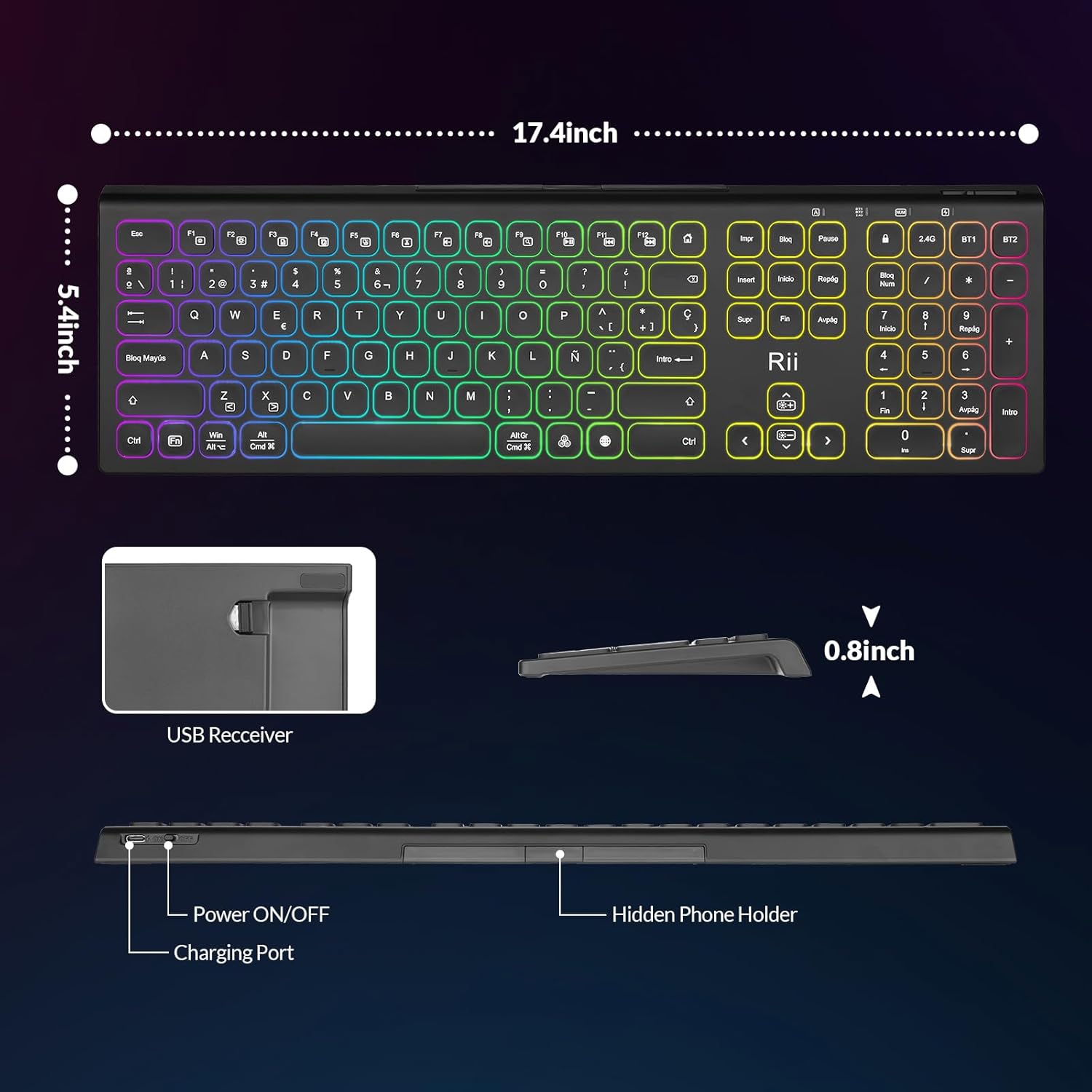
Image: The Rii RK801 keyboard highlighting the charging port and the location of the USB receiver. Dimensions are also shown.
3.2 Connexió sense fil 2.4G
- Locate the USB 2.4G receiver, typically stored in a compartment on the keyboard.
- Plug the USB receiver into an available USB port on your computer or compatible device.
- Enceneu el teclat amb l'interruptor d'alimentació.
- Premeu el botó 2.4G key on the keyboard. The keyboard should automatically connect to your device.
3.3 Connexió Bluetooth (BT1 / BT2)
El teclat admet dos canals Bluetooth (BT1 i BT2) per connectar-se a diferents dispositius.
- Enceneu el teclat amb l'interruptor d'alimentació.
- Manteniu premuda la tecla BT1 or BT2 key for 3-5 seconds until the indicator light flashes rapidly, indicating pairing mode.
- On your device (e.g., MacBook, iPad, Android Smart TV), go to Bluetooth settings and search for new devices.
- Select "Rii RK801" from the list of available devices.
- Un cop emparellat, l'indicador lluminós deixarà de parpellejar.
- Repeat these steps for the other Bluetooth channel to connect a second device.

Image: The Rii RK801 keyboard illustrating the different connection modes: 2.4G USB for laptops/PCs and Bluetooth (BT1/BT2) for smartphones, tablets, and laptops.
4. Instruccions de funcionament
4.1 Encès/Apagat
Use the physical power switch located on the keyboard to turn it on or off.
4.2 Canvi entre dispositius
Per canviar entre dispositius connectats, només cal que premeu la tecla de connexió corresponent: 2.4G, BT1, o BT2. The keyboard will connect to the last paired device on that channel.
4.3 Control de retroiluminació RGB
El teclat té retroil·luminació RGB personalitzable.
- Activar/Desactivar: Premeu llargament el botó RGB botó.
- Canvia el color: Premeu breument RGB button to cycle through different colors.
- Ajusta la brillantor: Premeu Fn +
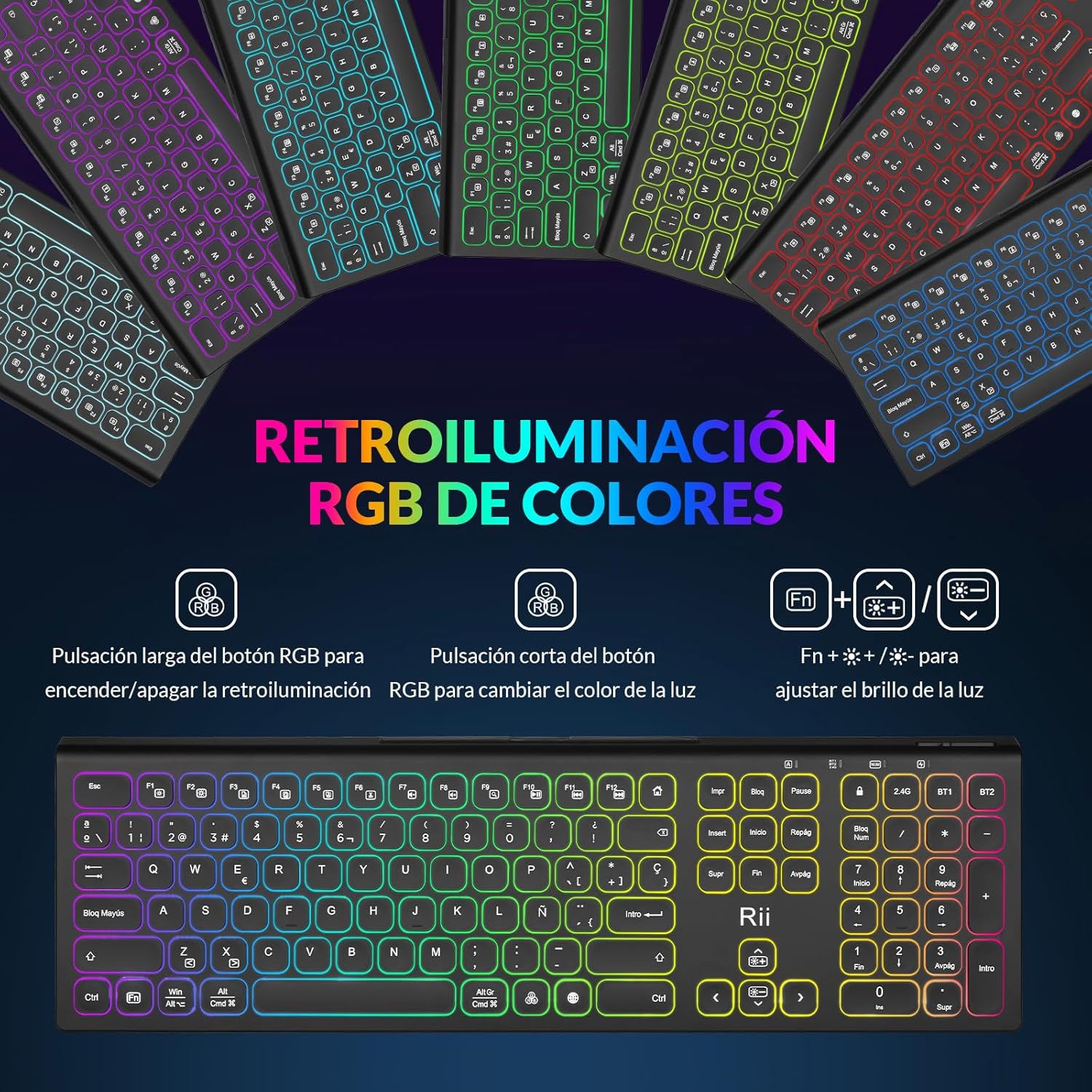 per ajustar la brillantor de la llum de fons.
Image: The Rii RK801 keyboard displaying the keys for controlling the RGB backlight: long press for on/off, short press for color change, and Fn + brightness keys for adjustment.
4.4 Suport integrat per a telèfon/tauleta
The keyboard includes a discreet, retractable stand designed to hold your smartphone or tablet, providing a convenient viewing angle while typing.
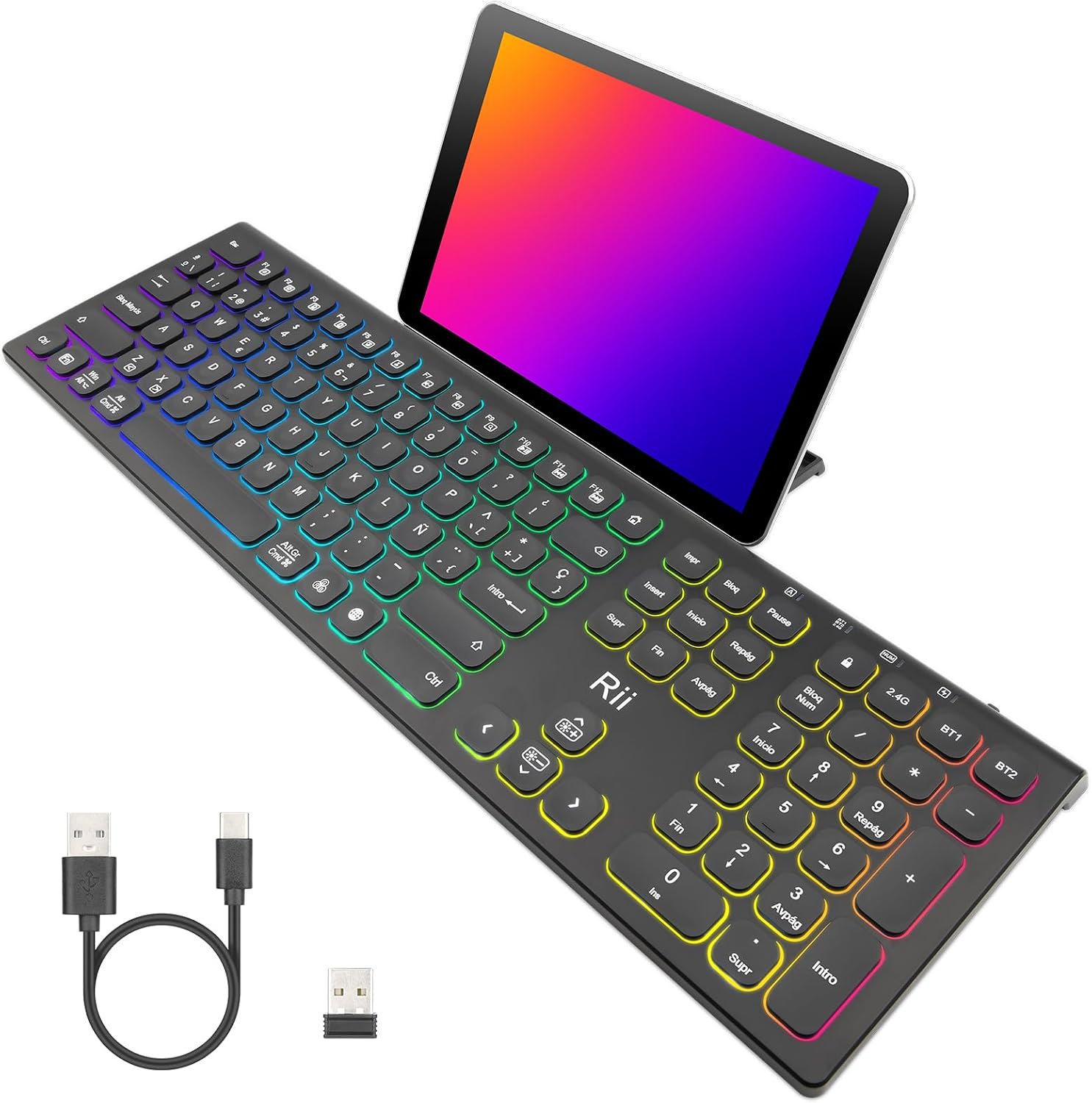
Image: The Rii RK801 keyboard with a tablet placed in its integrated stand, demonstrating the convenience for multi-device use.
Imatge: Un costat view of the Rii RK801 keyboard indicating the location of the hidden phone holder.
4.5 Key Type and Feel
The keyboard features mechanical keys with an innovative switch design, providing a comfortable typing experience and reduced noise.

Image: A diagram illustrating the scissor-type mechanical switch used in the Rii RK801 keyboard, designed for comfortable and quiet typing.

Imatge: Un primer pla view of a key on the Rii RK801 keyboard, highlighting its spherical design for comfortable finger placement.
5. Manteniment
- Neteja: Use a soft, dry cloth to clean the keyboard surface. For deeper cleaning, a slightly damp cloth can be used, ensuring no liquid enters the keycaps or internal components.
- Cura de la bateria: To prolong battery life, avoid fully discharging the keyboard frequently. Recharge when the low battery indicator appears. If storing for an extended period, charge the keyboard to about 50% and turn it off.
- Emmagatzematge: Guardeu el teclat en un lloc fresc i sec, allunyat de la llum solar directa i de temperatures extremes.
6. Solució De Problemes
- El teclat no es connecta: Ensure the keyboard is turned on and fully charged. For 2.4G, check if the USB receiver is properly inserted. For Bluetooth, ensure the keyboard is in pairing mode (flashing indicator) and your device's Bluetooth is enabled. Try re-pairing the device.
- Keys not responding or double typing: Ensure the keyboard is fully charged. If the issue persists, try cleaning around the affected keys. Ensure you are pressing keys centrally and firmly.
- La retroiluminació no funciona: Ensure the keyboard is turned on. Long press the RGB button to toggle the backlight. Check battery level.
- Autonomia curta de la bateria: Backlighting consumes more power. Reduce brightness or turn off the backlight to extend battery life. Ensure the keyboard is fully charged before use.
- Lag or delay in input: Ensure the keyboard is within range of the receiver/device. Avoid interference from other wireless devices. For 2.4G, try plugging the USB receiver into a different USB port, preferably a rear port on desktop PCs.
7. Especificacions
| Marca | veure |
| Número de model | RK801 |
| Connectivitat | Bluetooth 5.0 (BT1, BT2), 2.4G Wireless |
| Característiques especials | Rechargeable, RGB Backlight, Integrated Phone/Tablet Holder |
| Dispositius compatibles | Laptop, Smart TV, PC, Mac OS, Android devices |
| Tipus de bateria | Polímer d'ions de liti |
| Nombre de botons | 104 |
| Dimensions (aprox.) | 17.4 polzades (longitud) x 5.4 polzades (amplada) x 0.8 polzades (alçada) |
Image: The Rii RK801 keyboard with its approximate dimensions of 17.4 inches in length, 5.4 inches in width, and 0.8 inches in height.
8. Garantia i Suport
Specific warranty details and direct support contact information are not available in the provided product data. Please refer to the retailer's return policy or the manufacturer's official website for warranty claims and technical support.


