1. Producte acabatview
The FITCAMX HD2-6275 is a dual dash camera system designed for seamless integration into 2011-2023 Ford Explorer models equipped with an auto-dimming rearview mirror or rain sensor. This system provides high-definition video recording for both the front and rear of your vehicle, ensuring comprehensive coverage for your journeys.
The front camera records in crisp 4K (2160P) resolution, while the rear camera captures clear 1080P video, both at 30 frames per second. With wide-angle lenses (170° front, 140° rear), the system minimizes blind spots. Advanced features include seamless loop recording, G-Sensor collision detection, built-in WiFi for app connectivity, and superior night vision powered by WDR technology.
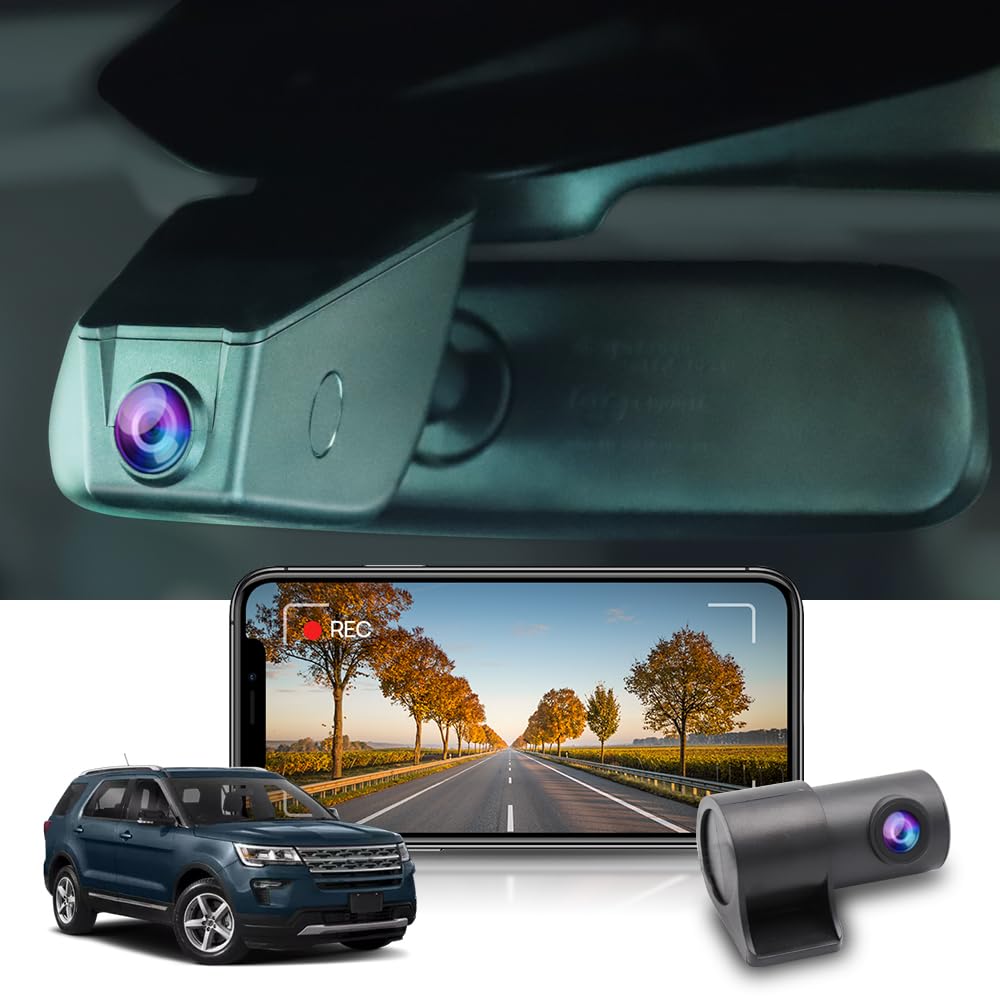
Image 1.1: FITCAMX HD2-6275 Dual Dash Cam seamlessly integrated into a Ford Explorer.
2. Contingut del paquet
Si us plau, verifiqueu que tots els elements siguin presents al vostre paquet:
- FITCAMX HD2-6275 Front Dash Cam (4K)
- Rear Dash Cam (1080P)
- Targeta MicroSD de 128 GB
- Power Cable (Y-cable for rearview mirror/rain sensor connection)
- Cable de la càmera posterior
- Installation Tools (e.g., pry tool, screwdriver)
- Manual d'usuari
3. Compatibilitat
This FITCAMX dash cam model (HD2-6275) is specifically designed for:
- Ford Explorer models manufactured between 2011 and 2023.
- Vehicles equipped with an Auto Dimming Rearview Mirror or Rain Sensor.
Important: Please send pictures of your rearview mirror cover to FITCAMX support if you are unsure about compatibility before installation.

Image 3.1: Visual guide to identify the correct FITCAMX model based on vehicle features.
4. Guia d'instal·lació
The FITCAMX dash cam is designed for a clean, OEM-look installation without the need for trimming or splicing wires. It integrates directly with your vehicle's existing power source.
4.1. Instal·lació de la càmera frontal del salpicader
- Remove the Original Screw: Use a T20 Torx bit to remove the original screw securing the rearview muntatge de mirall.
- Muntar el suport: Secure the provided mounting bracket onto the windshield using the appropriate screw.
- Muntar la càmera del salpicadero: Carefully slide the front dash cam onto the mounted bracket until it clicks into place.
- Connecteu el cable d'alimentació:
- Use a pry tool to gently open the rain sensor cover or rearview coberta de mirall.
- Disconnect the original wiring harness from the rain sensor or rearview mirall.
- Connect the provided Y-cable to the original wiring harness and then connect the other end of the Y-cable to the rain sensor/rearview mirall.
- Connect the dash cam's power cable to the Y-cable.
- Carefully tuck and hide any excess cable within the sensor cover area.
- Reattach the rain sensor cover or rearview coberta de mirall.
Video 4.1: Installation Tutorial for Ford Fusion Explorer (Seller: FiTCAMX Brand Store). This video demonstrates the process of installing the dash cam, including connecting the Y-cable to the rearview font d'alimentació del mirall.
Video 4.2: Installation Tutorial for HD2-6275 (Seller: FiTCAMX Brand Store). This video provides a step-by-step guide for installing the HD2-6275 model.
4.2. Instal·lació de la càmera del salpicader posterior
- Connect Rear Cam Cable: Plug the rear cam cable into the main front dash cam unit.
- Encamina el cable: Use a car wire trim tool to carefully tuck and hide the rear camera cable along the headliner, down the A-pillar, and along the door sills to the rear of the vehicle.
- Mount the Rear Cam: Secure the rear dash cam to the rear windshield using its adhesive mount. Ensure the lens has a clear view.
- Adjust Angle via App: Open the "SkyCamm" APP on your smartphone, connect to the dash cam's WiFi, and enter the camera preview interface. Adjust the angle of the rear cam for optimal coverage.
Video 4.3: Installation Video of Rear Lincoln Nautilus Dash Cam (Seller: Mangoal US). This video demonstrates the installation process for a rear dash cam, including cable routing.
5. Instruccions de funcionament
5.1. Funcionament automàtic
The dash cam is designed for automatic operation. It will power on and off automatically with your car's engine. Recording will begin automatically once the vehicle starts.
5.2. Enregistrament en bucle
The dash cam features seamless loop recording. When the memory card is full, the oldest footage will be overwritten by new content. This ensures continuous recording without manual intervention.
5.3. G-Sensor (Collision Detection)
The built-in G-Sensor detects sudden collisions or impacts. In the event of an incident, the dash cam will automatically save and lock the relevant footage to a specified folder, preventing it from being overwritten by loop recording. This ensures critical evidence is preserved.
5.4. WiFi & FITCAMX App Usage
The dash cam includes built-in WiFi for easy connectivity with the FITCAMX smartphone application (available on App Store and Google Play).
- Viu View: Connect to the dash cam's WiFi to view vídeo en temps real footage al teu telèfon.
- Descarrega Footage: Easily download important video clips directly to your smartphone.
- Configuració: Adjust camera settings, such as video resolution, recording time, and more, directly from the app.
Nota: For optimal performance, turn off cellular data/Bluetooth on your phone if you experience issues with live preview a l'aplicació.

Image 5.1: The FITCAMX App provides live view and control over your dash cam.
6. Manteniment
- Targeta de memòria: Regularly format the MicroSD card (e.g., once a month) to ensure optimal performance and prevent data corruption. Back up any important footage abans de formatar.
- Neteja de lents: Keep the camera lenses clean from dust and smudges using a soft, dry cloth to ensure clear video quality.
- Actualitzacions de firmware: Check the FITCAMX website or app periodically for firmware updates to improve performance and add new features.
- Temperatura: The dash cam is designed to operate in temperatures from -20°C to 85°C (-4°F to 185°F). Extreme temperatures outside this range may affect performance.
7. Solució De Problemes
- Q: Do I need to connect the camera's WiFi every time?
A: No. The dash cam will auto turn on/off along with your car engine. You don't need to connect with WiFi manually after the first use. - P: Puc? view video after turning off the car or remotely?
A: No, only if you've downloaded footage to your phone in advance. The camera's WiFi is not remote, and video will be auto-saved in the MicroSD card (not your phone). To view videos not yet downloaded, you can only watch them by connecting with built-in WiFi when the car is started. You can also watch all video when the MicroSD card is inserted onto a PC. - P: Per què s'escalfa la càmera del salpicader?
A: It is a normal situation. FITCAMX cameras can work normally at -20°C to 85°C (-4°F to 185°F). The surrounding space of the camera is small, and nearby original vehicle parts can also cause high temperatures. The installation position under the windshield can also cause high heat in direct sunlight. - Q: What if my phone can't connect with WiFi?
A: The WiFi can only be connected when the car engine is started and the dash cam is working. If you experience connection issues, ensure cellular data/Bluetooth is turned off. If problems persist, send screenshots of your WiFi and app page to customer support. - Q: Why doesn't my car have parking monitoring? Can I upgrade to this function?
A: Parking monitoring depends on whether your car's power plug can supply electricity continuously, which is determined by the car manufacturer. If continuous power is available, there is a parking mode; otherwise, not. To upgrade with this function, it requires an extra harness cable (sold separately).
8. Especificacions
| Característica | Detall |
|---|---|
| Resolució de vídeo frontal | 2160P (4K) @ 30fps |
| Resolució de vídeo posterior | 1080P @ 30fps |
| Angle de la lent frontal | 170° |
| Angle de la lent posterior | 140° |
| Abertura | f/1.6 |
| Sensor | Sensor CMOS |
| Visió nocturna | Tecnologia WDR |
| Connectivitat | Wi-Fi integrat, aplicació FITCAMX |
| Emmagatzematge | Supports up to 128GB MicroSD Card (128GB included) |
| Característiques especials | Loop Recording, G-Sensor |
| Temperatura de funcionament | -20 °C a 85 °C (-4 °F a 185 °F) |
| Material | ABS+PC d'alta densitat |
| Dimensions del producte | 13 x 10 x 5 polzades |
| Pes de l'article | 2.5 lliures |
9. Garantia i Suport
FITCAMX offers a 1 anys de garantia for this product. We are committed to providing prompt technical support for an optimal user experience. Please buy with confidence.
For technical assistance, warranty claims, or any questions regarding your FITCAMX dash cam, please contact our customer support team through the platform where you purchased the product or visit the official FITCAMX weblloc per obtenir informació de contacte.


