1. Producte acabatview
The MEETION Wireless Keyboard and Mouse Combo provides a full-sized keyboard with a wrist rest and a 3-DPI adjustable mouse, offering a reliable 2.4G wireless connection for various computing needs.
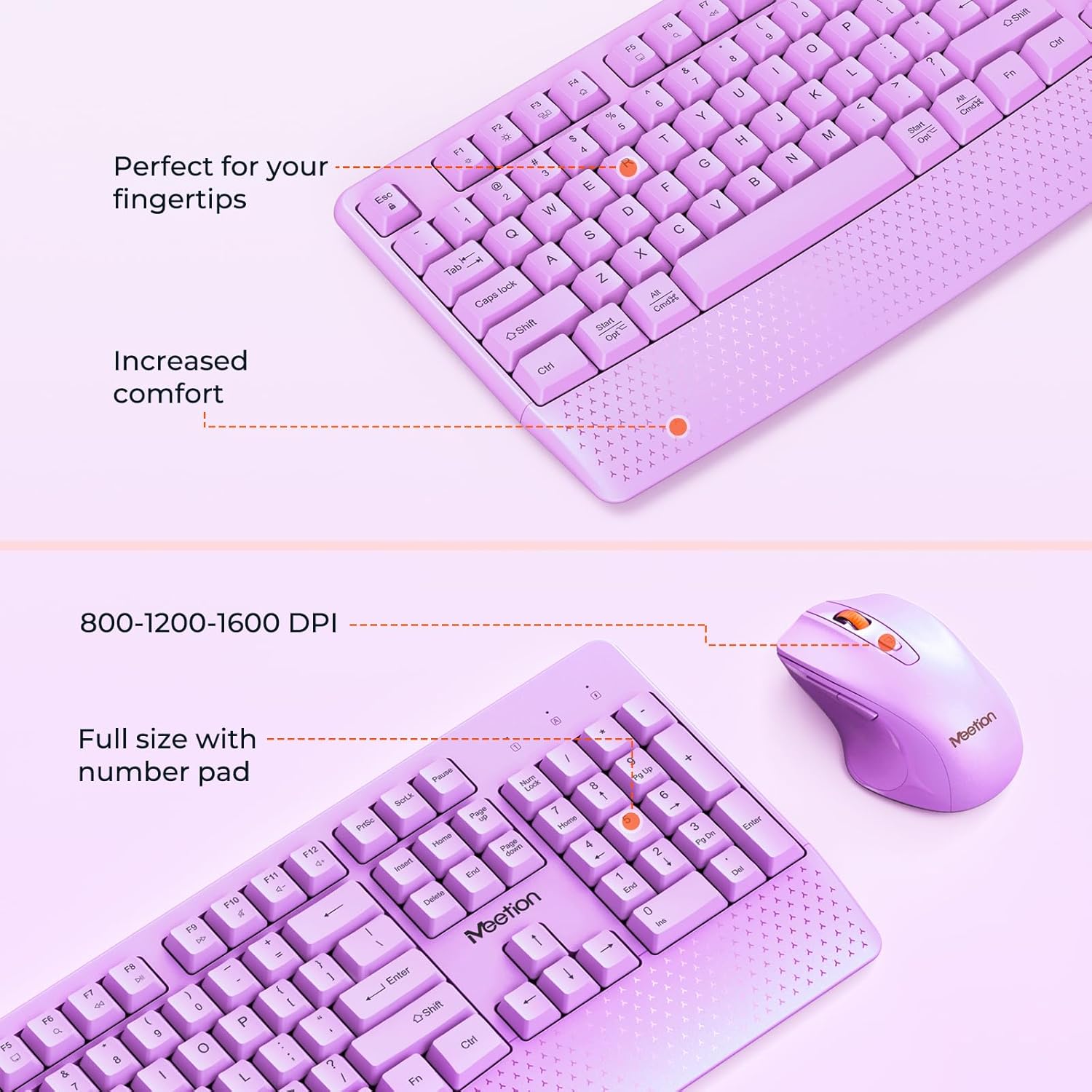
Image: The keyboard features a full-size layout with a number pad and an integrated wrist rest for comfort. The mouse offers adjustable DPI settings.

Imatge: Un cop mésview of the keyboard and mouse, highlighting various function keys on the keyboard and the buttons and features of the mouse.
2. Instruccions de configuració
2.1. Instal·lació de la bateria
The keyboard requires two AA batteries, and the mouse requires one AA battery. Batteries are not included.
- Localitzeu el compartiment de la bateria a la part inferior del teclat i del ratolí.
- Obriu les cobertes de la bateria.
- Introduïu les piles, assegurant-vos la polaritat correcta (+/-).
- Tanqueu bé les cobertes de les piles.

Image: This image illustrates the battery compartments for both the keyboard (requiring 2 AA batteries) and the mouse (requiring 1 AA battery).
2.2. Connexió del receptor sense fil
The keyboard and mouse share a single 2.4G USB Nano Receiver.
- Locate the USB Nano Receiver, typically stored in the mouse's battery compartment or packaging.
- Connecteu el nanoreceptor USB a un port USB-A disponible de l'ordinador.
- If your device only has USB-C ports, use the provided USB-C adapter. First, plug the USB Nano Receiver into the USB-C adapter, then plug the adapter into your device's USB-C port.
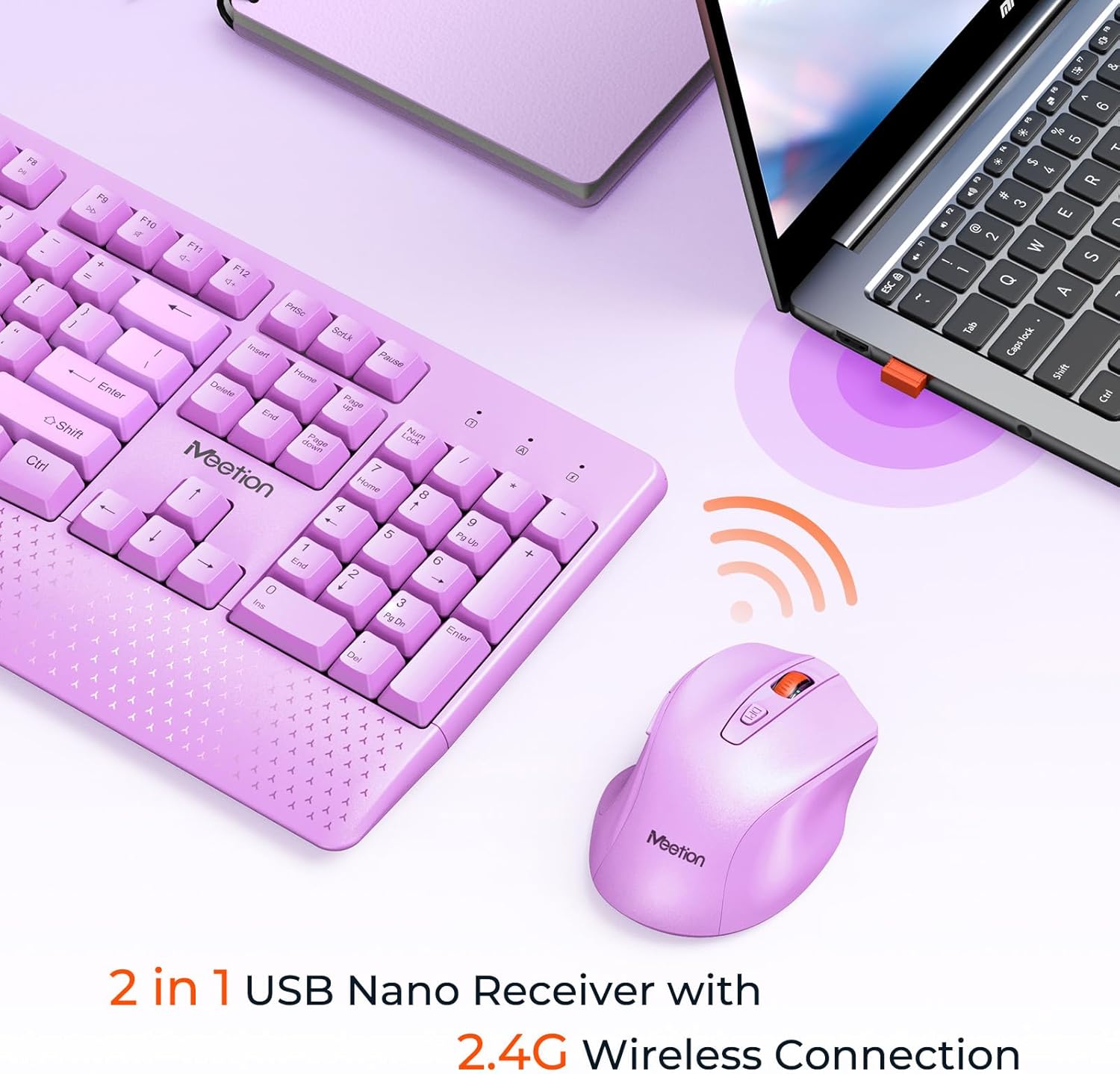
Image: The keyboard and mouse wirelessly connect to a laptop via a 2.4G USB Nano Receiver, shown plugged into a USB port.
Image: A diagram demonstrating how to use the USB-C adapter: the USB receiver plugs into the adapter, which then plugs into a Type-C port on a computer.
2.3. Encès
- For the mouse, slide the ON/OFF switch located on its underside to the 'ON' position.
- The keyboard does not have a separate power switch; it activates automatically upon successful connection and battery insertion.
3. Instruccions de funcionament
3.1. Ús del teclat
- Disseny a mida completa: The keyboard features a standard full-size layout, including a numeric keypad for efficient data entry.
- Reposa-canell integrat: The ergonomic wrist rest is designed to provide comfort and reduce strain during extended typing sessions.
- Inclinació ajustable: Flip out the kickstands on the underside of the keyboard to adjust the typing angle for improved comfort.
- Tecles de funció: Utilize the Fn (Function) key in combination with F1-F12 keys for multimedia controls and other shortcuts. Refer to the keyboard layout for specific functions.
Image: A close-up of the keyboard's side profile, illustrating the adjustable 8-degree tilt angle provided by the kickstands for ergonomic typing.
3.2. Ús del ratolí
- Disseny ergonòmic: The mouse is shaped to fit comfortably in your hand, promoting natural wrist and arm posture.
- DPI ajustable: Cycle through DPI settings (800, 1200, 1600) by pressing the DPI button located behind the scroll wheel. This allows you to adjust cursor sensitivity to your preference.
- Clics silenciosos: The mouse features silent click buttons for a quiet working environment.
- Botons laterals: Use the side buttons for forward and backward navigation in web navegadors i altres aplicacions.

Image: A detailed diagram of the mouse, labeling its components including the Left Button, Right Button, Scroll Wheel, DPI Button, Forward/Backward buttons, ON/OFF switch, Optical sensor, Battery Cover, Anti-Slip Pads, and USB Nano Receiver storage slot.
Image: An illustration demonstrating the adjustable DPI settings of the mouse, showing options for 800, 1200, and 1600 DPI.
4. Manteniment
4.1. Neteja
- To clean the keyboard and mouse, power them off and remove batteries if possible.
- Utilitzeu un suau, damp cloth to wipe surfaces. Avoid harsh chemicals or abrasive materials.
- For keyboard keys, use compressed air to remove dust and debris.
4.2. Substitució de la bateria
Replace batteries when performance degrades or the low battery indicator (if present) illuminates. Follow the battery installation steps in Section 2.1.
5. Solució De Problemes
- Sense conexió: Ensure batteries are correctly installed and charged. Verify the USB Nano Receiver is securely plugged into a working USB port. If using a USB-C adapter, ensure it is properly connected.
- El ratolí no respon: Check the mouse's ON/OFF switch. If the mouse enters sleep mode after inactivity, click any button to wake it up.
- Connexió endarrerida o intermitent: Move the keyboard and mouse closer to the USB Nano Receiver. Avoid placing the receiver near other wireless devices or large metal objects that may cause interference.
- L'ajust de DPI no funciona: Press the DPI button on the mouse to cycle through the available sensitivity settings (800/1200/1600 DPI).
6. Especificacions
| Característica | Detall |
|---|---|
| Marca | REUNIÓ |
| Model (teclat) | MT-CA330 |
| Model (ratolí) | MT-CA130 |
| Tecnologia de connectivitat | 2.4G Wireless, USB |
| Funció especial del teclat | Repòs de canell |
| Configuració de DPI del ratolí | 800-1200-1600 |
| Bateries del teclat | 2 piles AA (no incloses) |
| Bateries de ratolí | 1 bateria AA (no inclosa) |
| Dispositius compatibles | PC, Computer, Laptop, Windows, Mac, Gaming Console |
| Dimensions del paquet | 17.56 x 10.75 x 1.89 polzades |
| Pes de l'article | 1.98 lliures |
7. Garantia i Suport
For warranty information and technical support, please refer to the documentation included with your product packaging or visit the official MEETION weblloc. Conserveu el rebut de compra per a reclamacions de garantia.


