Introducció
This manual provides detailed instructions for the setup, operation, maintenance, and troubleshooting of your Feker K75 75% Gasket-Mounted Mechanical Keyboard. Designed for versatility and performance, the K75 features tri-mode connectivity (wired, 2.4GHz wireless, Bluetooth), a customizable TFT LCD screen, hot-swappable switches, and vibrant RGB backlighting. Please read this manual thoroughly to ensure optimal use and longevity of your device.
Producte acabatview
The Feker K75 is a compact 75% layout mechanical keyboard, offering an 83-key configuration. It is built with a high-quality PC material positioning plate and a multi-layered sound-shock absorbing internal structure for an enhanced typing experience.

Figura 1: De dalt a baix view of the Feker K75 Mechanical Keyboard, showcasing its 75% layout with a rotary knob and LCD screen.
Característiques principals:
- Disseny compacte al 75%: 83-key design for functionality without excessive size.
- Connectivitat trimodal: Admet connexions USB-C amb cable, sense fil de 2.4 GHz i Bluetooth 5.0.
- TFT LCD Screen: Customizable 1.28-inch display for time, connection mode, lighting, and GIFs.
- Pom giratori: Multi-functional knob for volume control and screen navigation.
- Sòcols intercanviables en calent: Compatible with 3-pin and 5-pin mechanical switches for easy customization.
- Retroil·luminació RGB: Multi-color customizable RGB lighting.
- Bateria de 5000 mAh: High-capacity battery for extended wireless use.
- Gasket-Mounted Structure: Provides a flexible and comfortable typing feel.
- OEM Height PBT Keycaps: Durable and ergonomic keycaps.
Configuració
1. Unboxing i Inspecció Inicial
Traieu amb cura tots els components de l'embalatge. Verifiqueu que hi hagi els elements següents:
- Feker K75 Mechanical Keyboard
- Cable USB-C
- 2.4GHz Wireless Dongle (typically stored magnetically within the keyboard chassis)
- Extractor de tecles
- Switch Puller (often included with keycap puller or as a separate tool)
- Manual d'usuari (aquest document)
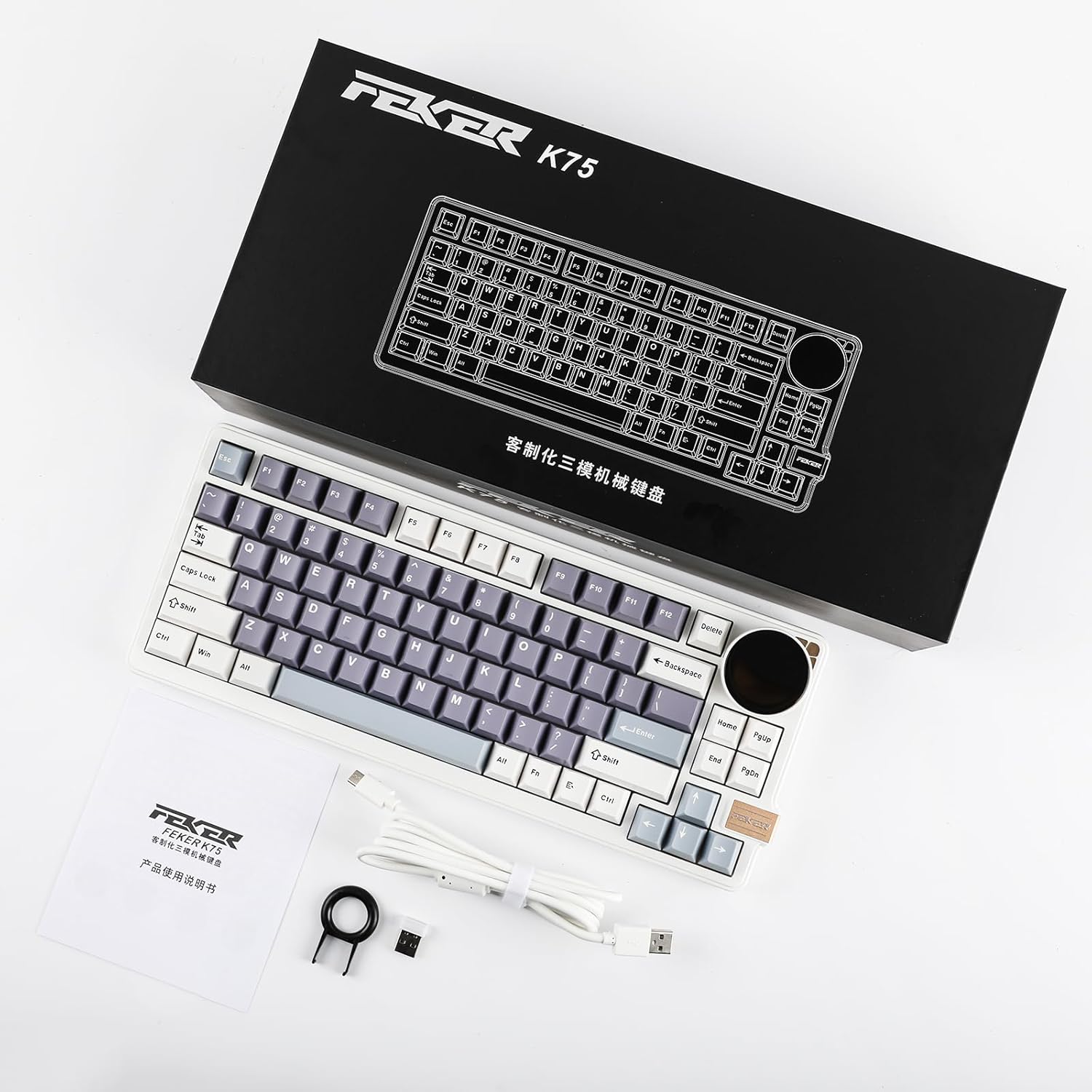
Figure 2: Contents of the Feker K75 package, including the keyboard, USB-C cable, and keycap puller.
2. Carregant la bateria
Before first use, it is recommended to fully charge the keyboard's built-in 5000mAh battery. Connect the provided USB-C cable to the keyboard's USB-C port and the other end to a USB power source (e.g., computer USB port, wall adapter). The keyboard's indicator light or LCD screen may show charging status.

Figure 3: The Feker K75 keyboard highlighting its 5000mAh rechargeable battery. Press FN+Spacebar to check battery life (numbers 1-0 represent 10%-100%).
3. Connexió del teclat
The Feker K75 supports three connection modes:
- Mode amb cable (USB-C):
Connect the USB-C cable directly from the keyboard to your computer's USB port. The keyboard will automatically switch to wired mode and begin charging.
- Mode sense fil de 2.4 GHz:
Locate the 2.4GHz USB dongle, typically stored magnetically within the keyboard chassis. Plug the dongle into an available USB port on your computer. Turn on the keyboard using the switch located on the back or side. The keyboard should automatically connect. Press FN + F4 to activate 2.4G mode if needed.
- Mode Bluetooth 5.0:
The keyboard supports up to three Bluetooth devices. To enter Bluetooth pairing mode, press FN + F1, F2, o F3 for 3 seconds until the indicator light flashes rapidly. On your device (PC, laptop, smartphone, tablet), search for Bluetooth devices and select "Feker K75" (or similar name) to pair. Once paired, the indicator light will become solid. To switch between paired Bluetooth devices, simply press FN + the corresponding F1/F2/F3 clau.

Figure 4: The Feker K75 keyboard demonstrating its versatile tri-mode connectivity options: Bluetooth, 2.4G wireless, and USB-C wired, compatible with various devices.
Instruccions de funcionament
1. TFT LCD Screen and Rotary Knob
The Feker K75 features a 1.28-inch TFT LCD screen and a multi-functional rotary knob. By default, the knob controls volume and media playback:
- Rotate knob clockwise: Volume Up
- Rotate knob counter-clockwise: Volume Down
- Press knob: Play/Pause
To enter the screen control mode and access additional functions, press FN + Pom. In screen control mode, the knob can be used to navigate through various display options:
- Pantalla d'espera: Displays time, date, and battery status.
- Keyboard Connection Mode: Shows current connection status (Wired, 2.4G, BT).
- Control de llums: Adjust RGB lighting effects.
- Clock Screensaver: Various clock display styles.
- GIF Image: Upload and display custom GIFs.

Figure 5: The Feker K75's 1.28-inch TFT LCD screen and rotary knob, illustrating the five main functions accessible via screen control mode.
2. RGB Backlight Shortcuts
Control the keyboard's RGB backlighting using the following FN key combinations:
| Combinació de tecles | Funció |
|---|---|
| FN + \ | Switch Backlight Mode (Cycle through various effects) |
| FN + Retrocés | Switch Single Light & RGB (Toggle between single color and RGB modes) |
| FN + Entra | Activa/desactiva la llum de fons |
| FN + ↑ | Brightness + (Increase backlight brightness) |
| FN + ↓ | Brightness - (Decrease backlight brightness) |
| FN + ← | Speed + (Increase backlight effect speed) |
| FN + → | Speed - (Decrease backlight effect speed) |

Figure 6: Visual guide to RGB backlight shortcuts on the Feker K75 keyboard.
3. Commutadors intercanviables en calent
The Feker K75 features hot-swappable sockets, allowing you to change mechanical switches without soldering. This keyboard is compatible with most 3-pin and 5-pin mechanical switches.
- Extracció d'un interruptor:
Use the provided switch puller. Align the prongs of the puller with the two clips on the top and bottom of the switch. Squeeze the clips firmly and gently pull the switch straight up and out of the socket.
- Instal·lació d'un interruptor:
Ensure the switch pins are straight. Align the pins with the holes on the PCB (Printed Circuit Board). Gently push the switch straight down until it clicks into place. Do not force the switch; if it doesn't go in easily, check for bent pins.

Figure 7: Demonstration of hot-swapping a mechanical switch on the Feker K75 keyboard.
4. Software Customization (VIA/Proprietary Software)
The Feker K75 keyboard is software programmable, allowing for advanced customization of key mappings, macros, and screen settings. While the product description mentions VIA compatibility, some users have reported issues with the proprietary software, particularly regarding language settings for the LCD screen. It is recommended to check the official KiiBoom website or community forums for the latest software and firmware updates.
The software typically allows you to:
- Configuració de la pantalla: Upload custom GIFs or images to the LCD screen.
- Keys Remap: Reassignar funcions a tecles individuals.
- Macro: Create and assign complex key sequences.
- Llum: Fine-tune RGB lighting effects and colors.

Figure 8: The Feker K75 keyboard with a laptop displaying the customization software interface, allowing for key remapping and screen settings.
Manteniment
1. Neteja del teclat
Una neteja regular ajuda a mantenir l'aspecte i la funcionalitat del teclat.
- Tecles de tecles: Use the keycap puller to remove keycaps. Clean them with mild soap and water, then dry thoroughly before reattaching.
- Cos del teclat: Utilitzeu un drap suau i sense pelusa dampened with a small amount of isopropyl alcohol or a gentle cleaning solution. Avoid excessive moisture.
- Entre claus: Use compressed air to blow out dust and debris. A small brush can also be used to dislodge stubborn particles.
2. Switch and Keycap Replacement
As detailed in the "Hot-Swappable Switches" section, switches and keycaps can be replaced. This allows for easy repair of faulty components or customization of typing feel and aesthetics. Ensure replacement switches are compatible (3-pin or 5-pin mechanical switches).
Resolució de problemes
| Problema | Causa possible | Solució |
|---|---|---|
| Keyboard not connecting (Wireless/Bluetooth) | Low battery, incorrect mode, dongle not plugged in, pairing issue. | Charge the keyboard. Ensure the correct mode (2.4G/BT) is selected via FN key combinations. Re-pair Bluetooth if necessary. Ensure 2.4G dongle is securely plugged in. |
| LCD Screen display issues (e.g., Chinese language, incorrect time) | Firmware/software issue, regional settings. | Check the official KiiBoom website for updated firmware or software that might address language or time synchronization issues. Some users have reported this as a known limitation. |
| Les tecles no responen o s'escriu dues vegades | Interruptor defectuós, deixalles sota la tapa de la tecla/interruptor. | Remove the keycap and switch. Clean the socket with compressed air. Reinstall the switch. If the issue persists, replace the switch with a new one. |
| La il·luminació RGB no funciona o està bloquejada | Software glitch, incorrect settings. | Try cycling through RGB modes using FN shortcuts. Restart the keyboard. Check the customization software for lighting settings. |
| Keyboard not charging | Faulty cable, power source, or keyboard port. | Try a different USB-C cable and a different USB power source. Ensure the cable is fully inserted into the keyboard's port. |
Especificacions
| Característica | Detall |
|---|---|
| Dimensions del producte | 13.7 x 6.4 x 1.83 polzades (34.8 x 16.3 x 4.6 cm) |
| Pes de l'article | 3.54 lliures (1.6 kg) |
| Fabricant | KiiBoom |
| Bateries | 1 bateria de ions de liti (inclosa), 5000 mAh |
| Tecnologia de connectivitat | Bluetooth 5.0, USB-C Wired, 2.4GHz Wireless |
| Dispositius compatibles | Laptop, PC, Smartphone, Tablet (Windows/Mac compatible) |
| Descripció del teclat | Teclat mecànic per a jocs |
| Característiques especials | Backlit (RGB), Customizable Display Keys (TFT LCD), Hot-Swappable, Rechargeable, Rotary Knob |
| Color | White (Corgi Switch variant) |
| Disposició del teclat | 75% (83 tecles) |
| Material de claus | PBT (OEM Height) |
| Tipus de canvi | Corgi Linear Switches (or Kailh Vanilla Ice Cream Switches, depending on variant) |
Garantia i Suport
Per obtenir informació sobre la garantia i assistència tècnica, consulteu la pàgina oficial de KiiBoom. weblloc web o contacteu directament amb el seu servei d'atenció al client. Conserveu el rebut de compra com a comprovant de compra per a qualsevol reclamació de garantia.
Official KiiBoom Store: KiiBoom Amazon Store


