Introducció
This manual provides comprehensive instructions for the setup, operation, maintenance, and troubleshooting of your A4TECH FG20 2.4G Wireless Mouse. Please read this manual carefully before using the product to ensure optimal performance and longevity.
Contingut del paquet
- A4TECH FG20 2.4G Wireless Mouse
- Nano receptor USB
- AA Battery (may be pre-installed or included separately)
- Manual d'usuari (aquest document)
Guia de configuració
Follow these steps to set up your A4TECH FG20 Wireless Mouse:
- Instal·leu la bateria: Locate the battery compartment on the underside of the mouse. Open the cover and insert the AA battery, ensuring the polarity (+/-) matches the diagram inside the compartment. Close the battery cover securely.
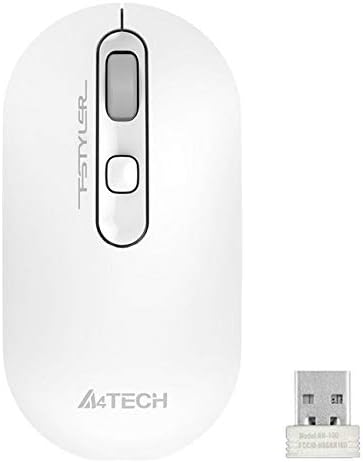
Image: A4TECH FG20 Wireless Mouse shown alongside its USB Nano Receiver. This illustrates the two main components required for operation.
- Connecteu el nano receptor USB: Remove the USB Nano Receiver from its storage slot, usually located within the battery compartment or near it. Plug the receiver into an available USB port on your computer.

Image: A schematic diagram depicting the wireless connection between the mouse and a computer via the USB receiver. This visual aid helps understand the connection process.
- Engegar el ratolí: If your mouse has an On/Off switch, slide it to the "On" position. The mouse should automatically connect to the receiver.
- Instal·lació del controlador: Your computer's operating system (Windows, Linux) should automatically detect and install the necessary drivers. No manual driver installation is typically required.
Instruccions de funcionament
The A4TECH FG20 Wireless Mouse is designed for intuitive use. Here are its primary functions:
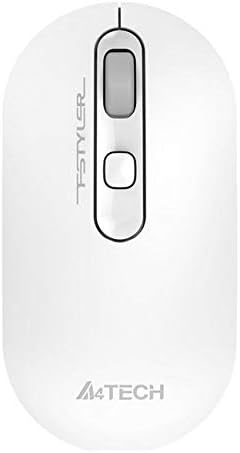
Imatge: De dalt a baix view of the A4TECH FG20 Wireless Mouse, highlighting its ergonomic shape and button layout.
- Clic esquerre: S'utilitza per seleccionar elements, obrir files, i activant funcions.
- Clic dret: Opens context menus, providing additional options for selected items.
- Roda de desplaçament: Desplaça't amunt o avall pels documents i web pàgines. La roda de desplaçament també pot funcionar com a botó central.
- Botó d'ajust de DPI: (If applicable, typically located near the scroll wheel) This button allows you to cycle through different cursor speeds (DPI settings) to suit your preference and task.
- Disseny ergonòmic: The mouse features an ergonomic design for comfortable use during extended periods.
Manteniment
Un manteniment adequat garanteix la longevitat i el rendiment del ratolí:
- Neteja: Use a soft, dry cloth to clean the surface of the mouse. For stubborn dirt, slightly dampNetegeu el drap amb aigua o una solució de neteja suau. Eviteu productes químics agressius o materials abrasius.
- Neteja del sensor: Occasionally, clean the optical sensor on the underside of the mouse with a cotton swab to ensure accurate tracking.
- Substitució de la bateria: When the mouse performance degrades or it stops responding, replace the AA battery with a fresh one.
- Emmagatzematge: When not in use for extended periods, turn off the mouse to conserve battery life. Store the USB Nano Receiver in its designated slot to prevent loss.
Resolució de problemes
If you encounter issues with your A4TECH FG20 Wireless Mouse, refer to the following common solutions:
- El ratolí no respon:
- Assegureu-vos que el ratolí estigui encès.
- Comproveu si la bateria està instal·lada correctament i té prou càrrega. Substituïu-la si cal.
- Verify the USB Nano Receiver is securely plugged into a working USB port on your computer. Try a different USB port.
- Reinicieu l'ordinador.
- Lagging or Erratic Cursor Movement:
- Netegeu el sensor òptic de la part inferior del ratolí.
- Assegureu-vos que feu servir el ratolí sobre una superfície adequada (no reflectant, opaca).
- Move the mouse closer to the USB Nano Receiver to reduce interference.
- Check for other wireless devices that might be causing interference.
- Problemes de connexió:
- If the mouse loses connection frequently, try re-pairing it (if a pairing button is available, otherwise, simply unplug and replug the receiver).
- Ensure no large metal objects are between the mouse and the receiver.
Especificacions

Imatge: Side profile view of the A4TECH FG20 Wireless Mouse, illustrating its slim and ergonomic contour.
| Característica | Detall |
|---|---|
| Model | FG20 |
| Tecnologia de connectivitat | 2.4G Wireless (Infrared) |
| Detecció de moviment | Làser |
| Quantitat de botons | 3 |
| Orientació de la mà | Ambidextre |
| Característiques especials | Disseny ergonòmic |
| Color | Blanc |
| Dispositius compatibles | Ordinador personal |
| Compatibilitat de sistemes operatius | Linux, Windows 7, Windows XP |
| Fabricant | A4TECH |
| País d'origen | Xina |
Garantia i Suport
The A4TECH FG20 Wireless Mouse is manufactured to high-quality standards. For information regarding the manufacturer's warranty, please refer to the documentation provided with your purchase or visit the official A4TECH weblloc.
Extended warranty options may be available from third-party providers, such as the 1-Year or 2-Year Extended Warranty by Salama Care. These are separate from the manufacturer's warranty.
For technical support or further assistance, please contact the retailer where you purchased the product or visit the official A4TECH support channels.


