Introducció
Thank you for choosing the MINIX Portable Monitor. This 16-inch Full HD 1200P IPS touch screen display is designed for enhanced productivity and entertainment on the go. Its ultra-slim design and versatile connectivity make it an ideal companion for laptops, PCs, gaming consoles, and mobile devices. This manual provides essential information for setting up, operating, maintaining, and troubleshooting your new portable monitor.
Informació de seguretat
- Do not expose the monitor to rain or moisture to prevent fire or electric shock hazards.
- Eviteu col·locar el monitor a la llum solar directa o a prop de fonts de calor.
- Use only the power adapter and cables provided or recommended by MINIX.
- No intenteu desmuntar ni reparar el monitor vosaltres mateixos. Encarregueu tot el manteniment a personal qualificat.
- Mantingueu el monitor allunyat de camps magnètics forts.
- Clean the screen with a soft, lint-free cloth. Do not use liquid cleaners or aerosol sprays directly on the screen.
Què hi ha a la caixa
Verifiqueu que tots els elements siguin presents al vostre paquet:
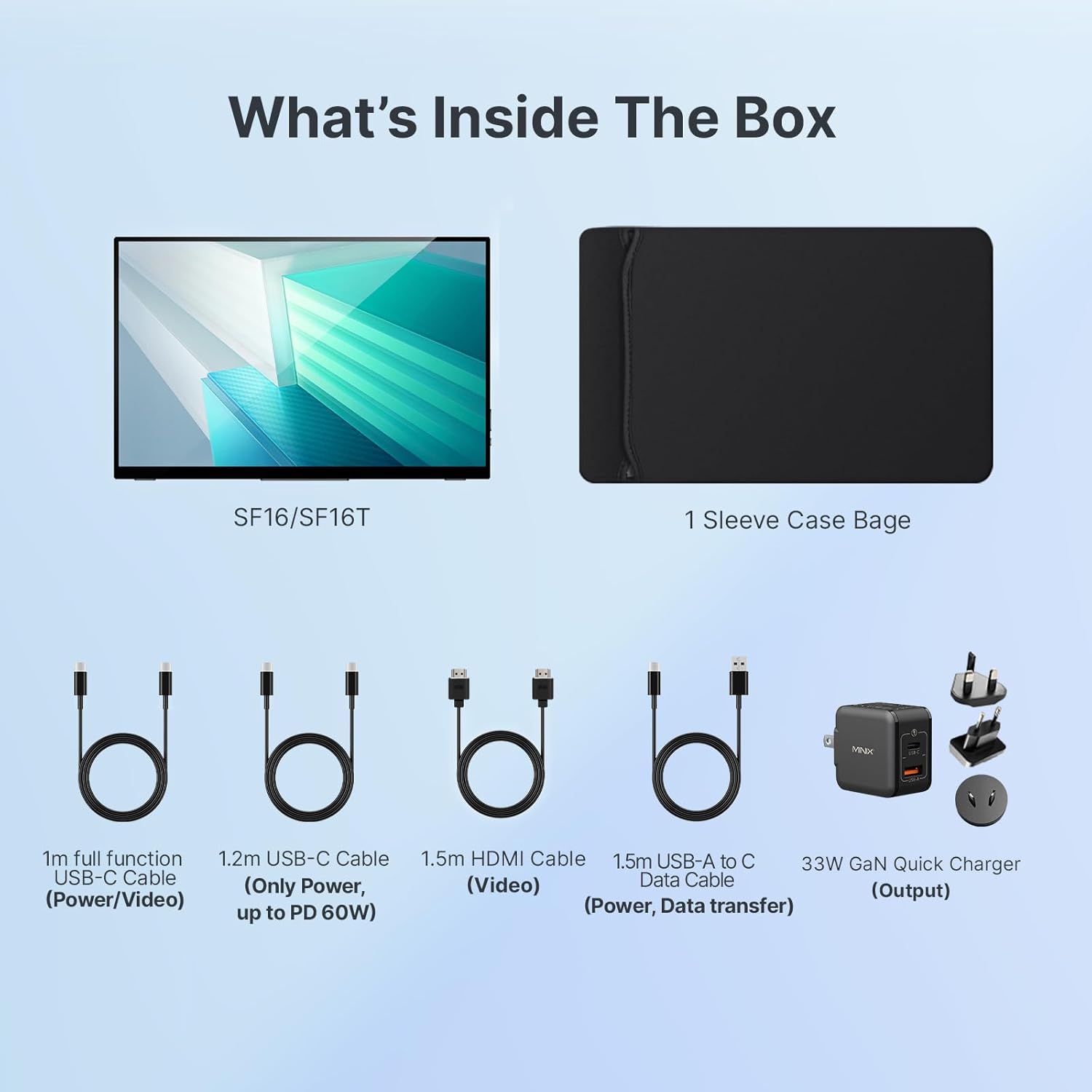
Figura 1: Contingut del paquet
- MINIX Portable Monitor (SF16/SF16T)
- Bossa de mànigues
- 1m Full Function USB-C to USB-C Cable (Power/Video)
- 1.2m USB-C to USB-C Cable (Power, up to PD 60W)
- 1.5m HDMI to HDMI Cable (Video)
- 1.5m USB-A to C Data Cable (Power, Support Touch for SF16T)
- 33W GaN Quick Charger (Output)
Producte acabatview
Familiarize yourself with the ports and controls on your MINIX Portable Monitor.

Figure 2: Monitor Ports and Controls
- Port USB 2.0: Connects to a keyboard or mouse.
- Botó d'encesa: Encén/apaga el monitor.
- Brightness/Up Key: Adjusts screen brightness or navigates menu up.
- Volume/Down Key: Ajusta el volum o navega pel menú cap avall.
- Standard HDMI Port: Connects to devices via HDMI for video input.
- Conector d'àudio de 3.5 mm: Per connectar auriculars o altaveus externs.
- Type-C (Full Function) Ports: Two full-featured USB-C ports for power, video, and touch data transfer.

Figure 3: Ultra-Slim Design
Configuració
Connexió inicial
The MINIX Portable Monitor offers flexible connectivity options. Ensure your device supports USB 3.1 Type C DP Alt-Mode for full functionality via a single USB-C cable.
- Font d'alimentació: Connect the provided 33W GaN Quick Charger to one of the monitor's USB-C ports (or use a power bank with sufficient output).
- Video & Data Connection:
- USB-C (Single Cable Solution): If your laptop or device has a full-featured USB-C port (supporting DisplayPort Alternate Mode and Power Delivery), connect it to one of the monitor's full-function USB-C ports using the 1m full function USB-C cable. This single cable can provide power, video, and touch functionality.
- HDMI + USB-C (for Power/Touch): If your device only has an HDMI output, connect the monitor via the HDMI port using the 1.5m HDMI cable for video. Then, connect a USB-C port on the monitor to a USB-A or USB-C port on your device using the 1.5m USB-A to C data cable for power and touch functionality (if applicable).
- Encès: Press the Power Button on the monitor to turn it on.

Figura 4: Diagrama de connectivitat
Using the Built-in Stand
The monitor features a built-in kickstand for easy adjustment of viewing angles. Simply extend the stand from the back of the monitor and adjust it to your desired angle between -10° and -35°.
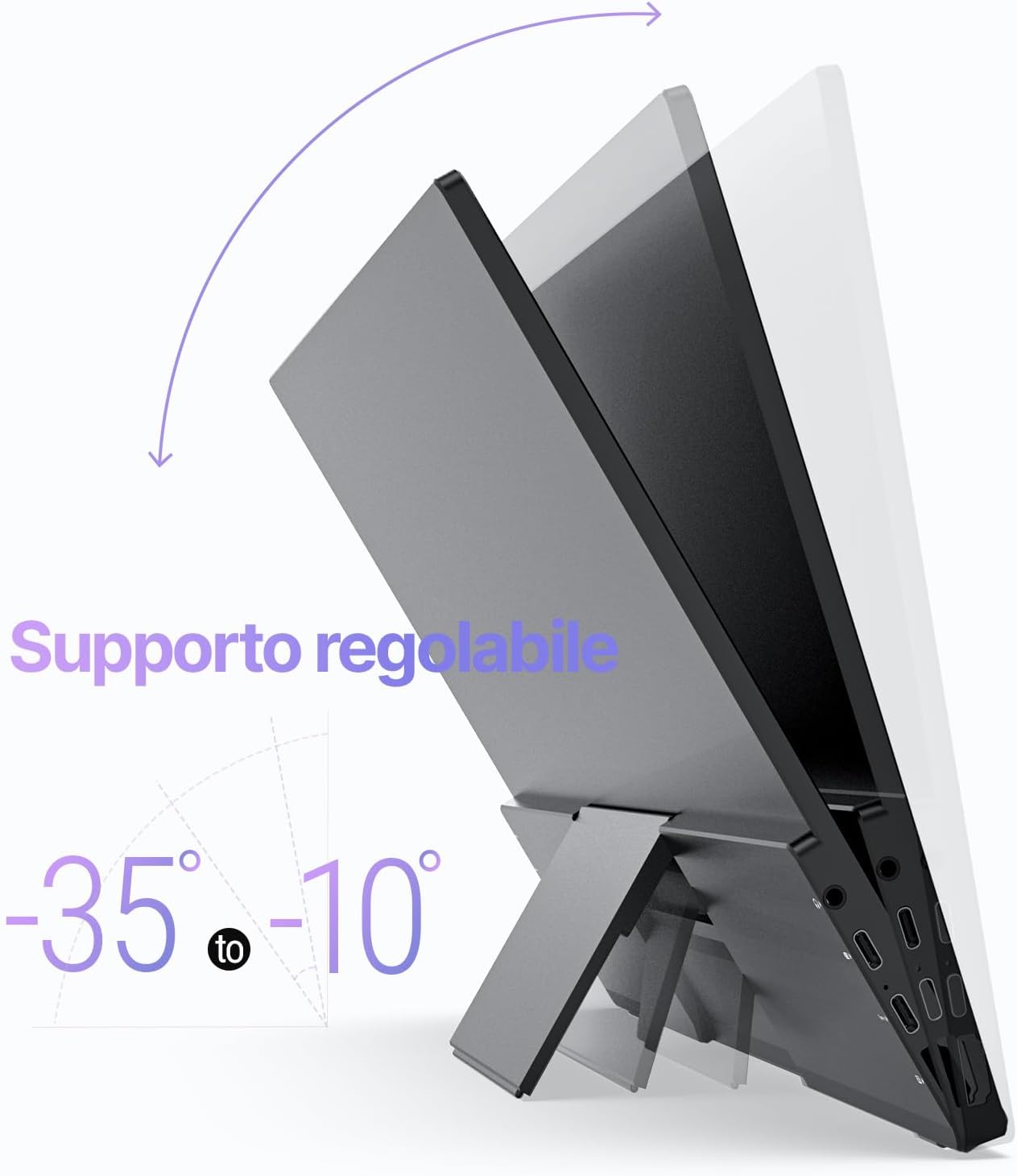
Figure 5: Adjustable Stand
En funcionament
Configuració de la pantalla
Use the Brightness/Up and Volume/Down keys on the side of the monitor to access and navigate the On-Screen Display (OSD) menu. Here you can adjust various settings such as brightness, contrast, color temperature, and input source.
Touch Screen Functionality (SF16T Model)
The SF16T model supports ten-point multi-touch and gesture controls across various operating systems including macOS, Windows 10/11, Android, and Linux. Ensure the USB-C connection is properly established for touch functionality.

Figure 6: Multi-Touch Support
Vídeo demostració
Watch this official video from MINIX Technology Limited for a visual guide on setting up and using your portable monitor, highlighting its key features like the built-in stand, multi-touch support, and USB-C connectivity.
Video 1: MINIX 16" Portable Touch Monitor Overview
Manteniment
- Neteja de la pantalla: Netegeu suaument la pantalla amb un drap suau, sec i sense borrissol. Per a marques difícils, netegeu lleugerament.ampen the cloth with water or a screen-specific cleaning solution (apply to cloth, not directly to screen).
- Neteja de la Casing: Feu servir un drap suau i sec per netejar l'exterior de la casing. Eviteu netejadors o dissolvents abrasius.
- Emmagatzematge: When not in use, store the monitor in its provided sleeve case to protect it from dust and scratches. Keep it in a cool, dry place.
- Manipulació: Always handle the monitor by its edges. Avoid applying pressure to the screen.
Resolució de problemes
| Problema | Causa possible | Solució |
|---|---|---|
| No display/"No Signal" message | Incorrect input source selected; Loose cable connection; Insufficient power; Device not outputting signal. |
|
| Touch screen not responding (SF16T) | USB-C data cable not connected or not full-featured; Driver issue; OS incompatibility. |
|
| Pantalla parpellejant | Cable issue; Interference; Refresh rate mismatch. |
|
| No audio from monitor speakers | Volume too low; Audio output not set to monitor; Cable issue. |
|
Especificacions
| Característica | Detall |
|---|---|
| Número de model | SF16 |
| Mida de la pantalla | 16 polzades |
| Resolució | 1920 x 1200 Pixels (FHD 1200P) |
| Relació d'aspecte | 16:10 |
| Tipus de panell | IPS |
| Brillantor | 300 Candela (Nits) |
| Pantalla tàctil | Yes (SF16T model, 10-point touch) |
| Connectivitat | 2x Full-featured USB-C, 1x Standard HDMI, 1x USB 2.0, 1x 3.5mm Audio Jack |
| Dimensions (L x A x A) | 4.84 x 15.59 x 10.79 polzades |
| Pes de l'article | 4.16 lliures |
| Superfície de la pantalla | brillant |
| Característiques de la cura dels ulls | Flicker Free, Blue Light Filter |
Garantia i Suport
MINIX Technology Limited provides a limited warranty for this product. Please refer to the warranty card included in your package for specific terms and conditions. For technical support, troubleshooting assistance, or warranty claims, please contact MINIX customer service through their official weblloc web o el venedor on vau comprar el producte.
You can visit the official MINIX Store on Amazon for more information and support: MINIX Store