1. Introducció
This manual provides detailed instructions for the setup, operation, and maintenance of your Irfora Portable Receipt Printer, model MP210. This compact thermal printer is designed for various applications, offering wireless Bluetooth and USB connectivity for compatibility with Android, iOS, and Windows systems. It utilizes 58mm thermal paper for efficient and clear printing without the need for ink cartridges.

Figure 1: Irfora MP210 Portable Receipt Printer with a thermal paper roll.
2. Què hi ha a la caixa
Si us plau, comproveu el contingut del paquet en desembalar-lo. Si falta algun article o hi ha algun malmès, poseu-vos en contacte amb el servei d'atenció al client.
- 1 x Thermal Printer (MP210)
- 1 x Rotlle de paper tèrmic
- 1 x cable USB
- 1 x Manual d'usuari (Aquest document)

Figure 2: Contents of the Irfora MP210 package, including the printer and USB cable.
3. Especificacions
The following table details the technical specifications of the Irfora MP210 Portable Receipt Printer.
| Característica | Detall |
|---|---|
| Model | MP210 |
| Dimensions | 121 x 83.5 x 54.8 mm (4.76 x 3.29 x 2.16 polzades) |
| Mètode d'impressió | Impressió tèrmica de línies de punts |
| Resolució | 203dpi, 8 dots/mm |
| Velocitat d'impressió (màx.) | 70 mm/s |
| Amplada del paper | 58 mm |
| Valid Printing Width | 48 mm |
| Gruix del paper | 60~80μm |
| Paper Roller Diameter | ≤40 mm |
| Interfície | Bluetooth (BT) and USB |
| Tipus de lletra del joc de caràcters | ASCII: 9×17, 12×24, Multiple code pages support |
| Simbologies dels codis de barres | 1D: UPC-A, UPC-E, EAN8, EAN13, CODE39, ITF, CODEBAR, CODE128, CODE93; 2D: QR code |
| Suport gràfic | Bitmap printing with different density and user-defined bitmap printing (Max. 40K per bitmap, Max. 64K total) |
| Bateria | Bateria recarregable de ions de liti de 1500 mAh/7.4 V |
| Durada de la bateria (càrrega completa) | 350~300m (printing density ≤12.5%) or 250~300mm (printing density ≤25%) |
| Sistemes suportats | Android, iOS, Win7/Win8/Win10 |

Figure 3: Visual representation of key specifications for the Irfora MP210 printer.
4. Configuració
4.1 Instal·lació i càrrega de la bateria
The printer comes with a rechargeable Li-ion battery. Before first use, ensure the battery is properly installed and fully charged.
- Obriu la tapa del compartiment de la bateria a la part inferior de la impressora.
- Insert the 1500mAh/7.4V Li-ion battery, ensuring the contacts align correctly.
- Tanqueu bé la tapa del compartiment de la bateria.
- Connect the printer to a 5V/1A power adapter (not included) using the provided USB cable to charge. The charging indicator light will show the charging status.

Figure 4: Battery compartment and rechargeable Li-ion battery for the MP210 printer.
4.2 Instal·lació del rotllo de paper
The printer uses 58mm thermal paper rolls.
- Open the paper compartment cover by pressing the release button or latch.
- Insert the thermal paper roll with the printing side facing the print head. Ensure the paper feeds smoothly.
- Pull a small amount of paper out past the print head.
- Tanqueu fermament la tapa del compartiment de paper fins que encaixi al seu lloc.
4.3 Instal·lació de controladors i programari
For optimal performance, ensure the correct drivers are installed on your Windows system. For mobile devices, compatible applications are required.
- Controladors de Windows: Download the necessary drivers from the official support webllocs:
- Compatibilitat amb aplicacions mòbils: The printer is compatible with various mobile applications. Ensure your chosen app supports external thermal printers. Examples inclouen:
- Loyverse (Retail/Clothing)
- iREAP (Retail/Inventory)
- CasierStock (Shopping/Inventory Management)
- Kyte (Mobile Sales)
Note: Verify compatibility with your specific cellphone and software version.
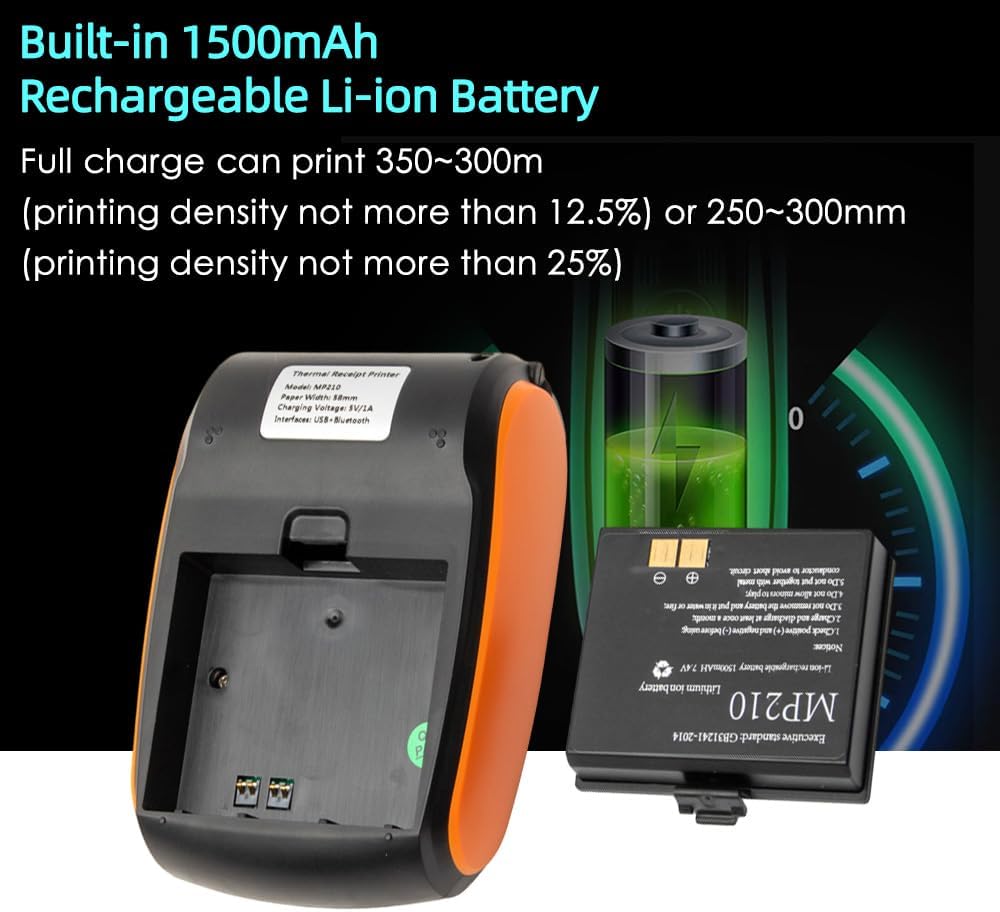
Figura 5: Examples of mobile applications compatible with the Irfora MP210 printer.
5. Instruccions de funcionament
5.1 Encès/Apagat
- Encès: Press and hold the power button (usually marked with a power symbol) until the indicator light illuminates.
- Apagar: Premeu i manteniu premut el botó d'engegada de nou fins que l'indicador lluminós s'apagui.
5.2 Connexió Bluetooth
To connect the printer wirelessly via Bluetooth:
- Ensure the printer is powered on and within range of your mobile device (Android/iOS).
- Al dispositiu mòbil, aneu a la configuració de Bluetooth i activeu el Bluetooth.
- Cerca available devices. The printer should appear as "MP210" or a similar name.
- Select the printer to pair. If prompted for a PIN, enter "0000" or "1234" (common default PINs).
- Once paired, open your compatible printing application and select the MP210 as the target printer.

Figure 6: The MP210 printer supports both Bluetooth and USB connections for versatile use.
5.3 Connexió USB
To connect the printer to a Windows computer via USB:
- Ensure the printer drivers are installed on your computer (refer to Section 4.3).
- Connecteu la impressora a l'ordinador mitjançant el cable USB proporcionat.
- The computer should recognize the printer. You can then select it from your printing preferences in any application.
5.4 Impressió
Once connected, you can initiate printing from your chosen application.
- Open the document or receipt you wish to print in your application.
- Seleccioneu l'opció d'impressió (per exemple, File > Imprimeix).
- Choose the Irfora MP210 printer from the list of available printers.
- Adjust any print settings as needed (e.g., number of copies).
- Feu clic a "Imprimeix" per enviar la feina a la impressora.
6. Manteniment
6.1 Neteja del capçal d'impressió
La neteja regular del capçal d'impressió garanteix una qualitat d'impressió òptima i allarga la vida útil de la impressora.
- Turn off the printer and disconnect it from any power source.
- Obriu la coberta del compartiment de paper.
- Gently wipe the thermal print head (the dark strip) with a cotton swab lightly dampamb alcohol isopropílic.
- Deixeu que el capçal d'impressió s'assequi completament abans de tancar la tapa i engegar la impressora.
Precaució: Do not touch the print head with bare hands as oils can affect print quality. Avoid using abrasive materials or harsh chemicals.
6.2 Cura de la bateria
- Carregueu la bateria completament abans del primer ús.
- Avoid completely draining the battery frequently to prolong its life.
- If storing the printer for an extended period, charge the battery to about 50% and store in a cool, dry place. Recharge every 3-6 months.
- Utilitzeu només el cable USB proporcionat per carregar.
7. Solució De Problemes
This section addresses common issues you might encounter with your Irfora MP210 printer.
7.1 Printer Does Not Power On
- Comproveu la bateria: Ensure the battery is correctly installed and fully charged. Connect the printer to a power source and try again.
- Contactes de la bateria: Verify that any protective tape has been removed from the battery contacts.
- Botó d'encesa: Assegureu-vos de mantenir premut el botó d'engegada durant un temps suficient (normalment de 2 a 3 segons).
7.2 No es pot connectar per Bluetooth
- Impressora activada: Confirm the printer is powered on and its Bluetooth indicator light is active.
- Dispositiu Bluetooth: Assegureu-vos que el Bluetooth estigui habilitat al vostre dispositiu mòbil.
- Proximitat: Make sure the printer is within close range of your device.
- Unpair/Re-pair: If previously paired, try "forgetting" or "unpairing" the printer from your device's Bluetooth settings, then attempt to pair again.
- Codi PIN: Double-check the PIN code (default usually "0000" or "1234").
- Compatibilitat de l'aplicació: Ensure your printing application supports Bluetooth printing and is configured to use the MP210.
7.3 Poor Print Quality or Blank Pages
- Rotllo de paper: Check if the thermal paper roll is installed correctly with the printing side facing the print head. Thermal paper has a specific side that reacts to heat.
- Tipus de paper: Ensure you are using thermal paper, not regular paper.
- Print Head Cleanliness: A dirty print head can cause faded or blank lines. Refer to Section 6.1 for cleaning instructions.
- Nivell de bateria: Low battery can affect print quality. Charge the printer fully.
7.4 Printer Not Recognized by Computer (USB)
- Conductors: Confirm that the correct Windows drivers are installed (refer to Section 4.3).
- Cable USB: Try a different USB port or cable to rule out a faulty connection.
- Impressora activada: Assegureu-vos que la impressora estigui engegada.
8. Garantia i Suport
For information regarding warranty coverage, technical support, or service, please refer to the warranty card included with your product or contact Irfora customer service through their official weblloc web o el venedor on es va comprar el producte.
Please have your model number (MP210) and purchase details ready when contacting support.


