1. Introducció
Thank you for choosing the TECKNET Bluetooth Keyboard. This ultra-slim, full-size wireless keyboard is designed for enhanced productivity and seamless switching between multiple devices. It supports 4 modes of connection (3 Bluetooth channels and 1 x 2.4G wireless mode) and features a long-lasting rechargeable battery, quiet scissor-switch keys, and an ergonomic design.
Contingut del paquet:
- 1 x TECKNET Multi-Device Bluetooth Keyboard
- 1 x cable de càrrega USB-C
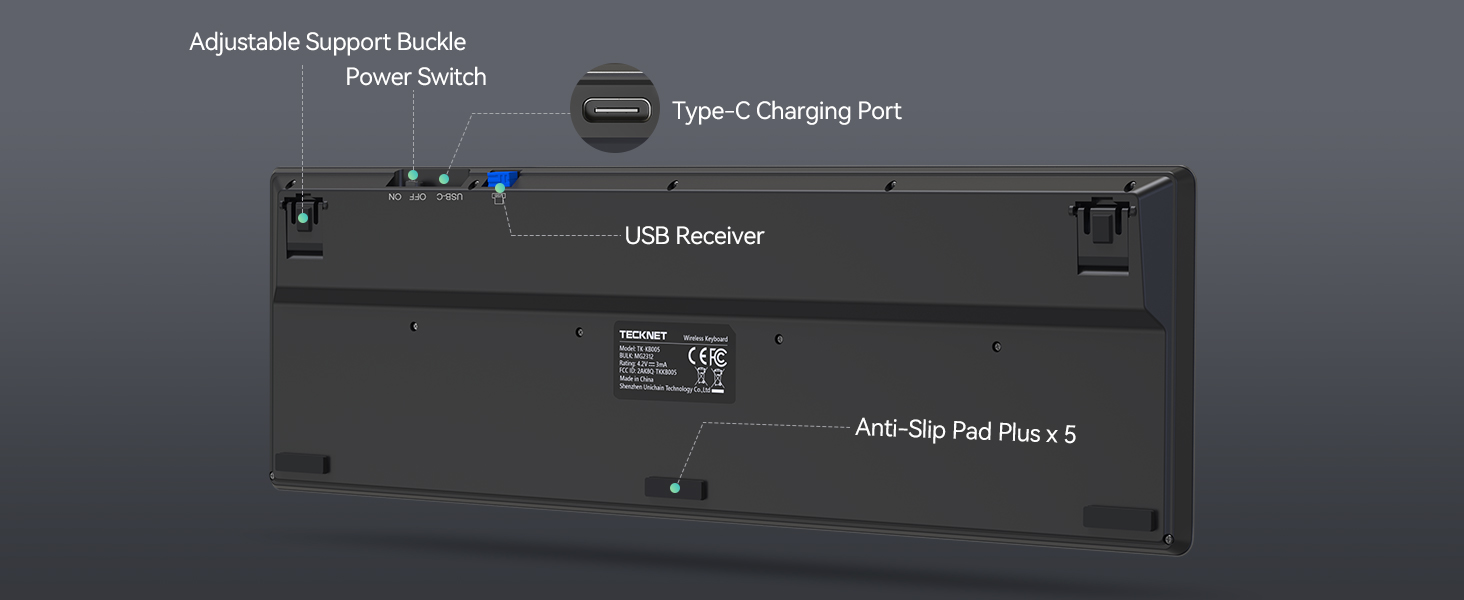
- 1 receptor USB de 2.4 G (guardat al compartiment posterior del teclat)
- 1 x Manual d'usuari
2. Configuració
2.1. Càrrega del teclat
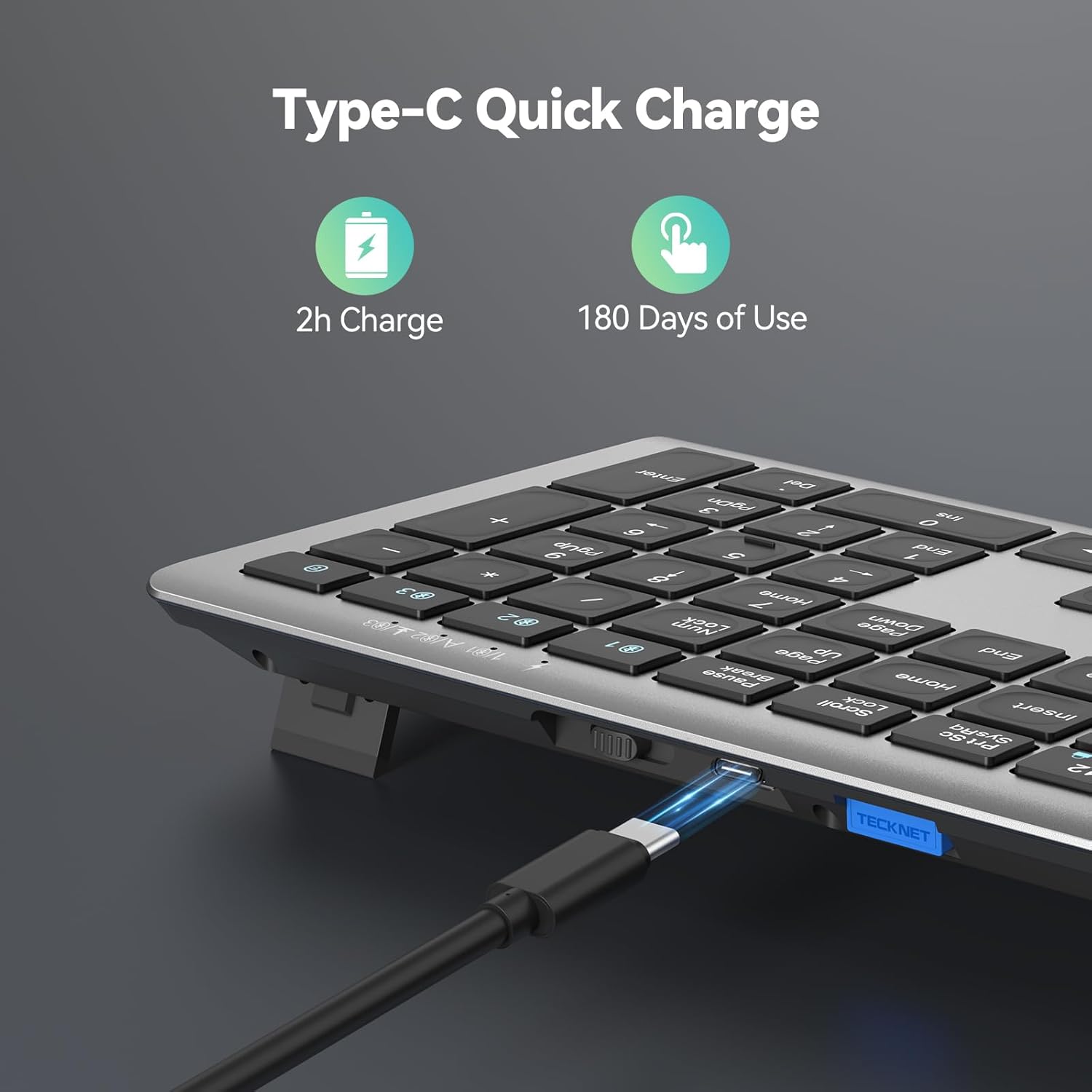
Before initial use, ensure the keyboard is fully charged. Connect the provided USB-C charging cable to the keyboard's USB-C port and the other end to a USB power source (e.g., computer USB port, USB wall adapter). The charging indicator light will turn red while charging and switch to green when fully charged.

2.2. Connexió mitjançant el mode sense fil 2.4G
For devices without Bluetooth, or for a dedicated connection, use the 2.4G wireless mode:
- Localitzeu el receptor USB de 2.4 G que es troba al compartiment posterior del teclat.
- Insert the USB receiver into an available USB-A port on your computer or device.
- Slide the power switch on the back of the keyboard to the 'ON' position.
- Press the '2.4G' channel button (usually indicated by a wireless icon) on the keyboard. The indicator light will illuminate, confirming the connection.

2.3. Connecting via Bluetooth Mode (BT1, BT2, BT3)
The keyboard supports up to three Bluetooth connections, allowing you to switch between devices effortlessly:
- Assegureu-vos que el Bluetooth del vostre dispositiu estigui activat.
- Slide the power switch on the back of the keyboard to the 'ON' position.
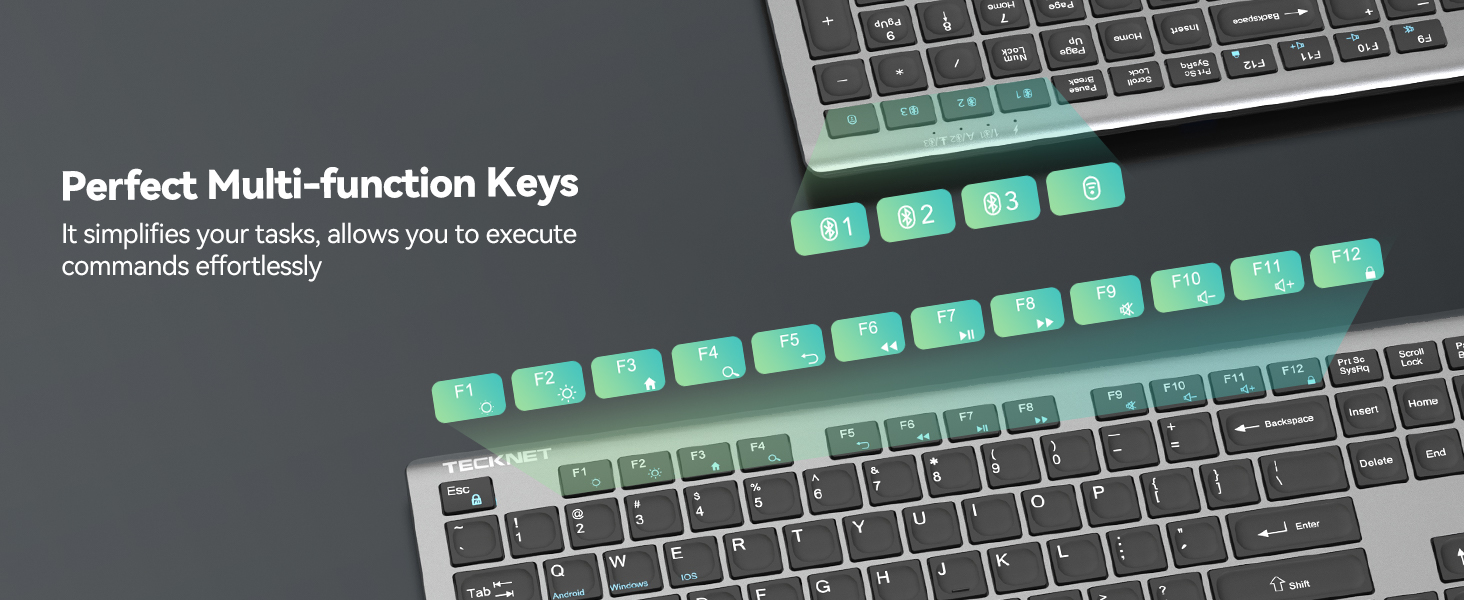
- Press and hold one of the Bluetooth channel buttons (BT1, BT2, or BT3) for more than 3 seconds until the corresponding green LED light flashes quickly. This indicates pairing mode.
- On your device, search for Bluetooth devices and select 'TK-KB005' from the list.
- Once paired, the LED light will turn off after being on for 2 seconds.
- Repeat steps 3-5 for other Bluetooth channels (BT2, BT3) to connect additional devices.

3. Instruccions de funcionament
3.1. Canviar entre dispositius
To switch between connected devices, simply press the corresponding channel button (2.4G, BT1, BT2, or BT3). The keyboard will seamlessly connect to the selected device.
3.2. Tecles multimèdia
The keyboard features 12 multimedia keys for enhanced productivity. These keys are typically accessed by pressing the 'Fn' key in combination with the corresponding F-key (F1-F12).

3.3. Suport ajustable
The keyboard includes adjustable feet on the back, allowing you to customize the tilt angle between 3° and 7° for optimal typing comfort and to prevent fatigue during long sessions.
3.4. Compatibilitat del sistema
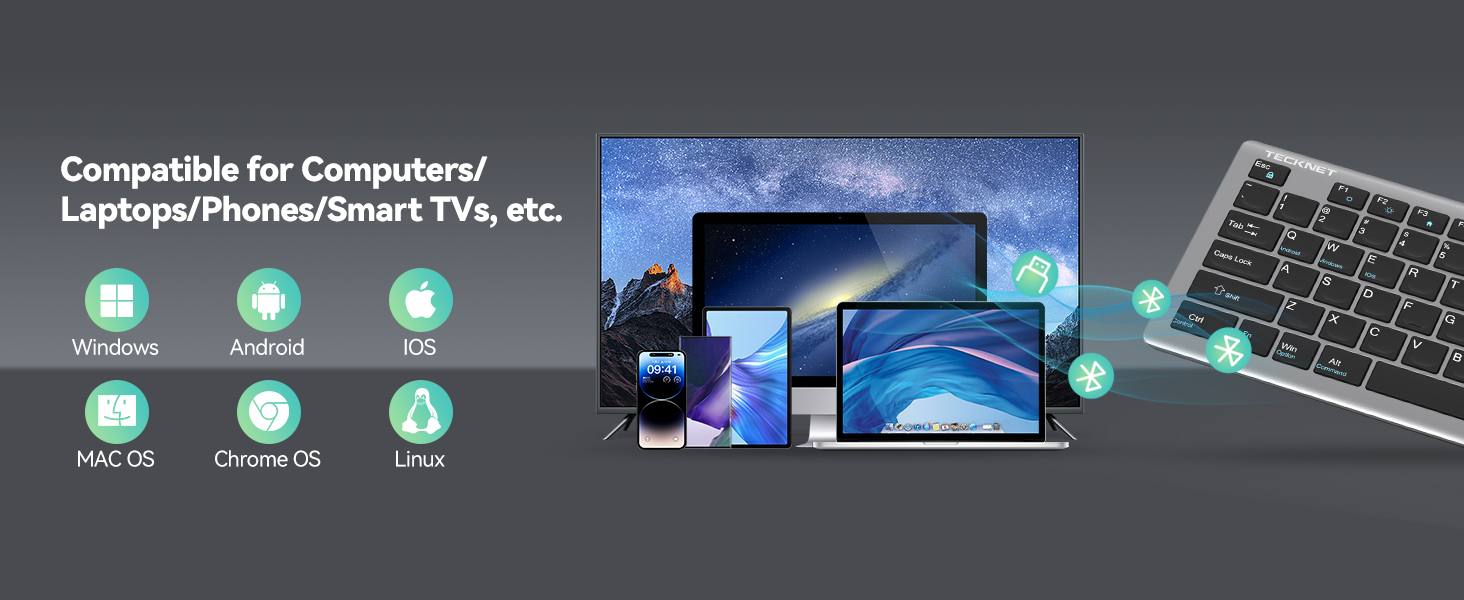
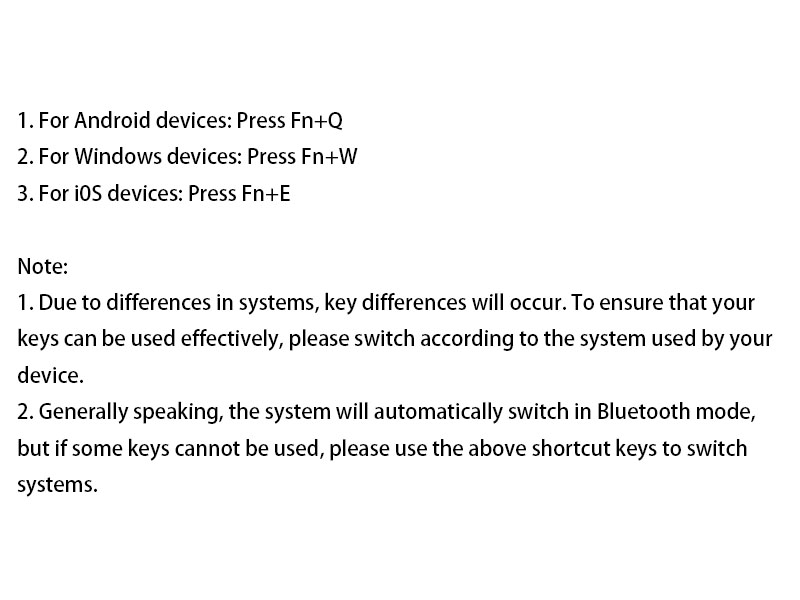
The keyboard is broadly compatible with Windows, iOS, macOS, and Android devices. To ensure effective key usage due to system differences, switch according to the system used by your device:
- Per a dispositius Android: premeu Fn+Q
- Per a dispositius Windows: premeu Fn+W
- Per a dispositius iOS: premeu Fn+E
Generally, the system will automatically switch in Bluetooth mode, but if some keys cannot be used, please use the above shortcut keys to switch systems.
4. Manteniment
4.1. Neteja
Per netejar el teclat, netegeu suaument la superfície amb un drap suau iamp cloth. Avoid using harsh chemicals or abrasive materials that could damage the finish or keycaps. Ensure no liquid enters the keyboard.
4.2. Emmagatzematge
When not in use, the keyboard automatically enters sleep mode after 30 minutes of inactivity to conserve battery life. It wakes up instantly with any key press. For long-term storage, it is recommended to turn off the keyboard using the 'OFF' switch on the back.
5. Solució De Problemes
Si teniu algun problema amb el teclat TECKNET, consulteu les solucions habituals següents:
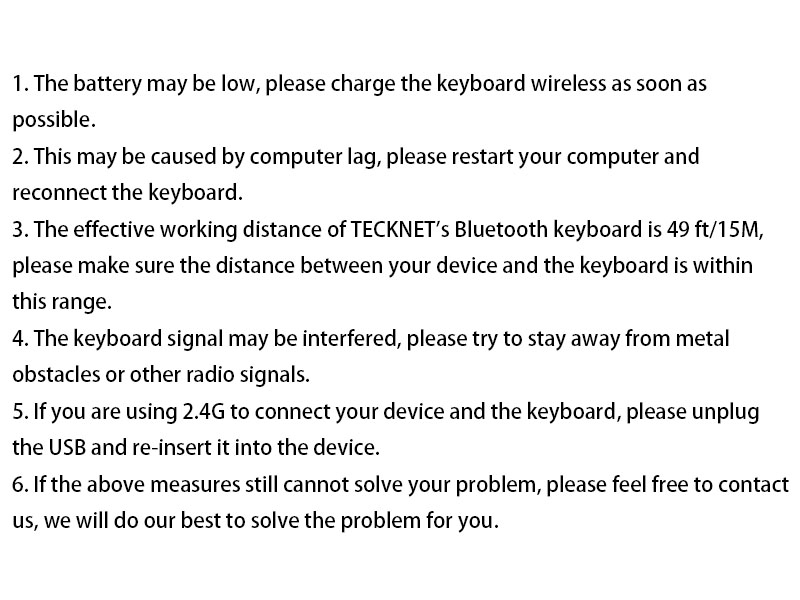
- El teclat no respon: Ensure the keyboard is fully charged. Charge the keyboard before use and ensure it is used within a range of 49ft/15M.
- Problemes de connexió Bluetooth: Remove/delete all Bluetooth connection records on your device, then turn off Bluetooth. Turn on the device's Bluetooth again and reconnect the keyboard according to the user manual.
- Forced Bluetooth pairing method: Bring the keyboard close to the device, turn on the device's Bluetooth. Short press the Bluetooth channel button corresponding to the device (the light will light up). Long press the channel button for more than 3 seconds until the green LED light flashes quickly. Complete the pairing of the device and the keyboard within 2 minutes. The LED of the channel turns off after being on for 2 seconds, indicating that the device and the keyboard have been successfully paired.
- 2.4G forced pairing method: Bring the keyboard close to the device, short press the 2.4G channel button (the light will light up). Long press for more than 3 seconds until the red LED flashes quickly. Insert the USB Dongle within 20 seconds (make sure the keyboard is close to the receiver). The LED of the 2.4G channel turns off after being on for 2 seconds, indicating that the device and the keyboard are paired successfully.
- Entrada amb retard o retard: This may be caused by computer lag; please restart your computer and reconnect the keyboard.
- Interferència: The keyboard signal may be interfered with; please try to stay away from metal obstacles or other radio signals.
- 2.4G connection not working: If you are using 2.4G to connect your device and the keyboard, please unplug the USB and re-insert it into the device.
If none of the above solutions work, please contact our professional customer service team for additional support.

6. Especificacions
| Característica | Detall |
|---|---|
| Número de model | TK-KB005 |
| Tecnologia de connectivitat | Bluetooth (3 channels), 2.4G Wireless (USB-A) |
| Nombre de claus | 110 |
| Tipus de clau | Interruptor de tisora |
| Reducció de soroll | 90% |
| Durabilitat de les pulsacions de teclat | Fins a 10 milions de pulsacions de tecles |
| Viatge clau | 2 mm |
| Capacitat de la bateria | Ió de liti de 500 mAh (recarregable) |
| Durada de la bateria | Up to 180 days (based on 2 hours daily use) |
| Port de càrrega | USB-C |
| Distància d'operació | Fins a 15 m (49 peus) |
| Compatibilitat | Windows, iOS, macOS, Android (iPads, tablets, smartphones, laptops, desktops, smart TVs) |
| Dimensions del producte | 17.13 x 5.12 x 0.57 polzades |
| Pes de l'article | 1.29 lliures |
| Color | Gris |
7. Garantia i Suport
TECKNET offers up to Suport de 36 mesos for this product (registration may be required). If you encounter any problems or have questions regarding your keyboard, please do not hesitate to contact our professional customer service team. We are committed to providing friendly and helpful assistance every step of the way.
Per obtenir ajuda, visiteu el lloc web oficial de TECKNET. weblloc web o consulteu la informació de contacte que es proporciona a l'embalatge del producte.


