1. Introducció
Thank you for choosing the Xiaomi A27i Monitor. This 27-inch Full-HD IPS display is designed to provide a clear and vibrant visual experience with a 100Hz refresh rate and 6ms response time, suitable for both work and entertainment. It features Low Blue Light technology for eye comfort and HDR 10 support for enhanced contrast and color.

Figura 1.1: Frontal view of the Xiaomi A27i Monitor.
2. Contingut del paquet
Si us plau, comproveu el paquet per veure si hi ha els elements següents:
- Monitor Xiaomi A27i
- Suport de monitor (base i coll)
- Adaptador d'alimentació i cable
- Cable HDMI
- Manual d'usuari (aquest document)
3. Guia de configuració
3.1 Muntatge del suport
- Traieu amb cura els components del monitor i del suport de l'embalatge.
- Fixeu el coll del suport al panell del monitor. Assegureu-vos que encaixi correctament al seu lloc o que estigui fixat amb cargols si n'hi ha.
- Connect the stand base to the stand neck. Tighten the thumb screw at the bottom of the base to secure it.

Figura 3.1: posterior view of the monitor, illustrating the stand connection area.
3.2 Connexió del monitor
Before connecting, ensure your computer and the monitor are powered off.
- Connexió d'alimentació: Connect the power adapter to the monitor's DC input port, then plug the power cable into a wall outlet.
- Connexió de vídeo: Connect one end of the provided HDMI cable to the HDMI port on your computer's graphics card and the other end to the HDMI port on the monitor. Alternatively, use a DisplayPort (DP) cable if your computer supports it for optimal performance.
- Àudio (opcional): If your computer has an audio output and you wish to use external speakers or headphones, connect them to your computer's audio jack. The monitor does not have built-in speakers.
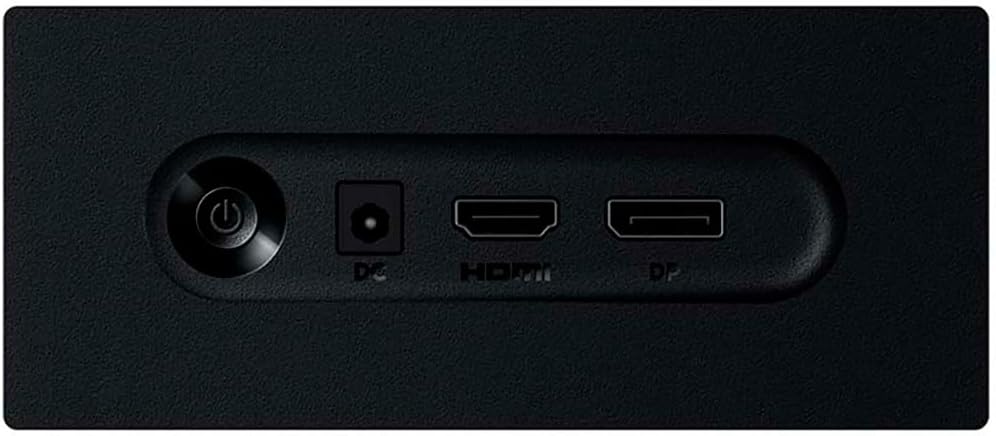
Figure 3.2: Monitor input ports (Power, HDMI, DisplayPort).
4. Instruccions de funcionament
4.1 Engegada/apagada
Press the power button located on the back of the monitor (refer to Figure 3.2) to turn the monitor on or off. The power indicator light will illuminate when the monitor is on.
4.2 Menú de visualització en pantalla (OSD)
The OSD menu allows you to adjust various monitor settings. Use the joystick/buttons located near the power button on the back of the monitor to navigate the OSD menu.
- Navegació: Mou el joystick amunt/avall/esquerra/dreta per navegar per les opcions del menú.
- Selecció: Press the joystick inwards to select an option or confirm a setting.
- Sortida: Move the joystick left or press it to go back to the previous menu or exit the OSD.
4.3 Configuració principal de l'OSD
| Configuració | Descripció |
|---|---|
| Brillantor / Contrast | Ajusta la luminància general i la diferència entre les zones clares i fosques. |
| Temperatura de color | Select predefined color temperature modes (e.g., Warm, Cool, User) or adjust RGB values. |
| Font d'entrada | Manually select between HDMI and DisplayPort inputs. |
| Llum blava baixa | Enable or disable the blue light filter to reduce eye strain. |
| Mode HDR | Activate High Dynamic Range for compatible content. (Note: May disable other picture modes). |
| Freqüència d'actualització | View the current refresh rate. Ensure your graphics card settings match the monitor's capabilities (up to 100Hz). |

Figure 4.1: Low Blue Light feature for eye protection.

Figure 4.2: Display features including HDR10 and sRGB color accuracy.
5. Manteniment
5.1 Neteja del monitor
- Desendolleu sempre el monitor de la presa de corrent abans de netejar-lo.
- Utilitzeu un drap suau i sense pelusa lleugerament dampRenteu-ho amb aigua o un netejador de pantalles no abrasiu.
- No ruixeu el netejador directament sobre la pantalla.
- Eviteu utilitzar benzè, diluent, netejadors amb amoníac o materials abrasius, ja que poden danyar la pantalla o el contingut.asing.
5.2 Atenció general
- Mantingueu el monitor allunyat de la llum solar directa, de fonts de calor i de l'excés de pols.
- Assegureu-vos d'una ventilació adequada al voltant del monitor per evitar el sobreescalfament.
- Eviteu col·locar objectes pesats sobre el monitor o els seus cables.
6. Solució De Problemes
Si teniu problemes amb el monitor, consulteu els següents problemes i solucions habituals:
| Problema | Possible causa/solució |
|---|---|
| No hi ha imatge a la pantalla |
|
| La imatge és borrosa o distorsionada |
|
| La pantalla parpelleja |
|
| Els colors apareixen incorrectes |
|
7. Especificacions
| Característica | Especificació |
|---|---|
| Nom del model | Xiaomi A27i |
| Número de model | ELA5345EU |
| Mida de la pantalla | 27 polzades |
| Tipus de panell | IPS |
| Resolució | 1920 x 1080 (Full HD) |
| Freqüència d'actualització | 100 Hz |
| Temps de resposta | 6 mil·lisegons |
| Brillantor | 250 nits |
| Relació de contrast | 1000:1 |
| Gamma de colors | 99% sRGB |
| Suport HDR | HDR10 |
| Connectivitat | 1x HDMI, 1x DisplayPort (DP) |
| Característiques especials | Low Blue Light, Frameless Design, Tilt Adjustment |
| Consum d'energia | 19 watts |
| Dimensions (A x A x P) | 61.2 x 45.1 x 3.73 cm (aprox.) |
| Pes | 3.6 quilos |
8. Garantia i Suport
This Xiaomi A27i Monitor comes with a standard manufacturer's warranty. For detailed warranty terms and conditions, please refer to the warranty card included in your product packaging or visit the official Xiaomi support weblloc.
For technical support, troubleshooting assistance, or service requests, please contact Xiaomi customer service through their official channels. You may need your product's model number (ELA5345EU) and serial number (if applicable) when contacting support.
Assistència en línia: Visita la pàgina oficial de Xiaomi website for FAQs, driver downloads, and support contact information.
Informació de contacte: Refer to your regional Xiaomi website or product packaging for local customer service phone numbers or email addresses.


