Introducció
The Jiusion 4K WiFi Digital Handheld Microscope is a versatile and powerful tool designed for magnifying and exploring microscopic objects. With its 4K resolution camera and 8 adjustable LED lights, it provides clear and detailed images for various applications, including circuit board inspection, jewelry identification, insect observation, and educational purposes. It offers both wireless connectivity for mobile devices and wired connectivity for computers, ensuring broad compatibility and ease of use.

Image: Jiusion 4K WiFi Digital Handheld Microscope with metal stand, displaying a circuit board on a smartphone screen.
Característiques clau
- Resolució 4K Ultra HD: Captures images and videos at 3840x2160P for exceptional clarity.
- Wide Magnification Range: Offers 50x to 1000x magnification to explore intricate details.
- Wireless & Wired Connectivity: Connects wirelessly via WiFi to iOS (iPhone, iPad) and Android devices, and via USB to Mac, Windows (XP/7/8/10/11), Linux, and Chrome OS.
- Il·luminació LED ajustable: Features 8 built-in bright LED lights with adjustable brightness for optimal viewcondicions.
- Stable Metal Stand: Includes an exclusively designed stable metal stand for steady observation.
- Mobile Zoom Functionality: Dedicated zoom buttons (+ and -) allow 1.2x, 1.4x, 1.6x, 1.8x, and 2.0x magnification directly on connected mobile phones and tablets. Note: This feature is not available for PC connections.

Imatge: Compatibilitat acabadaview of the Jiusion 4K WiFi Digital Handheld Microscope with various operating systems.
Guia de configuració
Contingut del paquet
Abans de començar, assegureu-vos que tots els elements estiguin presents al paquet:
- 4K WiFi Microscope x1
- Metal Stand x1
- USB Cord x1
- Manual d'instruccions x1

Image: All components included in the Jiusion 4K WiFi Digital Handheld Microscope package.
App Installation (for Wireless Use)
For wireless connectivity with your iPhone, iPad, or Android device, you need to install the dedicated application. Cerca "WiFi-Check" in your device's app store (App Store for iOS, Google Play Store for Android) and install it.
Video: Step-by-step guide on installing the app and connecting the microscope to an iPhone/iPad/Android device.
Connexió a dispositius
The microscope supports both wireless (WiFi) and wired (USB) connections.
Wireless Connection (iPhone/iPad/Android)
- Ensure the microscope is charged. The red charging indicator lights up when charging and turns off when fully charged.
- Press and hold the power/capture button on the microscope for 5 seconds to turn it on. The blue power/work indicator light will illuminate.
- On your mobile device, go to WiFi settings and connect to the WiFi signal emitted by the microscope (usually named "Microscope-XXXX").
- Open the "WiFi-Check" app. Allow network access if prompted. The live view from the microscope should now appear on your screen.

Image: Illustration of the microscope connecting wirelessly to various mobile devices.
Wired Connection (PC/Mac/Linux/Chrome OS)
- Connect the microscope to your computer using the provided micro USB cable.
- Ensure the microscope is powered on (blue power/work indicator light).
- For Windows 10/11, open the built-in Camera app (found in Start Menu). Select "GENERAL - UVC" as the camera source.
- For Mac, open the Photo Booth app. If the screen appears reversed, you may need to use a third-party camera app like "XploreView" (downloadable from jiusion.com/s9.hk).
- For Linux/Chrome OS, use a compatible camera application that supports UVC devices.

Image: Illustration of the microscope connecting via USB to a laptop.
Instruccions de funcionament
Ajust d'ampliació i enfocament
The microscope features a magnification wheel and dedicated zoom buttons for precise control.
- Ajust del focus: Rotate the magnification wheel (labeled ⑩ in the diagram below) to adjust the focus and achieve a clear image.
- Digital Zoom (Mobile Only): Use the physical Zoom + and - buttons on the microscope (labeled ⑥ and ⑦) to digitally magnify the image by 1.2x, 1.4x, 1.6x, 1.8x, or 2.0x on your iPhone, iPad, or Android device. Note: These buttons do not function when connected to a PC.

Image: Detailed diagram showing the parts of the Jiusion microscope, including the magnification wheel and zoom buttons.
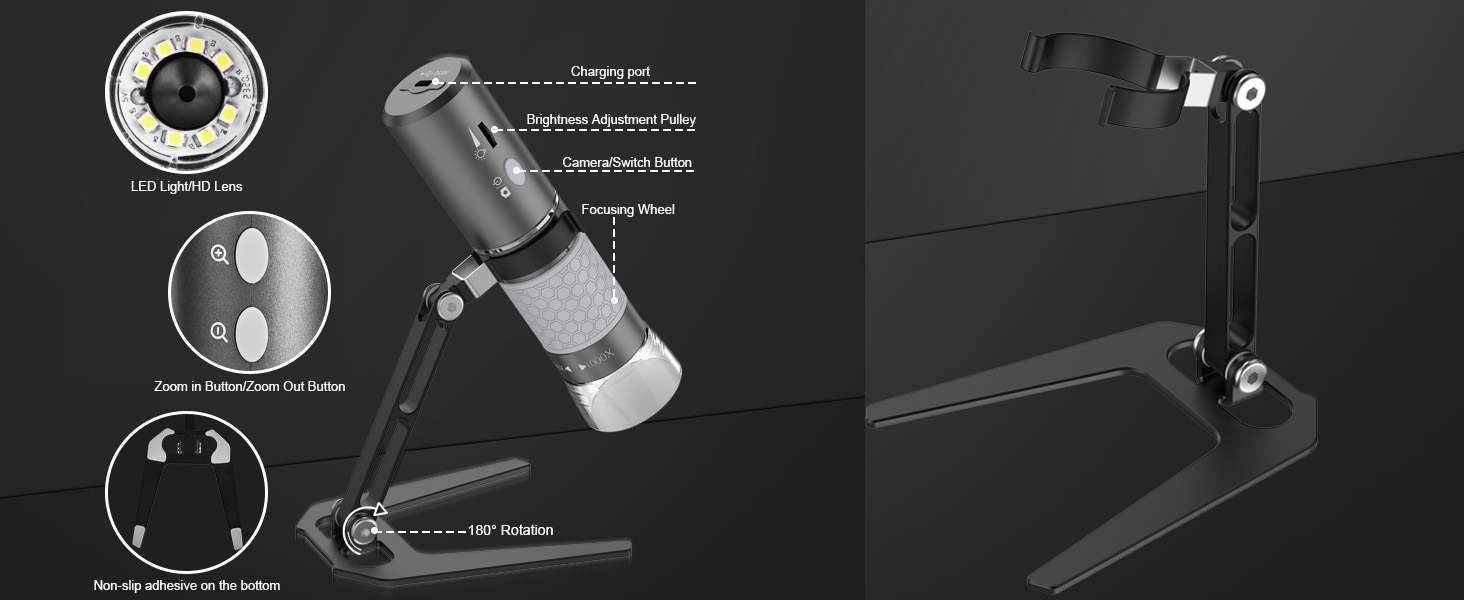
Image: Visual representation of the zoom buttons and their effect on the magnified image on a screen.
Ajust de la il·luminació LED
The microscope is equipped with 8 bright LED lights to illuminate your subject. You can adjust their brightness using the illumination adjustment wheel (labeled ⑧ in the diagram above).
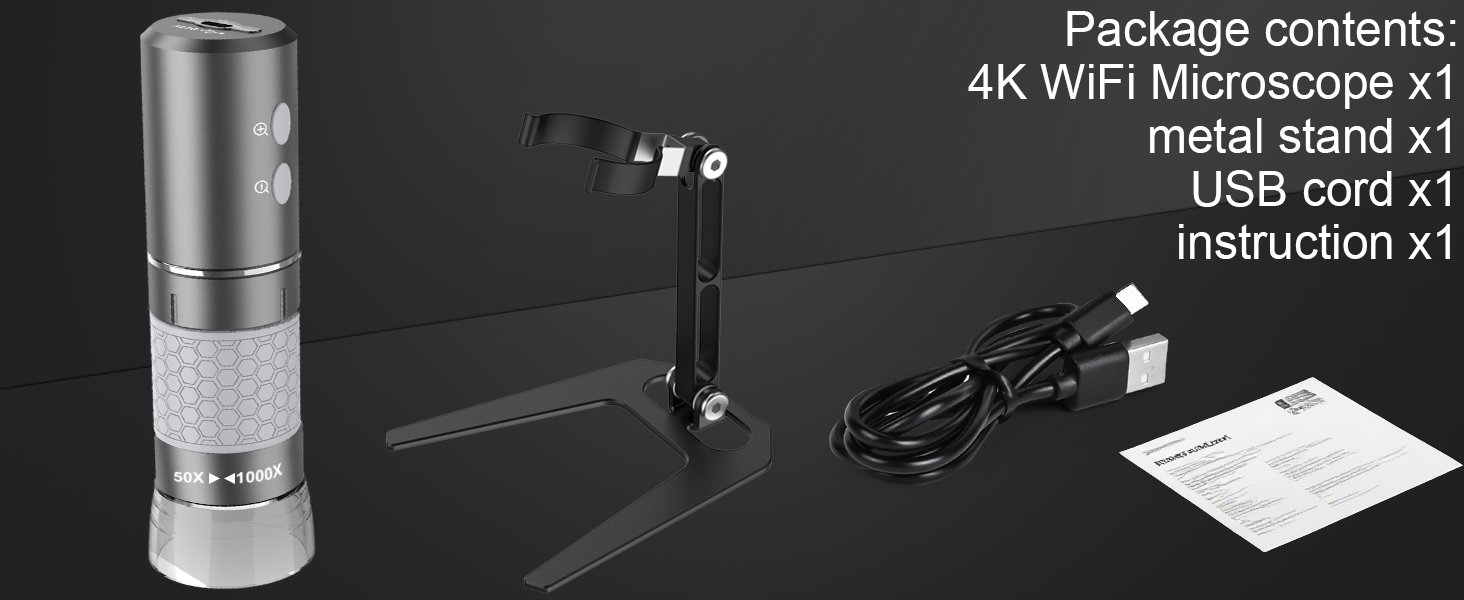
Image: Diagram illustrating the LED brightness adjustment mechanism on the microscope.
Captura d'imatges i vídeos
You can capture still images and record videos directly through the connected app or software.
- Using the Capture Button: Press the power/capture button (labeled ⑨ in the diagram above) briefly to take a picture.
- Using the App/Software: Within the "WiFi-Check" app or your computer's camera software, locate the shutter icon to take a picture or the video icon to start/stop recording. Ensure you grant the app necessary permissions to access your photos/media for saving captures.
Video: Demonstration of capturing images and recording videos using the Jiusion 4K WiFi Microscope.
Aplicacions comuns
The Jiusion 4K WiFi Digital Handheld Microscope is suitable for a wide range of applications, including but not limited to:
- Circuit board inspection and repair
- Jewelry and gem identification
- Insect and plant observation
- Print inspection and quality control
- Currency and document authentication
- Educational exploration for students and hobbyists

Imatge: Examples of practical applications for the Jiusion microscope.
Manteniment i cura
- Neteja: Use a soft, dry cloth to clean the microscope body. For the lens, use a lens cleaning cloth and specialized lens cleaning solution if necessary. Avoid abrasive materials or harsh chemicals.
- Emmagatzematge: Store the microscope in a cool, dry place away from direct sunlight and extreme temperatures. Keep it in its original packaging or a protective case when not in use to prevent dust and damage.
- Cura de la bateria: Per a una durada òptima de la bateria, eviteu descarregar-la completament amb freqüència. Carregueu el dispositiu regularment, fins i tot si no l'utilitzeu constantment.
Resolució de problemes
| Problema | Causa possible | Solució |
|---|---|---|
| No image on screen / Connection failure | Microscope not powered on; Incorrect WiFi connection; App permissions not granted; Incorrect camera selection on PC. | Ensure microscope is powered on (blue light). Verify connection to microscope's WiFi signal. Grant app network access. Select "GENERAL - UVC" as camera source on PC. |
| La imatge és borrosa | Improper focus; Lens cover not removed. | Rotate the magnification wheel to adjust focus. Ensure the transparent lens cover is removed before use. |
| Zoom buttons not working on PC | Feature is only for mobile devices. | The physical zoom buttons are designed for iPhone, iPad, and Android devices only. Digital zoom on PC must be done via software if available. |
| Image appears reversed on Mac | Default Mac camera app behavior. | Use a third-party camera app like "XploreView" (download from jiusion.com/s9.hk) which may offer image flipping options. |
Especificacions tècniques
| Característica | Especificació |
|---|---|
| Marca | Jiusion |
| Número de model | Jiusion-4KScope |
| Ampliació màxima | 1000x |
| Resolució | 4K (3840 x 2160p) |
| Tipus de font de llum | 8 LED |
| Dispositius compatibles | Personal Computer, Tablet, Smartphone (iOS, Android, Mac, Windows, Linux, Chrome OS) |
| Connectivitat | Wi-Fi, USB |
| Font d'alimentació | Elèctric amb cable (via USB) |
| Bateries | 1 bateria de polímer de liti (inclosa) |
| Pes de l'article | 7 unces |
| Dimensions del paquet | 7.24 x 3.74 x 1.97 polzades |
| Primera data disponible | 9 de desembre de 2023 |
Garantia i Suport
For warranty information, technical support, or any inquiries regarding your Jiusion 4K WiFi Digital Handheld Microscope, please refer to the contact details provided in your product packaging or visit the official Jiusion website. It is recommended to register your product (if applicable) to receive updates and support.
