1. Introducció
The Vivolink USB-C 4K KVM Extender (Model W126974534) is designed to extend USB-C signals, including 4K video, USB data (for keyboard, mouse, and other peripherals), and control signals, over long distances using HDBaseT 3.0 technology. This system consists of a Transmitter (TX) unit and a Receiver (RX) unit, connected by a single Cat6a/7 Ethernet cable. It enables users to operate a computer or other USB-C source device from a remote location with a display, keyboard, and mouse, maintaining high-quality 4K resolution.
2. Informació de seguretat
- Llegiu atentament totes les instruccions abans d'utilitzar el dispositiu.
- Do not expose this unit to rain, moisture, or excessive humidity.
- Assegureu-vos una ventilació adequada per evitar el sobreescalfament. No obstruïu les obertures de ventilació.
- Use only the power adapters provided with the unit.
- No intenteu obrir ni modificar la unitat. Encarregueu tot el manteniment a personal qualificat.
- Mantingueu el dispositiu allunyat de camps electromagnètics forts.
- Desconnecteu l'alimentació durant tempestes amb llamps o quan no es faci servir durant períodes prolongats.
3. Contingut del paquet
Si us plau, comproveu atentament el contingut del paquet. Si falta algun element o està malmès, poseu-vos en contacte amb el vostre distribuïdor immediatament.
- 1x Vivolink USB-C 4K KVM Extender Transmitter (TX) Unit
- 1x Vivolink USB-C 4K KVM Extender Receiver (RX) Unit
- 2 adaptadors de corrent (DC 12V)
- 1 cable USB-C a USB-C
- 1 x manual d'usuari
- Mounting accessories (if included)
4. Producte acabatview
The Vivolink USB-C 4K KVM Extender leverages HDBaseT 3.0 technology to provide uncompressed 4K video, audio, USB 2.0, and control signals over a single Cat6a/7 cable up to 100 meters. This solution is ideal for applications requiring remote access to a USB-C enabled computer, such as control rooms, medical imaging, digital signage, and educational facilities.
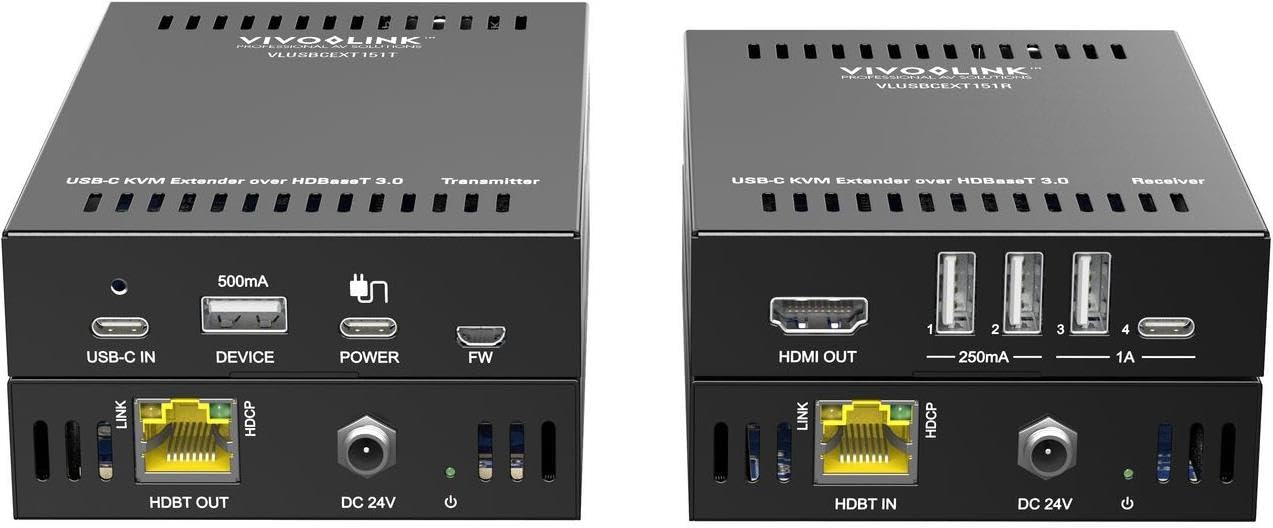
Imatge 1: Vivolink USB-C 4K KVM Extender units. This image displays the compact design of both the transmitter and receiver units, highlighting their various ports for connectivity.
The Transmitter unit connects to your USB-C source device (e.g., laptop, PC), while the Receiver unit connects to your display, keyboard, mouse, and other USB peripherals at the remote location. The HDBaseT 3.0 link ensures reliable and high-bandwidth transmission.
5. Instruccions de configuració
Follow these steps to set up your Vivolink USB-C 4K KVM Extender:
- Apagueu els dispositius: Ensure all devices, including your source computer, display, and the KVM extender units, are powered off before making any connections.
- Connecteu la font al transmissor: Connect your USB-C source device (e.g., PC, laptop) to the USB-C input port on the Transmitter (TX) unit using the provided USB-C cable.
- Connecteu la pantalla al receptor: Connect your display (monitor) to the HDMI output port on the Receiver (RX) unit using an HDMI cable.
- Connect Peripherals to Receiver: Connect your USB keyboard, mouse, and any other USB peripherals to the USB ports on the Receiver (RX) unit.
- Connect TX and RX Units: Connect the HDBaseT OUT port on the Transmitter (TX) unit to the HDBaseT IN port on the Receiver (RX) unit using a single, high-quality Cat6a or Cat7 Ethernet cable. Ensure the cable length does not exceed 100 meters for optimal performance.
- Aplicar potència: Connect the provided 12V DC power adapters to both the Transmitter (TX) and Receiver (RX) units, then plug them into power outlets.
- Dispositius d'encesa: Power on your display, then your source computer. The extender units will typically power on automatically when connected to power.
- Verifica la connexió: Check for signal on your remote display and test the functionality of your keyboard and mouse.
6. Instruccions de funcionament
Once the Vivolink USB-C 4K KVM Extender is set up correctly, operation is straightforward:
- Automatic Signal Detection: The extender units are designed to automatically detect and transmit the video, audio, and USB signals from your source device to the remote display and peripherals.
- Resolució: The system supports resolutions up to 4K (3840x2160) at 60Hz, depending on the capabilities of your source and display devices.
- Funcionalitat USB: All connected USB devices (keyboard, mouse, USB drives, etc.) should function as if directly connected to the source computer.
- Cicle de potència: If you encounter any issues, try power cycling both the Transmitter and Receiver units, as well as your source computer and display.
7. Manteniment
To ensure the longevity and optimal performance of your Vivolink USB-C 4K KVM Extender, follow these maintenance guidelines:
- Neteja: Use a soft, dry cloth to clean the exterior of the units. Do not use liquid or aerosol cleaners.
- Ventilació: Ensure that the ventilation openings on both units are not obstructed to prevent overheating.
- Gestió de cables: Keep cables neatly organized and avoid sharp bends or excessive tension on connectors.
- Medi ambient: Store and operate the device in a cool, dry environment, away from direct sunlight, heat sources, and extreme temperatures.
8. Solució De Problemes
If you experience issues with your KVM extender, refer to the following troubleshooting steps:
| Problema | Possible solució |
|---|---|
| No video on remote display |
|
| El teclat/ratolí no respon |
|
| Intermittent signal or flickering video |
|
9. Especificacions
- Marca: Vivolink
- Model: W126974534 (VLUSBCEXT150)
- Tecnologia: HDBaseT 3.0
- Resolució de vídeo: Up to 4K (3840x2160) @ 60Hz
- Entrada: USB-C (on TX unit)
- Sortida: HDMI (on RX unit)
- USB: USB 2.0 (on RX unit for peripherals)
- Distància d'extensió: Up to 100 meters (328 feet) over Cat6a/7 cable
- Font d'alimentació: DC 12V (via included power adapters)
- Fabricant: Vivolink
- ASIN: B0CPWLBPGF
10. Garantia i Suport
Vivolink products are designed for reliability and performance. For information regarding warranty coverage, technical support, or service, please refer to the warranty card included with your product or visit the official Vivolink website. Please have your product model number (W126974534) and purchase details ready when contacting support.
Recursos en línia: For the latest drivers, firmware updates, and additional support documentation, please visit the Vivolink support page.


