1. Introducció
This manual provides detailed instructions for setting up, operating, maintaining, and troubleshooting your Mercusys BE9300 Tri-Band Wi-Fi 7 Router. The MR47BE model is designed to deliver high-speed, reliable wireless connectivity utilizing the latest Wi-Fi 7 standard, featuring tri-band operation, 320 MHz channels, 4K QAM, Multi-Link Operation (MLO), and full 2.5 Gbps ports for an enhanced networking experience.
2. Contingut del paquet
Comproveu que el vostre paquet contingui els elements següents:
- Mercusys BE9300 Tri-Band Wi-Fi 7 Router (MR47BE)
- Adaptador d'alimentació
- Cable Ethernet
- Guia d'instal·lació ràpida
3. Maquinari acabatview
Familiaritzeu-vos amb els components físics del vostre encaminador.
Panell frontal

Figura 3.1: Frontal View of Mercusys BE9300 Router
The front panel features the Mercusys logo and an LED indicator that displays the router's status. A solid green light typically indicates normal operation.
Panell posterior

Figura 3.2: posterior View of Mercusys BE9300 Router with Ports
El panell posterior inclou:
- Entrada d'alimentació: Es connecta a l'adaptador de corrent proporcionat.
- Botó de restabliment: Used to restore factory default settings. Press and hold for approximately 10 seconds while the router is powered on.
- LAN Ports (3x 2.5 Gbps): Connect wired devices such as computers, gaming consoles, or network-attached storage (NAS) for high-speed local network access.
- WAN Port (1x 2.5 Gbps): Connects to your modem or internet service provider's (ISP) device for internet access.
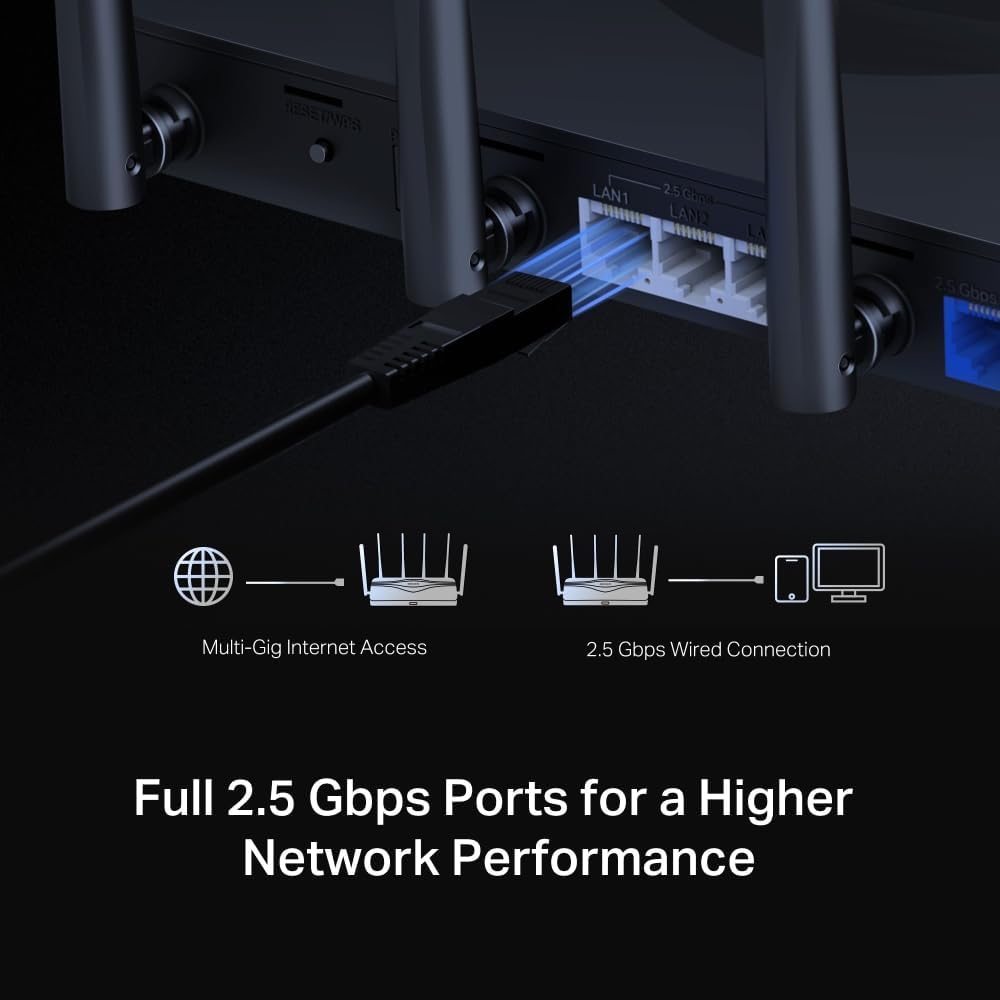
Figure 3.3: Full 2.5 Gbps Ports for Higher Network Performance
4. Guia de configuració
Follow these steps for initial setup of your Mercusys BE9300 router.
4.1 Consideracions de col·locació
For optimal Wi-Fi performance, place the router in a central location in your home, away from obstructions and devices that emit strong electromagnetic interference (e.g., microwaves, cordless phones).
4.2 Connexió de maquinari
- Apagar: Disconnect the power from your modem (if applicable).
- Connecta el port WAN: Connect one end of the provided Ethernet cable to the WAN port (blue) of your Mercusys router and the other end to your modem's Ethernet port.
- Connectar l'alimentació: Connecteu l'adaptador de corrent a l'entrada d'alimentació del router i endolleu-lo a una presa de corrent.
- Encès: Power on your modem first, then wait for it to fully boot up (usually indicated by stable lights). Then, power on your Mercusys router.
- Connectar dispositius (opcional): For wired connections, connect your computer or other devices to the router's LAN ports (yellow) using Ethernet cables. For wireless connections, proceed to the next step.
4.3 Configuració inicial
You can configure your router via the Mercusys app or a web navegador.
Using the Mercusys App (Recommended)
- Descarregar l'aplicació: Cerca 'Mercusys' in the App Store or Google Play and download the app.
- Connecta't a Wi-Fi: Connect your smartphone to the router's default Wi-Fi network (SSID and password are printed on the label at the bottom of the router).
- Inicia l'aplicació: Open the Mercusys app and follow the on-screen instructions to set up your router, including creating a new Wi-Fi name and password.
Utilitzant a Web Navegador
- Connecteu-vos al router: Connect your computer to the router via an Ethernet cable or wirelessly to the default Wi-Fi network.
- Accés Web Interfície: Obre a web navegador i tipus
mwlogin.netor192.168.1.1a la barra d'adreces. - Segueix l'Auxiliar de configuració: Create a login password, then follow the step-by-step instructions to configure your internet connection and Wi-Fi settings.
5. Instruccions de funcionament
Your Mercusys BE9300 router offers advanced features for optimal network performance.
Capacitats de Wi-Fi 5.1 7

Figure 5.1: Wi-Fi 7 Key Features
The BE9300 leverages Wi-Fi 7 (802.11be) to provide:
- Funcionament tribanda: Simultaneous 2.4 GHz, 5 GHz, and 6 GHz bands for optimized device connections.
- Canals de 320 MHz: Wider channels for increased data throughput.
- 4K QAM: Higher data density for faster speeds.
- Operació multienllaç (MLO): Combines multiple bands for improved reliability and speed.
- Latència més baixa: Ideal for gaming and real-time applications.

Figure 5.2: Blazing Fast 9.3 Gbps Leads to An Amazing Experience
5.2 Network Security (WPA3)

Figure 5.3: The Latest WPA3 Protects Your Personal Network
The router supports WPA3, the latest Wi-Fi security protocol, providing enhanced encryption and protection against brute-force attacks, ensuring your personal network remains secure.
5.3 Compatibilitat amb EasyMesh

Figure 5.4: Cover Your Whole Home with EasyMesh
The BE9300 is EasyMesh compatible, allowing you to create a seamless whole-home mesh Wi-Fi system by adding other EasyMesh-compatible devices. This expands coverage and eliminates Wi-Fi dead zones.
6. Manteniment
Un manteniment regular ajuda a garantir la longevitat i el rendiment òptim del vostre encaminador.
- Actualitzacions de firmware: Periodically check the Mercusys website or the router's management interface for available firmware updates. Updating firmware can improve performance, add new features, and fix security vulnerabilities.
- Reinici normal: Reiniciar el router cada poques setmanes pot ajudar a esborrar-ne la memòria i resoldre problemes menors de rendiment.
- Neteja: Mantingueu el router net i lliure de pols. Feu servir un drap suau i sec per netejar l'exterior. No utilitzeu netejadors líquids ni aerosols.
- Bones pràctiques de seguretat: Regularly change your Wi-Fi password and router login password. Use strong, unique passwords.
7. Solució De Problemes
Si teniu problemes amb el vostre encaminador, proveu els passos següents per resoldre problemes.
7.1 Sense accés a Internet
- Comproveu els cables: Assegureu-vos que tots els cables Ethernet estiguin connectats correctament als ports correctes (WAN a mòdem, LAN a dispositius).
- Reiniciar dispositius: Power off your modem and router. Wait for 30 seconds, then power on the modem first. Once the modem is fully online, power on the router.
- Comprova l'estat del mòdem: Verify that your modem is receiving an internet signal from your ISP. Consult your modem's manual or ISP for indicator light meanings.
- Problema amb el proveïdor d'Internet: If all lights are normal but there's still no internet, contact your Internet Service Provider.
7.2 Velocitats Wi-Fi lentes
- Col·locació del router: Assegureu-vos que el router estigui situat en un lloc central i lliure d'obstacles.
- Interferència: Move the router away from other electronic devices that may cause interference (e.g., microwaves, cordless phones, Bluetooth devices).
- Selecció de la banda: For devices supporting 5 GHz or 6 GHz, connect to those bands for faster speeds and less interference.
- Massa dispositius: Desconnecteu els dispositius no utilitzats de la xarxa.
- Firmware: Assegureu-vos que el firmware del vostre encaminador estigui actualitzat.
7.3 No es pot connectar a la Wi-Fi
- Contrasenya correcta: Comproveu que esteu introduint la contrasenya Wi-Fi correcta.
- Intensitat del senyal: Ensure your device is within the router's Wi-Fi range.
- Reinici de l'encaminador: Reinicieu l'encaminador.
- Restabliment de fàbrica: If issues persist, perform a factory reset (refer to Section 3.2 for instructions). Note that this will erase all custom settings.
8. Especificacions
| Característica | Detall |
|---|---|
| Marca | Mercusys |
| Nom del model | MR47BE |
| Tipus sense fil | 802.11.be (Wi-Fi 7) |
| Classe de banda de freqüència | Tribanda (2.4 GHz, 5 GHz, 6 GHz) |
| Ports | 1 WAN de 2.5 Gbps, 3 LAN d'2.5 Gbps |
| Antenes | 6x Omni-directional Antennas |
| Protocol de seguretat | WPA3 |
| Sistema operatiu | RouterOS |
| Dimensions del producte (L x A x A) | 25.8 x 11.9 x 4.33 cm |
| Pes de l'article | 1 kg |
| Color | Negre |
| Fabricant | Mercusys Technologies Co., Ltd. |
| País d'origen | Xina |
| Data de primera disponibilitat | 19 de desembre de 2023 |
9. Garantia i Suport
9.1 Informació de la garantia
The Mercusys BE9300 Tri-Band Wi-Fi 7 Router comes with a 2 any de garantia des de la data de compra. Si us plau, conserveu el comprovant de compra per a reclamacions de garantia. La garantia cobreix defectes de materials i fabricació en condicions d'ús normal.
9.2 Suport tècnic
For technical support, firmware updates, or additional resources, please visit the official Mercusys website. You can typically find support contact information, FAQs, and troubleshooting guides there.
Mercusys Weblloc: www.mercusys.com


