1. Producte acabatview
The Irfora Portable Receipt Printer MP210 is a versatile 58mm thermal receipt printer designed for various business environments. It offers flexible connectivity options and high-quality printing capabilities, making it an ideal solution for small businesses, restaurants, and retail stores.
- Connectivitat versàtil: Supports both Bluetooth (BT) and USB connections, compatible with Android, iOS, and Windows systems. Seamlessly integrates with popular apps like Loyverse, iREAP, CasierStock, and Kyte.
- Impressió d'alta qualitat: Achieves a maximum print speed of 70mm/s with a resolution of 203dpi, ensuring clear and fast output. Utilizes 58mm thermal paper with a valid print width of 48mm. Capable of printing receipts, orders, barcodes, QR codes, and text.
- Cost-Effective and Convenient: Operates without ink cartridges or ribbons, reducing running costs. Thermal paper is widely available and easy to replace.
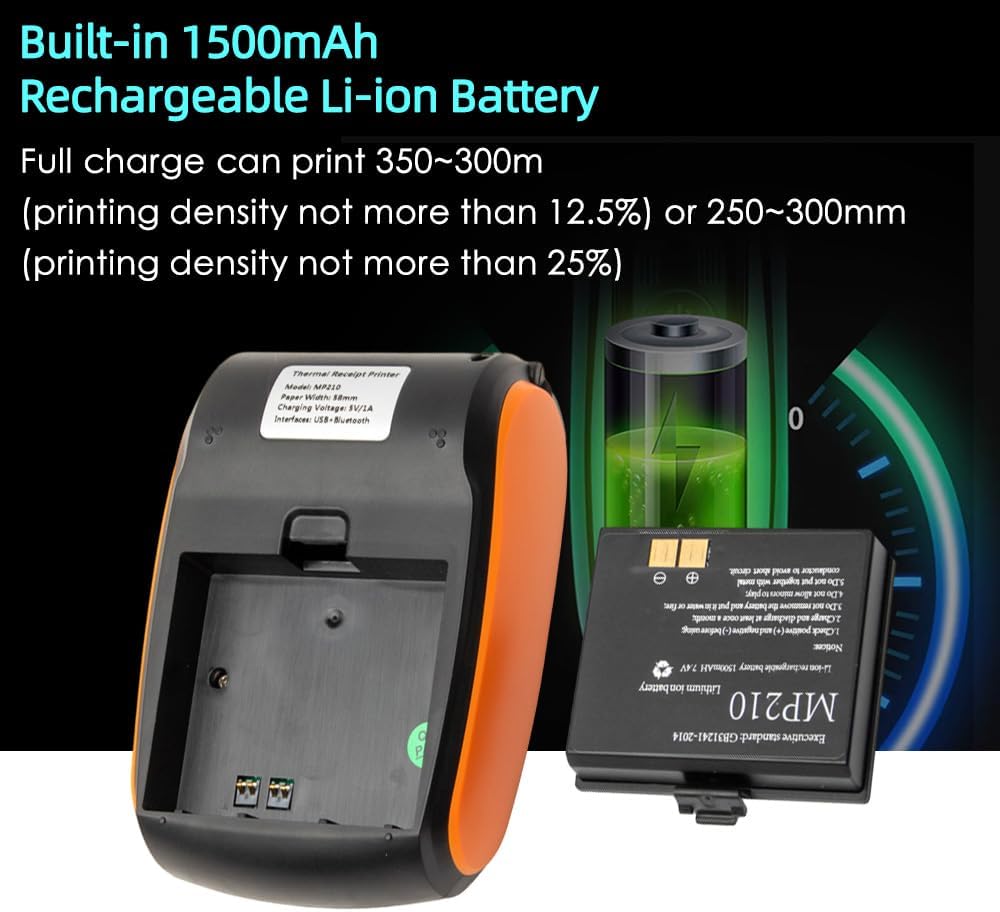
- Bateria de llarga durada: Equipped with a built-in 1500mAh rechargeable Li-ion battery, allowing for portable printing anytime, anywhere. Lightweight and easy to carry.
- Aplicació àmplia: Suitable for supermarkets, shopping malls, restaurants, fast food outlets, cake shops, and various retail industries.
2. Especificacions
| Model | MP210 |
| Dimensions | 121 x 83.5 x 54.8 mm |
| Mètode d'impressió | Impressió tèrmica de línies de punts |
| Resolució | 203dpi, 8dots / mm |
| Velocitat d'impressió (màx.) | 70 mm/s |
| Amplada del paper | 58 mm |
| Valid Printing Width | 48 mm |
| Gruix del paper | 60~80μm |
| Paper Roller Diameter | ≤40 mm |
| Interfície | BT and USB |
| Tipus de lletra del joc de caràcters | ASCII:9×17,12×24, Multiple code pages support |
| Simbologies dels codis de barres | 1D: UPC-A, UPC-E, EAN8, EAN13, CODE39, ITF, CODEBAR, CODE128, CODE93; 2D: QR code |
| Gràfics | Admet la impressió de mapes de bits amb diferents densitats i la impressió de mapes de bits definida per l'usuari (màxim 40K per mapa de bits i màxim 64K en total) |
| Bateria | 1500mAh/7.4V rechargeable Li-ion battery. Full charge can print 250~300m (printing density not more than 25%) or 350~300m (printing density not more than 12.5%). |
| Sistema de suport | Android, iOS, Win7/Win8/Win10 |
3. Contingut del paquet
- 1 x Thermal Printer
- 1 x Rotlle de paper tèrmic
- 1 x cable USB
- 1 x Manual d'usuari
4. Primers passos
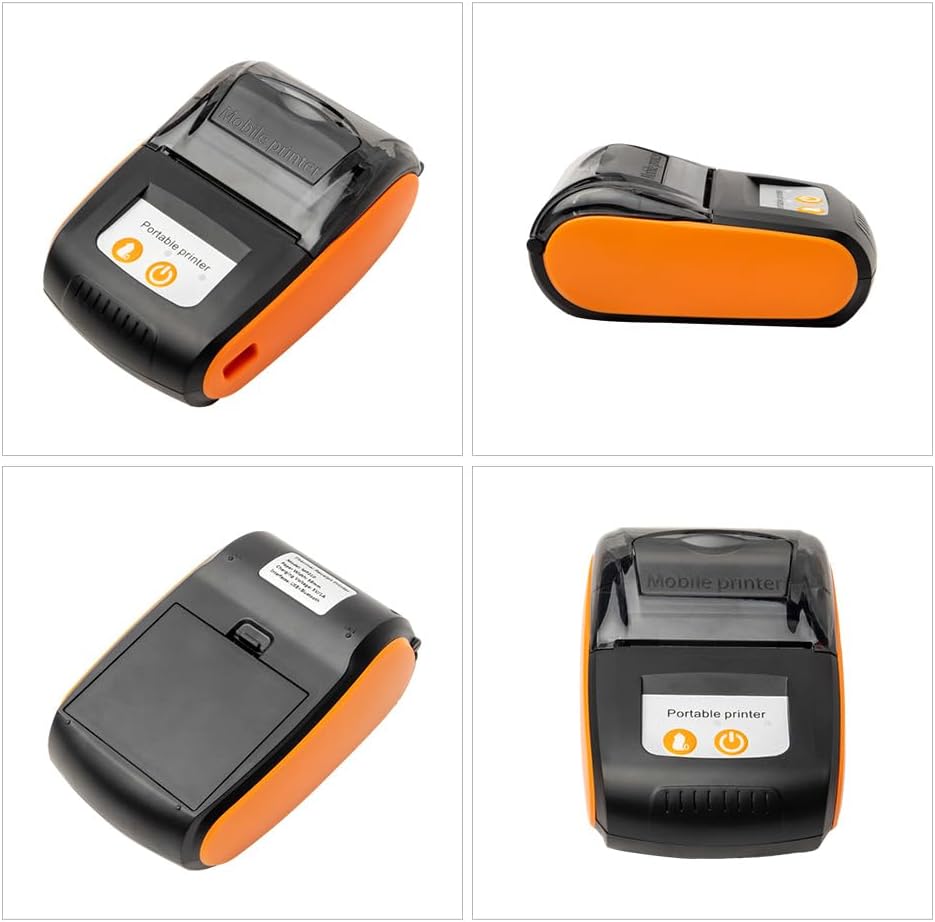
4.1. Printer Components Overview
4.2. Instal·lació de la bateria
The MP210 printer comes with a removable rechargeable Li-ion battery. Ensure the battery is properly installed before first use or charging.
- Locate the battery compartment cover on the bottom of the printer.
- Feu lliscar la tapa per obrir el compartiment.
- Insert the 1500mAh Li-ion battery into the compartment, ensuring the contacts align correctly.
- Tanqueu bé la tapa del compartiment de la bateria.

4.3. Càrrega del rotllo de paper
The printer uses 58mm thermal paper rolls. Follow these steps to load a new paper roll:
- Press the cover open button (usually on the side or front) to open the paper compartment.
- Insert the thermal paper roll with the printing side facing outwards (the paper should feed from the bottom of the roll).
- Pull a small length of paper out beyond the cutting edge.
- Tanqueu fermament la tapa del compartiment de paper fins que encaixi al seu lloc.

4.4. Encès / apagat
Press and hold the power button (usually marked with a power symbol) for a few seconds to turn the printer on or off. The indicator lights will illuminate when the printer is on.
5. Connectivitat
5.1. Bluetooth Connection (Android/iOS)
The MP210 printer supports Bluetooth connectivity for mobile devices.
- Ensure the printer is powered on and Bluetooth is enabled on your mobile device.
- Al dispositiu mòbil, vés a la configuració de Bluetooth i busca els dispositius disponibles.
- Select the printer (e.g., "Bluetooth Printer" or a device name starting with "MP210") from the list.
- If prompted for a PIN, enter "0000" or "1234".
- Once paired, you can connect the printer through your printing application.

This video demonstrates the process of loading paper into the 58mm Bluetooth Receipt Printer and connecting it to a mobile phone via Bluetooth for printing. It shows the steps for pairing the device and initiating a print job from a mobile application.
5.2. USB Connection (Windows)
For Windows systems, connect the printer via USB and install the necessary drivers.
- Connecteu la impressora a l'ordinador mitjançant el cable USB proporcionat.
- Baixeu el controlador de la impressora des de l'oficial website (refer to the links in the product description: http://www.asia-printer.com/software or http://www.weinprinter.com/products_detail.aspx?ProductsID=126&ProductsCateId=74&CurrCateID=74&CateID=74).
- Seguiu les instruccions que apareixen a la pantalla per instal·lar el controlador.
- After installation, you can print a test page to confirm successful setup.
This video demonstrates the process of installing the printer driver on a Windows operating system and printing a test page via USB connection. It guides users through the software setup and verification of printer functionality.
6. Funcionament
6.1. Printing from Mobile Applications
The MP210 is compatible with various POS applications. Ensure your mobile device is paired via Bluetooth.
- Open your preferred POS application (e.g., Loyverse, iREAP, CasierStock, Kyte).
- Navigate to the printer settings within the app.
- Select the paired Bluetooth printer.
- Configure print settings such as paper width (58mm) and receipt/bill options.
- Initiate a print test or print a transaction receipt.
This video illustrates the process of connecting the Bluetooth Receipt Printer to a mobile device and using the Loyverse POS application to print a receipt. It covers Bluetooth pairing, printer setup within the app, and completing a transaction print.
6.2. Printing Text, Images, and Barcodes
The printer supports various content types:
- Impressió de text: Send plain text or formatted text from your application.
- Impressió d'imatges: Print logos or other graphic elements.
- Barcode/QR Code Printing: Generate and print 1D and 2D barcodes for product scanning or information.
7. Manteniment
7.1. Neteja del capçal d'impressió
La neteja regular del capçal d'impressió garanteix una qualitat d'impressió òptima i allarga la vida útil de la impressora.
- Apagueu la impressora i desconnecteu el cable d'alimentació.
- Obriu la coberta del compartiment de paper.
- Feu servir un bastonet de cotó lleugeramentampened with isopropyl alcohol to gently wipe the print head surface.
- Deixeu que el capçal d'impressió s'assequi completament abans de tancar la tapa i engegar la impressora.
7.2. Cura de la bateria
Per maximitzar la durada de la bateria:
- Carregueu la bateria completament abans del primer ús.
- Eviteu esgotar completament la bateria amb freqüència.
- Si guardeu la impressora durant un període prolongat, carregueu la bateria al 50% aproximadament i guardeu-la en un lloc fresc i sec.
8. Solució De Problemes
8.1. La impressora no respon
- Check if the printer is powered on and the battery is charged.
- Verifiqueu que l'adaptador de corrent estigui connectat correctament.
- If using Bluetooth, ensure the printer is paired and connected to your device.
- If using USB, ensure the cable is connected and drivers are correctly installed.
8.2. Mala qualitat d'impressió
- Netegeu el capçal d'impressió tal com es descriu a la secció Manteniment.
- Ensure you are using high-quality thermal paper.
- Check if the paper roll is loaded correctly.
8.3. Paper Jam
- Turn off the printer and open the paper compartment cover.
- Carefully remove any jammed paper. Avoid pulling forcefully to prevent damage.
- Ensure the paper roll is correctly seated and the cover is closed properly.
9. Garantia i Suport
For warranty information, technical support, or service inquiries, please refer to the contact information provided with your purchase or visit the official Irfora weblloc.


